
1. Introduction
The myCharge Power + Plug Max 20K is a compact portable power bank designed to provide extended battery life for your electronic devices. It features a built-in USB-C cable and a folding wall plug for convenient recharging. This device is capable of charging two devices simultaneously, offering up to 120 hours of additional battery life.
Key Features:
- 20,000mAh Internal Battery: Provides substantial power for multiple charges.
- Built-in USB-C Cable: Integrated cable for direct device charging.
- Foldable Wall Plug: Allows for direct wall charging of the power bank without extra adapters.
- Additional USB-C Port: Enables simultaneous charging of a second device.
- Compact and Lightweight Design: Easy to carry for travel.
- Eco-Friendly: Built-in features reduce the need for extra adapters and cables, minimizing e-waste.
2. Product Overview
Familiarize yourself with the components of your myCharge Power + Plug portable charger.

Figure 2.1: Front view of the myCharge Power + Plug portable charger, showing the sleek black design and the integrated USB-C charging cable.

Figure 2.2: The portable charger demonstrating its built-in foldable wall plug, shown both extended and plugged into a wall outlet for convenient recharging.

Figure 2.3: The power bank actively charging an iPhone via its built-in cable, illustrating its compatibility with various Apple and Android devices including smartphones, tablets, earbuds, headphones, and speakers.
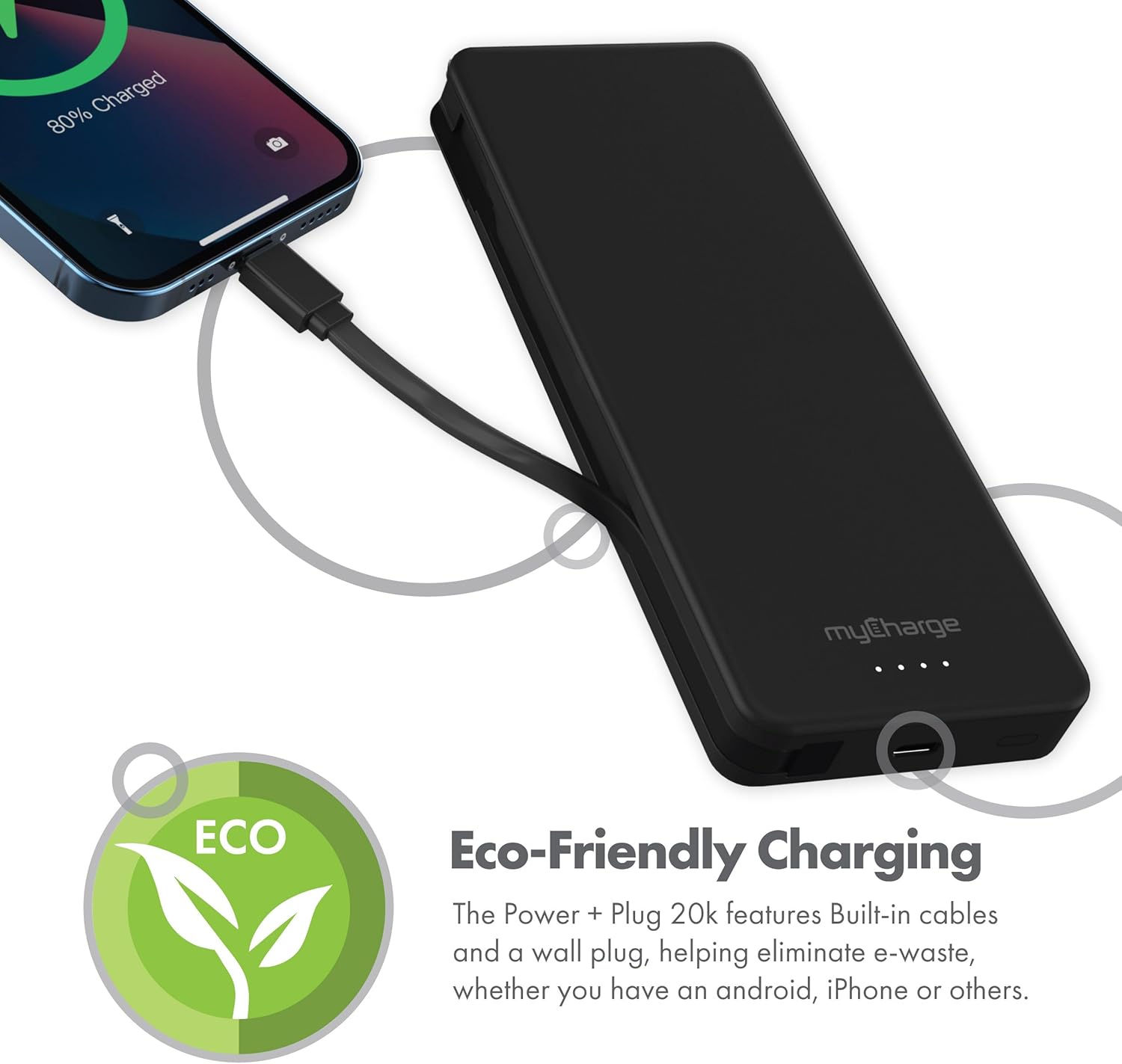
Figure 2.4: The device charging an iPhone, highlighting its eco-friendly design with built-in cables and wall plug to reduce electronic waste.
3. Setup
3.1 Initial Charging of the Power Bank
- Locate the foldable wall plug on the back of the power bank.
- Flip down the prongs of the wall plug.
- Plug the power bank directly into a standard wall outlet.
- The LED indicator lights on the front of the power bank will illuminate to show the charging status. All four lights will be solid when fully charged.
3.2 Understanding LED Indicators
The myCharge Power + Plug features four LED lights on its front surface to indicate the remaining battery life and charging status:
- Four Solid Lights: 75-100% charged.
- Three Solid Lights: 50-75% charged.
- Two Solid Lights: 25-50% charged.
- One Solid Light: 0-25% charged.
- Flashing Lights: Indicates the power bank is actively charging.
4. Operating Instructions
4.1 Charging a Single Device
- For devices with a USB-C port, extend the built-in USB-C cable from the side of the power bank.
- Connect the USB-C cable directly to your device's charging port.
- The power bank will automatically begin charging your device.
4.2 Charging Two Devices Simultaneously
- Connect your first device using the built-in USB-C cable as described above.
- For your second device, use your own USB-C to USB-C or USB-C to Lightning cable.
- Plug one end of your cable into the additional USB-C port on the power bank.
- Connect the other end of your cable to your second device.
- Both devices will charge simultaneously.
4.3 Official Product Video
Watch this official video from myCharge for a visual guide on using the Power + Plug 20K:
Video 4.1: An official product video from myCharge demonstrating the features and usage of the myCharge Power + Plug 20K portable charger, including its built-in cables and wall plug.
5. Maintenance
- Cleaning: Use a soft, dry cloth to clean the exterior of the power bank. Avoid using harsh chemicals or abrasive materials.
- Storage: Store the power bank in a cool, dry place away from direct sunlight and extreme temperatures.
- Battery Care: To prolong battery life, fully charge the power bank at least once every three months, even if not in regular use.
- Avoid Damage: Do not drop, puncture, or disassemble the device. Keep it away from water and high humidity.
6. Troubleshooting
| Problem | Possible Cause | Solution |
|---|---|---|
| Power bank not charging | Wall plug not fully extended or not properly seated in outlet. Outlet is not active. | Ensure the wall plug is fully extended and securely plugged into a working wall outlet. Try a different outlet. |
| Device not charging from power bank | Power bank battery is depleted. Cable is not properly connected. Device is not compatible. | Recharge the power bank. Ensure cables are securely connected to both the power bank and the device. Verify device compatibility with USB-C charging. |
| Slow charging | Using a non-optimal cable or adapter. Device drawing high power. | Ensure you are using the built-in USB-C cable or a high-quality USB-C cable. Close unnecessary applications on your device. |
| LED indicators not working | Power bank is completely discharged. | Plug the power bank into a wall outlet and allow it to charge for a few minutes. The lights should eventually illuminate. |
7. Specifications
| Model Number | AP20K |
| Battery Capacity | 20,000 mAh |
| Battery Type | Lithium Polymer (2 included) |
| Product Dimensions | 5.9 x 2.84 x 1 inches |
| Item Weight | 1.06 pounds |
| Connector Type | Built-in USB-C cable & additional USB-C port |
| Color | 20000 mAh - Black |
| Manufacturer | myCharge |
| Country of Origin | China |
8. Warranty and Support
The myCharge Power + Plug portable charger is covered by a 1-year warranty from the date of purchase. This warranty covers defects in materials and workmanship under normal use.
For warranty claims, technical support, or any inquiries regarding your product, please visit the official myCharge website or contact their customer service department. Keep your proof of purchase for warranty validation.
Note: Warranty terms may vary. Please refer to the official myCharge website or product packaging for the most current and detailed warranty information.


