
Gaimoo GM200
Gaimoo GM200 Mini Projector User Manual
Model: GM200 | Brand: Gaimoo
1. Introduction
Thank you for choosing the Gaimoo GM200 Mini Projector. This device is designed to provide a versatile and high-quality projection experience, supporting 1080P FHD and 4K content. With its built-in Android Smart TV OS, WiFi 6, and Bluetooth 5.2, it offers seamless entertainment and connectivity. Please read this manual thoroughly to ensure proper setup and operation.
Package Contents
- 1x Gaimoo GM200 Projector
- 1x Wireless Mouse
- 1x HDMI Cable
- 1x Remote Control
- 1x User Manual

Image: Gaimoo GM200 Mini Projector with included mouse, remote, and HDMI cable.
2. Initial Setup
2.1 Power Connection
Connect the power adapter to the projector's power input and then to a wall outlet. The projector will power on automatically or can be turned on using the power button on the device or remote control.
2.2 Placement and Projection
The GM200 projector features a 180° rotatable design, allowing for flexible placement. It can be placed on a desktop, mounted on a tripod (1/4-inch screw hole at the bottom), or ceiling-mounted. Ensure the projection surface is flat and clear for the best image quality. The optimal projection distance is 3-18 feet, yielding a projection size of 35-240 inches.
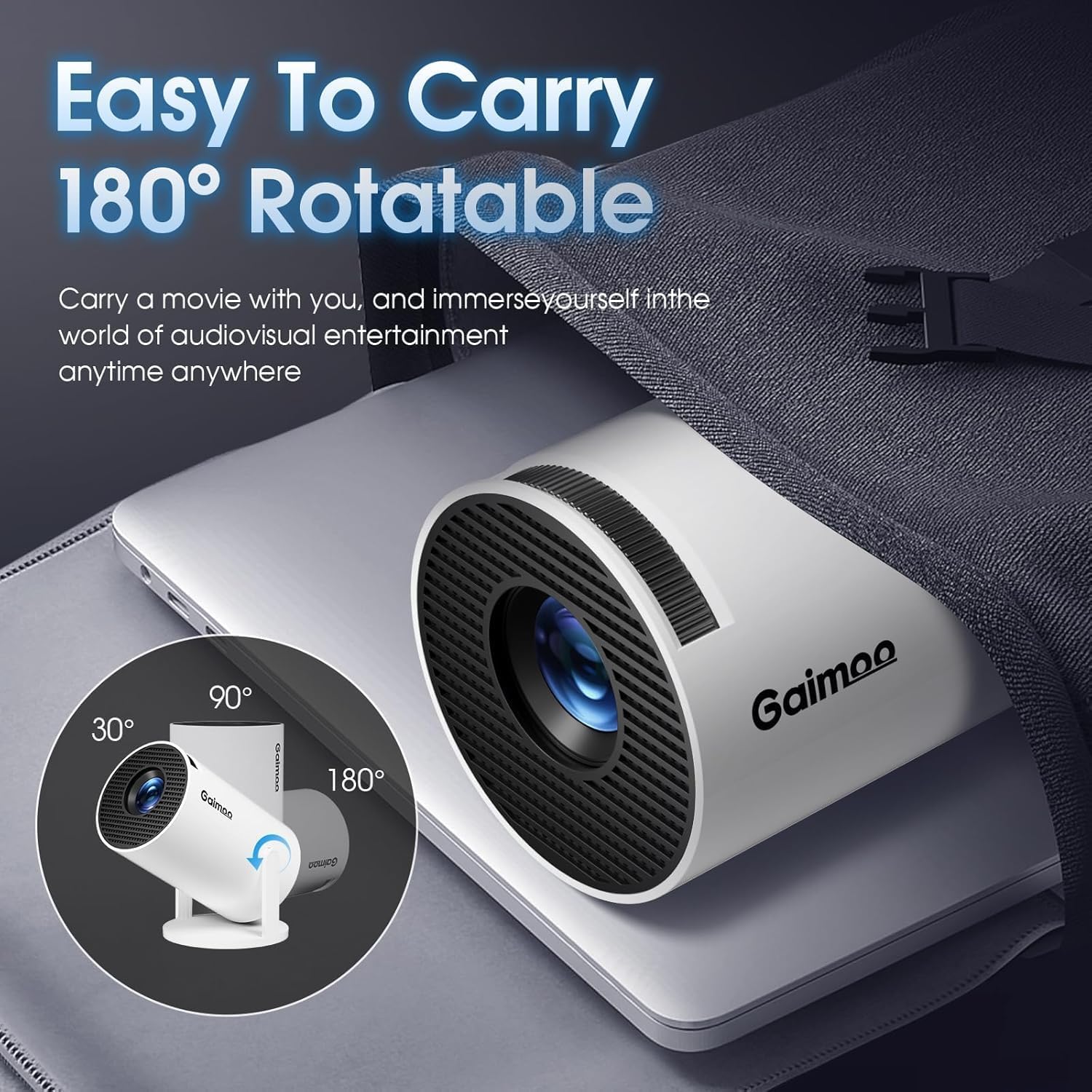
Image: The Gaimoo GM200 Mini Projector demonstrating its 180-degree rotatable stand for flexible projection angles.
2.3 Connecting Devices
The projector offers multiple connectivity options:
- HDMI Port: Connect TV sticks, laptops, PS5, or other HDMI-enabled devices.
- USB Port: Connect USB drives for media playback.
- 3.5mm Headphone Jack: Connect external speakers or headphones for enhanced audio.

Image: Diagram illustrating the multiple ports and easy connection options of the Gaimoo GM200 Mini Projector, including HDMI, USB, and audio output.
3. Operating Instructions
3.1 Control Modes
The GM200 supports dual control modes: the included wireless mouse and the remote control. The mouse provides more convenient navigation, especially within the built-in Android TV OS.
3.2 Android Smart TV OS & Built-in Apps
The projector comes with a built-in Android TV OS, allowing direct access to streaming services like YouTube, Netflix, and Prime Video without an additional TV stick. Navigate using the remote or mouse to select your desired application.
Video: Demonstration of the Gaimoo Smart Projector's features and user interface.
3.3 Image and Display Settings
- Resolution: Supports 4K and 1080P video playback for clear and vibrant images.
- Auto Keystone Correction: The projector automatically adjusts the image shape to correct trapezoidal distortion, ensuring a rectangular picture even if the projector is not perfectly aligned.
- Digital Zoom: Adjust the screen size between 35%-100% using the digital zoom function.
- Focus Adjustment: Use the focus wheel on the projector to achieve the sharpest image.

Image: Overview of Gaimoo GM200 features including 4K support, 920 Lumen brightness, 180° rotatable stand, auto keystone, digital zoom, Android TV 11.0, Bluetooth 5.2, and WiFi 6.
3.4 Wireless Connectivity (WiFi 6 & Bluetooth 5.2)
- WiFi 6: Connect to your home network for internet access and streaming. WiFi 6 offers faster speeds and less interference.
- Two-way Bluetooth 5.2: Connect wireless speakers or headphones to the projector for enhanced audio. The built-in HIFI speaker also provides quality sound.

Image: The Gaimoo GM200 Mini Projector highlighting its WiFi 6 and Bluetooth 5.2 capabilities, compatible with Windows, iOS, and Android devices.
4. Maintenance
To ensure the longevity and optimal performance of your Gaimoo GM200 projector, follow these maintenance guidelines:
- Cleaning the Lens: Use a soft, lint-free cloth specifically designed for optical lenses. Do not use abrasive cleaners or cloths that could scratch the lens.
- Cleaning the Exterior: Wipe the projector's exterior with a soft, dry cloth. For stubborn marks, a slightly damp cloth can be used, but ensure no moisture enters the device.
- Ventilation: Ensure the projector's ventilation openings are not blocked. The sealed optical motor and dual cooling fans are designed to extend service life, but proper airflow is crucial.
- Storage: When not in use for extended periods, store the projector in a cool, dry place, away from direct sunlight and extreme temperatures.
5. Troubleshooting
If you encounter issues with your Gaimoo GM200 projector, please refer to the following common problems and solutions:
| Problem | Possible Solution |
|---|---|
| No image or distorted image | Check power connection. Adjust focus wheel. Use auto keystone correction or manually adjust projector angle. Ensure input source is correctly selected. |
| No sound or low sound | Adjust volume on projector and connected device. Check audio cable connection (if using 3.5mm jack). Ensure Bluetooth speakers are properly paired. |
| Cannot connect to Wi-Fi | Ensure Wi-Fi is enabled on the projector. Check Wi-Fi password. Restart your router and the projector. Ensure you are within range of your Wi-Fi network. |
| Remote control not working | Check battery levels and replace if necessary. Ensure there are no obstructions between the remote and the projector's IR receiver. |
| Projector overheating | Ensure ventilation openings are clear and not blocked. Operate in a well-ventilated area. |
6. Specifications
| Feature | Detail |
|---|---|
| Brand Name | Gaimoo |
| Model Number | GM200 |
| Item Weight | 14.1 ounces |
| Product Dimensions | 3.98 x 3.98 x 7.44 inches |
| Color | White |
| Display Resolution | Support 4K 1080P |
| Connectivity Technology | Mouse, HDMI, WiFi, USB, Memory Stick, 3.5mm Jack, BT 5.2 |
| Special Features | Portable, Built-in Speaker, Lightweight, Digital Keystone Correction, Bluetooth 5.2 |
| Recommended Uses | Home, Outdoor, Cinema, Business, Education, Party, Club, Sports, Gaming |
| Visible Screen Diagonal | 240" / 610 cm |
| Country of Origin | China |
| First Available Date | September 9, 2024 |
7. Warranty and Customer Support
Gaimoo is committed to providing excellent, permanent, and reliable customer service. While specific warranty details are not provided in this manual, please retain your proof of purchase for any warranty claims. For any questions, technical assistance, or support, please contact Gaimoo customer service through the retailer where you purchased the product or refer to the contact information provided on the product packaging or Gaimoo's official website.
We are always ready to provide you with information or assistance.
Related documentsGM200


Ask a question about this manual
Ask about setup, troubleshooting, compatibility, parts, safety, or missing instructions. Manuals+ will review the question and use this page’s manual context to help answer it.