
1. Introduction
The CarlinKit 3-in-1 CarPlay AI Box 2026 is an advanced adapter designed to upgrade your vehicle's infotainment system. It seamlessly extends your OEM wired CarPlay or Android Auto system to a full Android 13.0 operating system, providing wireless CarPlay, wireless Android Auto, and access to a wide range of applications directly on your car's screen. This device features an 8-core SM6115 processor, 4GB RAM, 64GB ROM, 4G connectivity, and built-in GPS+Glonass for enhanced navigation and entertainment.

Image: The CarlinKit 3-in-1 CarPlay AI Box 2026, showcasing its core features: Android 13 System, Wireless CarPlay, and Wireless Android Auto. It is designed for cars with OEM wired CarPlay or Android Auto.
2. Package Contents
Verify that all items are present in the package:
- Packaging box *1
- Product *1 (CarlinKit 3-in-1 CarPlay AI Box)
- Data Cable*2 (USB-A to USB-C*1, USB-C to USB-C*1)
- Product Manual *1
3. Compatibility Requirements
To use the CarlinKit 3-in-1 CarPlay AI Box 2026, your vehicle must meet the following criteria:
- Your car must be equipped with OEM Wired CarPlay (TouchScreen) or OEM Wired Android Auto (TouchScreen).
- The device is compatible with approximately 98% of car models (excluding BMW, Nissan, and Changan).
- For iPhone users, iOS 10 and above is required for Wireless CarPlay.
- For Android phone users, Android 11 and above is required for Wireless Android Auto.

Image: A visual representation of car brands and phone operating systems compatible with the CarlinKit AI Box, highlighting 98% compatibility for cars with wired CarPlay/Android Auto and touchscreen.
4. Setup and Installation
Follow these steps to set up and install your CarlinKit 3-in-1 CarPlay AI Box:
- Connect the Adapter: Plug the CarlinKit AI Box into your car's USB Port or Type-C Port using the provided data cable.
- Enable Phone Connectivity: On your smartphone, ensure both Wi-Fi and Bluetooth are turned on.
- Pair with Device: Search for the Bluetooth name of your device (e.g., 'Tbox S') on your phone's Bluetooth interface and initiate pairing.
- Access Wireless Functionality: After successful pairing, Wireless CarPlay or Wireless Android Auto will be accessible within a few seconds.

Image: A step-by-step guide illustrating the connection process, from plugging in the device to pairing with a smartphone via Bluetooth and Wi-Fi, and finally accessing the wireless car system.
Video Guide: CarlinKit 3-in-1 CarPlay AI Android 13.0 Box Installation
Video: This official video demonstrates the physical connection of the CarlinKit AI Box to the car's USB port and the initial boot-up sequence, showing the seamless expansion of the in-car system to Android 13.0.
5. Operating Instructions
5.1 Dual-Channel Switching
The device supports switching between CarPlay and Android Auto modes:
- Press and hold the adjustment button on the device for 2-3 seconds.
- A green light indicates CarPlay mode (default).
- A blue light indicates Android Auto mode.
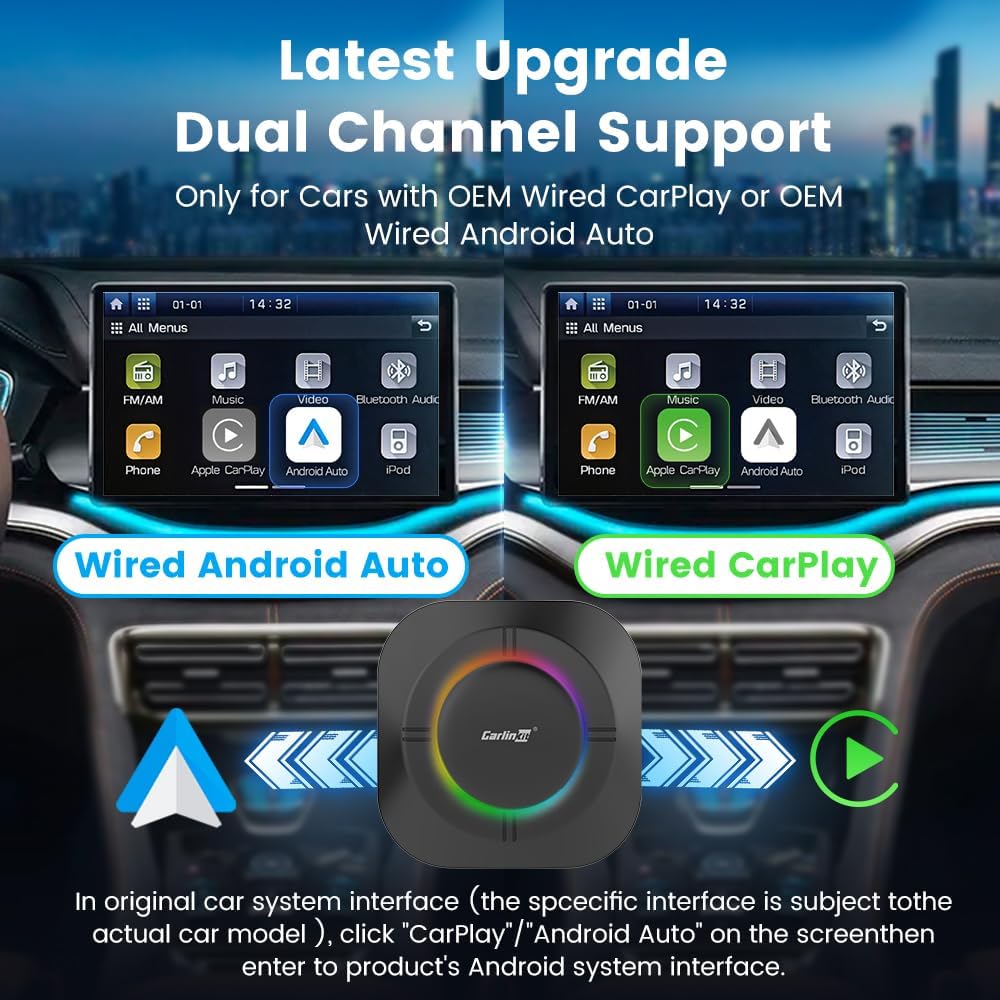
Image: A visual guide demonstrating how to switch between CarPlay (green light) and Android Auto (blue light) modes by pressing and holding the adjustment button on the device.
5.2 Accessing the Android 13.0 System
Once connected, you can access the Android 13.0 system in your car. The device supports 4G connectivity via a Nano SIM card or by sharing your cellphone's hotspot.
- Using a SIM Card: Insert a Nano SIM card (metal side up) into the designated slot on the device to get 4G/3G/2G network access.
- Using Cellphone Hotspot: Open Personal Hotspot on your phone and connect the device to your phone's hotspot.

Image: A detailed illustration of the two primary methods for accessing the Android 13.0 system: inserting a Nano SIM card for direct 4G connectivity or connecting to a mobile phone's personal hotspot.
5.3 Using Applications
The Android 13.0 system allows you to download and use various applications from the Google Play Store, expanding your in-car entertainment and navigation options.
- Video Streaming: Enjoy platforms like Netflix and YouTube directly on your car's screen.
- Navigation: Utilize Google Maps or Waze for accurate and real-time navigation.
- App Downloads: Access the Google Play Store to download additional applications.
- Hands-Free Calling: Stay connected with Bluetooth hands-free calling.
- Voice Assistant: Use Siri or other voice assistants for safe, hands-free control.

Image: The car's display showing popular streaming and social media applications such as YouTube, Netflix, and TikTok, indicating the device's multimedia capabilities.

Image: The CarlinKit AI Box positioned centrally, with numerous application icons and the Google Play Store logo around it, illustrating the extensive app download options available.
6. Interface Description
The CarlinKit AI Box features several ports for connectivity and expansion:
- Micro SD Card Slot: Supports memory expansion up to 512GB for additional storage.
- Type-C Slot: Used for power supply and connection to the car's USB/Type-C port.
- Nano SIM Card Slot: For plugging in a SIM card to access 4G/3G/2G network.
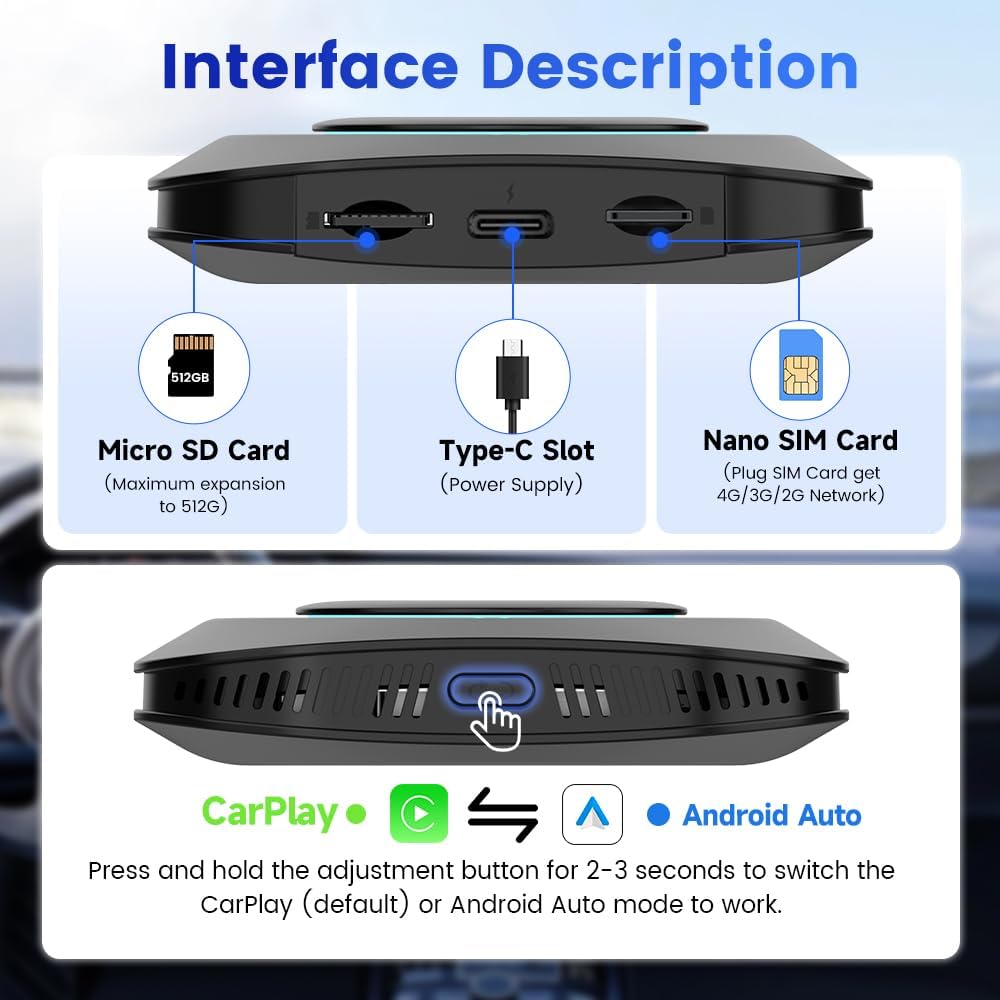
Image: A clear diagram highlighting the Micro SD Card slot, Type-C power supply slot, and Nano SIM Card slot on the CarlinKit AI Box, with their respective functions.
7. Specifications
| Feature | Description |
|---|---|
| Brand | Carlinkit |
| Model Name | CarlinKit 3-in-1 CarPlay AI Box 2025 (Note: Product title indicates 2026, model name in specs is 2025) |
| Operating System | Android 13.0 |
| Processor | Qualcomm 8-core SM6115 chip |
| Memory | 4GB RAM + 64GB ROM |
| Expandable Storage | TF card up to 512GB |
| Connectivity | 4G SIM card support, Dual-band WiFi (2.4GHz+5GHz), Bluetooth 4.2/5.0 |
| GPS | Built-in GPS+Glonass |
| Resolution | 1080p |
| Supported Internet Services | Netflix, YouTube, Spotify |
| Item Weight | 6.1 ounces |
| Package Dimensions | 3.2 x 3.2 x 0.8 inches |

Image: A detailed breakdown of the device's internal components, including the Qualcomm SM6115 8-core processor, GPU, Bluetooth versions, Wi-Fi bands, and memory configuration.
8. Troubleshooting
If you encounter any issues with your CarlinKit AI Box, consider the following general troubleshooting steps:
- Ensure all cables are securely connected to both the device and your car's USB/Type-C port.
- Verify that your car's OEM wired CarPlay or Android Auto system is functioning correctly before connecting the AI Box.
- Check your phone's Wi-Fi and Bluetooth settings to ensure they are enabled and properly paired with the device.
- If experiencing network issues, confirm your SIM card is correctly inserted and active, or that your phone's hotspot is broadcasting and the device is connected.
- For persistent issues, refer to the after-sales support contact information provided in your product packaging.
9. Warranty and Support
CarlinKit provides assistance and technical support for any connectivity issues or product malfunctions you may encounter. Please refer to the contact information included in your product packaging for specific warranty details and support channels.
10. Important Notes
Please be aware of the following regional compatibility information:
- The CarlinKit AI Box shipping version has sub-country region specifications.
- This CarlinKit AI Box is primarily suitable for countries in North America. Customers in other regions should carefully consider compatibility before purchasing.


