
Introduction
Thank you for choosing the Beetel G30 Corded Landline Phone. This manual provides detailed instructions for setting up, operating, and maintaining your new telephone. Please read this manual thoroughly before use to ensure proper functionality and to take full advantage of its features.
Key Features:
- TEC Certified: Ensures compliance with technical standards.
- 2-Way Speaker Phone: Adjustable volume for hands-free communication.
- LCD Display: Clear screen for caller ID, date, and time with 3-level contrast adjustment.
- DTMF/FSK Compatible: Supports various caller ID transmission methods.
- Adjustable Handset/Ringer Volume: Customize audio levels.
- Music on Hold: Keeps callers engaged during hold.
- Desk/Wall Mountable: Flexible installation options.
- Ringer LED: Visual alert for incoming calls.
What's in the Box:
- Beetel G30 Landline Phone Unit
- Handset
- Coiled Handset Cord
- Line Cord
- User Manual
Setup Instructions
Follow these steps to set up your Beetel G30 landline phone.
1. Connecting the Handset
Connect one end of the coiled handset cord to the handset and the other end to the port labeled HANDSET on the side of the phone base unit.
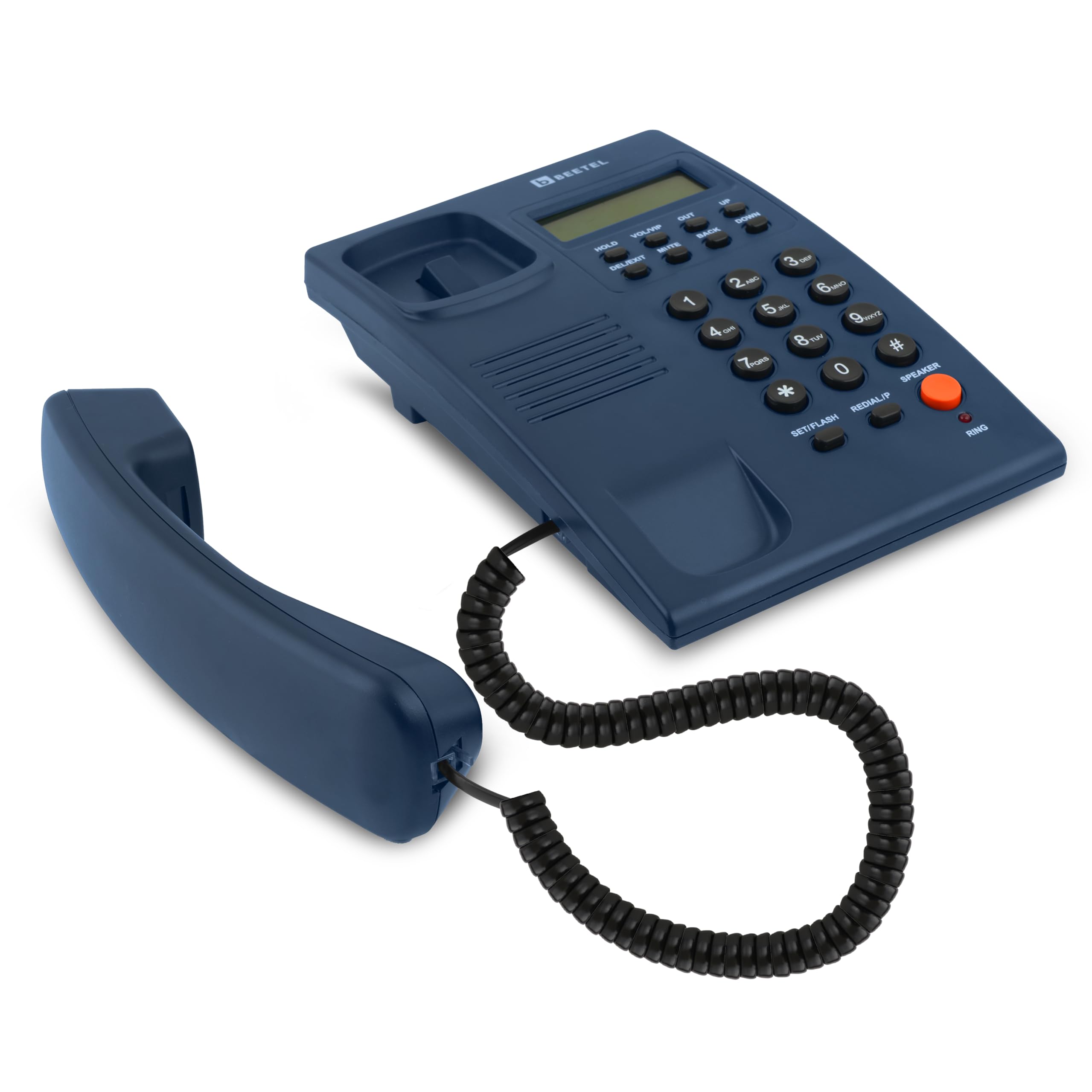
Image: The Beetel G30 phone with its handset properly connected via the coiled cord.
2. Connecting the Line Cord
Connect one end of the line cord to the port labeled LINE on the back of the phone base unit. Connect the other end to your telephone wall jack.

Image: Rear view of the Beetel G30 phone, illustrating where the line cord connects to the unit.
3. Powering On (Battery Installation for LCD)
While the phone is corded, the LCD display requires batteries for full functionality, including caller ID and display contrast. Open the battery compartment on the underside of the phone and insert the required batteries (typically AAA, refer to the compartment for exact type and quantity). Ensure correct polarity.

Image: The underside of the Beetel G30 phone, highlighting the battery compartment for LCD power.
4. Desk or Wall Mounting
The G30 can be placed on a desk or mounted on a wall. For wall mounting, use the integrated keyhole slots on the back of the unit and appropriate screws (not included).

Image: The Beetel G30 phone displaying its wall mount slots for flexible installation.
Operating Instructions
Making a Call
- Lift the handset or press the SPEAKER button to activate the speakerphone.
- Listen for a dial tone.
- Dial the desired phone number using the keypad.
- To end the call, replace the handset or press the SPEAKER button again.
Receiving a Call
- When the phone rings and the Ringer LED flashes, lift the handset or press the SPEAKER button to answer.
- The LCD display will show caller ID information (if available from your service provider and enabled).

Image: The Beetel G30 phone with its Ringer LED indicating an incoming call.
Speakerphone Function
To use the 2-way speakerphone, press the SPEAKER button during a call. You can adjust the speaker volume using the VOL/VIP buttons.

Image: The Beetel G30 phone, showing the speakerphone button and volume controls.
Caller ID (DTMF/FSK Compatible)
The phone supports both DTMF and FSK caller ID formats. Incoming call numbers will be displayed on the LCD screen. The phone stores up to 40 incoming call records (with 10 digits).

Image: The Beetel G30 phone's LCD screen displaying caller ID information.
Adjusting LCD Contrast
The LCD display has 3 levels of contrast. Use the dedicated contrast adjustment buttons (refer to the phone's physical buttons, usually near the display) to set your preferred visibility.

Image: The Beetel G30 phone's LCD display, indicating its adjustable contrast feature.
Music on Hold
During a call, press the HOLD button to place the caller on hold. Music will play for the caller. Press HOLD again to resume the conversation.
Do Not Disturb Function
The phone features a Do Not Disturb function. Consult the specific button or menu option on your device to activate/deactivate this feature, which typically silences incoming calls for a set period.

Image: The Beetel G30 phone, illustrating the Do Not Disturb function.
Maintenance
To ensure the longevity and optimal performance of your Beetel G30 phone, follow these maintenance guidelines:
- Cleaning: Wipe the phone's surface with a soft, damp cloth. Do not use harsh chemicals or abrasive cleaners.
- Avoid Liquids: Keep the phone away from water and other liquids. If liquid spills on the phone, immediately disconnect it from the wall jack and allow it to dry completely before reconnecting.
- Temperature: Store and operate the phone in a moderate temperature environment. Avoid extreme heat or cold.
- Battery Replacement: If the LCD display becomes dim or functions intermittently, replace the batteries in the compartment on the underside of the phone.
Troubleshooting
If you encounter issues with your Beetel G30 phone, refer to the following common problems and solutions:
| Problem | Possible Cause | Solution |
|---|---|---|
| No dial tone | Line cord is disconnected or faulty. | Ensure the line cord is securely connected to both the phone and the wall jack. Test with another phone if possible. |
| LCD display is blank or dim | Batteries are low or incorrectly installed. | Replace the batteries in the battery compartment on the underside of the phone. Ensure correct polarity. |
| No caller ID displayed | Caller ID service not activated by your provider or phone settings are incorrect. | Contact your telephone service provider to ensure Caller ID service is active. Check phone settings for Caller ID display options. |
| Cannot hear caller or caller cannot hear you (speakerphone) | Speaker volume is too low or mute function is active. | Adjust the speaker volume using the VOL/VIP buttons. Ensure the MUTE button is not active. |
| Phone does not ring | Ringer volume is set to minimum or Do Not Disturb is active. | Adjust the ringer volume. Deactivate the Do Not Disturb function if it is enabled. |
Specifications
- Model Number: G30
- Product Dimensions: 13 x 20.5 x 8 cm
- Item Weight: 415 g
- Telephone Type: Corded
- Power Source: Corded Electric (LCD requires batteries)
- Display: LCD with 3-level contrast
- Caller ID: DTMF/FSK Compatible
- Speakerphone: 2-Way with adjustable volume
- Mounting: Desk/Wall Mountable
- Certification: TEC Certified
- Manufacturer: Beetel Teletech Limited
- Country of Origin: India
Warranty and Support
Warranty Information
The Beetel G30 Corded Landline Phone comes with a standard manufacturer's warranty. For specific warranty terms and conditions, please refer to the warranty card included with your product or visit the official Beetel website. Extended warranty plans may also be available for purchase.
Customer Support
For technical assistance, troubleshooting, or service inquiries, please contact Beetel customer support. Contact details can typically be found on the manufacturer's website or in the product packaging.
You can also visit the Beetel Store on Amazon for more product information and resources.
Product Overview Video
Video: A brief overview demonstrating the features and setup of the Beetel G30 Corded Landline Phone, including its LCD display, speakerphone, and desk/wall mountable design.

