
1. Introduction
This manual provides essential information for setting up, operating, maintaining, and troubleshooting your Acer Aspire 5 15.6" FHD Touchscreen Laptop. Please read this guide thoroughly to ensure proper use and to maximize the lifespan of your device. Keep this manual for future reference.
2. Product Overview
Key Features
- Processor: 13th Gen Intel Core i5-13420H (8 Cores, up to 4.6GHz)
- Display: 15.6" FHD (1920x1080) IPS Touchscreen with Anti-Glare
- Memory: 8GB LPDDR5 RAM
- Storage: 1TB PCIe M.2 NVMe SSD
- Graphics: Integrated Intel UHD Graphics
- Operating System: Windows 11 Home
- Connectivity: Wi-Fi 6E, Bluetooth 5.1, HDMI 2.1, 2x USB 3.2 (Gen 1 Type-A)
- Webcam: Integrated HD Webcam with Blue Glass Lens
- Keyboard: Integrated keypad
Physical Components
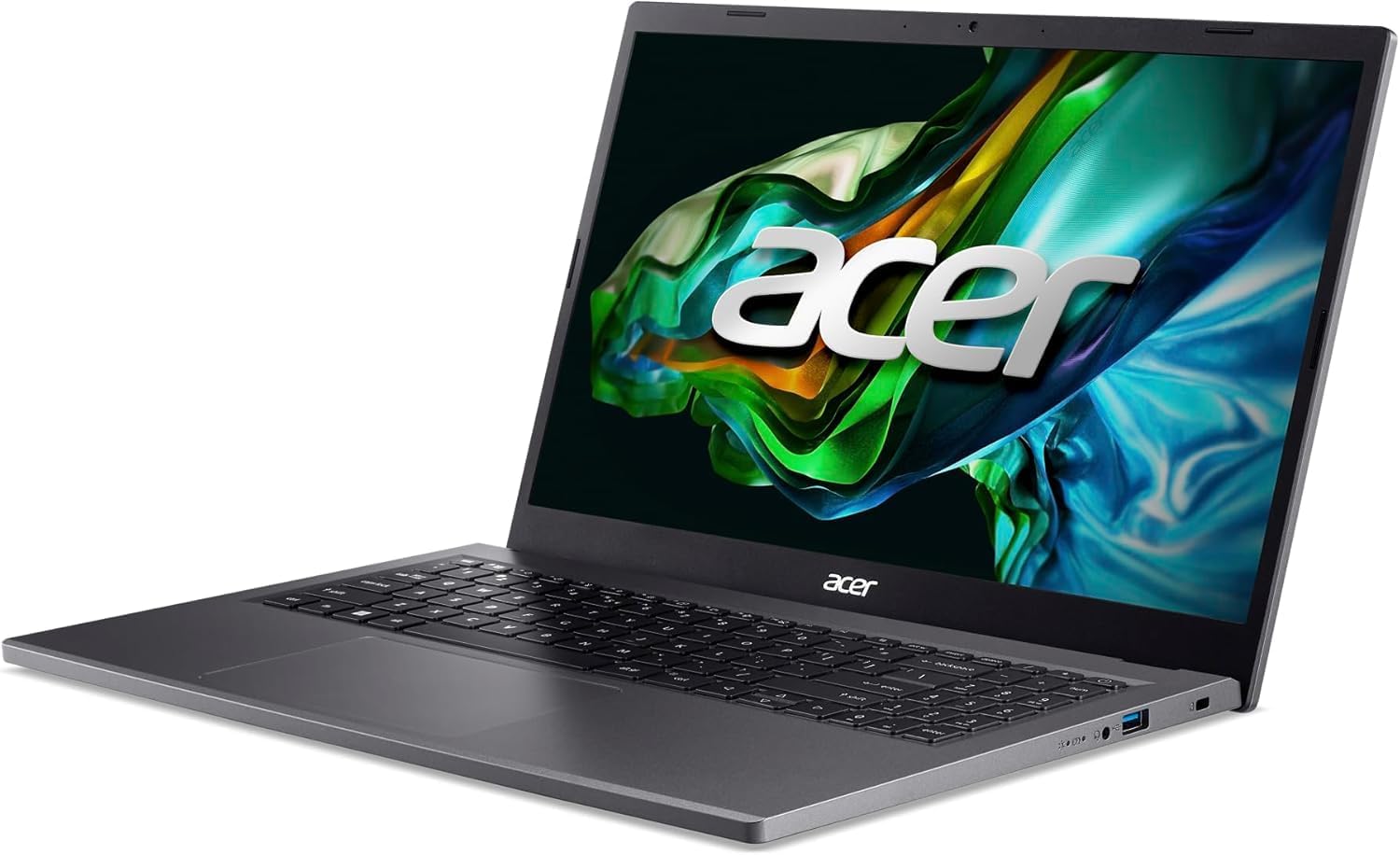
Figure 2.1: Front-left view of the Acer Aspire 5 laptop, showcasing the screen and keyboard.

Figure 2.2: Front-right view of the Acer Aspire 5 laptop, highlighting the sleek design and touchpad.

Figure 2.3: Top-down view of the Acer Aspire 5 keyboard, showing the full layout including the numeric keypad.

Figure 2.4: Side view of the Acer Aspire 5 laptop, illustrating the various connectivity ports.

Figure 2.5: Rear-left view of the Acer Aspire 5 laptop, displaying additional ports and the cooling vent.

Figure 2.6: Close-up view of the Acer Aspire 5 screen, emphasizing the Full HD Touchscreen feature.
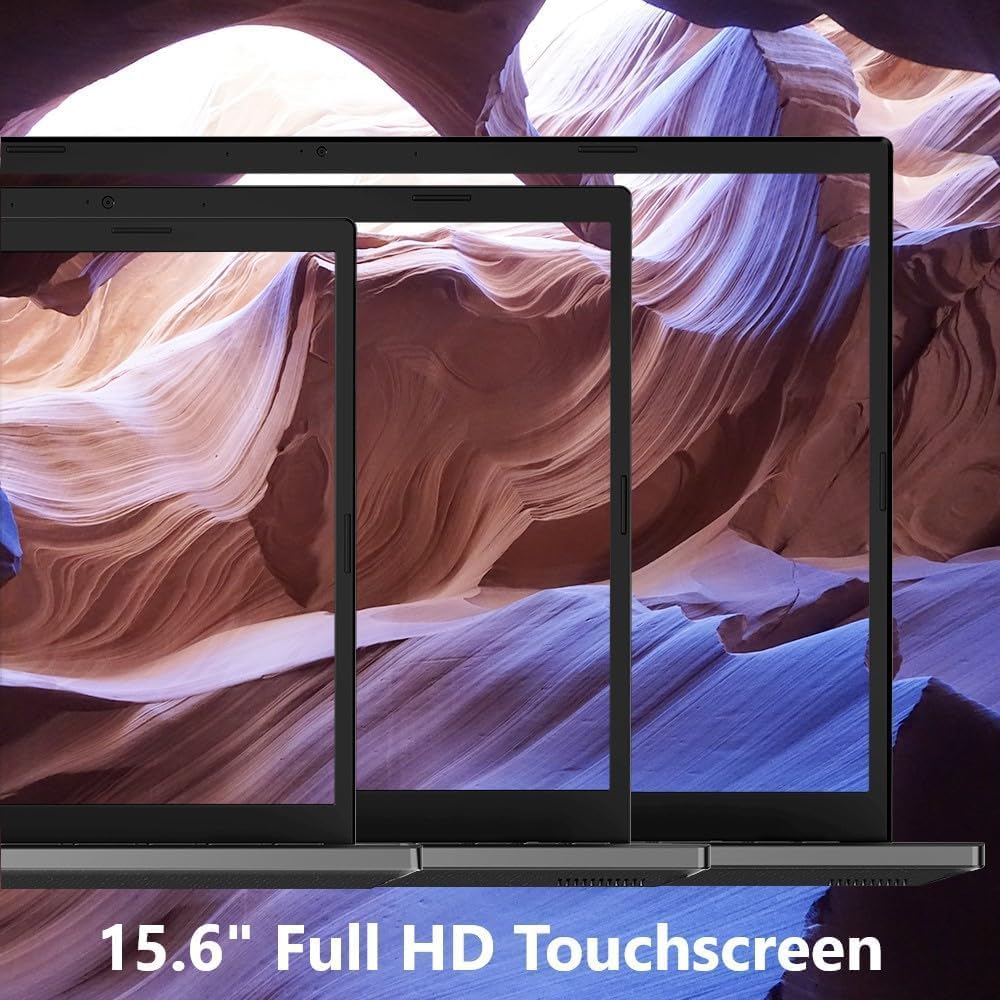
Figure 2.7: Top lid view of the Acer Aspire 5 laptop, showing the Acer logo.

Figure 2.8: Bottom view of the Acer Aspire 5 laptop, showing ventilation and product labels.
Ports and Connectors
- USB 3.2 (Gen 1 Type-A): Two ports for connecting USB devices.
- HDMI 2.1: For connecting to external displays.
- 3.5mm Combo Audio Jack: For headphones or headsets.
- Power Connector: For charging the laptop.
3. Setup
3.1 Initial Power-On and Charging
- Unpack the laptop and all accessories.
- Connect the power adapter to the laptop's power connector and then to a power outlet.
- Allow the laptop to charge for at least 30 minutes before initial use, or until the battery indicator shows sufficient charge.
- Open the laptop lid and press the power button to turn on the device.
3.2 Windows 11 Home Setup
Follow the on-screen instructions to complete the Windows 11 Home setup process. This typically includes:
- Selecting your region and keyboard layout.
- Connecting to a Wi-Fi network.
- Signing in with a Microsoft account or creating a local account.
- Setting up privacy settings.
4. Operating Instructions
4.1 Using the Touchscreen
- Tap: Lightly touch the screen with your finger to select an item or open an application.
- Tap and Hold: Touch and hold an item to display contextual menus.
- Drag: Touch and hold an item, then move your finger across the screen to drag it.
- Zoom: Place two fingers on the screen and pinch them together to zoom out, or spread them apart to zoom in.
4.2 Keyboard and Touchpad
- The integrated keyboard includes a numeric keypad for efficient data entry.
- The touchpad supports multi-touch gestures for navigation. Refer to Windows settings for customization.
- The keyboard features backlighting for use in low-light conditions. Activate it using the designated function key (Fn + F9, or similar, consult your specific model's quick guide).
4.3 Connecting to Wi-Fi 6E
- Click the Wi-Fi icon in the taskbar.
- Select your desired Wi-Fi 6E network from the list.
- Enter the network security key if prompted.
- Click "Connect".
4.4 Using External Displays via HDMI
- Connect one end of an HDMI cable to the laptop's HDMI port.
- Connect the other end to the HDMI input on your external display.
- Press the Windows key + P to open the Project menu and select your preferred display mode (e.g., Duplicate, Extend, Second screen only).
5. Maintenance
5.1 Cleaning Your Laptop
- Screen: Use a soft, lint-free cloth slightly dampened with water or a screen-cleaning solution. Do not spray liquid directly onto the screen.
- Chassis and Keyboard: Use a soft, dry cloth. For stubborn dirt, a slightly damp cloth with mild soap solution can be used, ensuring no liquid enters openings.
- Ports: Use compressed air to gently clear dust from ports.
5.2 Battery Care
- Avoid fully discharging the battery frequently.
- Store the laptop in a cool, dry place when not in use for extended periods.
- If storing for a long time, charge the battery to about 50% before turning off the device.
5.3 Software Updates
Regularly check for and install Windows updates and Acer driver updates to ensure optimal performance and security. You can find Windows updates in the Settings app under "Windows Update".
6. Troubleshooting
If you encounter issues with your Acer Aspire 5 laptop, refer to the following common solutions:
- No Power: Ensure the power adapter is securely connected to both the laptop and a working power outlet. Check the power indicator light.
- Blank Screen: Try connecting an external monitor to verify if the issue is with the laptop's display. Restart the laptop.
- Wi-Fi Connectivity Issues: Restart your router and modem. Ensure Wi-Fi is enabled on the laptop (check function keys or Windows settings).
- Slow Performance: Close unnecessary applications. Check for malware. Ensure sufficient free storage space.
- Touchscreen Unresponsive: Restart the laptop. Ensure drivers are up to date.
For more detailed troubleshooting or persistent issues, please visit the official Acer support website or contact their customer service.
7. Specifications
| Feature | Detail |
|---|---|
| Brand | acer |
| Model Name | Aspire 5 |
| Screen Size | 15.6 Inches |
| Display Resolution | 1920 x 1080 pixels (FHD) |
| Display Type | IPS LED-backlit Touchscreen |
| Processor | 13th Gen Intel Core i5-13420H (8 Cores, up to 4.6 GHz) |
| RAM Memory | 8GB LPDDR5 |
| Storage | 1TB M.2 NVMe PCIe 3.0 SSD |
| Graphics | Intel UHD Graphics (Integrated) |
| Operating System | Windows 11 Home |
| Wireless Connectivity | Wi-Fi 6E (802.11ax), Bluetooth 5.1 |
| Ports | 2x USB 3.2 (Gen 1 Type-A), 1x HDMI 2.1, 1x 3.5mm Combo Audio Jack, 1x Power connector |
| Webcam | Integrated HD Webcam |
| Dimensions (WxDxH) | 14.29 x 9.35 x 0.71 inches |
| Weight | 3.92 lbs |
| Color | Gray |
8. Warranty and Support
8.1 Warranty Information
This product comes with an Extended Warranty. For specific terms and conditions, including coverage details and duration, please refer to the warranty card included with your purchase or visit the official Acer website.
8.2 Customer Support
For technical assistance, driver downloads, or further support, please visit the official Acer support website:
You may also find helpful resources and FAQs on the Acer brand store page on Amazon: Acer Store.


