
Introduction
The BoxWave USB-A to C PortChanger adapter is designed to convert a standard USB Type-A port into a versatile USB Type-C port. This allows you to connect newer USB-C devices and accessories to older USB-A ports for charging and data transfer, including On-The-Go (OTG) functionality. This manual provides essential information for the proper setup, operation, and maintenance of your PortChanger adapters.
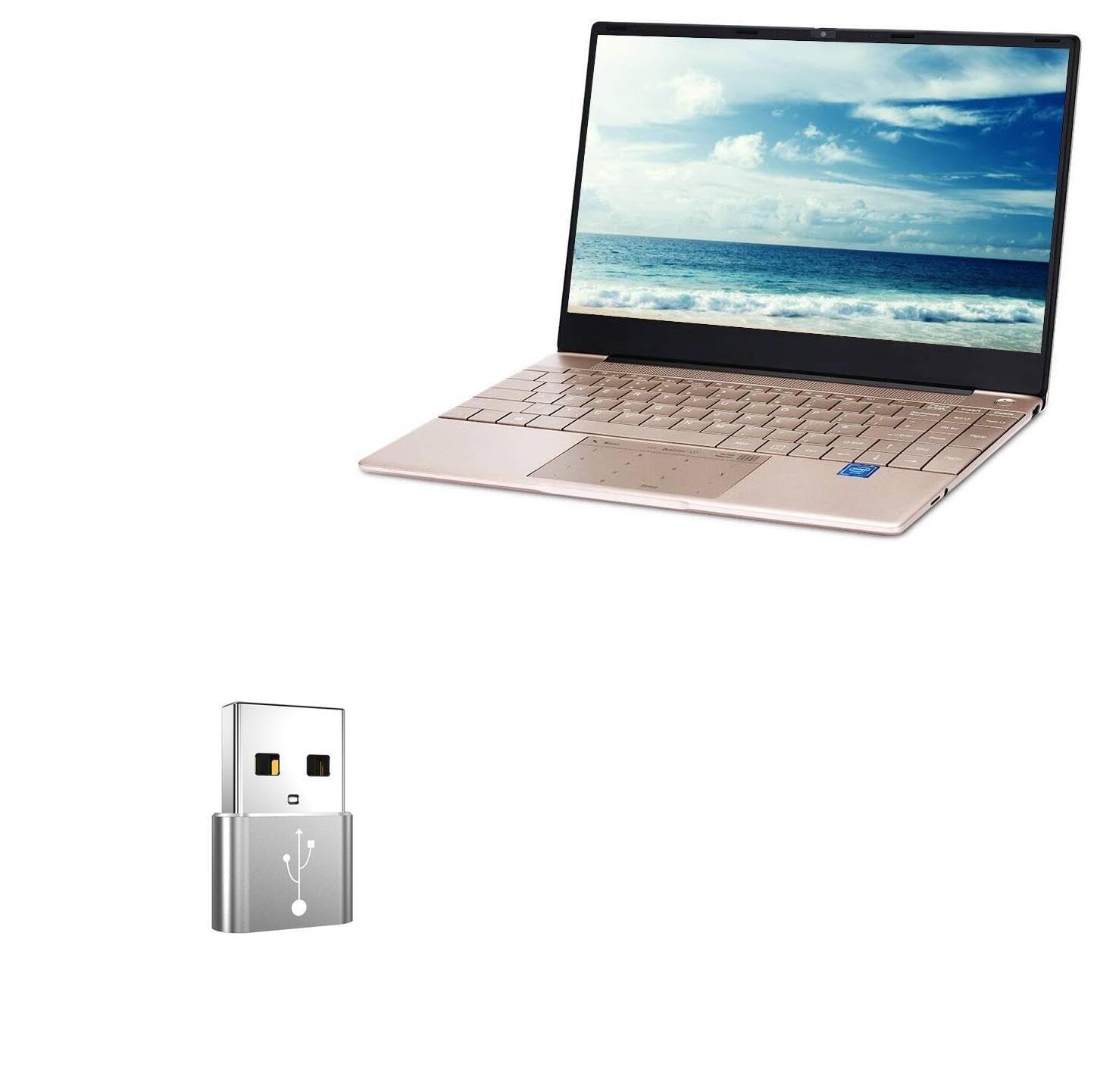
Image: A single metallic silver BoxWave USB-A to C PortChanger adapter, showcasing its compact design.
Product Features
- Port Conversion: Transforms a traditional USB-A (male) port into an updated USB-C (female) port.
- Data Transfer (OTG): Supports On-The-Go (OTG) functionality, enabling data transmission and the use of USB Type-C accessories on a USB Type-A port.
- Charging Capability: Allows charging of USB-C devices from a USB-A power source.
- Compact Design: Extremely small and portable, making it easy to carry.
- Durable Construction: Made from high-grade aluminum alloy for long-lasting usage.
Package Contents
Your BoxWave USB-A to C PortChanger package includes:
- 5 x BoxWave USB-A to C PortChanger Adapters

Image: Five BoxWave USB-A to C PortChanger adapters in various colors, illustrating the multi-pack.
Setup Guide
The BoxWave USB-A to C PortChanger adapter is designed for plug-and-play functionality, requiring no special drivers or software installation.
- Identify Ports: Locate the USB Type-A port on your host device (e.g., computer, charger, power bank).
- Connect Adapter: Insert the USB Type-A male end of the PortChanger adapter into the USB Type-A port of your host device. Ensure it is fully seated.
- Connect USB-C Device: Plug your USB Type-C cable or accessory into the USB Type-C female port of the PortChanger adapter.

Image: A diagram illustrating the USB-A male plug and the USB-C female interface of the adapter, showing connection points.
Operating Instructions
Charging Devices
To charge a USB-C device using a USB-A power source:
- Connect the BoxWave PortChanger adapter to a USB-A charger or power bank.
- Plug your USB-C charging cable into the USB-C female port of the adapter.
- Connect the other end of the USB-C cable to your device to begin charging.

Image: A diagram demonstrating how to connect the adapter for charging, showing a USB-A charger, the adapter, and a USB-C charging plug.
Data Transfer (OTG Functionality)
To transfer data or use USB-C accessories with a USB-A host device:
- Connect the BoxWave PortChanger adapter to a USB-A port on your computer or other host device.
- Plug your USB-C accessory (e.g., flash drive, external hard drive, or another device with a USB-C cable) into the USB-C female port of the adapter.
- Your host device should recognize the connected USB-C accessory, allowing for data transfer or functionality as intended.

Image: An illustration showing data transmission between a laptop and a smartphone using the BoxWave USB-A to C PortChanger adapter.
Maintenance
To ensure the longevity and optimal performance of your BoxWave USB-A to C PortChanger adapters, follow these simple maintenance guidelines:
- Cleaning: Use a soft, dry cloth to wipe the adapter. Avoid using liquid cleaners or abrasive materials.
- Storage: Store the adapters in a cool, dry place away from direct sunlight and extreme temperatures.
- Handling: Avoid bending or applying excessive force to the adapter, especially at the connection points, to prevent damage.
- Protection: Keep the adapters away from dust and moisture to prevent corrosion of the connectors.
Troubleshooting
If you encounter issues with your BoxWave USB-A to C PortChanger adapter, refer to the following common troubleshooting steps:
| Problem | Solution |
|---|---|
| Device not recognized / No data transfer |
|
| Device not charging |
|
| Loose connection |
|
Specifications
Detailed specifications for the BoxWave USB-A to C PortChanger adapter:
| Feature | Detail |
|---|---|
| USB Type | USB 2.0 Male to Type-C Female Adapter |
| Product Name | Type-C Adapter |
| Material | Aluminum Alloy |
| Product Type | OTG Adapter, Charge |
| Function | Data Transfer and Charging |
| Connector | USB-A to USB-C |
| Item Weight | 0.3 ounces |

Image: A diagram detailing the dimensions (20mm length, 14mm width, 7mm thickness) and USB 2.0 specification of the adapter.
Warranty and Support
For product support or warranty inquiries regarding your BoxWave USB-A to C PortChanger adapters, please contact BoxWave customer service through their official website or the retailer where the product was purchased. Please note that any specific technical support mentioned for other devices (e.g., KUU K2) refers to those devices and not directly to the adapter itself.