
TECKNET TK-MS007
TECKNET Ergonomic Wireless Bluetooth Vertical Mouse User Manual
Model: TK-MS007
Introduction
This manual provides detailed instructions for the TECKNET Ergonomic Wireless Bluetooth Vertical Mouse (Model TK-MS007). Designed for comfort and efficiency, this mouse features multi-device connectivity, adjustable DPI settings, and a vertical ergonomic design to reduce wrist strain. Please read this manual thoroughly before use to ensure optimal performance and longevity of your device.
Product Overview
The TECKNET Ergonomic Wireless Bluetooth Vertical Mouse is engineered to provide a natural and comfortable hand position, reducing pressure on your wrist during extended use. It offers versatile connectivity options and customizable performance settings.

Figure 1: TECKNET Ergonomic Wireless Bluetooth Vertical Mouse (Black)
Key Features:
- Seamless Multi-Device Switching: Connects via Bluetooth (5.0/3.0) and 2.4GHz USB-A, allowing connection to up to three devices simultaneously (two Bluetooth, one 2.4GHz).
- Adjustable DPI: Six adjustable DPI levels (800/1200/1600/2400/3200/4800) for precise tracking on various surfaces.
- Silent Clicks: Left and right click buttons are designed for quiet operation, ideal for quiet environments.
- Ergonomic Vertical Design: Positions your hand at a natural, near-vertical angle to reduce wrist strain and discomfort. (Note: Designed for right-handed use only).
- Broad Compatibility: Compatible with Windows, Mac, Chrome, and Linux operating systems. (Note: Side buttons are not compatible with macOS).
- Power Saving Mode: Automatically enters power-saving mode after 8 minutes of inactivity.

Figure 2: Mouse Components and Controls
- • Scroll Wheel
- • DPI Switch Button
- • Backward Button
- • Forward Button
- • Bluetooth Pairing Button
- • ON/OFF Switch
- • AAA Batteries Compartment (Not included)
- • USB Receiver Storage
Setup Guide
1. Battery Installation
- Locate the battery compartment on the bottom of the mouse.
- Open the battery compartment cover.
- Insert two (2) AAA batteries (not included), ensuring correct polarity (+/-).
- Close the battery compartment cover securely.
2. Power On
Slide the ON/OFF switch, located on the bottom of the mouse, to the "ON" position.
3. Connectivity Options
Your TECKNET mouse supports two primary connection modes: 2.4GHz Wireless via USB receiver and Bluetooth.
3.1. 2.4GHz Wireless Connection
- Locate the 2.4GHz USB-A receiver, which is stored in a slot on the bottom of the mouse.
- Remove the USB receiver from its storage slot.
- Plug the USB receiver into an available USB-A port on your computer.
- The mouse should automatically connect. No additional software installation is required.
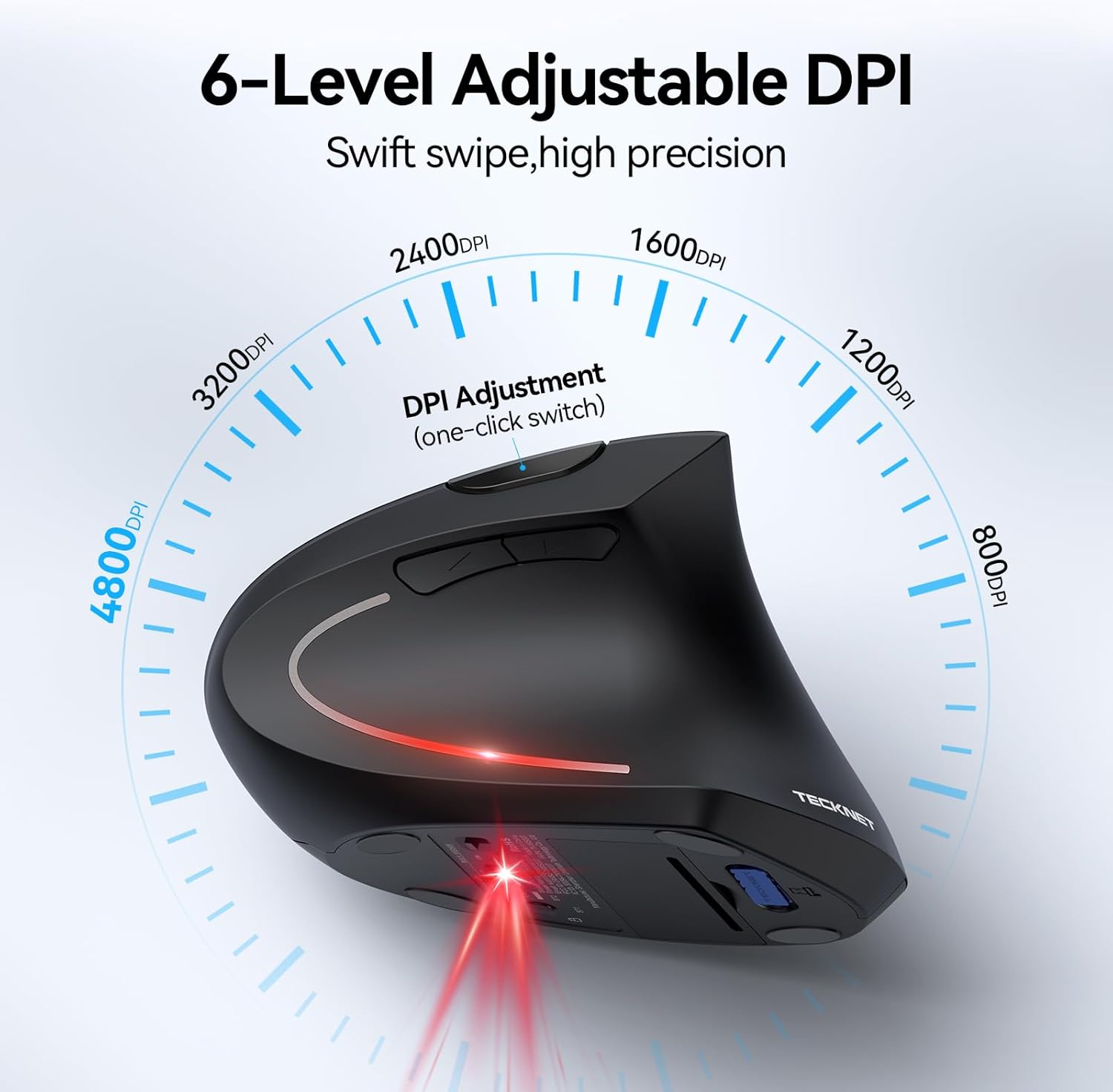
Figure 3: USB Receiver Location and Connection
3.2. Bluetooth Connection (BT1 / BT2)
The mouse can connect to two separate devices via Bluetooth.
- Ensure the mouse is powered on.
- Press the Bluetooth Pairing Button on the bottom of the mouse to switch to either BT1 or BT2 mode. The indicator light will flash, indicating pairing mode.
- On your computer or device, open Bluetooth settings.
- Search for "TECKNET Mouse" or a similar device name in the list of available Bluetooth devices.
- Select the mouse to pair. Once connected, the indicator light will stop flashing.
- Repeat these steps for a second Bluetooth device if desired, using the other Bluetooth channel (BT1 or BT2).

Figure 4: Multi-Device Connectivity
Operating Instructions
1. Switching Between Devices
To switch between connected devices (2.4GHz, BT1, BT2), simply press the Bluetooth Pairing Button on the bottom of the mouse. The mouse will cycle through the connected modes.
2. Adjusting DPI (Sensitivity)
The mouse features 6 adjustable DPI levels: 800, 1200, 1600, 2400, 3200, and 4800. To change the DPI, press the DPI Switch Button located on the top of the mouse, behind the scroll wheel. The indicator light will flash a certain number of times corresponding to the DPI level:
- 1 flash: 800 DPI
- 2 flashes: 1200 DPI
- 3 flashes: 1600 DPI
- 4 flashes: 2400 DPI
- 5 flashes: 3200 DPI
- 6 flashes: 4800 DPI

Figure 5: DPI Adjustment Levels
3. Using Side Buttons
The mouse includes Forward and Backward buttons located on the thumb side for convenient navigation in web browsers and file explorers. Please note that these side buttons are not compatible with macOS.

Figure 6: Side Buttons for Navigation
4. Ergonomic Comfort
The vertical design of the mouse promotes a neutral wrist and forearm posture, which can help alleviate discomfort and prevent repetitive strain injuries associated with traditional mouse usage.

Figure 7: Ergonomic Design Benefits
5. Power Saving Mode
To conserve battery life, the mouse will enter a power-saving mode after approximately 8 minutes of inactivity. To wake the mouse, simply press the left or right click button.
6. Low Battery Warning
When the battery level is low, the LED indicator light on the mouse will blink to alert you that the batteries need to be replaced. We recommend using branded AAA batteries for optimal performance and longevity.
Maintenance
- Cleaning: Use a soft, dry cloth to clean the surface of the mouse. Avoid using abrasive cleaners or solvents.
- Battery Replacement: Replace batteries promptly when the low battery indicator blinks to ensure uninterrupted operation.
- Storage: When not in use for extended periods, turn off the mouse using the ON/OFF switch to further conserve battery life.
Troubleshooting
| Problem | Possible Cause | Solution |
|---|---|---|
| Mouse not responding. | Mouse is off, low battery, or not connected. | Ensure mouse is ON. Replace batteries. Re-pair the mouse (2.4GHz or Bluetooth). |
| Lagging or intermittent connection. | Interference, distance, or low battery. | Move closer to the receiver/device. Ensure no large metal objects are between mouse and receiver. Replace batteries. |
| Side buttons not working. | Incompatible operating system (macOS). | Side buttons are not supported on macOS. Functionality is standard on Windows/Linux. |
| Mouse enters sleep mode too quickly. | Normal power-saving feature. | Press any button (left or right click recommended) to wake the mouse. This is by design to conserve battery. |
| DPI light flashes continuously. | Low battery warning. | Replace the AAA batteries. |
Specifications
- Model: TK-MS007
- Product Dimensions: 4.74 x 2.49 x 0.1 inches
- Item Weight: 4.3 ounces
- Batteries: 2 x AAA batteries (not included)
- Connectivity Technology: 2.4GHz Wireless, Bluetooth 5.0/3.0
- DPI Levels: 800, 1200, 1600, 2400, 3200, 4800
- Movement Detection Technology: Optical
- Special Features: Wireless, Bluetooth, Ergonomic Design, Quiet Clicks
- Compatibility: Windows, Mac, Chrome OS, Linux (side buttons not compatible with macOS)
Warranty and Support
TECKNET provides a 36 MONTHS WARRANTY for this product (registration may be required). If you encounter any problems or have questions regarding the use of your TECKNET Ergonomic Wireless Bluetooth Vertical Mouse, please do not hesitate to contact our professional customer service team. For support, please refer to the contact information provided on the TECKNET official website or your purchase platform.
Related documentsTK-MS007


Ask a question about this manual
Ask about setup, troubleshooting, compatibility, parts, safety, or missing instructions. Manuals+ will review the question and use this page’s manual context to help answer it.