
Introduction
This manual provides detailed instructions for the setup, operation, maintenance, and troubleshooting of your Redragon H878 3-Mode Wireless Gaming Headset. Please read this manual thoroughly before using the product to ensure proper function and longevity.
The Redragon H878 headset offers versatile connectivity options including 2.4GHz wireless, Bluetooth, and wired USB-C, along with 7.1 surround sound and a detachable noise-canceling microphone for an immersive audio experience across multiple platforms.
Package Contents
Verify that all items are present in your package:
- Redragon H878 Gaming Headset
- Detachable Microphone
- USB-C Charging/Data Cable
- 2.4GHz Wireless USB Dongle
- User Manual (this document)
Product Overview
The Redragon H878 headset features a lightweight design for extended comfort, 40mm audio drivers for clear sound, and multiple connectivity modes for broad compatibility.
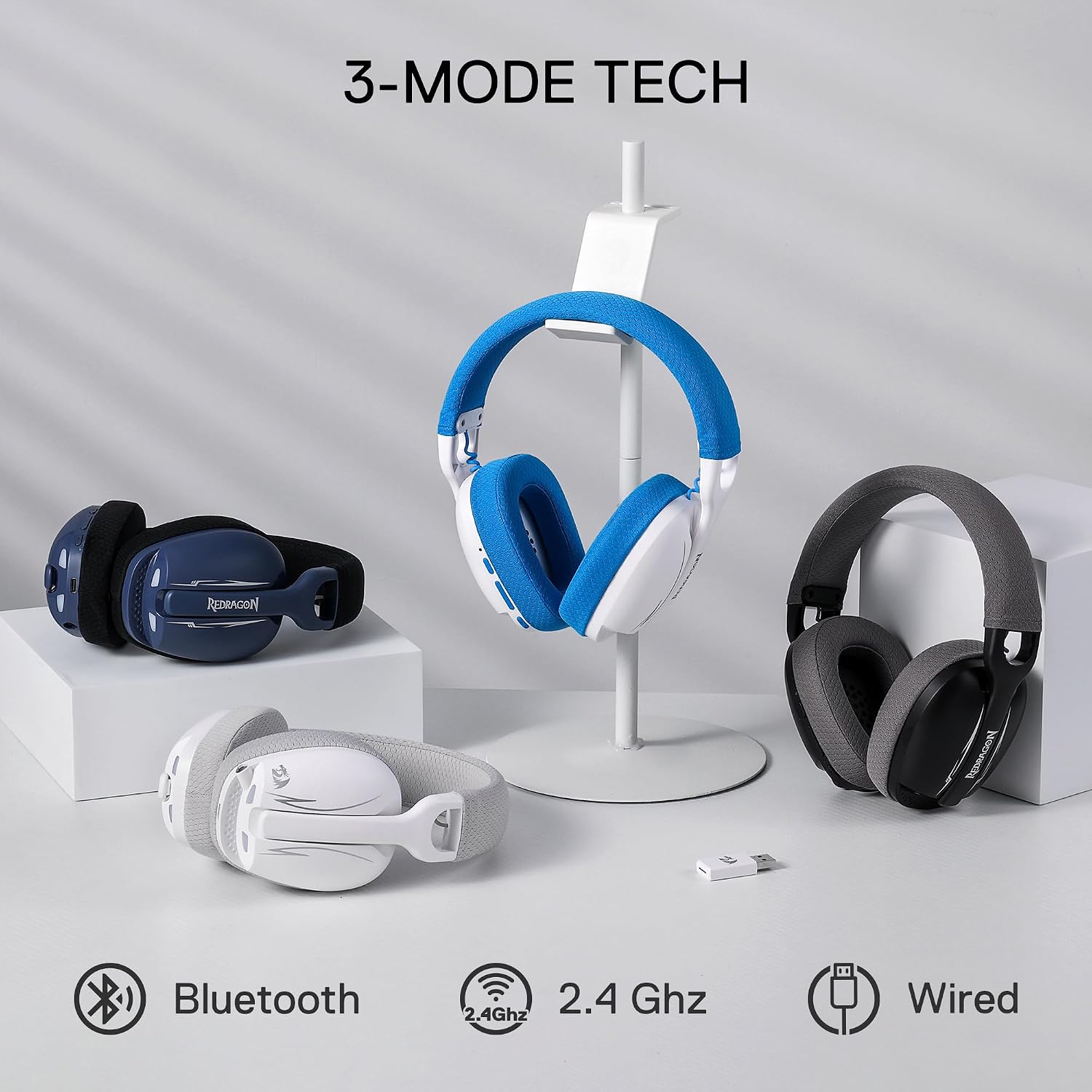
Image: The Redragon H878 headset showcasing its three connectivity modes: Bluetooth, 2.4GHz wireless (with USB dongle), and wired USB-C. Different color variants of the headset are displayed.

Image: A close-up view of the Redragon H878 headset highlighting key features such as the washable fabric cover, Power ON/OFF button, Volume +/- controls, Mute Mic button, and the detachable microphone.
Setup Instructions
1. Charging the Headset
Before first use, fully charge the headset. Connect the supplied USB-C cable to the headset's charging port and the other end to a USB power source (e.g., computer USB port, USB wall adapter). The LED indicator will show charging status and turn off when fully charged.
2. Attaching the Microphone
Align the detachable microphone with the microphone port on the left earcup and gently push it in until it clicks into place. Ensure it is securely connected.
3. Connecting to Devices
The H878 headset supports three connection modes:
3.1. 2.4GHz Wireless Connection (Recommended for PC/PS Consoles)
- Insert the 2.4GHz USB wireless dongle into an available USB port on your PC or gaming console (PS5/PS4/PS3).
- Power on the headset by pressing and holding the Power button until the LED indicator lights up.
- The headset will automatically attempt to connect to the dongle. The LED will indicate a successful connection (e.g., solid blue light).
- On your device, ensure the Redragon H878 is selected as the audio output and input device in your sound settings.
3.2. Bluetooth Connection (Recommended for Mobile/Switch)
- With the headset powered off, press and hold the Power button until the LED indicator flashes rapidly (usually blue), indicating pairing mode.
- On your mobile device or Nintendo Switch, go to Bluetooth settings and search for available devices.
- Select "Redragon H878" from the list to pair. The LED on the headset will turn solid blue upon successful connection.
3.3. Wired USB-C Connection (Universal)
- Connect the supplied USB-C cable directly from the headset to a USB-C port on your device.
- The headset will function as a wired audio device. No battery power is required in this mode.
- Ensure the Redragon H878 is selected as the audio output and input device in your device's sound settings.

Image: Diagram illustrating the wide platform compatibility of the Redragon H878 headset, showing connections to Windows notebooks, Windows PCs/PS3/PS4/PS5, Apple notebooks/Android phones/Switch via USB dongle, Bluetooth, or wired USB-C.
Operating Instructions
1. Power On/Off
- Power On: Press and hold the Power button for approximately 3 seconds until the LED indicator lights up.
- Power Off: Press and hold the Power button for approximately 3 seconds until the LED indicator turns off.
2. Volume Control
- Increase Volume: Press the Volume + button.
- Decrease Volume: Press the Volume - button.
3. Microphone Usage
- Mute/Unmute: Press the Mute Mic button located on the earcup to toggle the microphone on or off. The LED indicator on the microphone or headset may change color to indicate mute status.
- Detachable Design: The microphone can be removed when not in use.
4. 7.1 Surround Sound
The headset features 7.1 virtual surround sound. This feature is typically enabled automatically when connected via 2.4GHz wireless or USB-C to a compatible PC. For optimal performance, ensure your device's audio settings are configured to utilize 7.1 surround sound if applicable.

Image: A diagram illustrating the 7.1 channel surround sound capability of the Redragon H878 headset, highlighting the 40mm sound units for audio output.
Maintenance
- Cleaning: Use a soft, dry cloth to clean the headset. Do not use harsh chemicals or abrasive materials. The fabric earcups may have washable covers; refer to product specifications for details.
- Storage: Store the headset in a cool, dry place away from direct sunlight and extreme temperatures.
- Battery Care: To prolong battery life, avoid fully discharging the headset frequently. Charge it regularly, even if not in use for extended periods.
- Microphone: Handle the detachable microphone carefully when attaching or removing it.
Troubleshooting
| Issue | Possible Solution |
|---|---|
| No sound from headset |
|
| Microphone not working |
|
| Headset not pairing via Bluetooth |
|
| 2.4GHz wireless connection unstable or cutting out |
|
| Short battery life |
|
Specifications
| Feature | Detail |
|---|---|
| Model Number | H878 |
| Connectivity | 2.4GHz Wireless, Bluetooth (3.0/5.0), USB-C Wired |
| Audio Drivers | 40mm Dynamic Drivers |
| Surround Sound | 7.1 Virtual Surround Sound |
| Microphone | Detachable, Noise-Cancellation |
| Battery Capacity | 600mAh Lithium Polymer |
| Battery Life | Up to 24-26 hours (depending on usage) |
| Weight | Approximately 200g (7.05 oz) |
| Impedance | 16 Ohms |
| Ear Placement | Over Ear |
| Material | Fabric/Synthetic Leather |
| Compatible Platforms | PC, PS5, PS4, PS3, Nintendo Switch, Mobile Devices |
| Water Resistance | Not Water Resistant |
Warranty and Support
Redragon products are designed for reliability and performance. For warranty information, please refer to the warranty card included with your product or visit the official Redragon website. Keep your purchase receipt as proof of purchase for warranty claims.
For technical support, troubleshooting assistance beyond this manual, or to inquire about replacement parts, please contact Redragon customer service through their official website or the contact information provided in your product packaging.
Online Support: www.redragonusa.com/support (Example link, please verify official support page)


