
1. Introduction
This manual provides essential information for the safe and effective use of your JREN JR-J10 10-Inch Kids Tablet. Designed for young learners, this tablet combines educational content with robust parental controls and a durable design. Please read this manual thoroughly before using the device.
2. What's in the Box
Verify that all items listed below are present in your package:
- JREN 10-inch Kids Tablet with pre-installed protective case
- Type-C Charging Cord
- Charger
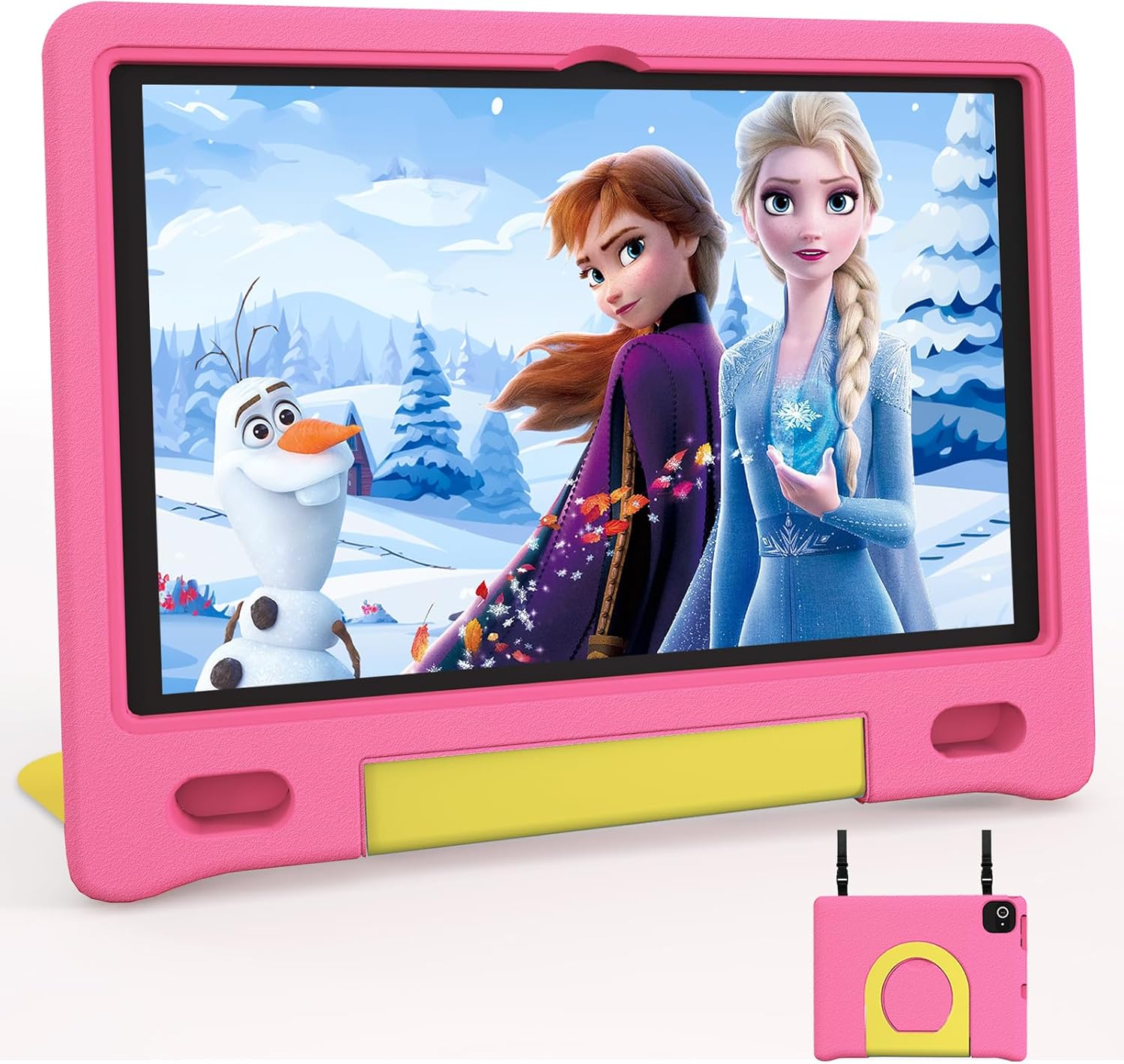
Image: The JREN 10-inch Kids Tablet, shown in its pink and yellow protective case, ready for use.
3. Initial Setup
- Charge the Tablet: Connect the Type-C charging cord to the tablet and the charger to a power outlet. Allow the tablet to charge fully before first use.
- Power On: Press and hold the power button located on the side of the tablet until the JREN logo appears on the screen.
- Initial Configuration: Follow the on-screen prompts to select your language, connect to a Wi-Fi network, and set up your Google account.
- Parental Control Setup (Recommended): Utilize Google Family Link to set up screen time limits, manage app downloads, and filter content. This ensures a safe and controlled environment for your child.

Image: A child engaging with the JREN Kids Tablet, displaying the Google Kids Space interface.
4. Operating Instructions
4.1. Display and Visuals
The tablet features a 10.1-inch 1280x800 HD screen, providing clear and vibrant visuals. An integrated eye-care mode helps reduce blue light exposure, promoting comfortable viewing during extended use.
4.2. Performance and Storage
Equipped with an Octa-core processor, 8GB (4 real + 4 virtual) RAM, and 64GB ROM, the tablet ensures smooth multitasking and quick app launches. Storage is expandable up to 1TB via a MicroSD card (not included).
4.3. Connectivity
The tablet supports Wi-Fi 2.4G & 5G for reliable internet access and Bluetooth 5.0 for connecting to compatible accessories.
4.4. Cameras
Capture moments with the 2MP front camera and 5MP rear camera, suitable for photos and video calls.

Image: A child interacting with the JREN Kids Tablet, highlighting its dual camera functionality for photos and video calls.
4.5. Battery Life
The 6000mAh battery provides up to 12 hours of continuous use, ideal for extended learning and entertainment sessions.

Image: A child in a car seat using the JREN Kids Tablet, demonstrating its suitability for travel due to long battery life.
4.6. Kids Content and Parental Control
The tablet comes pre-loaded with YouTube Kids and Google Kids Space, offering a curated library of age-appropriate educational games, videos, and stories. Google Family Link allows parents to manage screen time, control app downloads, and filter content directly from their own devices, ensuring a safe and enriching digital experience.
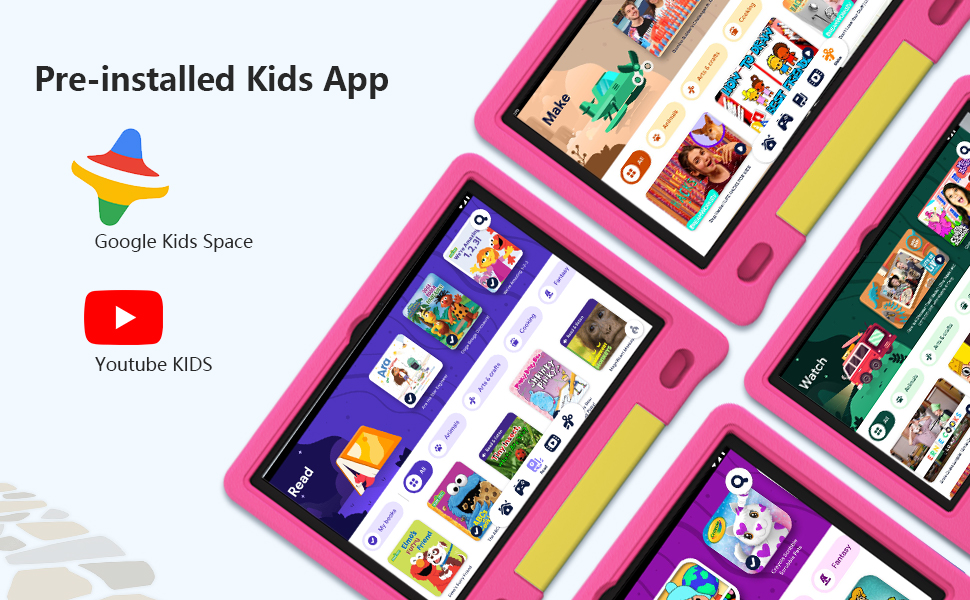
Image: The JREN Kids Tablet screen displaying icons for pre-installed children's applications, including Google Kids Space and YouTube Kids.
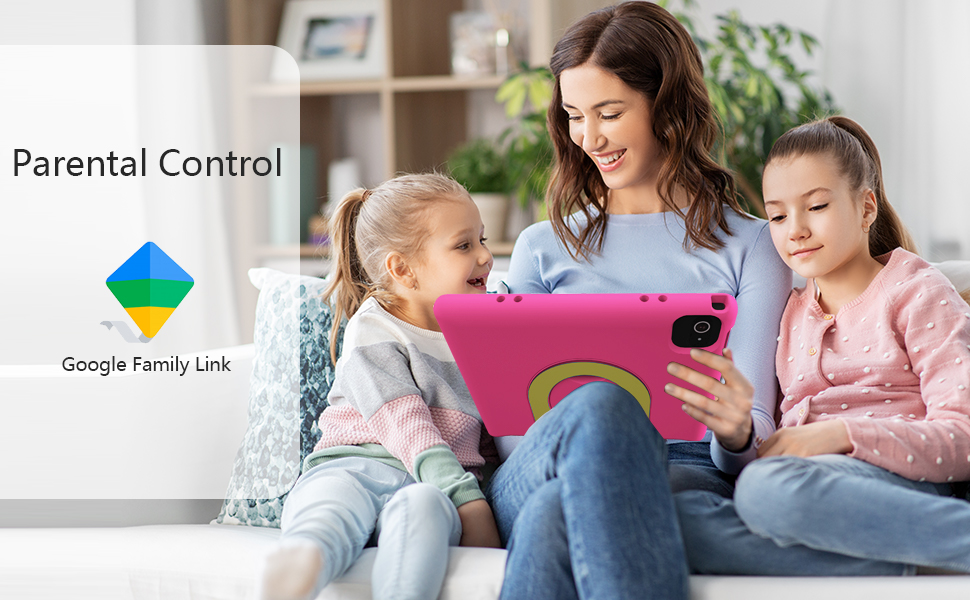
Image: A mother and her children using the JREN Kids Tablet, illustrating the use of Google Family Link for parental control.
4.7. Kid-Proof Case with Built-in Stand
The tablet is housed in a lightweight, durable EVA case designed to protect against drops, scratches, and bumps. The integrated stand allows for hands-free viewing, and the ergonomic handle makes it easy for children to carry.

Image: The JREN Kids Tablet in its protective, kid-proof case, highlighting the built-in stand and durable design.
5. Maintenance
- Cleaning: Use a soft, lint-free cloth to clean the screen and exterior. Avoid abrasive cleaners or solvents.
- Storage: Store the tablet in a cool, dry place away from direct sunlight and extreme temperatures.
- Battery Care: To prolong battery life, avoid fully discharging the tablet frequently. Charge it regularly.
- Software Updates: Periodically check for and install system updates to ensure optimal performance and security.
6. Troubleshooting
- Tablet Not Turning On: Ensure the tablet is sufficiently charged. Connect it to the charger and wait a few minutes before attempting to power it on again.
- Screen Unresponsive/Freezing: Press and hold the power button for approximately 10-15 seconds to force a restart.
- Wi-Fi Connectivity Issues: Check your router and ensure it is working correctly. Restart the tablet and try reconnecting to the Wi-Fi network.
- Short Battery Life: Reduce screen brightness, close unused applications, and disable unnecessary features like Bluetooth or GPS when not in use.
- Apps Not Downloading/Updating: Check your internet connection and ensure there is sufficient storage space on the tablet. Clear the Google Play Store cache if necessary.
7. Specifications
| Feature | Detail |
|---|---|
| Model Name | JR-J10 |
| Screen Size | 10.1 Inches |
| Screen Resolution | 1280 x 800 Pixels |
| Processor | Octa-core, 2 GHz |
| RAM | 8GB (4 real + 4 virtual) |
| Internal Storage (ROM) | 64 GB |
| Expandable Storage | Up to 1TB (MicroSD card not included) |
| Operating System | Android 14 with Google GMS certification |
| Wireless Type | 802.11ac, 802.11ax (Wi-Fi 2.4G & 5G) |
| Bluetooth | Bluetooth 5.0 |
| Front Camera | 2MP |
| Rear Camera | 5MP |
| Battery Capacity | 6000mAh |
| Average Battery Life | 12 Hours |
| Item Weight | 1.62 pounds |
| Product Dimensions | 10.6 x 10.4 x 0.6 inches |
| Color | Pink + Yellow (case) |
8. Warranty and Support
For warranty information or technical support, please refer to the contact details provided with your purchase documentation or visit the official JREN website. Customer service is available to assist with any product-related inquiries or issues.
