
1. Product Overview
The SUAAT S6 Tablet is an advanced 11-inch device running on the Android 14 operating system. It features an Octa-core T606 processor, 24GB RAM, 256GB internal storage (expandable up to 1TB), and an 8000mAh battery. Designed for versatile use, it supports 5G/2.4G WiFi, Bluetooth 5.0, GPS, and includes dual cameras (5MP front, 13MP rear) for capturing moments and video calls. The tablet also boasts Widevine L1 support for high-definition streaming.

Image 1.1: Overview of the SUAAT S6 Tablet, showcasing its 8000mAh battery, Android 14, 24GB RAM, 256GB storage, 5G WiFi, and Widevine L1 capabilities.
2. What's in the Box
Upon unboxing your SUAAT S6 Tablet, please ensure all the following items are present:
- SUAAT S6 Tablet
- Protective Case
- Screen Protector
- Charger & Cable
3. Initial Setup
3.1. Charging the Tablet
Before first use, fully charge your tablet. Connect the provided charger cable to the tablet's charging port and plug the adapter into a power outlet. The battery indicator on the screen will show charging progress.
3.2. Powering On/Off
- To Power On: Press and hold the Power button located on the side of the tablet until the SUAAT logo appears.
- To Power Off: Press and hold the Power button until the power options menu appears. Select 'Power off' and confirm.
- To Restart: From the power options menu, select 'Restart'.
3.3. Initial Configuration
Upon first power-on, follow the on-screen prompts to set up your tablet:
- Select your preferred language.
- Connect to a Wi-Fi network. This is essential for downloading updates and accessing online services.
- Sign in with your Google account or create a new one. This allows access to the Google Play Store and other Google services.
- Set up screen lock (PIN, pattern, password, or face unlock).
- Review and accept terms and conditions.
4. Operating Your Tablet
4.1. Android 14 System Features
Your tablet runs on the latest Android 14 system, offering enhanced performance, privacy, and user experience.
- Face Unlock: Utilize the front camera for quick and secure unlocking of your device.
- Taskbar: The convenient taskbar allows for efficient multitasking and quick app switching.
- Privacy & Security: Android 14 provides robust controls for managing app permissions and protecting your personal data.
- Parental Control: Manage and control screen time and content access for younger users.
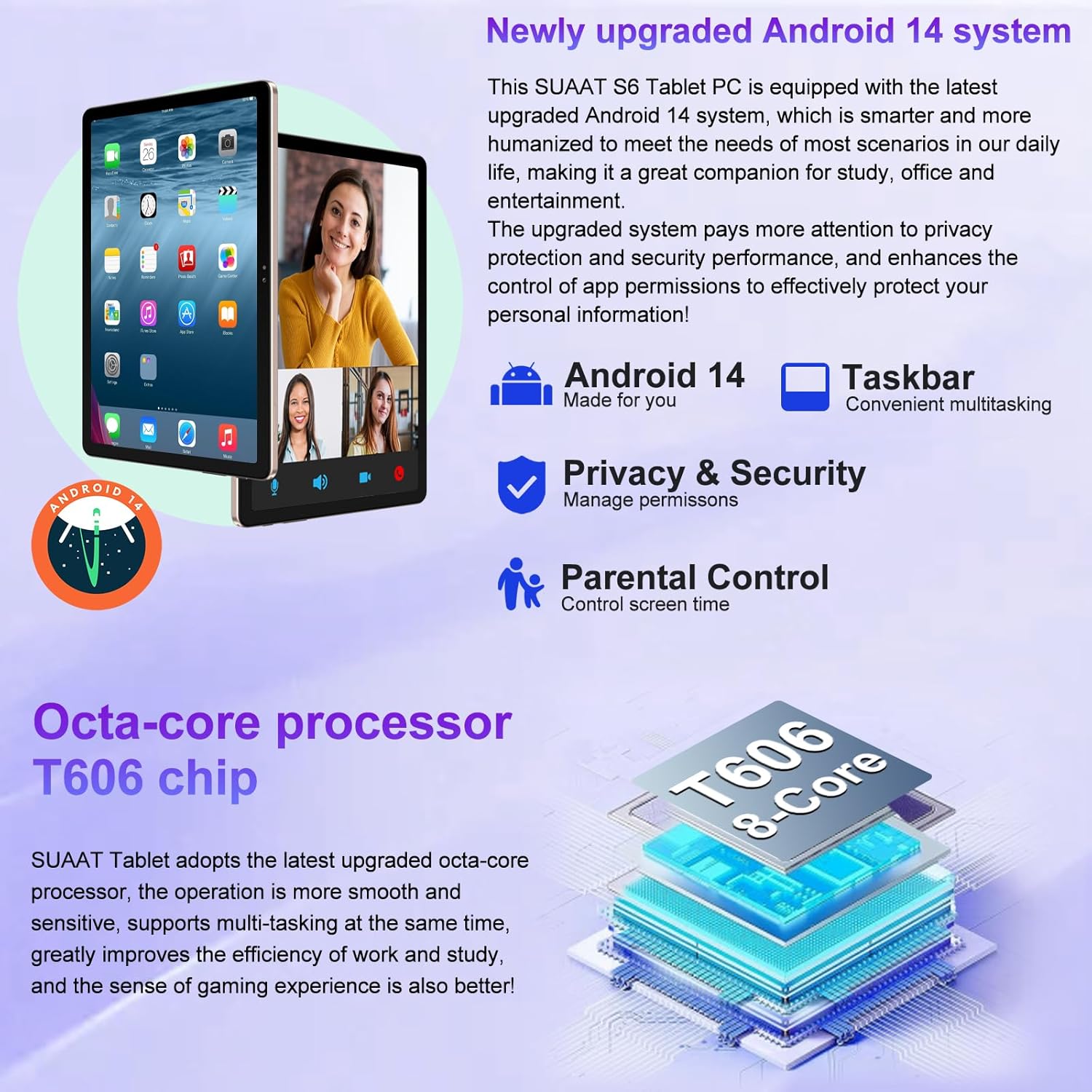
Image 4.1: Visual representation of the Android 14 system's key features, including the taskbar for multitasking, enhanced privacy and security controls, and parental control options.
4.2. Display and Visuals
The 11-inch HD display offers a resolution of 1280x800 pixels, providing a clear and vibrant visual experience. The screen is made with tempered glass for increased durability.

Image 4.2: The large 11-inch HD display, highlighting its 2000x1200 FHD resolution, 16:10 aspect ratio, and In-cell multi-touch technology for a premium visual experience.
4.3. Storage and Performance
The tablet is equipped with an Octa-core T606 processor, ensuring smooth operation and efficient multitasking. It comes with 256GB of internal storage and supports expansion up to 1TB via a Micro SD card slot, providing ample space for applications, media, and documents.

Image 4.3: Details on the tablet's storage capacity (24GB RAM, 256GB ROM, 1TB expansion via Micro SD) and its dual camera setup (13MP rear, 5MP front).
4.4. Camera Functionality
Capture high-quality photos and videos with the tablet's dual cameras: a 13MP rear camera and a 5MP front camera. These are ideal for video calls and documenting your experiences.
4.5. Connectivity
- Wi-Fi: Supports both 5G and 2.4G Wi-Fi connections for fast and stable internet access.
- Bluetooth 5.0: Easily connect wireless accessories such as headphones, keyboards, and mice for enhanced productivity and entertainment.
- GPS: Integrated GPS allows for navigation and location-based services.
4.6. Battery Life
The 8000mAh high-capacity battery provides extended usage times, allowing for up to 8 hours of music playback, 6 hours of web browsing, or 5 hours of gaming on a single charge.
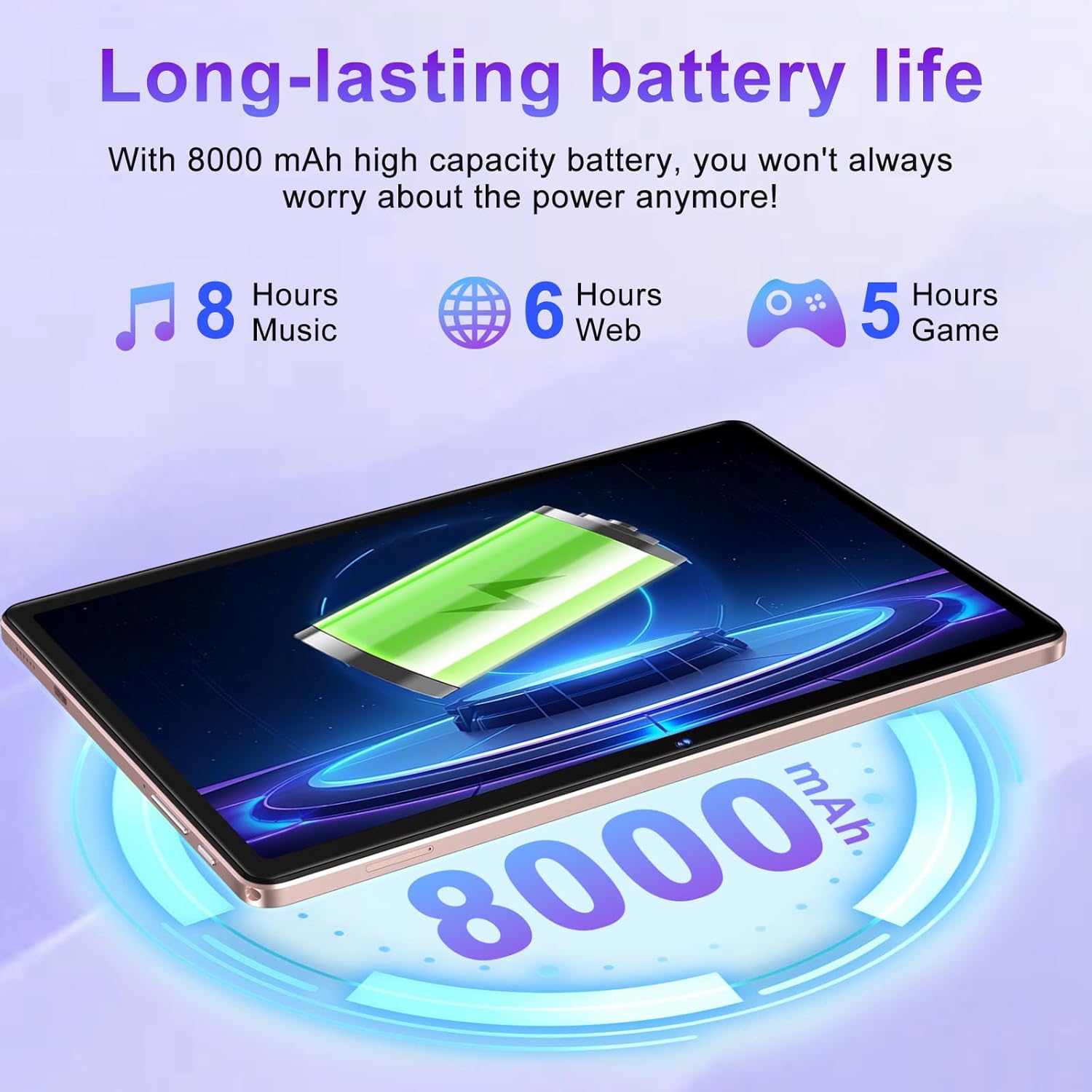
Image 4.4: Illustration of the tablet's 8000mAh battery capacity and its estimated usage times for music, web browsing, and gaming.
4.7. Widevine L1 Support
The SUAAT S6 tablet supports Widevine L1, enabling high-definition video streaming from popular platforms like YouTube, Prime Video, Hulu, and HBO Max, ensuring a premium viewing experience.

Image 4.5: Comparison showing the difference between Widevine L1 (1080P) and L3, indicating the tablet's capability for high-definition streaming from various platforms.
5. Maintenance
5.1. Cleaning Your Tablet
To clean your tablet, use a soft, lint-free cloth. For stubborn smudges, slightly dampen the cloth with water or a screen-safe cleaner. Avoid using harsh chemicals, abrasive materials, or excessive moisture.
5.2. Software Updates
Periodically check for system updates to ensure your tablet has the latest features, security patches, and performance improvements. Navigate to Settings > System > System update to check for and install available updates.
5.3. Battery Care
To prolong battery life, avoid exposing the tablet to extreme temperatures. It is recommended to keep the battery charge between 20% and 80% for optimal longevity. Avoid leaving the tablet fully charged or fully discharged for extended periods.
6. Troubleshooting
This section addresses common issues you might encounter with your SUAAT S6 Tablet.
6.1. Tablet Not Turning On
- Ensure the tablet is sufficiently charged. Connect the charger and wait a few minutes before attempting to power on again.
- Press and hold the Power button for at least 10-15 seconds to perform a forced restart.
6.2. Wi-Fi Connectivity Issues
- Check if Wi-Fi is enabled in Settings > Network & internet > Internet.
- Restart your Wi-Fi router.
- Forget the network and reconnect by re-entering the password.
- Ensure you are within range of the Wi-Fi signal.
6.3. Apps Crashing or Freezing
- Close the problematic app and reopen it.
- Clear the app's cache and data in Settings > Apps > [App Name] > Storage & cache.
- Ensure the app is updated to its latest version via the Google Play Store.
- Restart the tablet.
6.4. Slow Performance
- Close unused background applications.
- Free up storage space by deleting unnecessary files or uninstalling unused apps.
- Restart the tablet regularly.
- Consider performing a factory reset as a last resort (Note: This will erase all data on the tablet. Back up important data first.).
7. Specifications
Detailed technical specifications for the SUAAT S6 Tablet:
| Feature | Specification |
|---|---|
| Model Name | S6 |
| Operating System | Android 14 |
| Processor | Octa-core T606, 2 GHz |
| RAM | 24GB |
| Internal Storage | 256GB |
| Expandable Storage | Up to 1TB via Micro SD Card |
| Screen Size | 11 Inches |
| Screen Resolution | 1280x800 Pixels (Max 2000x1200) |
| Rear Camera | 13 MP |
| Front Camera | 5 MP |
| Battery Capacity | 8000 mAh (Lithium Polymer) |
| Wireless Type | 802.11ac (5G/2.4G WiFi) |
| Bluetooth | Bluetooth 5.0 |
| Dimensions (LxWxH) | 10.16 x 6.61 x 0.32 inches |
| Item Weight | 1.15 pounds |
| Color | Rose Gold |
8. Warranty and Support
SUAAT is committed to providing excellent customer service and product support.
8.1. After-Sales Service
For any inquiries or issues regarding your SUAAT S6 Tablet, the brand offers 24-hour after-sales service. Please refer to your purchase documentation or the official SUAAT store page for contact details.
8.2. Technical Support
Professional technical support is available to assist you with setup, troubleshooting, and general usage questions. Contact information can typically be found on the SUAAT brand store or within the product packaging.
For additional information and support, you may visit the SUAAT Store on Amazon.