
1. Introduction
This manual provides essential information for the proper setup, operation, and maintenance of your Qotom Fanless Mini Industrial PC, Model Q790X. This device is designed for industrial and business applications, offering a compact, low-power, and reliable computing solution.
2. Safety Information
- Ensure the device is placed on a stable, flat surface to prevent accidental falls.
- Operate the device within the specified temperature and humidity ranges.
- Do not expose the device to water or excessive moisture.
- Use only the power adapter provided with the device.
- Avoid blocking the ventilation fins, even though it is a fanless design, proper airflow aids heat dissipation.
- Disconnect power before performing any maintenance or internal component installation.
3. Package Contents
Verify that all items are present in the package:
- Qotom Fanless Mini Industrial PC Q790X
- Power Adapter
- Heatsink (pre-installed or included for specific configurations)
- User Manual (this document)
4. Product Overview
The Qotom Q790X is a compact, fanless mini PC featuring a robust aluminum alloy enclosure. It is equipped with multiple connectivity options suitable for various industrial and business applications.
4.1 Front Panel
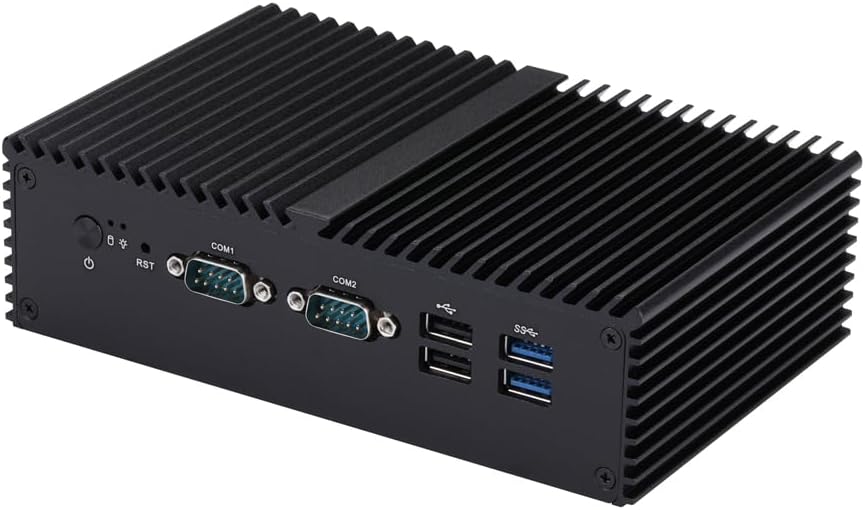
Image: Front view of the Qotom Q790X Mini PC, displaying the power button, reset button, and two COM ports (COM1, COM2).
4.2 Rear Panel

Image: Rear view of the Qotom Q790X Mini PC, featuring audio jacks (microphone, headphone), USB ports, two LAN ports, an HDMI port, DC 12V power input, and four additional COM ports (COM3, COM4, COM5, COM6).
4.3 Internal Layout

Image: Internal view of the Qotom Q790X motherboard, highlighting the DDR4 SO-DIMM RAM slot, mSATA SSD slot, and a 2.5-inch SATA data/power connector for additional storage.
5. Setup
5.1 Connecting Peripherals
- Display: Connect your monitor to the HDMI port on the rear panel.
- USB Devices: Connect your keyboard, mouse, and other USB devices to the available USB ports.
- Network: Connect an Ethernet cable to one of the LAN ports for wired network access.
- Serial Devices: Connect any serial devices to the COM ports as required by your application.
- Audio: Connect speakers or headphones to the audio output jack, and a microphone to the microphone input jack if needed.
5.2 Powering On
- Connect the power adapter to the DC 12V input port on the rear panel.
- Plug the power adapter into a suitable electrical outlet.
- Press the power button located on the front panel. The power indicator light should illuminate.
5.3 Operating System Installation
The device typically ships with an inactive Windows 10 operating system for testing purposes. For full functionality and security, it is recommended to install a licensed operating system.
- The Q790X supports Windows 10, Windows 11, and various Linux distributions.
- To install an operating system, create a bootable USB drive with your preferred OS installer.
- Insert the bootable USB drive into a USB port.
- Power on the device and repeatedly press the DEL key (or F2 depending on BIOS version) to enter the BIOS/UEFI setup.
- Navigate to the Boot menu and set your USB drive as the primary boot device.
- Save changes and exit BIOS. The system will boot from the USB drive, allowing you to proceed with the OS installation.
- Note: This device does not support Legacy Boot Mode. Ensure your OS installer is configured for UEFI boot.
6. Operating the PC
6.1 Basic Operation
- Once the operating system is installed and configured, the Q790X functions like a standard desktop PC.
- Utilize the multiple LAN ports for network segmentation or multi-homing applications.
- The numerous COM ports are ideal for connecting industrial control devices, point-of-sale systems, or other serial peripherals.
6.2 BIOS/UEFI Settings
To access the BIOS/UEFI settings, power on the device and press the DEL key (or F2) repeatedly during startup. Here you can configure boot order, system time, and other hardware-related settings.
7. Maintenance
7.1 Cleaning
- Ensure the device is powered off and unplugged before cleaning.
- Use a soft, dry cloth to wipe the exterior of the device.
- For stubborn dirt, slightly dampen the cloth with water; avoid harsh chemicals.
- Use compressed air to clear dust from the ventilation fins, ensuring optimal passive cooling.
7.2 Component Upgrades
The Q790X allows for upgrades to RAM and storage.
- RAM: The device has one DDR4 SO-DIMM slot, supporting up to 32GB of RAM. To upgrade, carefully open the chassis, locate the RAM slot, and replace the existing module with a compatible one.
- Storage: It comes with an mSATA SSD. An additional 2.5-inch SATA drive can be installed for expanded storage. Ensure the device is powered off and unplugged before opening the chassis for upgrades.
8. Troubleshooting
| Problem | Possible Cause | Solution |
|---|---|---|
| Device does not power on | No power, faulty adapter, loose connection | Check power cable and adapter connection. Ensure outlet is functional. Try a different power adapter if available. |
| No display output | Loose HDMI cable, incorrect monitor input, monitor off | Ensure HDMI cable is securely connected. Verify monitor is on and set to correct input source. |
| Operating System not booting | Incorrect boot order, corrupted OS, no OS installed | Enter BIOS/UEFI to check boot order. Reinstall OS if necessary. Ensure OS is installed for UEFI mode. |
| Network connectivity issues | Loose Ethernet cable, driver issues, network configuration | Check Ethernet cable connection. Verify network settings in OS. Install or update network drivers. |
| System runs slowly | High CPU/RAM usage, insufficient storage, overheating | Check task manager for resource usage. Ensure adequate ventilation. Consider RAM or SSD upgrade if consistently slow. |
9. Specifications
| Feature | Detail |
|---|---|
| Model | Q790X |
| Processor | Intel Celeron J6412 Quad Core, 2.0 GHz (up to 2.6 GHz), 1.5M Cache, 10W TDP |
| Graphics | Intel UHD Graphics |
| RAM | 4GB DDR4 SO-DIMM (1 slot, max 32GB) |
| Storage | 64GB mSATA SSD (expandable with 2.5" SATA drive) |
| Operating System (Pre-installed) | Inactive Windows 10 (Supports Windows 10/11, Linux) |
| LAN Ports | 2x Gigabit Ethernet |
| COM Ports | 6x RS232 (DB9) |
| USB Ports | Multiple USB ports (specific count may vary by configuration) |
| Video Output | 1x HDMI |
| Audio | Microphone input, Headphone output |
| Cooling | Fanless design |
| Enclosure Material | Aluminum Alloy |
| Dimensions | 178 x 111 x 52 mm (approx. 7 x 4.4 x 2 inches) |
| Power Input | DC 12V |
10. Warranty Information
Qotom products typically come with a standard manufacturer's warranty. Please refer to the warranty card included with your purchase or visit the official Qotom website for detailed warranty terms and conditions. Keep your proof of purchase for warranty claims.
11. Support
For technical assistance, troubleshooting, or further inquiries regarding your Qotom Fanless Mini Industrial PC Q790X, please contact Qotom customer support through their official website or the contact information provided with your product documentation.
Official Website: www.qotom.com (Please verify the exact URL from your product packaging or official sources.)
