
1. General Information
The Changingtouch F16S is a versatile 15.6-inch smart display designed to integrate various digital functions into your home or office. It serves as a digital calendar, photo frame, music player, and smart home hub, all powered by the Android operating system with Google services.

Image: The Changingtouch F16S Smart Display showcasing its all-in-one capabilities including photo display, calendar, music streaming, and smart home control.
2. What's in the Box
Your Changingtouch F16S Smart Display package should contain the following items:
- Changingtouch F16S 15.6-inch Smart Display
- Power Adapter
- Stylus Pen
- User Manual (this document)
3. Product Overview
The F16S features a 15.6-inch anti-glare FHD (1920x1080) touchscreen with full-lamination technology for reduced reflection and a paper-like texture. It includes a built-in battery for portability and supports both wall and desk mounting. The device runs on Android, providing access to Google Play apps, Google Assistant, and Google Photos.

Image: Detailed view of the F16S screen specifications and overall dimensions.

Image: Various frame styles available for the Changingtouch F16S Smart Display, including Walnut wood, Oak wood, White wood, and Classic Black plastic.
4. Setup
4.1 Initial Power-On and Language Selection
When you turn on your Smart Display for the first time, follow these steps for a quick setup:
- Power on the device.
- On the 'Hi there' welcome page, tap 'English (United States)' to select your preferred language. If your language is not listed, tap 'All languages' to find it.
- Tap 'Start' to proceed.
4.2 Network Connection
To access online features, connect your device to Wi-Fi:
- On the 'Connect to Wi-Fi' screen, select your Wi-Fi network from the list.
- Enter the Wi-Fi password if prompted.
- Alternatively, you can select 'Set up offline' at the bottom right of the screen to proceed without an internet connection initially.
4.3 Date and Time Settings
Set the correct date and time for your region:
- On the 'Date & time' screen, select your time zone.
- Adjust the date and time if necessary.
- Tap 'Next'.
4.4 Google Services and Account Login
To fully utilize Google features, log in with your Google account:
- Review the Google services terms and conditions.
- Tap 'Accept' to agree.
- You will be prompted to sign in to your Google Account. Enter your credentials.
- Once logged in, your Smart Display is ready to use.
Video: This video demonstrates the initial startup process of the F16S Smart Display, including language selection, Wi-Fi connection, date/time setup, and Google account login.
5. Operating Instructions
5.1 Home Button and Brightness Control
The F16S features a floating home button for quick navigation and controls:
- Tap the home button (usually a circle icon) to return to the main interface.
- Drag the home button to reposition it on the screen.
- Tap the home button to unfold functional keys for volume control and Google Voice Assistant.
- To adjust brightness: Go to 'Settings' > 'Display'. Use the brightness slider or set 'Time Control' for day and night brightness levels.
Video: This video illustrates how to use the home button for navigation and how to adjust the screen brightness settings on the F16S Smart Display.
5.2 Using the Digital Calendar
The F16S integrates seamlessly with Google Calendar and other popular calendar apps:
- Access the 'Calendar' tile from the main interface.
- Log in with your existing Google account to sync your calendar data.
- Install other calendar apps like Outlook, Cozi, Canvas, etc., from Google Play.
- For Apple Calendar users: Install the Google Calendar app on your iPhone (using the same Google account) to sync iCloud calendar data.
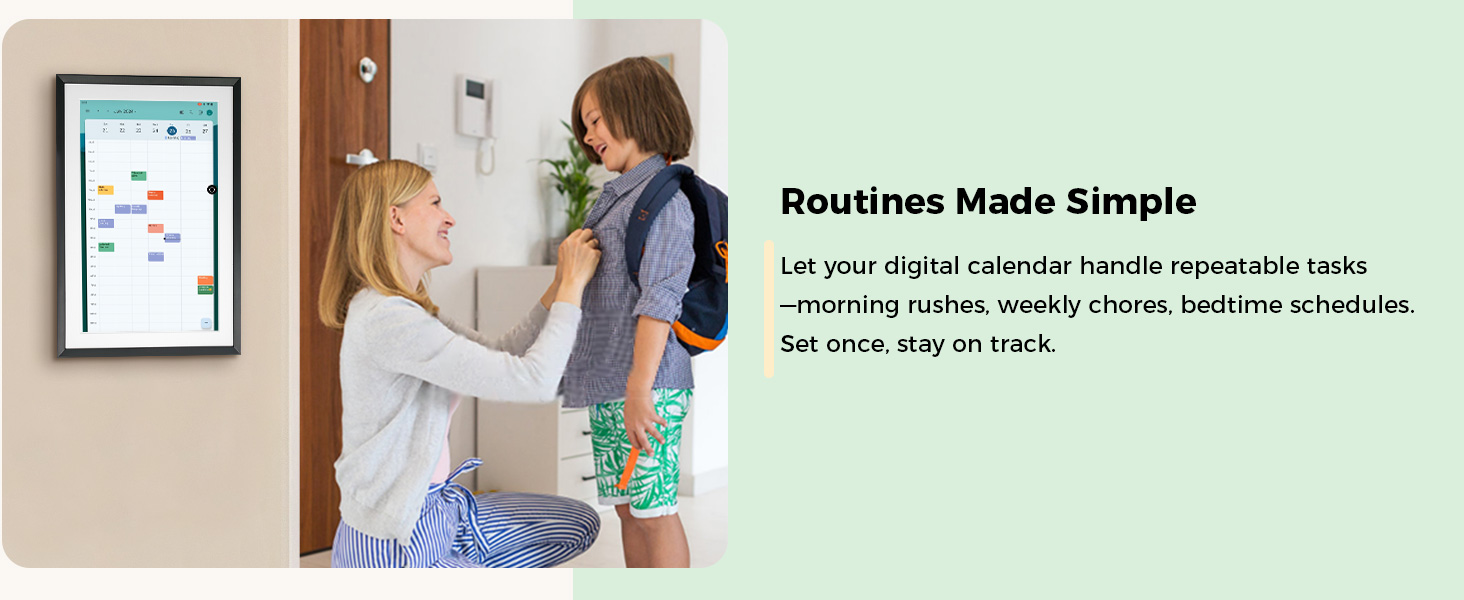
Image: The F16S displaying a consolidated view of multiple calendars, emphasizing its ability to bring all schedules into one place.
5.3 Photo Frame Functionality
Turn your Smart Display into a dynamic photo frame:
- Access the 'Photos' tile from the main interface.
- Log in to Google Photos to display your cherished memories.
- You can also display photos from an SD card or USB flash drive via the USB-A port.
- Customize screen saver modes: Clock, Colors, Photo Frame, Photo Table, or Photos mode.
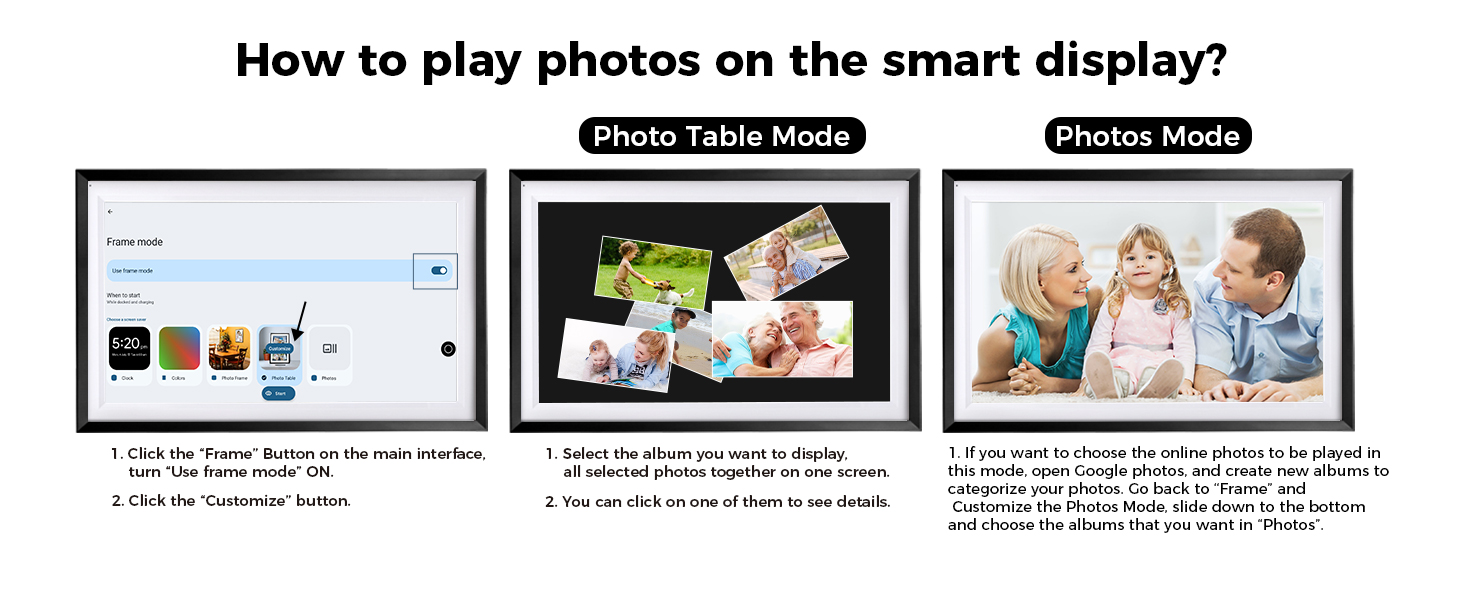
Image: Instructions on how to set up and customize photo display modes on the F16S Smart Display.
Video: This video demonstrates how to display cherished photos and watch videos on the F16S Smart Display.
5.4 Google Play Apps
Install and manage your favorite apps from the Google Play Store:
- Access the 'Google Play' tile from the main interface.
- Log in with your Google account.
- Search for and install desired apps (e.g., Spotify, Netflix, YouTube, social media apps).
- To manage installed apps: Go to 'Settings' > 'Apps' > 'See all apps'. You can disable pre-installed apps or uninstall user-installed apps from here.
Video: This video provides instructions on how to manage applications on your F16S Smart Display, including installation and uninstallation.
5.5 Voice Assistant (Google Assistant)
Control your device and smart home with your voice:
- To activate 'Hey Google': Go to 'Settings' > 'Google' > 'Search, Assistant & Voice' > 'Voice Match'. Follow on-screen instructions to record your voice.
- Once activated, say "Hey Google" followed by your command (e.g., "Hey Google, play music," "Hey Google, set a reminder," "Hey Google, what's the weather?").
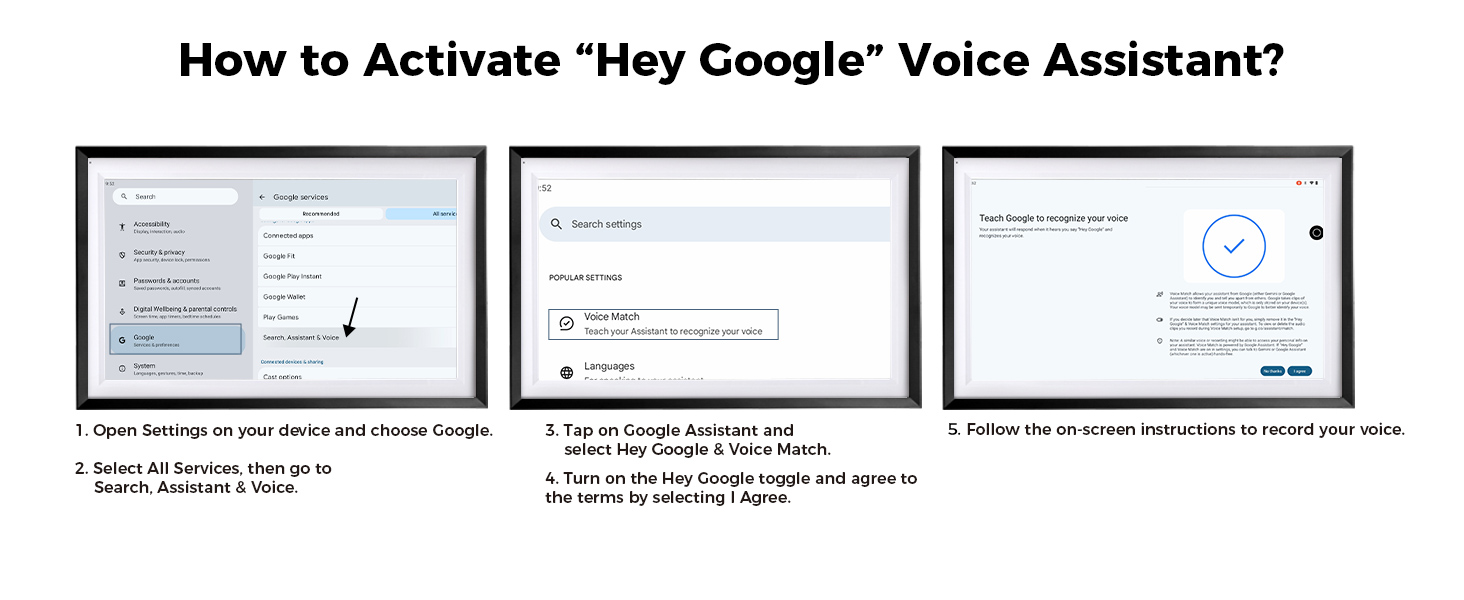
Image: Step-by-step guide on activating the "Hey Google" voice assistant feature.
5.6 Home Hub and Music Player
The F16S can act as a central hub for your smart home devices and a premium music experience:
- Home Hub: Access the 'Homehub' tile to control compatible smart home devices.
- Music Player: Use built-in speakers to play music via Spotify, Google Play Music, or Bluetooth.
6. Maintenance
- Cleaning: Use a soft, dry, lint-free cloth to clean the screen and frame. Avoid abrasive cleaners or solvents.
- Software Updates: Ensure your device is connected to Wi-Fi to receive automatic software updates for optimal performance and security.
- Battery Care: For devices with a built-in battery, avoid extreme temperatures and fully discharging the battery frequently to prolong its lifespan.
7. Troubleshooting
| Issue | Possible Solution |
|---|---|
| Device does not power on | Ensure the power adapter is securely connected and the device is charged. Press and hold the power button for 10-15 seconds. |
| Wi-Fi connection issues | Check if other devices can connect to the Wi-Fi network. Restart your router and the Smart Display. Re-enter the Wi-Fi password in settings. |
| Google Calendar not syncing | Verify your Google account login. Ensure the device has an active internet connection. Check Google Calendar app settings for sync options. |
| Voice Assistant not responding | Ensure 'Hey Google' is activated in settings (refer to section 5.5). Check microphone access for Google Assistant. Speak clearly and close to the device. |
| Apps not installing/working | Check internet connection. Ensure sufficient storage space. Clear cache for Google Play Store app in settings. Restart the device. |
8. Specifications
| Feature | Detail |
|---|---|
| Screen Size | 15.6 Inches |
| Resolution | 1080p (FHD) |
| Display Type | Anti-Glare Touchscreen, Full-Lamination Technology |
| Operating System | Android (with Google Play, Google Assistant) |
| Connectivity | Wi-Fi, Bluetooth |
| Power Source | 12V Battery (included), Power Adapter |
| Product Dimensions | 12.05 x 18.35 x 0.99 inches |
| Item Weight | 4.94 pounds |
9. Warranty and Support
For warranty information, technical support, or any inquiries regarding your Changingtouch F16S Smart Display, please refer to the contact information provided with your purchase or visit the official Changingtouch website.
