
1. Introduction
This manual provides essential information for setting up, operating, maintaining, and troubleshooting your BOSGAME M3 AI Mini PC. Please read this guide thoroughly to ensure optimal performance and longevity of your device.
2. Product Overview
2.1 Key Features
- Processor: Intel Core Ultra 7 155H (up to 4.8GHz)
- Memory: 64GB DDR5 RAM
- Storage: 2TB M.2 NVMe SSD
- Graphics: Integrated Intel Arc Graphics
- Operating System: Windows 11 Pro
- Connectivity: Thunderbolt 4.0, WiFi 6, Bluetooth 5.2, Dual 2.5G RJ45 LAN
- Display Support: Triple Screen Display (up to 8K@60Hz via Thunderbolt 4.0)
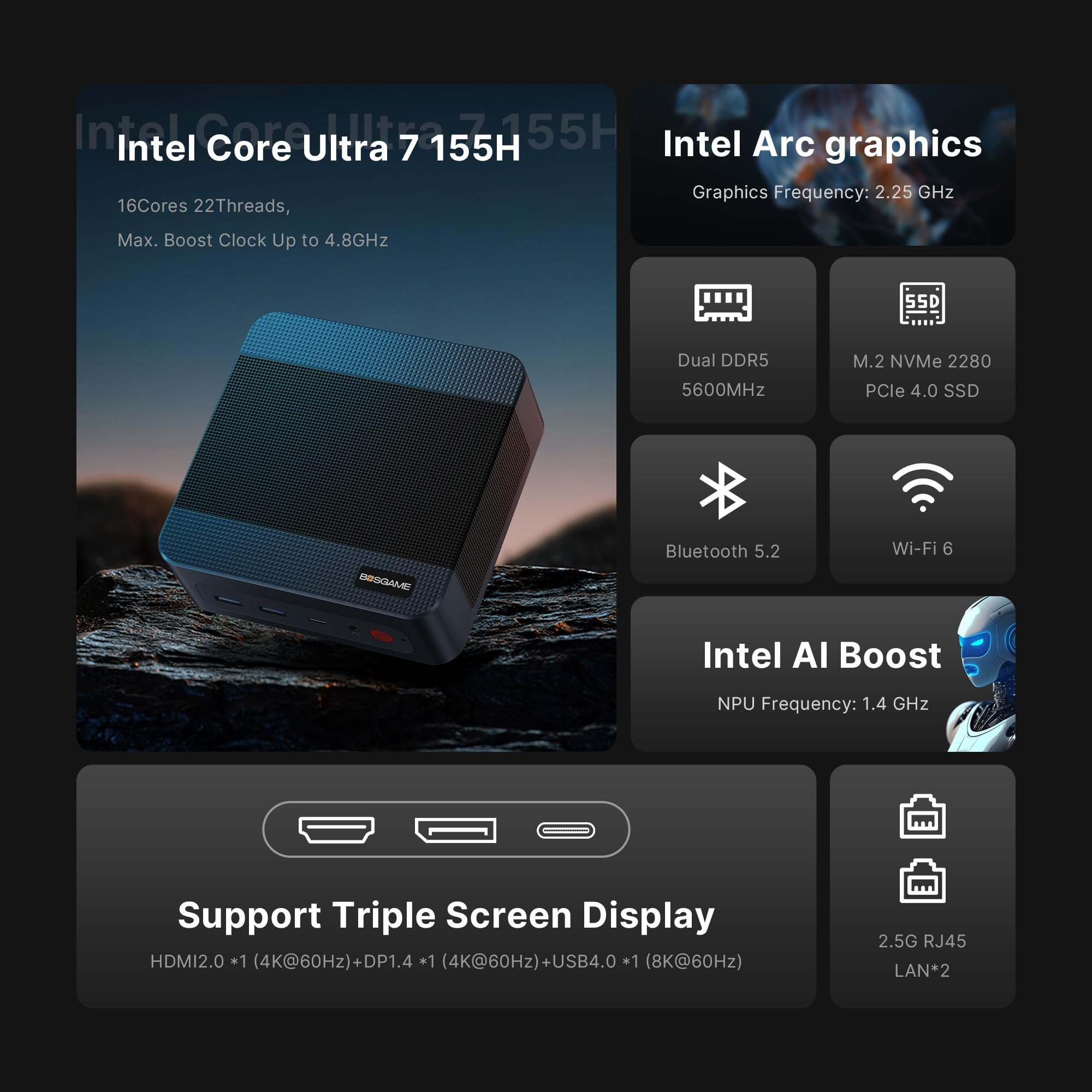
Figure 1: Infographic highlighting key specifications and features of the BOSGAME M3 AI Mini PC, such as its processor, graphics, memory, storage, and connectivity options.
2.2 Ports and Connectors
The BOSGAME M3 AI Mini PC is equipped with a variety of ports for versatile connectivity:
- Front Ports:
- 2 x USB 3.2 ports
- 1 x Thunderbolt 4.0 (Type-C) port
- 1 x Audio Jack
- 1 x Power Button
- Rear Ports:
- 2 x USB 3.2 ports
- 2 x 2.5G RJ45 LAN ports
- 1 x HDMI 2.0 port (supports 4K@60Hz)
- 1 x DisplayPort 1.4 (supports 4K@60Hz)
- 1 x DC Power Input

Figure 2: Front and rear view of the BOSGAME M3 AI Mini PC, illustrating the location of all ports and the power button.
3. Setup
3.1 Unboxing and Contents
Before starting, ensure all components are present:
- BOSGAME M3 Mini PC
- Power Adapter and Cable
- HDMI Cable
- VESA Mount with Screws
- User Manual (this document)
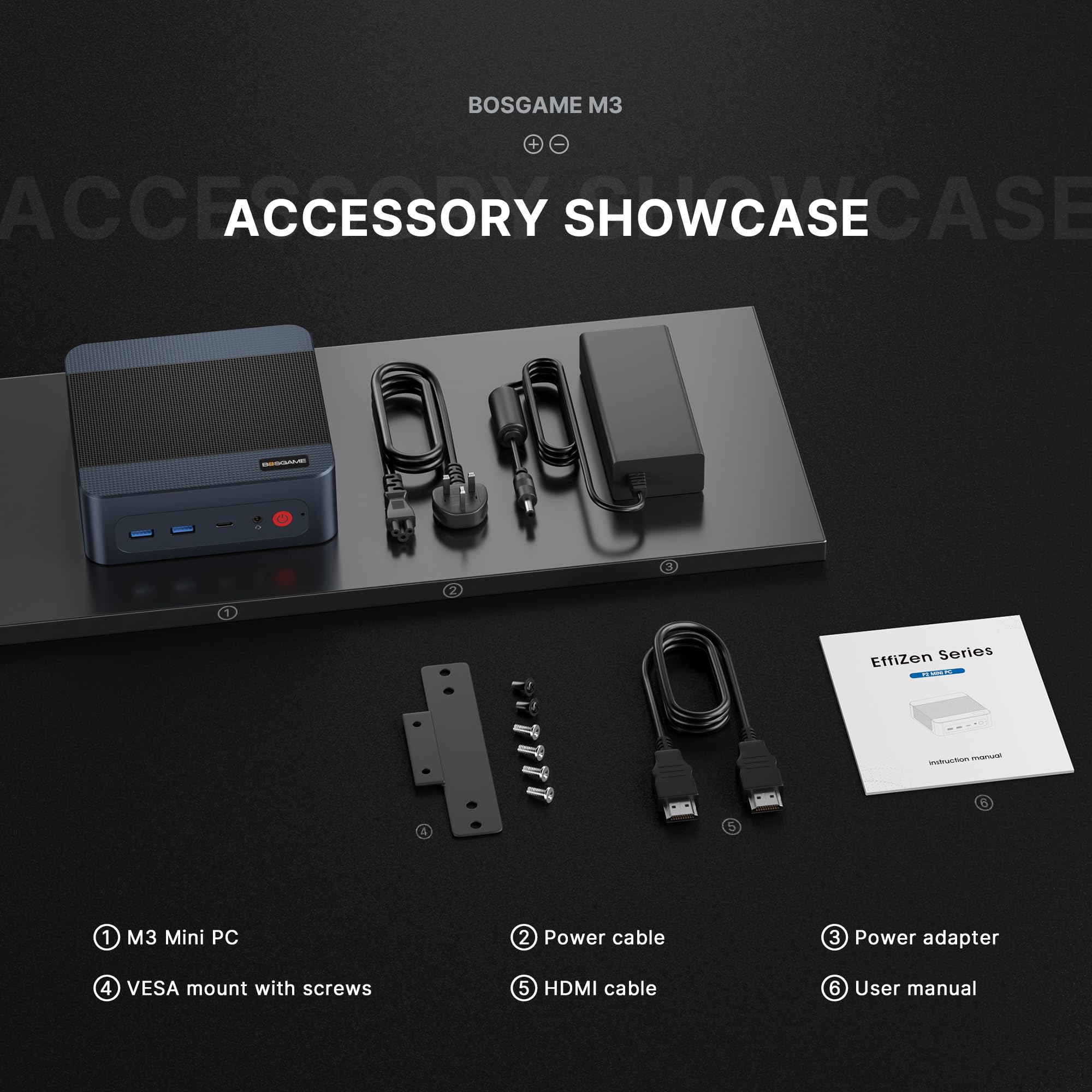
Figure 3: All items included in the BOSGAME M3 AI Mini PC package.
3.2 Connecting Peripherals
- Connect your monitor(s) to the HDMI, DisplayPort, or Thunderbolt 4.0 port(s) on the rear of the Mini PC.
- Connect your keyboard and mouse to the available USB ports (front or rear).
- For wired network access, connect an Ethernet cable to one of the 2.5G RJ45 LAN ports.
- Plug the power adapter into the DC power input on the rear of the Mini PC, then connect it to a power outlet.
3.3 Initial Power-On and OS Setup
- Press the power button on the front of the Mini PC. The power indicator light will illuminate.
- Follow the on-screen instructions to complete the Windows 11 Pro operating system setup. This typically involves selecting language, region, creating a user account, and connecting to a network.
4. Operating Instructions
4.1 Power Management
- Power On: Press the front power button.
- Shut Down: Click the Start menu in Windows, then select Power > Shut down.
- Restart: Click the Start menu in Windows, then select Power > Restart.
- Sleep: Click the Start menu in Windows, then select Power > Sleep.
4.2 Network Connectivity
- Wi-Fi 6: The Mini PC supports Wi-Fi 6 for high-speed wireless internet access. Connect via Windows network settings.
- 2.5G RJ45 LAN: Utilize the dual 2.5G Ethernet ports for ultra-fast wired network connections.
- Bluetooth 5.2: Connect wireless peripherals such as keyboards, mice, and headphones via Bluetooth settings in Windows.
- Wake on LAN: This feature allows you to power on the Mini PC remotely over a network. Refer to your system's BIOS settings for configuration.
4.3 Display Configuration
The BOSGAME M3 supports connecting up to three displays simultaneously:
- Connect monitors using the HDMI 2.0, DisplayPort 1.4, and Thunderbolt 4.0 (USB4.0) ports.
- Thunderbolt 4.0 supports up to 8K@60Hz resolution.
- HDMI 2.0 and DisplayPort 1.4 support up to 4K@60Hz resolution.
- Configure display settings (resolution, orientation, multiple displays) through Windows Display Settings.
5. Maintenance
5.1 Cleaning
- Regularly clean the exterior of the Mini PC with a soft, dry cloth.
- Use compressed air to gently clear dust from the ventilation grilles to maintain optimal airflow and prevent overheating.
- Ensure the Mini PC is placed in a well-ventilated area.
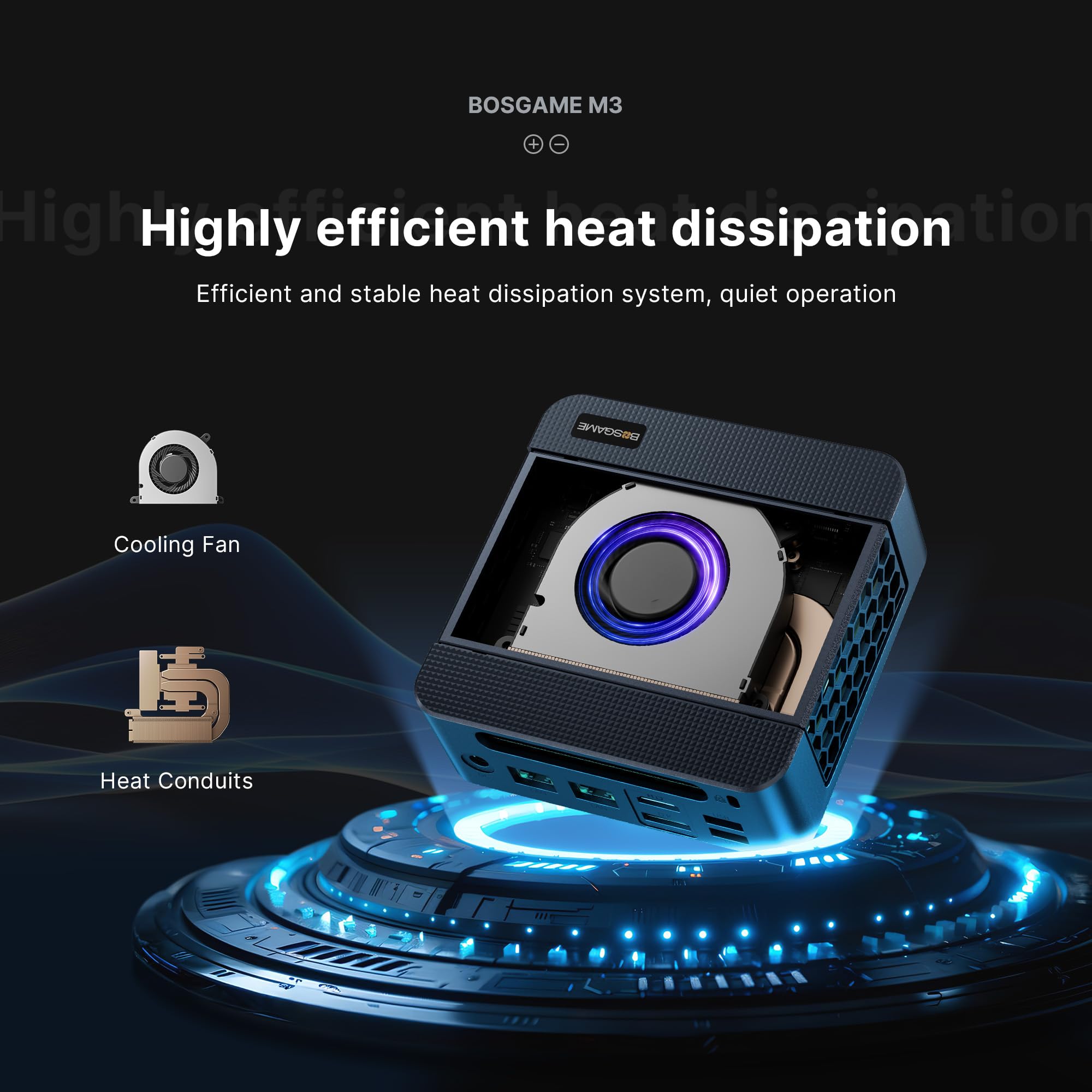
Figure 4: Internal view highlighting the cooling fan and heat conduits for efficient heat dissipation.
5.2 Software Updates
Keep your Windows operating system and drivers updated to ensure system stability, security, and performance. Windows Update can be accessed via Settings > Windows Update.
5.3 Hardware Upgrades
The BOSGAME M3 AI Mini PC is designed for easy upgrades:
- RAM: The device supports up to 64GB DDR5 RAM. You can upgrade or replace the existing RAM modules.
- SSD: The Mini PC features an M.2 NVMe SSD, which can be upgraded to a larger capacity if needed.
Note: Refer to the detailed disassembly instructions (if provided separately) or consult a professional for hardware upgrades to avoid damaging the device.
6. Troubleshooting
| Issue | Possible Cause | Solution |
|---|---|---|
| No power | Power cable not connected, power adapter faulty, power outlet issue. | Check power cable connections. Try a different power outlet. Ensure power adapter is functioning. |
| No display on monitor | Monitor cable loose, incorrect input source on monitor, monitor faulty. | Ensure display cables (HDMI/DP/Thunderbolt) are securely connected. Select correct input source on your monitor. Test with a different monitor or cable. |
| No network connection (wired) | Ethernet cable loose, router/modem issue, network driver issue. | Check Ethernet cable connection. Restart your router/modem. Update network drivers in Windows. |
| No Wi-Fi connection | Wi-Fi disabled, router/modem issue, Wi-Fi driver issue. | Ensure Wi-Fi is enabled in Windows settings. Restart your router/modem. Update Wi-Fi drivers. |
| System is slow or unresponsive | Too many applications running, insufficient RAM, malware, overheating. | Close unnecessary applications. Check Task Manager for resource usage. Run a malware scan. Ensure proper ventilation. |
| BIOS/CMOS reset needed | Incorrect BIOS settings, system instability. | Locate the CLR CMOS button/jumper (if available, often near ports) and follow instructions to reset BIOS settings to default. |
7. Specifications
| Component | Specification |
|---|---|
| Processor | Intel Core Ultra 7 155H (up to 4.8 GHz) |
| Graphics | Integrated Intel Arc Graphics |
| RAM | 64GB DDR5 RAM |
| Storage | 2TB M.2 NVMe SSD |
| Operating System | Windows 11 Pro |
| Max Display Resolution | 8K@60Hz (via Thunderbolt 4.0) |
| Connectivity | WiFi 6, Bluetooth 5.2, Dual 2.5G RJ45 LAN |
| Ports | 2x USB 3.2 (front), 1x Thunderbolt 4.0 (Type-C, front), 1x Audio Jack (front), 1x Power Button (front), 2x USB 3.2 (rear), 2x 2.5G RJ45 LAN (rear), 1x HDMI 2.0 (rear), 1x DisplayPort 1.4 (rear), 1x DC Power Input (rear) |
| Item Weight | 4.22 pounds |
| Package Dimensions | 7.6 x 6.85 x 4.41 inches |
8. Warranty and Support
For warranty information, technical support, or service inquiries, please refer to the documentation included with your purchase or visit the official BOSGAME website. Contact details for customer support are typically available on the product packaging or the manufacturer's website.


