
AJAZZ AM3 MAX (8k Receiver)
AJAZZ AM3 MAX Wireless Gaming Mouse User Manual
Model: AM3 MAX (8k Receiver)
Introduction
Thank you for choosing the AJAZZ AM3 MAX Wireless Gaming Mouse. This ultra-lightweight, high-performance gaming mouse is engineered for precision and speed, featuring a full magnesium alloy body, a 30000 DPI PAW3950 sensor, and versatile tri-mode connectivity. This manual provides detailed instructions for setup, operation, maintenance, and troubleshooting to ensure you get the most out of your device.
Safety Information
- Do not expose the mouse to extreme temperatures or humidity.
- Avoid dropping or subjecting the mouse to strong impacts.
- Do not attempt to disassemble or modify the mouse, as this will void the warranty and may cause damage.
- Use only the provided charging cable or a compatible USB-C cable for charging.
- Keep the mouse away from liquids and dust.
Package Contents
Please check the package contents to ensure all items are present:
- AJAZZ AM3 MAX Wireless Gaming Mouse
- USB-C to USB-A Charging/Data Cable
- 2.4GHz Wireless Receiver (8k Receiver)
- User Manual (this document)
- Additional PTFE feet (optional, check packaging)
Product Overview
The AJAZZ AM3 MAX mouse features a lightweight design with strategically placed cutouts for reduced weight and enhanced grip. Its ergonomic shape is designed for comfortable use during extended gaming sessions.

Figure 1: AJAZZ AM3 MAX Wireless Gaming Mouse (White Model) highlighting key features and design elements.
Key Components:
- Left Click Button: Primary input button.
- Right Click Button: Secondary input button.
- Scroll Wheel: For scrolling and middle-click function.
- DPI Cycle Button: Cycles through preset DPI levels.
- Side Buttons (Forward/Backward): Programmable buttons, typically for navigation.
- USB-C Port: For wired connection and charging.
- Mode Switch: Located on the bottom, for switching between Wired, 2.4GHz Wireless, and Bluetooth modes.
- Optical Sensor: PAW3950 high-performance sensor.
- PTFE Feet: For smooth glide.

Figure 2: Bottom view of the mouse, illustrating the mode switch and internal structure.
Setup
1. Charging the Mouse
Before first use, it is recommended to fully charge the mouse. Connect the provided USB-C cable to the mouse's USB-C port and the other end to a USB-A port on your computer or a USB wall adapter. The LED indicator on the mouse will show charging status (e.g., red for charging, green for fully charged).
2. Connecting via 2.4GHz Wireless (8k Receiver)
- Locate the 2.4GHz wireless receiver (dongle) in the package.
- Plug the receiver into an available USB-A port on your computer.
- On the bottom of the mouse, slide the mode switch to the "2.4G" position.
- The mouse should automatically connect to your computer. If not, press any button on the mouse to wake it up.

Figure 3: Illustration of the tri-mode connection options: Wired, 2.4GHz Wireless, and Bluetooth.
3. Connecting via Bluetooth
- On the bottom of the mouse, slide the mode switch to the "BT" position.
- The mouse will enter pairing mode (LED indicator may blink).
- On your computer or device, open Bluetooth settings.
- Search for new devices and select "AJAZZ AM3 MAX" (or similar name) from the list.
- Follow any on-screen prompts to complete the pairing process.
4. Connecting via Wired USB
- Connect the provided USB-C cable to the mouse's USB-C port.
- Connect the USB-A end of the cable to an available USB-A port on your computer.
- On the bottom of the mouse, slide the mode switch to the "Wired" position.
- The mouse will function as a wired device and will also charge simultaneously.
Operating Instructions
DPI Adjustment
The AM3 MAX mouse features a dedicated DPI cycle button, typically located behind the scroll wheel. Press this button to cycle through various preset DPI (Dots Per Inch) levels. Each press will change the cursor sensitivity. The default DPI settings can be customized using the AJAZZ driver software.
Programmable Buttons
The mouse is equipped with 5 programmable buttons. These buttons can be assigned custom functions, macros, or key bindings using the AJAZZ all-in-one driver software. Refer to the software section for more details.
Polling Rate (8000Hz Wireless)
The AM3 MAX supports an 8000Hz wireless polling rate, providing ultra-low latency and highly responsive tracking. This feature is primarily active when using the 2.4GHz wireless receiver. The polling rate can be adjusted via the driver software to suit your preferences and system capabilities.
Battery Life and Indicator
The mouse offers up to 200 hours of battery life. The LED indicator on the mouse will provide feedback on battery status. A low battery warning will typically be indicated by a blinking red light. Charge the mouse when the battery is low to ensure uninterrupted use.
AJAZZ All-in-one Driver Software
The AM3 MAX utilizes an innovative all-in-one driver. This software automatically recognizes your computer system and allows for advanced customization:
- DPI adjustment and custom profiles.
- Polling rate configuration.
- Competition mode activation.
- Custom button assignments and macro recording.
- Personalized key mapping.
To download the latest driver, visit the official AJAZZ website or refer to the QR code/link provided in the product packaging.
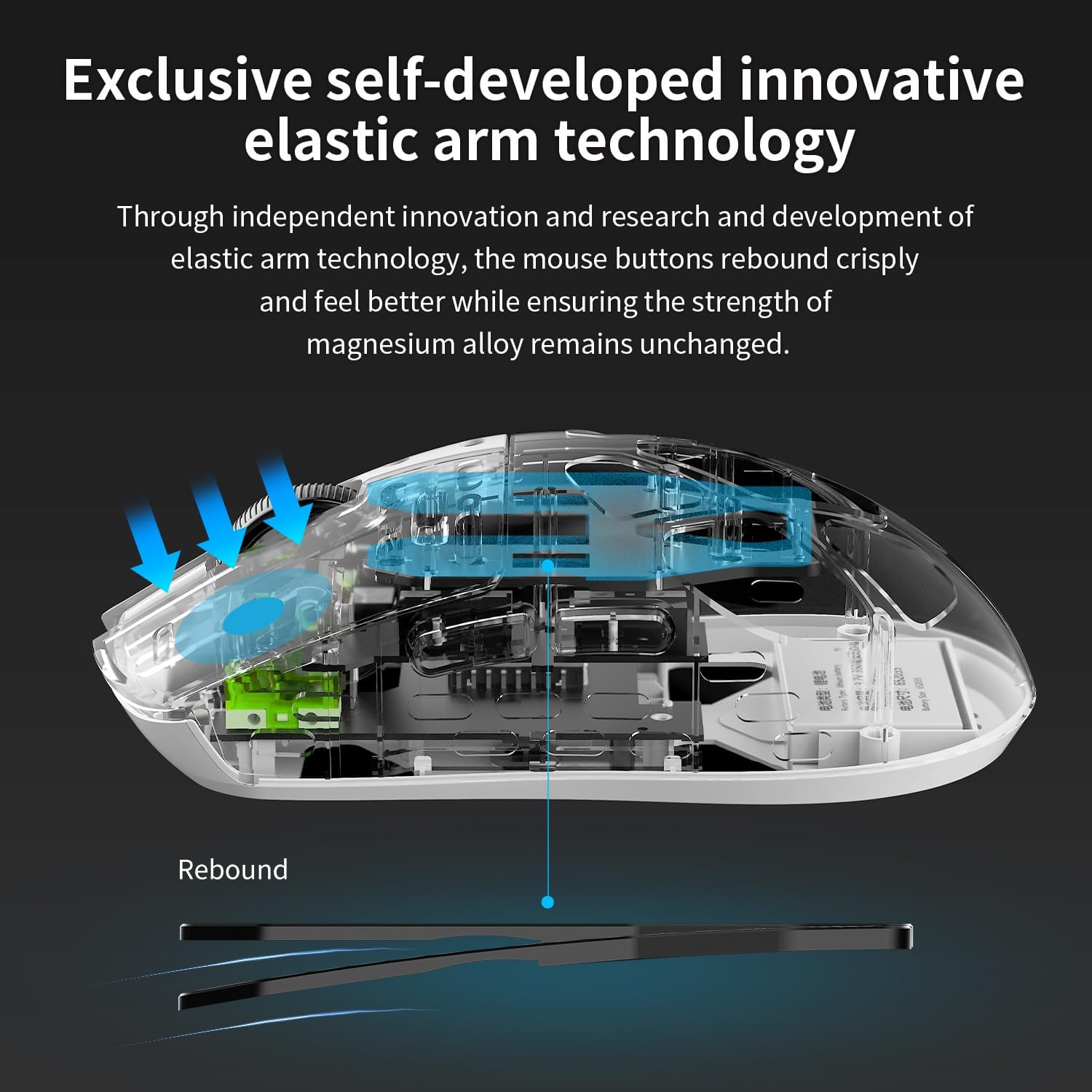
Figure 4: Internal view showcasing the elastic arm technology for improved button feel.
Maintenance
Cleaning
- Use a soft, dry cloth to wipe the surface of the mouse.
- For stubborn dirt, slightly dampen the cloth with water or a mild, non-abrasive cleaner.
- Do not spray cleaning solutions directly onto the mouse.
- Clean the optical sensor periodically with a cotton swab to ensure accurate tracking.
Storage
Store the mouse in a cool, dry place away from direct sunlight and extreme temperatures when not in use for extended periods.
Troubleshooting
| Problem | Possible Cause | Solution |
|---|---|---|
| Mouse not responding. | Low battery; Incorrect mode selected; Receiver not connected; Bluetooth not paired. | Charge the mouse; Ensure mode switch is in correct position (Wired/2.4G/BT); Re-plug receiver; Re-pair Bluetooth. |
| Cursor movement is erratic or jumpy. | Dirty optical sensor; Unsuitable surface; Interference (2.4G/BT). | Clean the sensor; Use on a clean, uniform mouse pad; Move closer to receiver/device; Reduce interference sources. |
| Buttons not working. | Software conflict; Driver issue. | Restart computer; Reinstall/update AJAZZ driver software. |
| Cannot connect via 8000Hz wireless. | Incorrect receiver; Driver not installed; System limitations. | Ensure you are using the 8k receiver; Install the latest AJAZZ driver; Check system compatibility. |
Specifications
| Feature | Detail |
|---|---|
| Model | AM3 MAX |
| Connectivity | Wired (USB-C), 2.4GHz Wireless, Bluetooth |
| Sensor | PixArt PAW3950 |
| DPI Range | Up to 30,000 DPI (Programmable) |
| IPS Speed | 650 IPS |
| Acceleration | 50g |
| Polling Rate | Up to 8000Hz (2.4GHz Wireless) |
| Weight | Approx. 49g |
| Switches | Uni-Green Transparent White Dot (100 million cycles) |
| Encoder | Fengshi Weiqi 200W circle encoder |
| Battery Life | Up to 200 hours |
| Material | Full Magnesium Alloy |
| Programmable Buttons | 5 |
Warranty and Support
Warranty Information
AJAZZ products come with a limited warranty from the date of purchase. This warranty covers defects in materials and workmanship under normal use. It does not cover damage caused by accident, abuse, misuse, natural disaster, or unauthorized modification. Please retain your proof of purchase for warranty claims.
Customer Support
For technical support, troubleshooting assistance, or warranty inquiries, please contact AJAZZ customer service through the following channels:
- Website: Visit the official AJAZZ website for FAQs, driver downloads, and support contact information.
- Email: Refer to your product packaging or the official website for the customer support email address.
When contacting support, please provide your product model (AM3 MAX) and a detailed description of the issue.
Related documentsAM3 MAX (8k Receiver)


Ask a question about this manual
Ask about setup, troubleshooting, compatibility, parts, safety, or missing instructions. Manuals+ will review the question and use this page’s manual context to help answer it.