
Introduction
Thank you for choosing the COOPERS YQ10S Android Tablet. This manual provides essential information for setting up, operating, maintaining, and troubleshooting your device. The YQ10S tablet features a 10.1-inch IPS display, a 1.8Ghz quad-core processor, 6GB RAM, 64GB ROM (expandable up to 1TB), 8MP rear camera, 6000mAH battery, and supports 2.4G/5G Wi-Fi 6 and Bluetooth 5.0. Please read this manual thoroughly to ensure optimal performance and longevity of your tablet.
What's in the Box
Upon unboxing, please verify that all items listed below are present:
- COOPERS YQ10S Android Tablet
- Protective Case
- Type-C Cable
- User Manual (this document)

Image: The COOPERS YQ10S Android Tablet, showcasing its sleek design and the included protective case and Type-C charging cable.
Setup
1. Initial Charging and Power On
Before first use, fully charge your tablet using the provided Type-C cable and a compatible power adapter. The tablet features a 6000mAH battery for extended use.
- Connect the Type-C cable to the tablet's charging port and the other end to a power adapter.
- Allow the tablet to charge until the battery indicator shows full.
- To power on, press and hold the power button located on the side of the tablet until the COOPERS logo appears.
- To power off, press and hold the power button, then select 'Power off' from the options.

Image: Visual representation of the tablet's 6000mAH battery capacity and the convenience of Type-C charging.
2. Wi-Fi Connection
Connect your tablet to a Wi-Fi network to access the internet and download applications.
- Go to Settings > Network & internet > Wi-Fi.
- Toggle Wi-Fi On.
- Select your desired network from the list.
- Enter the password if prompted, then tap Connect.
3. Bluetooth Connection
Pair your tablet with Bluetooth devices such as headphones or speakers.
- Go to Settings > Connected devices > Bluetooth.
- Toggle Bluetooth On.
- Ensure your Bluetooth device is in pairing mode.
- Select your device from the list of available devices and follow any on-screen prompts to complete pairing.

Image: The tablet's display during a video call, highlighting its built-in Bluetooth 5.0 and 2.4/5GHz WiFi capabilities for seamless communication and connectivity.
4. Google Play Store Setup
The tablet comes pre-installed with the Google Play Store, allowing access to millions of apps.
- Open the Play Store app.
- Sign in with your existing Google account or create a new one.
- Once signed in, you can browse and download applications.

Image: A tablet displaying numerous app icons, illustrating the vast selection of applications available through the Google Play Store, supported by WiFi and Bluetooth connectivity.
5. Memory Expansion
Expand your tablet's storage up to 1TB using a TF (microSD) card (not included).
- Locate the TF card slot on the side of your tablet.
- Carefully insert the TF card into the slot until it clicks into place.
- The tablet will detect the new storage, and you can configure it for portable or internal storage.
Operating Instructions
1. Basic Navigation
The COOPERS YQ10S features a responsive 10.1-inch IPS touch screen.
- Tap: Select an item or open an app.
- Swipe: Scroll through pages or lists.
- Pinch-to-zoom: Enlarge or reduce content on the screen.
- Long press: Access contextual menus or move icons.
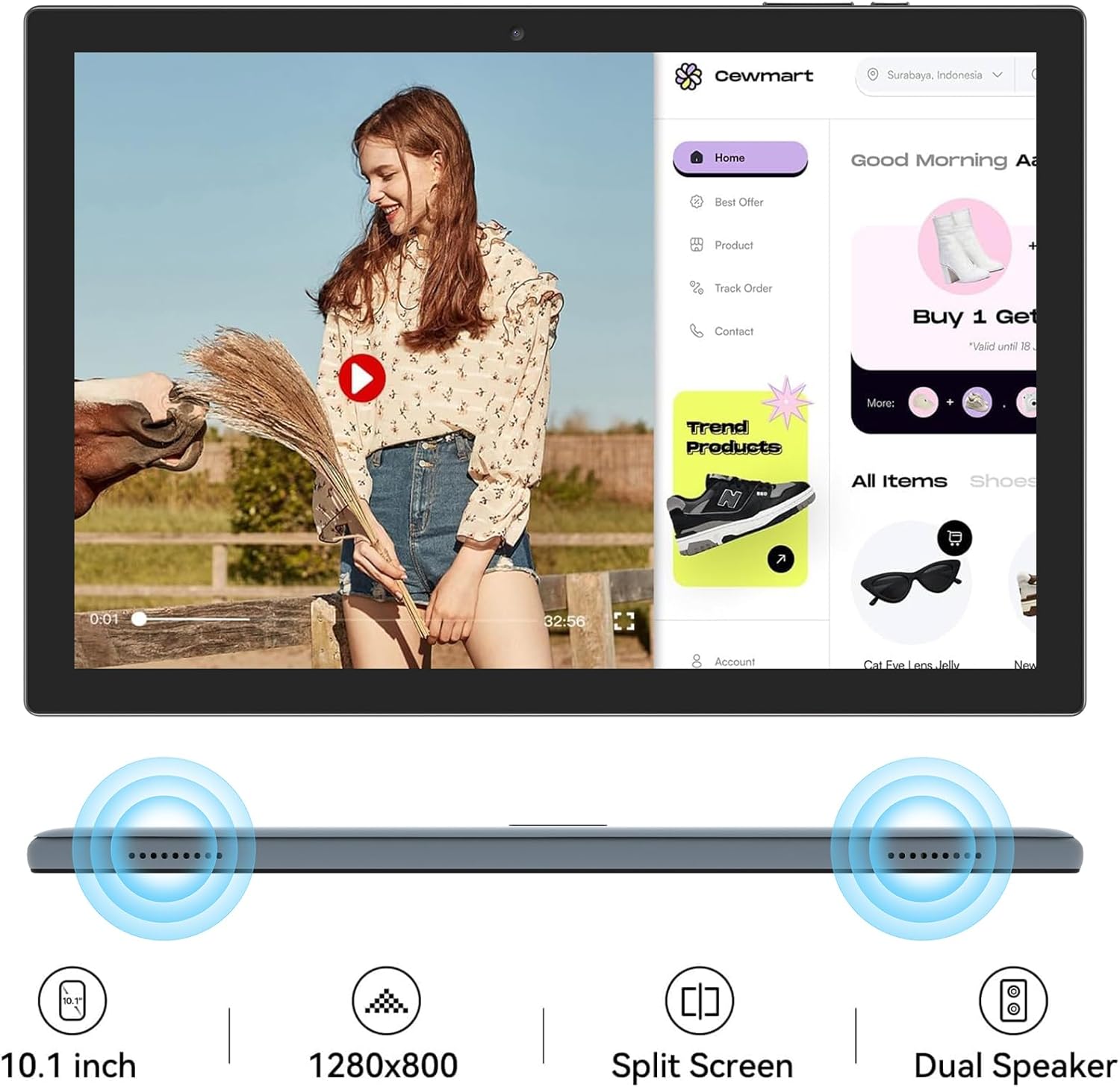
Image: The COOPERS YQ10S tablet in landscape mode, showing its 10.1-inch display, 1280x800 resolution, dual speakers, and split-screen functionality.
2. Display Features
The 10.1-inch high-definition touch screen provides an excellent visual experience with 1280*800 IPS resolution. It includes low blue light technology and automatic brightness adjustment for eye protection.
- Adjust brightness: Swipe down from the top of the screen to open the quick settings panel, then drag the brightness slider.
- Enable/Disable Eye Comfort Shield: Access this feature in Settings > Display.
3. Camera Usage
Capture photos and videos with the tablet's 8MP rear camera and 2MP front camera.
- Open the Camera app.
- Tap the camera icon to switch between front and rear cameras.
- Tap the shutter button to take a photo or start/stop video recording.

Image: Examples of photos taken with the tablet's 8MP rear camera (landscape) and 2MP front camera (flowers), demonstrating their capabilities.
4. Audio and Entertainment
The tablet features dual speakers with 3D stereo surround effect for an immersive audio experience, whether watching videos, playing games, or listening to music.
- Adjust volume: Use the volume buttons on the side of the tablet or the volume slider in the quick settings panel.
- Connect headphones: Use Bluetooth headphones or a USB-C to 3.5mm adapter if needed.

Image: A user enjoying audio content on the tablet with headphones, illustrating its use for entertainment.
Maintenance
Proper care ensures the longevity and optimal performance of your COOPERS YQ10S tablet.
- Cleaning: Use a soft, lint-free cloth to clean the screen and body. Avoid abrasive materials or harsh chemicals.
- Software Updates: Regularly check for and install system updates to ensure your tablet has the latest features and security patches. Go to Settings > System > System update.
- Battery Care: Avoid extreme temperatures. Do not let the battery completely drain frequently. For long-term storage, charge the battery to about 50%.
- Storage Management: Periodically clear unnecessary files and uninstall unused apps to free up storage space and maintain performance.
- Protection: Use the provided protective case to guard against scratches and minor impacts.
Troubleshooting
Here are solutions to common issues you might encounter:
- Tablet is slow or unresponsive:
- Close unused applications running in the background.
- Restart the tablet.
- Clear cache data for frequently used apps.
- Ensure sufficient storage space is available.
- Battery drains quickly:
- Reduce screen brightness.
- Disable Wi-Fi, Bluetooth, and GPS when not in use.
- Identify and close power-intensive applications.
- Check for system updates.
- Tablet not charging:
- Ensure the Type-C cable is securely connected to both the tablet and the power adapter.
- Try a different power outlet.
- Test with a different Type-C cable and power adapter if available.
- Clean the charging port gently to remove any debris.
- Wi-Fi connection issues:
- Restart your Wi-Fi router.
- Forget the network in tablet settings and reconnect.
- Ensure you are within range of the Wi-Fi signal.
- Touch screen unresponsive in certain areas:
- Restart the tablet.
- Ensure the screen is clean and free of moisture or debris.
- If the issue persists after a restart, a factory reset might be necessary (back up your data first).
Specifications
| Feature | Specification |
|---|---|
| Model Name | YQ10S |
| Operating System | Android |
| Screen Size | 10.1 Inches |
| Screen Resolution | 1280 x 800 IPS |
| Processor | 1.8 GHz Quad-core (ARM) |
| RAM | 6GB (2GB fixed + 4GB virtual) |
| Internal Storage | 64 GB |
| Expandable Storage | Up to 1TB via TF card (not included) |
| Rear Camera | 8 MP |
| Front Camera | 2 MP |
| Battery Capacity | 6000mAH Lithium Polymer |
| Average Battery Life | 8 Hours |
| Wireless Connectivity | 2.4G/5G Wi-Fi 6 (802.11ax) |
| Bluetooth | Bluetooth 5.0 |
| Product Dimensions | 9.5 x 0.3 x 6.5 inches |
| Item Weight | 2.03 pounds |
Warranty Information
For detailed warranty information regarding your COOPERS YQ10S Android Tablet, please refer to the warranty card included with your purchase or contact the retailer where the product was acquired. Warranty terms and conditions may vary by region and retailer.
Support
If you require further assistance, have questions not covered in this manual, or encounter issues that cannot be resolved through troubleshooting, please contact COOPERS customer support. Refer to your product packaging or the retailer's website for specific contact details.

