1. Introduction
This manual provides detailed instructions for setting up, operating, maintaining, and troubleshooting your Machenike Mini Desktop GTX Mini PC. This compact and powerful mini PC features an AMD Ryzen 9 7940HS processor with Radeon 780M graphics, 32GB DDR5 RAM, and a 2TB SSD, running on Windows 11 Pro. It supports dual 4K monitors and offers extensive connectivity options.

Figure 1: Machenike Mini Desktop GTX Mini PC - Front View
This image displays the compact design of the Machenike Mini Desktop, highlighting its sleek appearance and small footprint, ideal for various setups.
2. What's in the Box
Upon unboxing your Machenike Mini Desktop, please ensure all the following items are present:
- Machenike GTX Mini Desktop Unit
- Power Adapter
- User Manual (this document)
- (Optional: VESA mount kit, HDMI cable - check packaging for exact contents)
3. Setup Guide
3.1 Connecting Peripherals
Before powering on your Mini PC, connect your essential peripherals.
- Connect Display(s): Use the HDMI 2.1, DisplayPort 1.4, or Type-C ports to connect your monitor(s). This Mini PC supports up to two 4K monitors simultaneously.
- Connect Keyboard and Mouse: Plug your USB keyboard and mouse into any of the available USB 3.2 Gen1 or USB 3.2 Gen2 ports.
- Connect Network (Optional): For a wired internet connection, connect an Ethernet cable to one of the 2.5G RJ45 ports. For wireless, ensure your Wi-Fi network is available during initial setup.
- Connect Audio (Optional): If using external speakers or headphones, connect them to the 3.5mm audio jack.

Figure 2: Front and Rear Port Layout
This image illustrates the various ports available on the front and rear of the Mini PC, including USB, Type-C, HDMI, DisplayPort, and RJ45 network ports, crucial for connecting peripherals.
3.2 Power Connection and Initial Boot
- Connect Power: Plug the power adapter into the DC-in port on the Mini PC, then connect it to a power outlet.
- Power On: Press the power button located on the front of the device. The system will begin to boot up.
- Windows 11 Pro Setup: Follow the on-screen instructions to complete the initial setup of Windows 11 Pro. This includes selecting your region, connecting to a network, and creating a user account.
4. Operating Instructions
4.1 Basic Operation
Your Machenike Mini Desktop is ready for use once Windows 11 Pro setup is complete.
- Power On/Off: Press the power button to turn the device on. To shut down, use the Windows Start menu. A quick press of the power button can also put the PC to sleep.
- Restart Button: A dedicated restart button is available for system reboots if needed.
- Connectivity: Utilize Wi-Fi 6 for high-speed wireless internet or the 2.5G RJ45 ports for a stable wired connection. Bluetooth allows for connecting wireless peripherals.
4.2 Advanced Features
The Mini PC includes several advanced features to enhance your experience.
- Magnetic Quick-Release Cover: The top cover is magnetic and can be easily removed. When the device is turned on, the phantom light pattern can be adjusted via software.
- Dual Type-C Ports: The device features two Type-C ports. The rear USB4 Type-C port offers 40Gbps transmission, suitable for external graphics cards or connecting to a monitor with PD power supply. The front Type-C port provides 10Gbps transmission, primarily for display output with PD power supply.

Figure 3: Magnetic Quick-Release Cover with Adjustable Lighting
This image demonstrates the magnetic quick-release cover, which allows for customization of the phantom light pattern when the device is active.

Figure 4: Dual Type-C Port Functionality
This image highlights the two distinct Type-C ports, detailing their different transmission speeds and primary uses, such as external graphics or display output.
5. Maintenance
5.1 Cooling System
The Machenike Mini Desktop features a dual-fan cooling system with upgraded storage heat distribution to ensure optimal performance and longevity.
- Ensure Proper Airflow: Do not block the ventilation openings on the device. Place the Mini PC in a well-ventilated area.
- Regular Cleaning: Periodically clean dust from the exterior vents using compressed air or a soft brush to maintain efficient cooling.

Figure 5: Dual Fan Cooling System Diagram
This diagram illustrates the internal dual-fan cooling system, showing how heat is efficiently dissipated from the CPU, GPU, and storage components.
5.2 Software Updates
Keep your system updated for optimal performance and security.
- Windows Updates: Regularly check for and install updates via Windows Update in the Settings menu.
- Driver Updates: Ensure your graphics drivers (AMD Radeon 780M) and other system drivers are up-to-date. Visit the Machenike support website or AMD's official website for the latest drivers.
6. Troubleshooting
This section addresses common issues you might encounter.
| Problem | Possible Cause | Solution |
|---|---|---|
| No display on monitor | Loose cable connection, incorrect input source, monitor off. |
|
| System not powering on | Power adapter not connected, faulty power outlet. |
|
| Intermittent crashes or freezes | Outdated drivers, overheating, software conflicts. |
|
| Wi-Fi or Bluetooth connectivity issues | Driver issues, interference, incorrect settings. |
|
7. Specifications
Detailed technical specifications for your Machenike Mini Desktop GTX Mini PC.
| Feature | Detail |
|---|---|
| Model | GTX Mini PC |
| Processor | AMD Ryzen 9 7940HS (8 Cores/16 Threads, up to 5.2GHz, 16M Cache) |
| Graphics | AMD Radeon 780M (Graphic frequency 2.8GHz), Integrated |
| RAM | 32GB DDR5 (4800 MHz) |
| Storage | 2TB M.2 SSD (PCIE x 4) |
| Operating System | Windows 11 Pro |
| Wireless Connectivity | Wi-Fi 6 (802.11ax), Bluetooth |
| Ports (Front) | 1 x USB3.2 Gen1 (5Gbps), 1 x USB3.2 Gen2 (10Gbps), 1 x Type-C (10Gbps, display/PD), 1 x 3.5mm Audio, Power Button, Restart Button |
| Ports (Rear) | 3 x USB3.2 Gen1 (5Gbps), 1 x USB4 Type-C (40Gbps, external GPU/PD), 1 x HDMI 2.1, 1 x DisplayPort 1.4, 2 x RJ45 (2.5G network) |
| Max Screen Resolution | 3840 x 2160 pixels (4K) |
| Dimensions (LxWxH) | 5.05 x 1.96 x 5.05 inches (12.83 x 4.98 x 12.83 cm) |
| Weight | 2.25 lbs (1.02 kg) |
| Color | Grey |
8. Warranty and Support
For warranty information, technical support, and driver downloads, please visit the official Machenike support website.
- Official Support: Refer to the Machenike official website for the most up-to-date support resources, FAQs, and contact information.
- Kensington Security Keyhole: The Mini PC includes a reserved Kensington security keyhole for physical anti-theft protection.
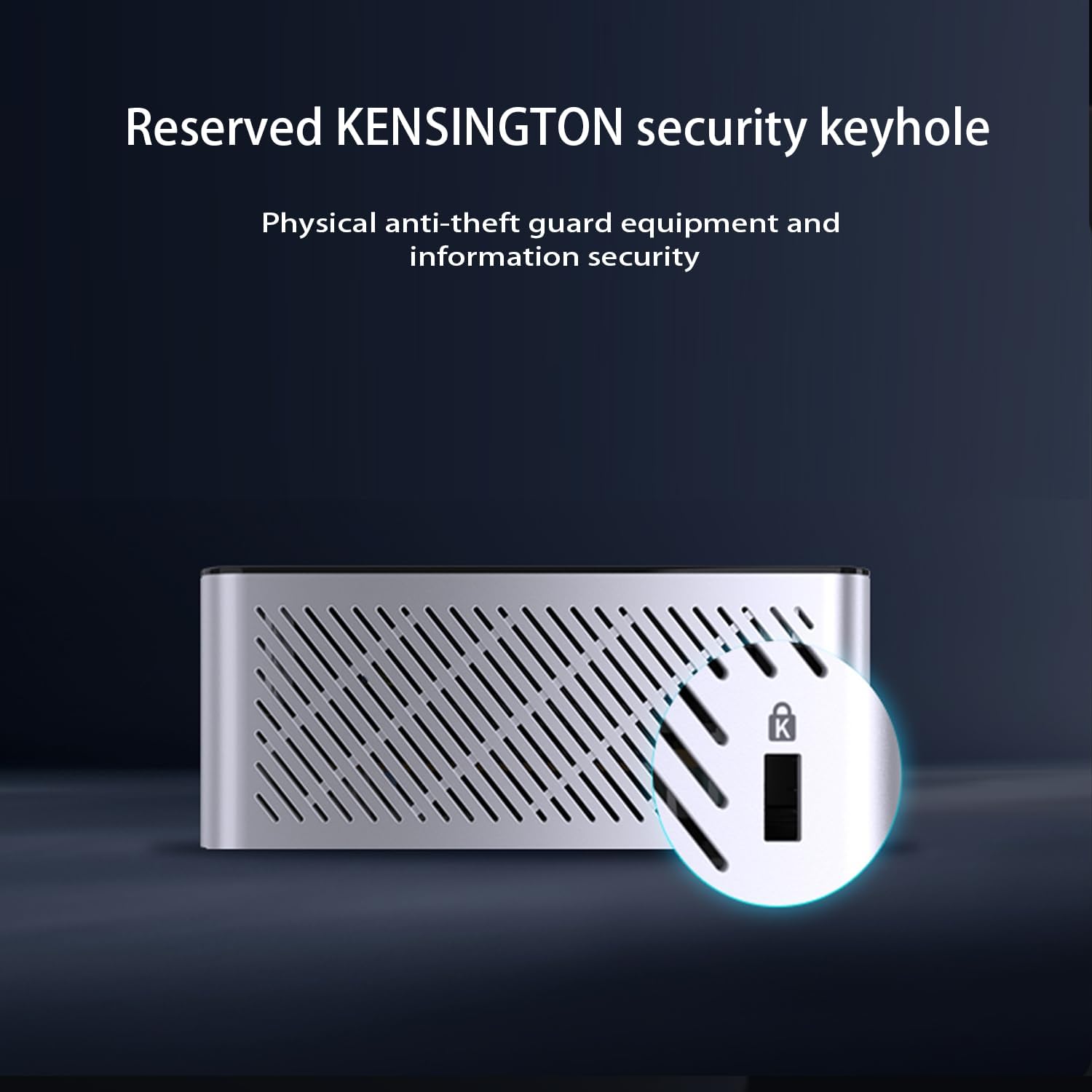
Figure 6: Kensington Security Keyhole
This image shows the dedicated Kensington security keyhole, providing a physical security option for the Mini PC.
9. Product Videos
Watch these videos for additional information and visual guides on your Machenike Mini Desktop.
9.1 Product Overview Video
Video 1: Machenike Mini Desktop Product Overview (Duration: 2:42)
This video provides a general overview of the Machenike Mini Desktop, showcasing its features and design.
9.2 Feature Highlight Video
Video 2: Machenike Mini Desktop Feature Highlight (Duration: 2:12)
This video highlights specific features and functionalities of the Machenike Mini Desktop, offering a closer look at its capabilities.


