
Creative SA0210
Creative BT-W6 Wireless Bluetooth Transmitter User Manual
Model: SA0210
Introduction
The Creative BT-W6 is a wireless Bluetooth 5.4 and LE Audio transmitter designed to provide high-quality audio streaming for various devices. It supports advanced audio codecs such as aptX Lossless, aptX Adaptive, aptX HD, aptX, and SBC, ensuring a superior listening experience with low latency. This device is compatible with PC, Mac, and major gaming consoles, offering versatile connectivity for your audio needs.
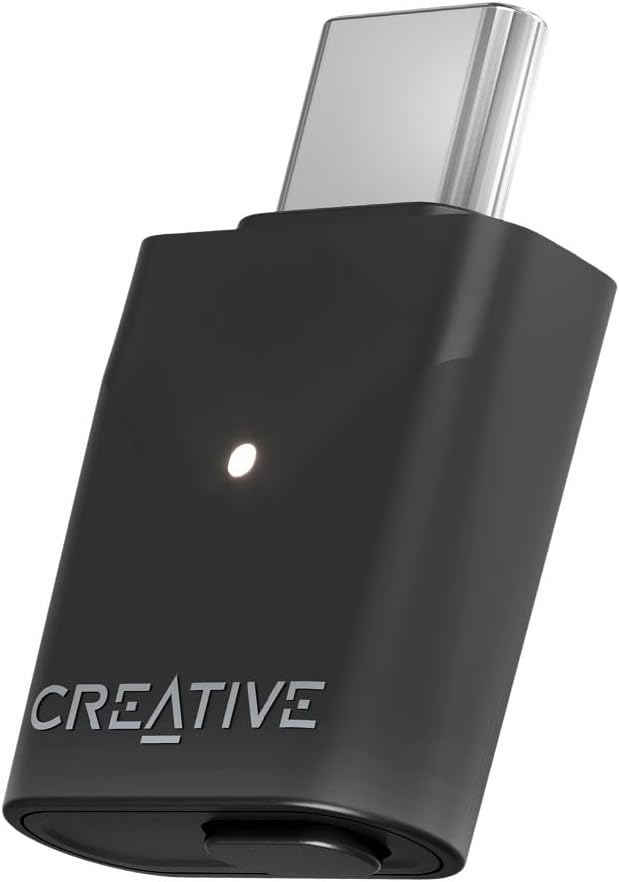
Image: The Creative BT-W6 Wireless Bluetooth Transmitter, a compact black USB-C dongle with a white LED indicator and the Creative logo.
Package Contents
Ensure all items are present in the package before proceeding with setup:
- Creative BT-W6 Wireless Bluetooth Transmitter
- Quick Start Guide
Setup
The Creative BT-W6 is designed for plug-and-play operation. Follow these steps to set up your device:
- Connect the Transmitter: Insert the Creative BT-W6 into an available USB-C port on your PC, Mac, or gaming console. The device will typically be recognized automatically by your operating system.
- Power On Your Audio Device: Ensure your Bluetooth headphones or speakers are powered on and in pairing mode. Refer to your audio device's manual for specific pairing instructions.
- Pairing: The BT-W6 will automatically attempt to pair with nearby Bluetooth audio devices in pairing mode. Once connected, the LED indicator on the BT-W6 will change to a solid color, indicating a successful connection.
- Install Creative App (Optional but Recommended): For enhanced control and customization, download and install the Creative App from the official Creative website. This application allows you to customize EQ settings, manage Bluetooth devices, and select preferred audio codecs.

Image: A laptop screen displaying the Creative App interface, showing options for Sound Mode, Acoustic Engine, Equalizer, and Bluetooth Devices, indicating the software's role in enhancing the BT-W6's functionality.
Operating Instructions
Using your Creative BT-W6 transmitter for optimal audio performance:
Audio Codec Selection
The BT-W6 supports a wide range of audio codecs. The multifunction button on the device allows for supported codec selection, with an LED indication for the currently used codec. Refer to the Quick Start Guide for specific LED color indications for each codec (aptX Lossless, aptX Adaptive, aptX HD, aptX, SBC).

Image: A screenshot of the Creative App's Bluetooth Devices section, illustrating the options for Bluetooth Mode (LE Audio) and Preference for aptX Adaptive / aptX Lossless, along with various aptX codec logos.
Gaming Audio Profile (GMAP)
For a smooth and lag-free streaming experience, particularly beneficial for gaming and movies, the BT-W6 features a Game Audio Profile (GMAP). When activated, the LED indicator will turn magenta. This profile is designed to minimize audio latency.

Image: A person playing on a Nintendo Switch with the Creative BT-W6 transmitter plugged into the console's USB-C port, demonstrating its use for gaming with Snapdragon Sound.
LE Audio Broadcast Mode
The BT-W6 supports Bluetooth LE Audio Broadcast Mode, enabling you to transmit audio to multiple compatible devices simultaneously. This feature is ideal for shared listening experiences.

Image: An illustration depicting four individuals wearing headphones, with audio waves emanating from a central Creative BT-W6 transmitter, symbolizing the LE Audio Broadcast Mode's ability to transmit audio to multiple devices.
Features Overview
- Classic Bluetooth 5.4 and LE Audio: Offers improved wireless audio playback and the ability to broadcast audio to multiple compatible devices.
- Wide Range of Audio Codecs: Supports aptX Lossless, aptX Adaptive, aptX HD, aptX, and SBC for diverse audio quality needs. Codec selection is available via the multifunction button and LED indication.
- Snapdragon Sound with 24-bit / 96 kHz and aptX Lossless: Delivers consistent high-quality wireless streaming, compatible with PC, Mac, and gaming consoles.
- Low Latency Playback (GMAP): Ensures synchronized audio for movies and games, minimizing lag.
- Plug-and-Play Portability: Simple connection via USB-C, making it easy to use across various compatible devices.
- Creative App Support: Allows users to customize EQ settings and manage device preferences for a personalized audio experience.

Image: A person wearing orange headphones and working on a laptop, illustrating the high-resolution 24-bit / 96 kHz audio capability of the Creative BT-W6.
Maintenance
To ensure the longevity and optimal performance of your Creative BT-W6 transmitter, follow these maintenance guidelines:
- Cleaning: Use a soft, dry, lint-free cloth to clean the exterior of the device. Avoid using harsh chemicals, cleaning solvents, or strong detergents.
- Storage: When not in use, store the BT-W6 in a cool, dry place, away from direct sunlight and extreme temperatures.
- Handling: Handle the device with care. Avoid dropping it or subjecting it to strong impacts. Do not attempt to disassemble the unit.
- Connectivity: Ensure the USB-C port on your device and the BT-W6 are free from dust and debris before connecting.
Troubleshooting
If you encounter issues with your Creative BT-W6, refer to the following common troubleshooting steps:
| Problem | Possible Solution |
|---|---|
| No Audio / Device Not Connecting |
|
| Poor Audio Quality / Disconnections |
|
| Creative App Freezes or Crashes |
|
Specifications
| Brand | Creative |
| Model Number | SA0210 |
| Product Dimensions (L x W x H) | 4.72 x 2.95 x 0.59 inches |
| Item Weight | 1.28 ounces |
| Connector Type | USB Type C |
| Color | White |
| Compatible Devices | Gaming Console, Mac, PC |
| Bluetooth Version | 5.4 (Classic Bluetooth and LE Audio) |
| Supported Audio Codecs | aptX Lossless, aptX Adaptive, aptX HD, aptX, SBC |
| Audio Resolution | Up to 24-bit / 96 kHz (with Snapdragon Sound) |
Warranty and Support
For warranty information, technical support, and additional resources, please visit the official Creative support website:
You may also find helpful information and frequently asked questions on the product's Amazon page or by contacting Creative customer service directly.
Related documentsSA0210


Ask a question about this manual
Ask about setup, troubleshooting, compatibility, parts, safety, or missing instructions. Manuals+ will review the question and use this page’s manual context to help answer it.