
1. Product Overview
The MgaoLo H36 Kids Digital Camera is designed for young users, offering a range of features to encourage creativity and exploration through photography and videography. This compact and durable camera is equipped with user-friendly controls and a protective silicone case.
Key Features:
- Dual Cameras: Front and rear lenses with 48-megapixel resolution.
- High-Definition Video: Records in 1080P.
- Display: 2.0-inch HD IPS eye protection screen.
- Zoom: 8x digital zoom with auto focus.
- Creative Modes: Includes 28 photo frames and 6 filters.
- Multi-functional: Supports photo recording, video recording, playback, burst recording, self-timer, built-in puzzle games, and music playback.
- Storage: Comes with a pre-installed 32GB Micro SD card.
- Battery: Built-in rechargeable lithium battery with 2-3 hours working time and automatic shut-off.
- Durability: Cute silicone case provides effective anti-fall protection.
- Portability: Includes a durable lanyard for easy carrying.
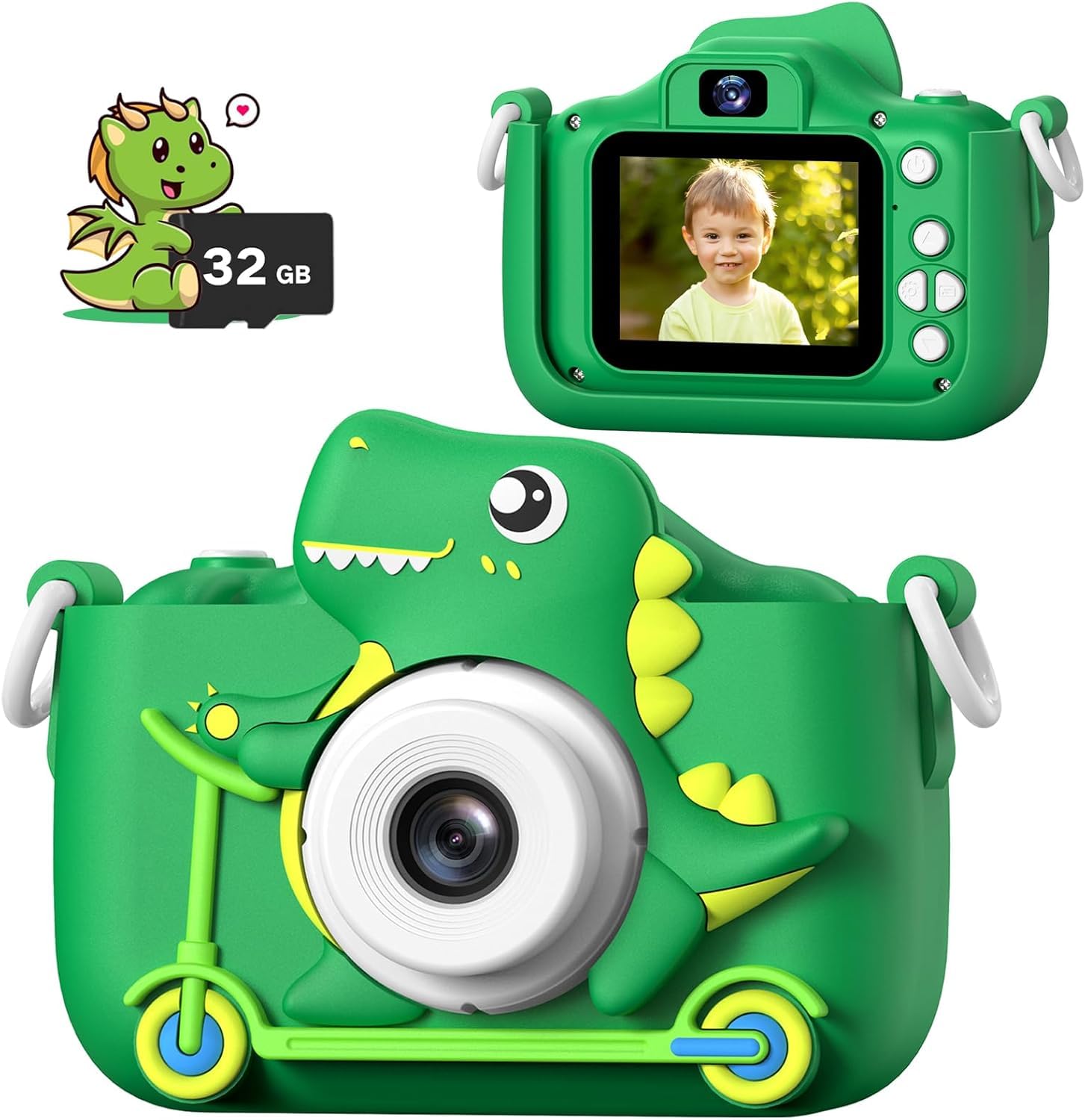
Image: The MgaoLo H36 Kids Digital Camera, highlighting its multi-functions including 48MP photo, video recording, 8X digital zoom, music/video player, self-camera, games, portability, 2" color display, time shooting, and front/rear lens capabilities.
2. What's in the Box
Upon opening your MgaoLo H36 Kids Digital Camera package, you should find the following items:
- MgaoLo H36 Digital Camera (with pre-installed 32GB Micro SD card)
- Silicone Protective Case
- Durable Lanyard
- USB Charging Cable
3. Setup
3.1 Charging the Camera
Before first use, fully charge the camera's built-in lithium battery. A full charge typically takes 1-1.5 hours.
- Locate the USB charging port on the side of the camera.
- Connect the provided USB cable to the camera's charging port.
- Plug the other end of the USB cable into a compatible USB power adapter (not included) or a computer's USB port.
- The charging indicator light will illuminate during charging and turn off when fully charged.
3.2 Inserting/Removing Micro SD Card
The camera comes with a 32GB Micro SD card pre-installed. If you need to remove or replace it:
- Ensure the camera is powered off.
- Gently push the Micro SD card into its slot until you hear a click. To remove, push again until it springs out.
- Ensure the card is inserted correctly with the gold contacts facing the camera's screen side.
3.3 Attaching the Lanyard and Silicone Case
The silicone case provides protection, and the lanyard ensures the camera is securely carried.
- Carefully place the camera into the silicone protective case, ensuring all buttons and ports align with the case openings.
- Attach the durable lanyard to the designated loops on the silicone case or directly to the camera body if preferred.

Image: Detailed diagram of the camera's components, including USB charging port and SD card slot.
Video: An overview of the Mgaolo Kids Cameras, demonstrating the protective case and various features.
4. Operating Instructions
4.1 Power On/Off
- To power on, press and hold the power button (usually located on the top or side) for a few seconds until the screen illuminates.
- To power off, press and hold the power button again until the screen turns off. The camera also features an automatic shut-off function to preserve battery life if inactive.
4.2 Navigation and Menu
Use the directional buttons (Up, Down, Left, Right) and the OK/Shutter button to navigate through the camera's menu and select options.
- Up/Down: Scroll through menu options or zoom in/out.
- Left/Right: Navigate between different modes or settings.
- OK/Shutter Button: Confirm selection or take a photo/start recording.
- Back/Menu Button: Return to the previous screen or access the main menu.
4.3 Taking Photos
- Ensure the camera is in photo mode (indicated by a camera icon on the screen).
- Frame your shot using the screen.
- Press the OK/Shutter button to capture the photo.

Image: The camera's multi-function display, illustrating the photo capture option.
4.4 Recording Videos
- Switch to video mode (indicated by a video camera icon).
- Press the OK/Shutter button once to start recording. A red recording indicator will appear.
- Press the OK/Shutter button again to stop recording.
4.5 Playback Mode
To view your captured photos and videos:
- Enter playback mode (indicated by a play icon).
- Use the Left/Right directional buttons to browse through your media.
- Press the OK/Shutter button to play a video.
4.6 Using Frames and Filters
Enhance your photos with fun frames and filters:
- In photo mode, press the Left/Right directional buttons to cycle through available frames and filters.
- Select your desired frame or filter before taking a picture.

Image: The camera screen showing different frames and filters that can be applied to photos.
4.7 Timed Shooting (Self-Timer)
Set a delay before taking a photo:
- Access the settings menu and locate the 'Capture Timer' option.
- Select your preferred delay (e.g., 2s, 5s, 10s).
- Exit settings and press the OK/Shutter button. The camera will count down before taking the picture.

Image: The camera showing the timed shooting feature, with options for 2, 5, or 10-second delays.
4.8 Digital Zoom
Magnify your subject using the digital zoom function:
- In photo or video mode, use the Up/Down directional buttons to zoom in or out (up to 8x).

Image: The camera illustrating its 8x digital zoom feature with example images at different zoom levels.
4.9 Playing Games
The camera includes built-in puzzle games for entertainment.
- Navigate to the games icon on the main menu.
- Select a game using the directional buttons and the OK/Shutter button.
- Follow the on-screen instructions to play.

Image: The camera screen showing three built-in puzzle games: Snaker, PushBox, and Tetris.
5. Maintenance
- Cleaning: Use a soft, dry cloth to clean the camera body and screen. Do not use liquid cleaners.
- Storage: Store the camera in a cool, dry place away from direct sunlight when not in use.
- Battery Care: To prolong battery life, avoid fully discharging the battery frequently. Charge it regularly, even if not in constant use.
- Water Resistance: This camera is NOT water resistant. Avoid exposure to water or moisture.
6. Troubleshooting
| Issue | Possible Solution |
|---|---|
| Camera won't turn on | Ensure the battery is charged. Connect to a power source and try again. |
| Cannot take photos/videos | Check if the Micro SD card is inserted correctly and has sufficient free space. |
| Screen is frozen | Locate the reset button (often a small pinhole) and gently press it with a thin object (e.g., a paperclip). |
| Poor image quality | Ensure the lens is clean and there is adequate lighting. |
7. Specifications
| Feature | Detail |
|---|---|
| Model Name | H36 |
| Maximum Webcam Image Resolution | 48 MP |
| Video Resolution | 1080p |
| Optical Zoom | 8 x |
| Screen Size | 2 Inches |
| Display Type | LCD |
| Flash Memory Type | Micro SD |
| Memory Storage Capacity | 32 GB |
| Battery Type | Lithium Ion |
| Battery Average Life | 2 Hours |
| Connectivity Technology | USB |
| Water Resistance Level | Not Water Resistant |
8. Warranty and Support
- Warranty: This product comes with a 1-year warranty from the date of purchase. Please retain your proof of purchase for warranty claims.
- Support: For any questions, technical assistance, or warranty inquiries, please contact MgaoLo customer support through the retailer's platform or the official brand website.