
1. Introduction
This manual provides detailed instructions for the setup, operation, maintenance, and troubleshooting of your Rapoo E9050L Multi-Device Wireless Keyboard. The E9050L is an ultra-thin, 78-key compact keyboard designed for seamless switching between up to four devices across multiple operating systems, including Windows, macOS, Linux, and Chrome OS. It features a low-profile design for comfortable typing and a long-lasting rechargeable battery.

Figure 1:Rapoo E9050L Multi-Device Wireless Keyboard (White)
2. What's in the Box
Verify that all items are present in the package:
- 1 x Rapoo E9050L Wireless Keyboard
- 1 x Charging Cable (USB-C)
- 1 x User Guide
- 1 x 2.4G USB Receiver (typically stored in the keyboard's battery compartment or a small slot)
3. Product Features
3.1 Multi-Device and Multi-OS Wireless Connectivity
The E9050L keyboard supports seamless switching between up to four devices. It offers connectivity via 2.4GHz wireless (using the included USB receiver) and Bluetooth 5.0/4.0. This allows you to connect to laptops, desktop computers, tablets, or smartphones without the need to constantly re-pair or swap keyboards. It is compatible with Windows, macOS, Linux, and Chrome OS.
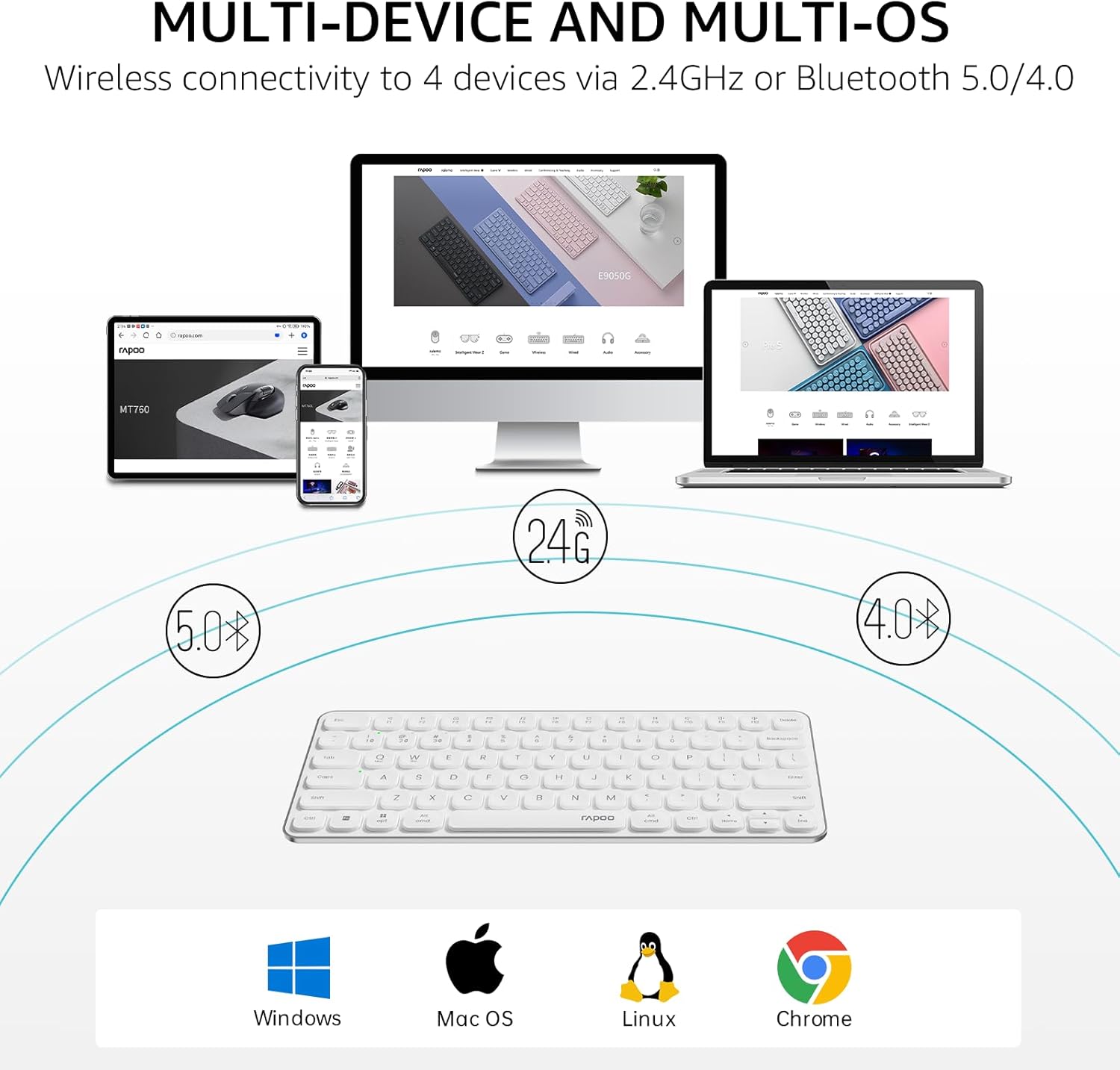
Figure 2:Multi-Device and Multi-OS Connectivity Diagram
3.2 Quiet and Comfortable Low-Profile Chiclet Keycaps
Designed with Rapoo's classic blade-series ultra-thin profile, the E9050L provides a fluid, precise, and quiet typing experience. Its 0.2-inch thickness contributes to reduced wrist strain, often eliminating the need for an additional palm rest.

Figure 3:Close-up of Low-Profile Chiclet Keycaps
3.3 78-Key Compact TKL Layout
The keyboard features a space-saving Tenkeyless (TKL) design with 78 keys, making it portable and easy to carry. This compact layout provides more room for mouse movement and optimizes desktop space. It includes 12 multimedia hotkeys for quick access to common functions like play/pause, volume control, and email.

Figure 4:Overhead view of 78-Key TKL Keyboard on a Desk
3.4 Rechargeable Battery with 90-Day Life
Equipped with low-power technology, the E9050L wireless keyboard can operate for up to 90 days on a single full charge. The USB-C port supports fast charging, providing a full day of use with just a 10-minute charge.

Figure 5:Keyboard with Battery Life Indicators
3.5 Dual System Multimedia Keys
The keyboard provides instant access to 12 commonly used function keys, including volume control, play/pause, and mute. These functions are accessible via the Fn key combination and are supported on both Windows and Mac OS.

Figure 6:Keyboard Layout Highlighting Multimedia Keys
3.6 Device and Capitalization Indicator Lights
The latest version of the E9050L includes dedicated indicator lights for the active device connection and capitalization (Caps Lock). These lights provide clear visual feedback, making it easier to identify which device you are typing on and the status of your Caps Lock.

Figure 7:Close-up of Indicator Lights
3.7 Wide Compatibility
The Rapoo E9050L keyboard is compatible with a broad range of operating systems, including Windows, Mac OS, Linux, iOS, Android, and Chrome OS, ensuring versatile use across various devices.

Figure 8:Compatibility Icons
3.8 Product Dimensions and Weight
The keyboard measures approximately 11.18 inches (28.4 cm) in length, 4.69 inches (11.9 cm) in width, and 0.51 inches (1.3 cm) in height, with a thickness of 0.20 inches (0.53 cm). It weighs approximately 10.3 ounces (292 grams).

Figure 9:Keyboard Dimensions Diagram
4. Setup Guide
4.1 Initial Charging
Before first use, fully charge the keyboard using the provided USB-C charging cable. Connect the USB-C end to the keyboard's charging port and the USB-A end to a power source (e.g., computer USB port, USB wall adapter). The battery indicator light will show charging status and turn off when fully charged.
4.2 Connecting to Devices
The E9050L keyboard supports both Bluetooth and 2.4G wireless connections.
4.2.1 Bluetooth Connection
- Turn on the keyboard using the power switch, usually located on the side or back.
- Press and hold the Fn key and one of the device keys (1, 2, 3, or 4) for approximately 3 seconds until the corresponding indicator light flashes rapidly. This indicates the keyboard is in pairing mode.
- On your device (computer, tablet, smartphone), open Bluetooth settings.
- Search for "Rapoo E9050L" or a similar name in the list of available devices and select it to pair.
- Once connected, the indicator light will stop flashing and remain solid for a few seconds before turning off.
4.2.2 2.4G Wireless Connection (via USB Receiver)
- Locate the 2.4G USB receiver, typically found in a storage slot on the keyboard itself.
- Insert the USB receiver into an available USB port on your computer.
- Turn on the keyboard. The keyboard should automatically connect to the receiver. No manual pairing is usually required for the 2.4G connection.
- If the connection is not established, ensure the keyboard is not actively paired via Bluetooth to another device on the same channel.
4.3 Switching Between Connected Devices
To switch between paired devices, simply press the Fn key along with the corresponding device key (1, 2, 3, or 4) that the device is paired to. The indicator light above the selected device key will briefly illuminate to confirm the switch.
4.4 Switching Operating System Modes
The keyboard supports specific key layouts for Windows and macOS to optimize functionality.
- For Windows OS:Press Fn + W
- For macOS:Press Fn + Q
5. Operating Instructions
5.1 Basic Typing
The keyboard functions as a standard QWERTY keyboard. Ensure the correct OS mode is selected for optimal key mapping.
5.2 Using Multimedia Hotkeys
To activate the multimedia functions (F1-F12), press and hold the Fn key, then press the desired F-key. For example, Fn + F1 might decrease volume, Fn + F2 increase volume, etc. Refer to the keycap legends for specific functions.
5.3 Understanding Indicator Lights
- Device Indicator Lights (above 1, 2, 3, 4 keys):Indicate the currently active paired device. Flashes rapidly during pairing mode.
- Caps Lock Indicator Light:Illuminates when Caps Lock is active.
- Battery Indicator Light:Typically illuminates when the battery is low or during charging. Refer to the product's specific light behavior for detailed battery status.
6. Maintenance
6.1 Cleaning the Keyboard
To clean your keyboard, power it off. Use a soft, lint-free cloth slightly dampened with water or a mild cleaning solution. Avoid excessive moisture. Do not spray cleaners directly onto the keyboard. For debris between keys, use compressed air.
6.2 Battery Care
To maximize battery lifespan, avoid fully discharging the keyboard frequently. Charge the keyboard when the low battery indicator appears. Store the keyboard in a cool, dry place when not in use for extended periods.
7. Troubleshooting
- Keyboard not connecting/responding:
- Ensure the keyboard is powered on.
- Check battery level and charge if necessary.
- For Bluetooth:Ensure Bluetooth is enabled on your device. Try re-pairing the keyboard. Remove previous pairings from your device's Bluetooth list and try again.
- For 2.4G:Ensure the USB receiver is securely plugged into a working USB port. Try a different USB port.
- Ensure the correct device channel (Fn+1/2/3/4) is selected on the keyboard.
- Restart your device and the keyboard.
- Keys are repeating or not registering:
- This can sometimes indicate low battery. Charge the keyboard fully.
- Ensure there is no physical obstruction under the keycap.
- Try re-pairing the keyboard to your device.
- Ensure the keyboard is within the effective range of your device (for Bluetooth/2.4G).
- Multimedia keys not working:
- Ensure you are pressing the Fn key simultaneously with the desired F-key.
- Verify that the correct operating system mode (Windows/macOS) is selected using Fn + W or Fn + Q.
8. Specifications
| Feature | Detail |
|---|---|
| Model Number | E9050L |
| Product Dimensions | 11.18 x 4.69 x 0.51 inches (28.4 x 11.9 x 1.3 cm) |
| Item Weight | 10.3 ounces (292 grams) |
| Connectivity Technology | Bluetooth (5.0/4.0), RF (2.4GHz) |
| Battery Type | 1 Lithium Ion battery (included, rechargeable) |
| Battery Life | Up to 90 days on a full charge |
| Key Count | 78 keys (TKL layout) |
| Material | Aluminum (frame) |
| Compatible Devices | Laptop, PC, Projector, Smartphone, Tablet |
| Compatible OS | Windows, Mac OS, Linux, iOS, Android, Chrome OS |
| Manufacturer | Shenzhen Rapoo Technology Co., Ltd. |
9. Warranty and Support
For product support, please contact the seller, RAPOO Official, through the platform where the product was purchased. The product typically comes with a 30-day return window from the date of purchase, as per standard policy. For further information or to explore other Rapoo products, you may visit the official Rapoo store:


