
Introduction
This manual provides essential information for setting up, operating, maintaining, and troubleshooting your Acer SmartChoice Aspire Lite AL15-41 laptop. Please read this manual thoroughly to ensure proper use and to maximize the lifespan of your device.

Figure 1: Acer SmartChoice Aspire Lite AL15-41 Laptop
1. Setup
1.1 Package Contents
Verify that all items are present in the package:
- Acer SmartChoice Aspire Lite AL15-41 Laptop (1N)
- Power Cord (1N)
- AC Adapter (1N)
- User Manual (1N)
1.2 Initial Power On
- Connect the AC adapter to the laptop's DC-in jack and then to a power outlet.
- Open the laptop lid.
- Press the power button located on the keyboard deck.
- Follow the on-screen instructions to complete the Windows 11 Home setup process.
1.3 Connecting Peripherals
Utilize the available ports to connect external devices:
- USB Devices: Connect USB 3.2 Gen 1 (Type A), USB 2.0 (Type A), or USB 3.2 Gen 2 (Type C) devices to the corresponding ports.
- External Display: Connect an external monitor using the HDMI port.
- Network: Connect to a wireless network using the integrated Wi-Fi.
- Bluetooth Devices: Pair Bluetooth accessories such as mice or headphones.
2. Operating Your Laptop
2.1 Basic Controls
- Keyboard: The laptop features a 100-/101-/104-key backlit keyboard with an independent numeric keypad for efficient data entry and typing in various lighting conditions.
- Touchpad: Use the integrated touchpad for cursor control and multi-touch gestures.
2.2 Display Features
The 15.6-inch Full HD (1920 x 1080 pixels) display offers clear visuals with a 16:9 aspect ratio and narrow bezels.
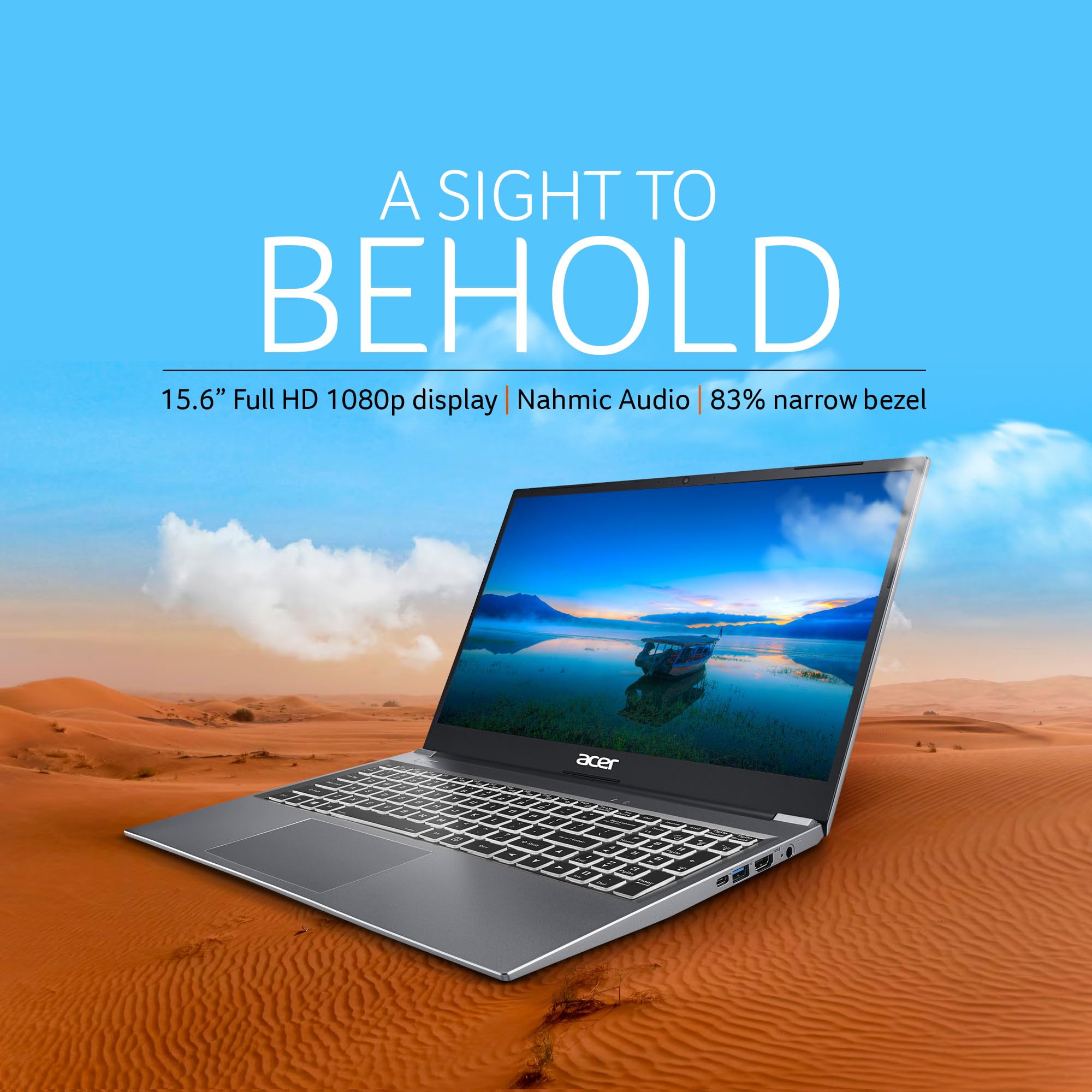
Figure 2: The 15.6-inch Full HD display provides clear visuals with narrow bezels.
2.3 Performance
The laptop is powered by an AMD Ryzen 5-5625U Hexa-Core Processor with integrated AMD Radeon Graphics, providing performance for daily tasks and multimedia.
2.4 Storage and Memory
It includes 8 GB of Dual-channel DDR4 RAM (expandable via 2 SODIMM sockets) and a 512 GB NVMe SSD for storage. The SSD storage is expandable up to 1TB.
2.5 Operating System
The laptop comes pre-installed with Windows 11 Home, offering a modern interface and features.
2.6 Special Features
- Crystal Clear Conferencing: Equipped with an HD camera and a dual microphone array featuring noise cancellation technology for improved online communication.

Figure 3: HD camera and dual microphone array for clear conferencing.
- 180-Degree Hinge Mechanism: The screen can be rotated up to 180 degrees. To activate this feature and facilitate collaboration, press the Function (Fn) + R keys simultaneously.

Figure 4: The 180-degree hinge mechanism allows for flexible screen positioning.
- Long-lasting Battery: The laptop is designed for portability with a 1.59 kg weight and a 19.7 mm thin profile, supported by a battery designed for extended use.
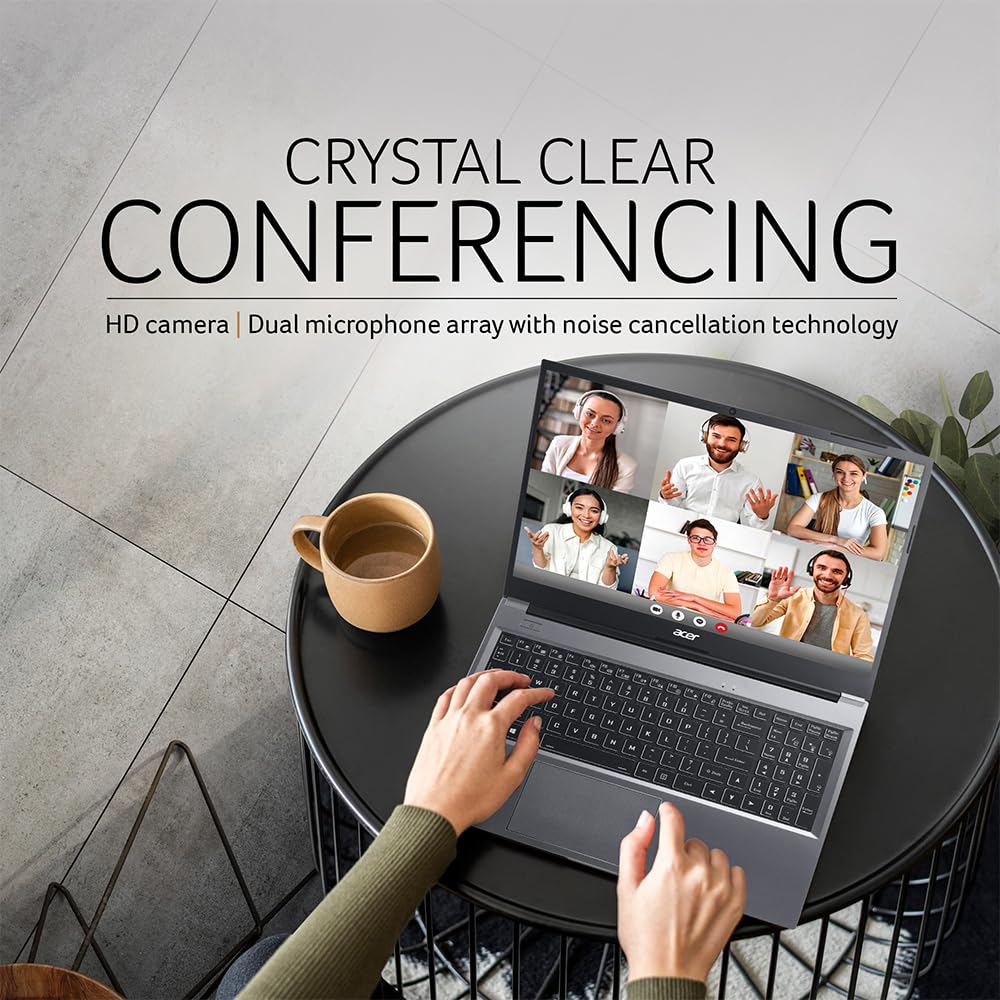
Figure 5: Portable design with long-lasting battery for all-day use.
3. Maintenance
3.1 Cleaning Guidelines
- Use a soft, lint-free cloth to clean the screen and exterior surfaces.
- Avoid using harsh chemicals, abrasive cleaners, or solvents.
- Ensure the laptop is powered off and unplugged before cleaning.
3.2 Battery Care
- Avoid extreme temperatures when storing or operating the laptop.
- Do not fully discharge the battery frequently.
- For long-term storage, charge the battery to approximately 50% and store in a cool, dry place.
3.3 Software Updates
Regularly check for and install operating system and driver updates to ensure optimal performance and security. Windows 11 Home includes automatic updates.
4. Troubleshooting
This section addresses common issues you might encounter. For more complex problems, refer to the Warranty and Support section.
4.1 Power Issues
- Laptop does not turn on: Ensure the AC adapter is securely connected to both the laptop and a working power outlet. Check if the power outlet is functional.
- Battery not charging: Verify the AC adapter connection. Try a different power outlet.
4.2 Display Issues
- No image on screen: Ensure the laptop is powered on. If an external monitor is connected, try disconnecting it or switching display modes (Fn + F5 or similar key combination).
4.3 Connectivity Issues
- Wi-Fi not connecting: Check if Wi-Fi is enabled in Windows settings. Restart your router and the laptop.
- Bluetooth device not pairing: Ensure the Bluetooth device is in pairing mode and within range. Check Bluetooth settings on the laptop.
5. Specifications
| Feature | Detail |
|---|---|
| Brand | acer |
| Model Name | Aspire Lite AL15-41 |
| Colour | Steel Gray |
| Form Factor | Ultra-Portable |
| Screen Size | 15.6 Inches |
| Screen Resolution | 1920 x 1080 Pixels (Full HD) |
| Processor Brand | AMD |
| Processor Type | Ryzen 5-5625U (Hexa-Core) |
| Processor Speed | 2.3 GHz |
| RAM Memory Installed Size | 8 GB DDR4 (Dual-channel, 2 SODIMM sockets) |
| Hard Drive Size | 512 GB SSD NVMe (expandable up to 1TB) |
| Graphics Coprocessor | AMD Radeon Graphics (Integrated) |
| Operating System | Windows 11 Home |
| Connectivity Type | Wi-Fi, Bluetooth |
| USB 2.0 Ports | 2 |
| USB 3.0/3.2 Ports | 1 x USB 3.2 Gen 1 (Type A), 1 x USB 3.2 Gen 2 (Type C) |
| HDMI Ports | 1 |
| Audio Details | Speakers |
| Special Features | Backlit Keyboard, HD Audio, Lightweight |
| Item Weight | 1.59 kg |
| Batteries | 1 Lithium Ion battery (36 Watt Hours, 3 cells) |
| Wattage | 45.00 W (Power Supply) |
6. Warranty and Support
6.1 Warranty Information
The Acer SmartChoice Aspire Lite AL15-41 laptop typically comes with a 1 Year Warranty from the date of purchase. Please refer to your purchase documentation for specific terms and conditions.
6.2 Manufacturer Support
For technical assistance, warranty claims, or service inquiries, please contact Acer customer support. You can find contact details on the official Acer website or through the documentation included with your product.
Manufacturer: ACER INDIA PRIVATE LIMITED, RS No.38/2, Sedarpet Village, Villanur Commune, Poducherry - 605111.
Importer: ACER INDIA PRIVATE LIMITED Embassy Heights, 6th Floor, No. 13, Magrath Road, Next to HOSMAT Hospital, Bangalore, INDIA – 560025


