
FL ESPORTS MK870
FL ESPORTS MK870 Wireless Mechanical Gaming Keyboard User Manual
Model: MK870
1. Introduction
Thank you for choosing the FL ESPORTS MK870 Wireless Mechanical Gaming Keyboard. This manual provides detailed instructions for setting up, operating, and maintaining your new keyboard. Designed for both work and gaming, the MK870 offers a compact 80% layout, customizable RGB lighting, and versatile connectivity options.

Image: The MK870 Wireless Mechanical Gaming Keyboard, showcasing its purple keycaps and RGB lighting.
2. Package Contents
Please verify that all items are present in the package:
- MK870 Wireless Mechanical Gaming Keyboard
- Keycap Puller
- Dust Cover
- 3 x Replacement Switches
- 2.4GHz Receiver
- USB-C Cable (1.8m nylon)
3. Key Features
- Dipped PBT Keycaps: High-purity PBT keycaps with clear, side-printed legends for durability and light transmission.
- 80% Compact Layout: Efficient TKL (Tenkeyless) design retaining essential keys for gaming and productivity.
- Creamy Linear Switches: Factory-lubed switches with gasket mount for soft keystrokes and distinct feedback.
- 22 RGB Modes: Vivid RGB backlighting with south-facing LEDs and customizable effects.
- Hot-Swappable: Compatible with 3-pin and 5-pin mechanical switches, allowing for easy customization without soldering.
- Triple Connection Modes: Seamless switching between 2.4GHz wireless, Bluetooth 5.0, and USB-C wired connections.
- Ergonomic Design: OEM-profile keycaps and stable large-key tuning for comfortable use.
- Noise Reduction: Built-in silicone sound deadening layer to reduce cavity noise.

Image: Visual representation of the MK870's key features, including three-mode connection, hot-swappable switches, gasket structure, and RGB lighting.
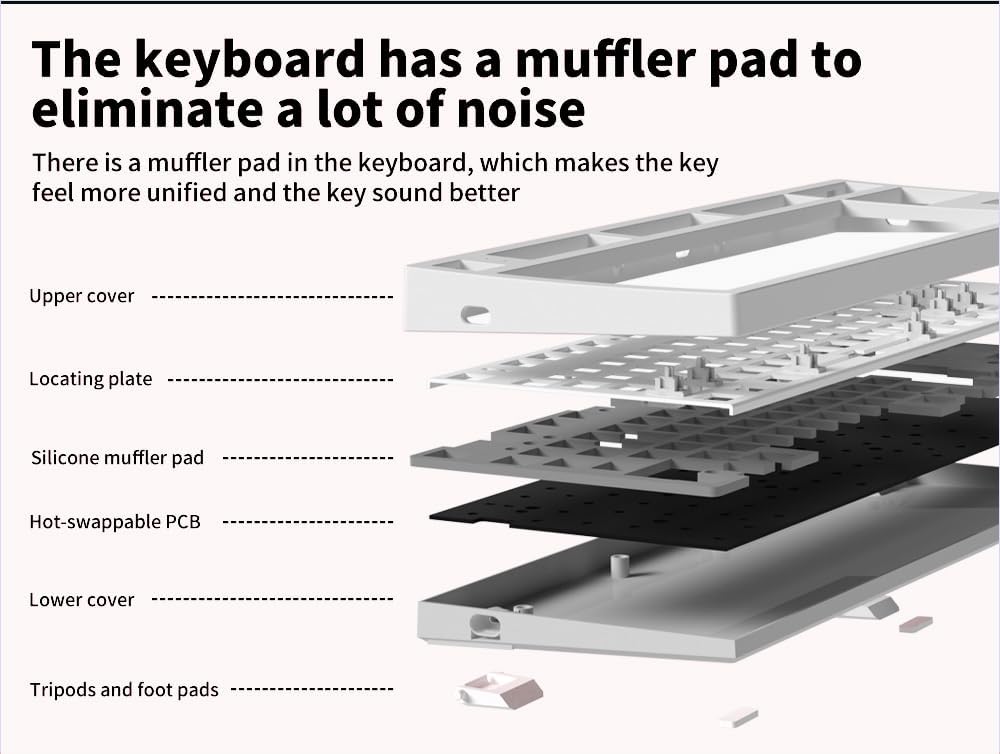
Image: Exploded view of the keyboard's internal layers, highlighting the silicone muffler pad for noise reduction.
4. Setup and Connectivity
4.1 Triple Connection Modes
The MK870 keyboard supports three connection methods: 2.4GHz wireless, Bluetooth 5.0, and USB-C wired. You can connect up to 5 devices simultaneously (1 via 2.4GHz, 3 via Bluetooth, 1 via USB-C).

Image: The MK870 keyboard displayed with icons representing Bluetooth, 2.4GHz Wireless, and USB-C Wired connection options.
4.2 Wired Mode (USB-C)
- Connect the provided USB-C cable to the keyboard's USB-C port.
- Connect the other end of the cable to an available USB port on your computer.
- The keyboard will be automatically recognized and ready for use.
4.3 2.4GHz Wireless Mode
- Locate the 2.4GHz USB receiver (usually stored in a compartment on the keyboard).
- Plug the 2.4GHz receiver into an available USB port on your computer.
- Switch the keyboard's mode switch (located on the back or side) to the 2.4GHz position.
- The keyboard should connect automatically. If not, press and hold Fn + 4 (for 2.4G pairing) until the indicator light flashes, then release.
4.4 Bluetooth 5.0 Mode
- Switch the keyboard's mode switch to the Bluetooth position.
- To enter pairing mode, press and hold Fn + 1, Fn + 2, or Fn + 3 for 3-5 seconds until the corresponding indicator light flashes rapidly. This indicates it's ready to pair.
- On your device (computer, tablet, smartphone), open Bluetooth settings.
- Search for "MK870" or a similar device name and select it to pair.
- Once connected, the indicator light will stop flashing and remain solid.
- Repeat for up to three different Bluetooth devices using Fn + 1, Fn + 2, and Fn + 3.
- To switch between paired Bluetooth devices, simply press Fn + 1, Fn + 2, or Fn + 3.
5. Operating Instructions
5.1 RGB Backlight Customization
The MK870 features 22 preset RGB lighting effects. Use the following key combinations to control the backlight:
- Fn + \ |: Cycle through different RGB lighting modes.
- Fn + ↑: Increase backlight brightness.
- Fn + ↓: Decrease backlight brightness.
- Fn + ←: Slow down lighting effect speed.
- Fn + →: Speed up lighting effect speed.
- Fn + Del: Change backlight color (for modes that support color cycling).
Video: A short demonstration of the MK870 keyboard's RGB lighting effects and sound profile. This video is provided by the seller, Flesports.

Image: The MK870 keyboard set up in a workspace, illustrating its suitability for both efficient workflow and gaming experiences.
5.2 Hot-Swappable Functionality
The MK870 supports hot-swapping of both 3-pin and 5-pin mechanical switches. This allows you to easily change switches without soldering.

Image: A close-up view demonstrating the hot-swappable feature of the MK870 keyboard, showing a switch being removed from its socket.
Changing Switches:
- Power off the keyboard or disconnect it from your computer.
- Use the provided keycap puller to carefully remove the desired keycap.
- Use the provided switch puller to gently grip the switch and pull it straight up.
- Align the pins of the new switch with the holes on the PCB. Ensure the pins are straight.
- Gently push the new switch into place until it clicks securely. Do not force it.
- Replace the keycap.
Note: Be careful not to bend the switch pins during installation.
5.3 Driver Support and Macros
For advanced customization, including key remapping, macro creation, and personalized lighting modes, download the official driver software from the FL ESPORTS website. The software supports both Windows and macOS.
6. Maintenance
6.1 Cleaning the Keyboard
- Disconnect the keyboard from your computer before cleaning.
- Use a soft brush or compressed air to remove dust and debris from between the keycaps.
- For stubborn dirt, gently remove keycaps using the keycap puller and clean the exposed areas with a damp cloth (ensure it's not dripping wet) or an alcohol wipe.
- Wipe the keycaps with a soft, lint-free cloth.
- Ensure all parts are completely dry before reattaching keycaps and reconnecting the keyboard.
6.2 Keycap and Switch Replacement
As detailed in Section 5.2, the hot-swappable design allows for easy replacement of keycaps and switches. Use the provided tools for safe removal and installation.

Image: A close-up of the MK870's side-engraved PBT keycaps, demonstrating their light transmission properties and durable construction.
7. Troubleshooting
- Keyboard not responding:
- Check the connection: Ensure the USB cable is securely plugged in, or the 2.4GHz receiver is properly inserted, or Bluetooth is paired.
- Verify the mode switch: Make sure the keyboard is set to the correct connection mode (Wired, 2.4G, or BT).
- Charge the battery: If in wireless mode, the battery might be low. Connect the USB-C cable to charge.
- Try a different USB port or device.
- RGB lights not working/flickering:
- Adjust brightness using Fn + ↑/↓.
- Cycle through modes using Fn + \ |.
- Ensure the keyboard firmware is up to date (check FL ESPORTS website).
- Keys not registering or double-typing:
- This might indicate a faulty switch. Use the hot-swappable feature to replace the affected switch (refer to Section 5.2).
- Clean under the keycap to remove any debris.
- Bluetooth connection issues:
- Ensure the keyboard is in Bluetooth pairing mode (Fn + 1/2/3, flashing light).
- Forget the device on your computer/device and re-pair.
- Ensure your device's Bluetooth is enabled and drivers are up to date.
- Move closer to the device to reduce interference.
8. Specifications
| Model Number | MK870 |
| Layout | 80% (87 Keys) |
| Keycap Material | Dipped PBT |
| Switch Type | Pre-lubed Linear Switches (Hot-Swappable 3/5-pin) |
| Backlight | RGB (22 Modes, South-Facing LEDs) |
| Connectivity | 2.4GHz Wireless, Bluetooth 5.0, USB-C Wired |
| Compatible Devices | Gaming Console, Laptop, PC, Smart TV, Tablet |
| Battery | 1 Lithium Polymer battery (included) |
| Dimensions (L x W x H) | 14.34 x 5.65 x 1.42 inches |
| Item Weight | 3.39 pounds |
| Manufacturer | FL ESPORT |

Image: Diagram illustrating the 87-key compact layout of the MK870 keyboard, including its dimensions.
9. Warranty and Support
The FL ESPORTS MK870 Wireless Mechanical Gaming Keyboard is backed by a 2-year warranty from the date of purchase. This warranty covers manufacturing defects and ensures reliable support.
For warranty claims, technical assistance, or further inquiries, please contact FL ESPORTS customer support through their official website or the retailer where you purchased the product.
Please retain your proof of purchase for warranty validation.
Related documentsMK870


Ask a question about this manual
Ask about setup, troubleshooting, compatibility, parts, safety, or missing instructions. Manuals+ will review the question and use this page’s manual context to help answer it.