1. Introduction
This manual provides essential information for setting up, operating, and maintaining your VIZIO 32-inch V-Series Smart HD TV, model VHD32M-0810. This television features a 720p Full Array LED display, integrated smart TV capabilities, Bluetooth connectivity, and built-in support for Apple AirPlay 2 and Chromecast.

Image 1.1: Front view of the VIZIO 32-inch V-Series Smart HD TV showcasing its smart interface.
2. What's in the Box
Verify that all the following components are included with your VIZIO TV:
- VIZIO 32-inch V-Series Smart HD TV
- Power Cable
- Remote Control
- TV Stand (2 pieces)
3. Setup
3.1 Physical Setup
Your VIZIO TV can be placed on a flat surface using the included stand or mounted on a wall (wall mount sold separately).
Attaching the TV Stand:
- Carefully place the TV face-down on a soft, clean surface to prevent screen damage.
- Align each stand piece with the corresponding slots on the bottom of the TV.
- Secure the stand pieces using the provided screws. Ensure they are tightened firmly.

Image 3.1: VIZIO TV with its stand attached, ready for placement.
Wall Mounting:
If you plan to wall-mount your TV, refer to the instructions provided with your specific wall mount kit. Ensure the mount is compatible with VESA standards for a 32-inch television.
3.2 Power Connection
Connect the power cable to the AC IN port on the back of the TV, then plug the other end into a working electrical outlet.

Image 3.2: Rear panel of the VIZIO TV with input ports visible.
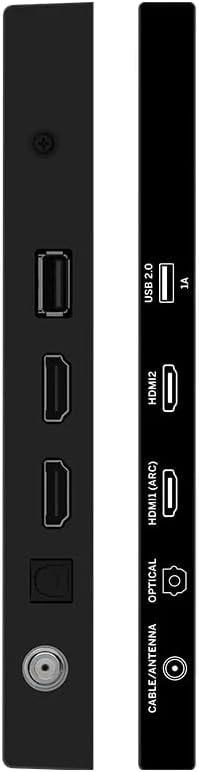
Image 3.3: Side view of the VIZIO TV highlighting connectivity ports.
3.3 Initial Setup
Upon first power-on, the TV will guide you through the initial setup process. This includes:
- Language Selection: Choose your preferred language.
- Network Connection: Connect to your home Wi-Fi network using the built-in WiFi 5 dual-band technology for faster and more reliable streaming.
- Account Setup: Follow on-screen prompts to set up or log in to your VIZIO account to access smart features and apps.
- Channel Scan: If using an antenna, perform a channel scan to find available over-the-air broadcasts.
4. Operating Instructions
4.1 Remote Control
The included remote control provides full functionality for navigating your VIZIO Smart TV. It features dedicated buttons for popular streaming services, input selection, and menu access.
Key Remote Functions:
- Power Button: Turns the TV on or off.
- Input Button: Cycles through available input sources (HDMI, USB, etc.).
- Navigation Pad (Arrow Buttons & OK): Used to move through menus and select options.
- Volume Up/Down: Adjusts the audio volume.
- Channel Up/Down: Changes TV channels (if applicable).
- Dedicated App Buttons: Quick access to services like Netflix, Prime Video, Hulu, etc.
- Menu/Settings Button: Accesses the TV's settings menu.
Video 4.1: Demonstration of the VIZIO TV remote control and user interface navigation.
4.2 Smart TV Features
Your VIZIO V-Series TV offers a comprehensive smart platform for entertainment:
- Streaming Apps: Access a wide range of pre-installed and downloadable applications such as Netflix, Prime Video, Disney+, Hulu, YouTube, and more.
- VIZIO WatchFree+: Enjoy hundreds of free channels and movies without subscription fees.
- Apple AirPlay 2: Stream content directly from your Apple devices to the TV.
- Chromecast Built-in: Cast your favorite entertainment from your phone, tablet, or laptop directly to the TV.
4.3 Connectivity
The TV provides various connectivity options:
- Bluetooth: Pair wireless headphones or speakers for a personalized audio experience.
- USB: Connect USB devices for media playback.
- HDMI: Multiple HDMI ports for connecting external devices like gaming consoles, Blu-ray players, or cable boxes.
- Wi-Fi 5: High-speed wireless internet connection for streaming and smart features.
4.4 Picture and Sound Settings
Customize your viewing and listening experience through the TV's settings menu:
- Picture Modes: Select from various preset picture modes (e.g., Vivid, Calibrated Dark, Game, Sports) or customize settings like brightness, contrast, and color.
- Sound Modes: Adjust audio settings, including presets for different content types, and leverage DTS Virtual X for an enhanced audio experience.
5. Specifications
| Feature | Detail |
|---|---|
| Brand | VIZIO |
| Model Number | VHD32M-0810 |
| Screen Size | 32 Inches |
| Display Technology | LED (Full Array) |
| Resolution | 720p |
| Refresh Rate | 60 Hz |
| Connectivity Technology | Bluetooth, USB, Wi-Fi |
| Special Features | Chromecast Built-in, Apple AirPlay 2, DTS Virtual X |
| Item Weight | 12.27 pounds |
| Product Dimensions | 6.6 x 28.18 x 18.9 inches |
6. Maintenance
- Cleaning the Screen: Use a soft, lint-free cloth specifically designed for electronics. Avoid harsh chemicals or abrasive materials.
- Cleaning the Frame: Wipe the TV frame with a soft, damp cloth.
- Software Updates: Ensure your TV's software is up-to-date for optimal performance and security. Updates are typically downloaded automatically when connected to the internet.
7. Troubleshooting
If you encounter issues with your VIZIO TV, try the following steps:
- No Power:
- Check if the power cable is securely connected to both the TV and the electrical outlet.
- Ensure the outlet is functional by plugging in another device.
- No Picture/Sound:
- Verify the correct input source is selected on the TV.
- Check all HDMI or other video/audio cables for secure connections.
- Ensure the volume is not muted or set too low.
- Network Connectivity Issues:
- Restart your Wi-Fi router and modem.
- Check the TV's network settings to ensure it's connected to the correct network.
- Move the TV closer to the router if signal strength is weak.
- Remote Control Not Responding:
- Replace the batteries in the remote control.
- Ensure there are no obstructions between the remote and the TV's IR sensor.
- General Performance Issues:
- Perform a soft reset by unplugging the TV from the power outlet for 60 seconds, then plugging it back in.
- If issues persist, consider performing a factory reset (refer to the TV's on-screen settings for this option, as it will erase all personalized settings).
8. Warranty and Support
This VIZIO TV is offered as an Amazon Renewed product. Amazon Renewed products are backed by the Amazon Renewed Guarantee, which provides a replacement or refund within 90 days of receipt if the product does not work as expected.
For further assistance, please refer to the VIZIO support website or contact Amazon customer service for Amazon Renewed product inquiries.
Additional protection plans may be available for purchase separately, offering extended coverage beyond the Amazon Renewed Guarantee.


