
Introduction
This instruction manual provides essential information for the safe and effective use of your Sony PXW-Z200 4K XDCAM Camcorder. The PXW-Z200 is designed for professional video production, offering UHD 4K60 HDR footage with advanced features like AI-powered autofocus, 20x optical zoom, and versatile recording formats. Please read this manual thoroughly before operating the camcorder and retain it for future reference.
Setup
1. Unpacking and Checking Contents
Carefully unpack all items from the box. Ensure the following components are present:
- Sony PXW-Z200 4K 1" CMOS Sensor XDCAM Camcorder
- AC Adapter
- Power Cord
- Battery Charger
- BP-U35 Battery Pack (2 included in bundle)
- LCD Hood
- Lens Hood
- Eyecup
- Microphone Holder
- Cold Shoe Kit
- 64GB Memory Card
- Large Case
- Telephoto Lens
- Memory Card Reader
- Filter Kit
- Wide Angle Lens Attachment
- Memory Card Wallet
- Lens Cap Keeper
- Cleaning Kit
- HDMI Cable
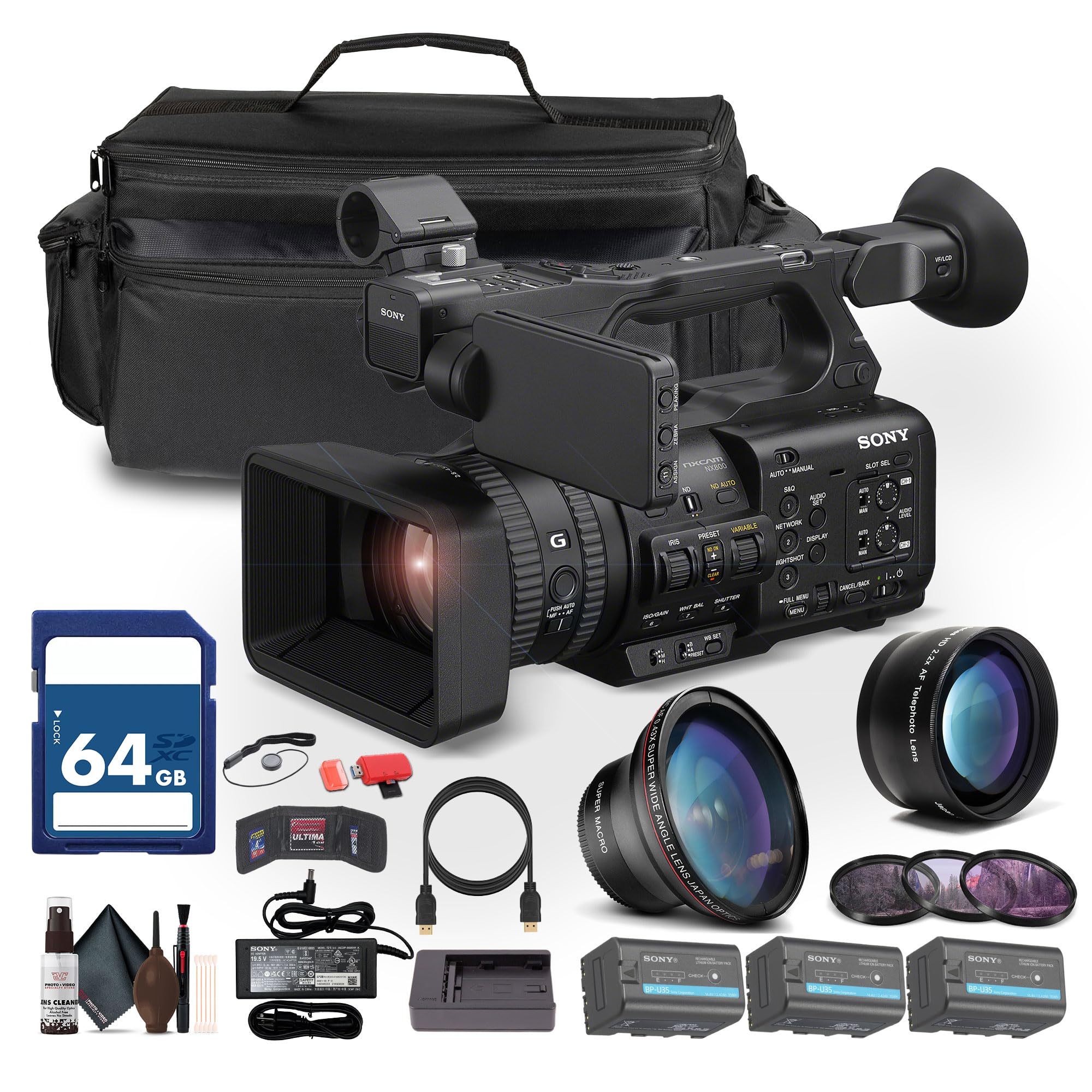
Figure 1: Sony PXW-Z200 4K XDCAM Camcorder (main unit).
2. Attaching the Lens Hood and Eyecup
- Attach the provided lens hood to the front of the camcorder's lens to reduce glare and protect the lens.
- Attach the eyecup to the viewfinder for comfortable viewing.
3. Installing and Charging the Battery
- Insert the BP-U35 battery pack into the battery slot on the rear of the camcorder until it clicks into place.
- Connect the AC adapter to the camcorder's DC IN jack and plug it into a power outlet. The battery will begin charging.
- Alternatively, use the external battery charger to charge the BP-U35 battery packs.
- Ensure the battery is fully charged before initial use.
4. Inserting a Memory Card
The PXW-Z200 supports dual CFexpress Type-A/SD card slots.
- Open the memory card slot cover.
- Insert a compatible CFexpress Type-A or SD card into the designated slot with the label facing the correct direction until it clicks.
- Close the memory card slot cover.
- Format the memory card in the camcorder's menu before first use to ensure optimal performance.
Operating the Camcorder
1. Powering On/Off
- To power on, slide the POWER switch to the ON position.
- To power off, slide the POWER switch to the OFF position.
2. Basic Recording
- Recording Start/Stop: Press the REC START/STOP button to begin or end recording.
- Recording Formats: The camcorder supports XAVC S-I, HS-L, S-L, and HD/QFHD recording formats. Select your desired format via the menu.
- Frame Rates: Capture high frame rate footage at 4K120 and 1080p240 for slow-motion effects.
- HDR: The camcorder supports UHD 4K60 HDR with HLG (Hybrid Log-Gamma) for high dynamic range content.
3. Focus and Zoom Control

Figure 2: AUTO/MANUAL switch for focus and exposure control.
- Autofocus: The camcorder features AI-driven autofocus and auto-framing for precise tracking of subjects. Engage AUTO mode using the switch (refer to Figure 2).
- Manual Focus: For precise control, switch to MANUAL mode and adjust the focus ring on the lens.
- Optical Zoom: Utilize the 20x optical zoom for clear magnification.
- Clear Image Zoom: In 4K, the camcorder offers a 30x Clear Image Zoom, extending your reach without significant loss of quality.
4. Audio Settings
The PXW-Z200 includes 4-channel audio input.
- Connect external microphones to the XLR inputs for professional audio capture.
- Adjust audio levels using the dedicated audio controls on the camcorder body or via the menu.
- Monitor audio through headphones connected to the headphone jack.
5. Networking and Streaming
The camcorder supports integrated dual-band 2.4/5 GHz Wi-Fi and Ethernet for live streaming and file transfer.
- Connect to a Wi-Fi network or an Ethernet cable.
- Utilize RTMP/RTMPS, SRT, and FTP protocols for direct live streaming and file transfers.
- Configure network settings and streaming parameters through the camcorder's menu.
6. Color Profiles
The PXW-Z200 supports various color profiles for creative flexibility and matching with other Sony Cinema Line cameras.
- Select from S-Cinetone, ITU709, 709tone, and HLG profiles in the menu to achieve your desired look.
7. Using the Sony Monitor & Control App
Download and install the Sony Monitor & Control app on a compatible smartphone or tablet to remotely control and monitor the camcorder.
- Connect your device to the camcorder via Wi-Fi.
- Use the app for remote control of recording, zoom, focus, and other settings, as well as for monitoring live footage.

Figure 3: Sony PXW-Z200 camcorder in a typical usage scenario.
Maintenance
1. Cleaning the Camcorder
- Use the provided cleaning kit to gently clean the lens and camcorder body.
- For the lens, use a soft, lint-free cloth and lens cleaning solution. Avoid harsh chemicals.
- For the body, wipe with a dry, soft cloth.
- Do not use solvents or abrasive cleaners.
2. Battery Care
- Store batteries in a cool, dry place when not in use.
- Avoid fully discharging batteries frequently to prolong their lifespan.
- Charge batteries using only the specified Sony charger or the camcorder's AC adapter.
3. Storage
- When storing the camcorder for extended periods, remove the battery.
- Store the camcorder in a dry, dust-free environment, preferably in the large case provided.
- Avoid extreme temperatures and high humidity.
Troubleshooting
If you encounter issues with your Sony PXW-Z200, refer to the following common problems and solutions.
| Problem | Possible Cause | Solution |
|---|---|---|
| Camcorder does not power on. | Battery is not charged or not inserted correctly. AC adapter is not connected. | Ensure battery is fully charged and properly inserted. Verify AC adapter connection. |
| Cannot record footage. | Memory card is full, not inserted, or not formatted. Recording mode is incorrect. | Check memory card status, insert/format if necessary. Verify recording settings. |
| Autofocus is not working correctly. | Camcorder is in Manual Focus mode. Subject is too close or lacks contrast. | Switch to AUTO focus mode. Ensure adequate lighting and distance to subject. |
| No audio recorded. | Microphone is disconnected or audio levels are too low. | Check microphone connections. Adjust audio input levels. |
| Cannot connect to Wi-Fi/Stream. | Incorrect network settings. Out of range. | Verify Wi-Fi password and network settings. Move closer to the access point. |
For more detailed troubleshooting, please refer to the official Sony support website or contact customer service.
Specifications
Key technical specifications for the Sony PXW-Z200 4K XDCAM Camcorder:
| Feature | Detail |
|---|---|
| Brand | Sony |
| Model Name | PXW-Z200 |
| Sensor Type | 1" Exmor RS CMOS |
| Video Capture Resolution | UHD 4K (3840 Pixels), 720p, 480p |
| Optical Zoom | 20x |
| Clear Image Zoom (4K) | 30x |
| Maximum Aperture | f/1.8 |
| Maximum Focal Length | 154.21 mm |
| Video Capture Format | XAVC S-I, HS-L, S-L, HD/QFHD |
| Supported Audio Format | Dolby Digital/AC-3 |
| Screen Size | 1 inch (LCD Hood included) |
| Connectivity Technology | HDMI, 12G-SDI, Wi-Fi (2.4/5 GHz), Ethernet |
| Special Features | AI-Driven Autofocus, Auto-Framing, 4K HDR Capture (HLG), High Frame Rates (4K120, 1080p240), Direct Live Streaming (RTMP/RTMPS, SRT, FTP), S-Cinetone |
| Storage Media | Dual CFexpress Type-A/SD card slots |
| Item Weight | 4.3 Pounds |
| Water Resistance Level | Not Water Resistant |
| Image Stabilization | No |
Warranty and Support
The Sony PXW-Z200 Camcorder is manufactured by Sony. For detailed warranty information, including terms, conditions, and registration, please refer to the warranty card included with your product or visit the official Sony support website.
For technical support, service, or to download the latest firmware and software, please visit: Sony Support Website.


