
Bewinner Bewinner0i6gsh3keu-12
User Manual for Bewinner 24-inch Smart Screen with 5MP Camera
Model: Bewinner0i6gsh3keu-12 | Brand: Bewinner
1. Introduction
This user manual provides comprehensive instructions for the setup, operation, and maintenance of your Bewinner 24-inch Smart Screen. Designed for versatile use in home entertainment, live streaming, and small office environments, this portable touchscreen monitor features an integrated 5MP camera, a powerful Android 12 system, and a long-lasting built-in battery, offering a seamless and interactive experience. Please read this manual thoroughly before using the product to ensure proper function and longevity.
2. Package Contents
Please verify that all items listed below are included in your package. If any items are missing or damaged, please contact customer support.
- 1 x Stand Base
- 1 x Pole
- 1 x 24-inch Display Unit
- 1 x Power Adapter
- 1 x Adapter Accessories (Power Cable)
- 1 x Screwdriver
- 1 x User Manual (this document)
- 7 x Screws
- Additional Accessories (e.g., cable management clips)

Figure 2.1: All components included in the package for the Bewinner Smart Screen.
3. Setup Guide
Follow these steps to assemble and prepare your Bewinner Smart Screen for first use.
- Assemble the Stand Base: Place the stand base on a flat, stable surface. Ensure the wheels are securely attached to the bottom of the base.
- Attach the Pole: Insert the bottom end of the pole into the designated slot on the stand base. Secure it using the provided screws and screwdriver.
- Mount the Display Unit: Carefully align the display unit with the top of the pole. Slide it into place and secure it with the remaining screws. Ensure the display is firmly attached and stable.
- Connect Power: Plug the power adapter into the display unit's power input port. Connect the other end of the adapter to a suitable power outlet. The device can operate on battery power, but it is recommended to fully charge it before first use.
- Initial Power On: Press and hold the power button (location specified in Operating Instructions) until the screen illuminates. Follow the on-screen prompts for initial setup, including language selection and Wi-Fi connection.

Figure 3.1: The Bewinner Smart Screen fully assembled and ready for use.
4. Operating Instructions
4.1 Power On/Off and Basic Navigation
To power on the device, press and hold the power button located on the side/back of the display until the screen lights up. To power off, press and hold the power button again and select "Power Off" from the on-screen menu. Navigate the Android 12 interface using the responsive touchscreen.
4.2 Screen Rotation and Portability
The display unit supports rotation between landscape and portrait modes. Gently rotate the screen to your desired orientation. The integrated wheels on the base allow for effortless movement of the screen from room to room. The built-in battery provides cordless operation, enhancing portability.
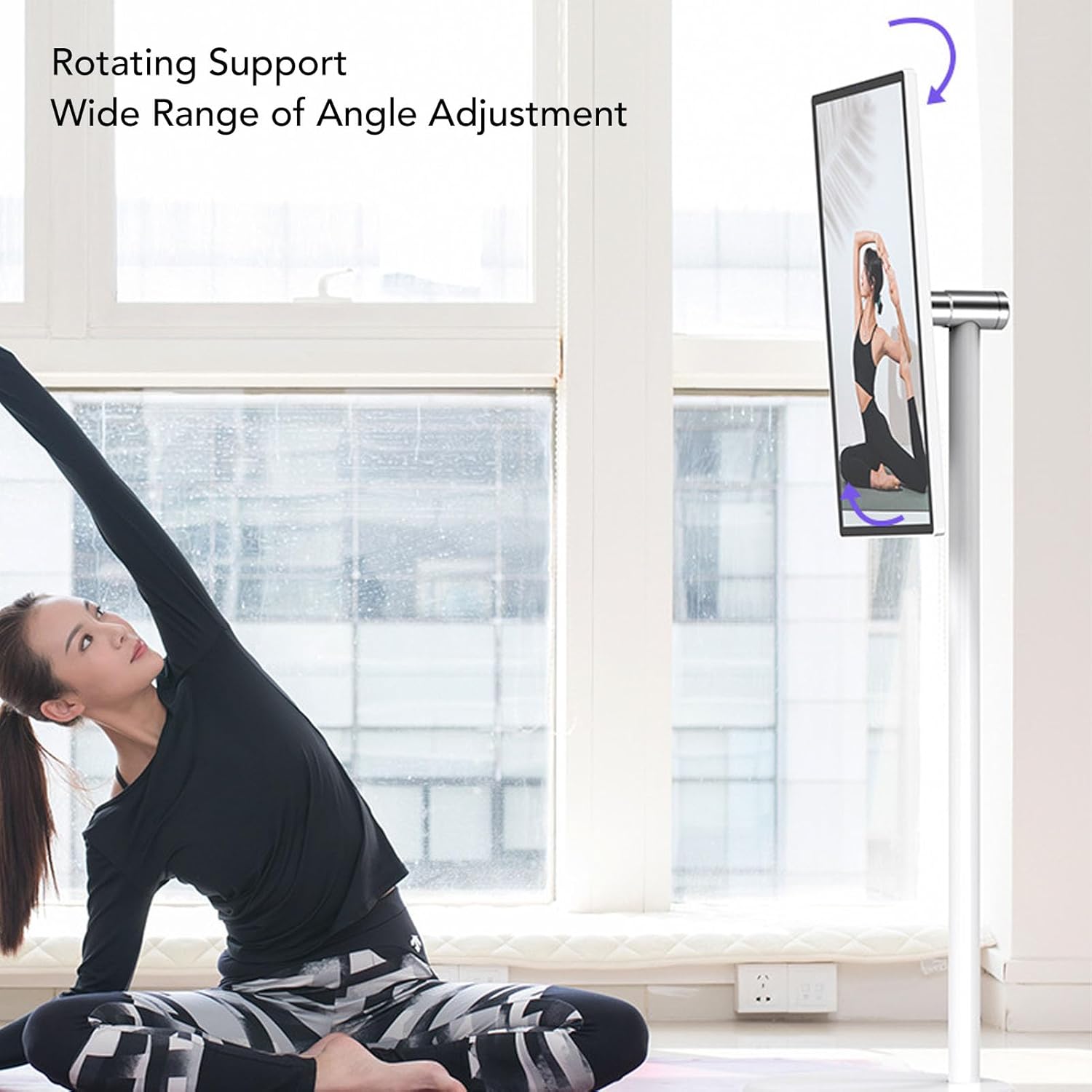
Figure 4.1: The screen can be rotated for various viewing angles and applications.

Figure 4.2: The base features universal wheels for easy and stable movement.
4.3 Camera and Microphone Usage
The integrated 5MP HD camera and noise reduction microphone are ideal for video conferencing, online courses, and video chats. Access camera applications directly from the Android interface.
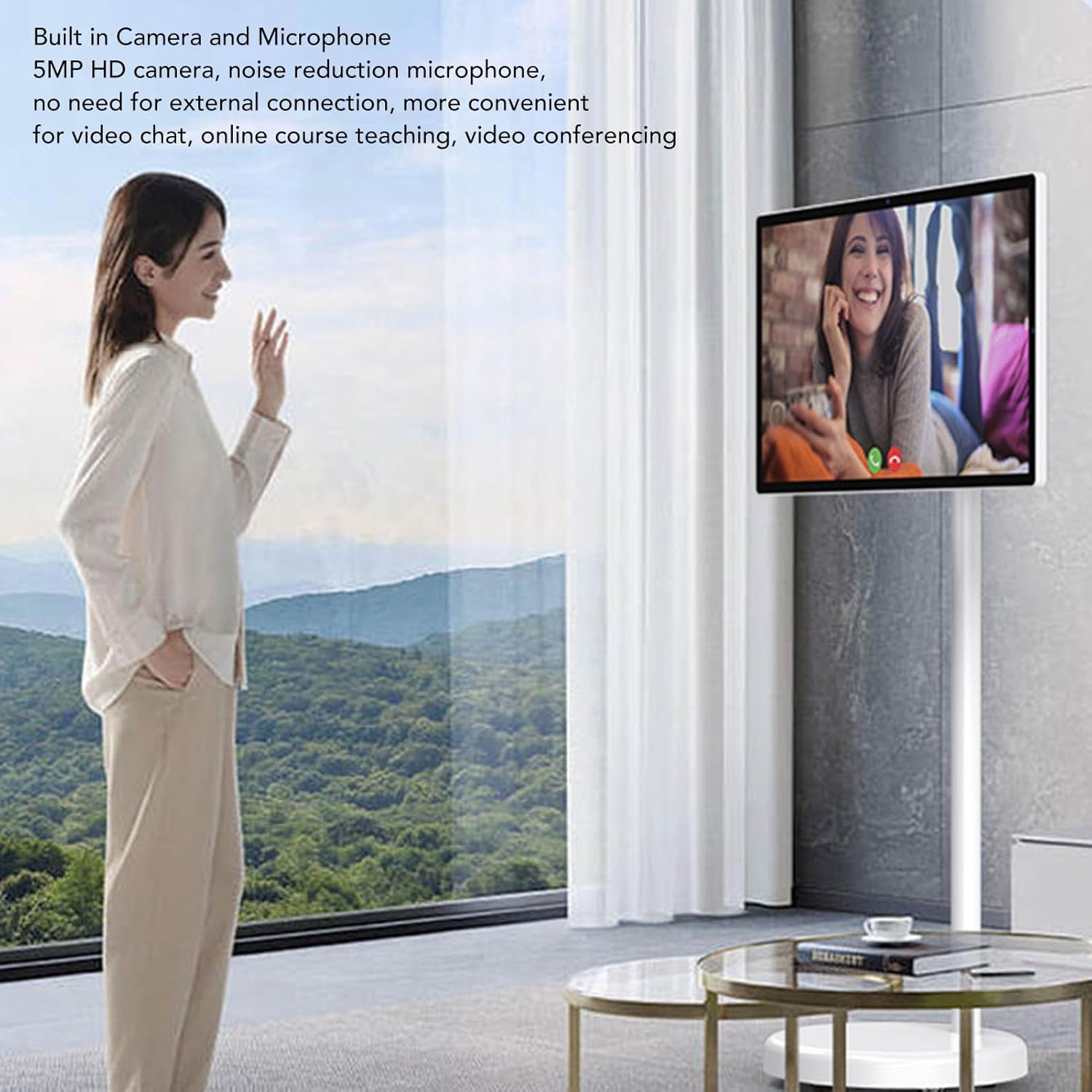
Figure 4.3: The integrated camera and microphone facilitate video communication.
4.4 Audio System
Experience rich audio with the built-in HiFi 3D Surround Sound system, delivering clear treble, stable alto, and rich bass. Adjust volume settings through the Android system.
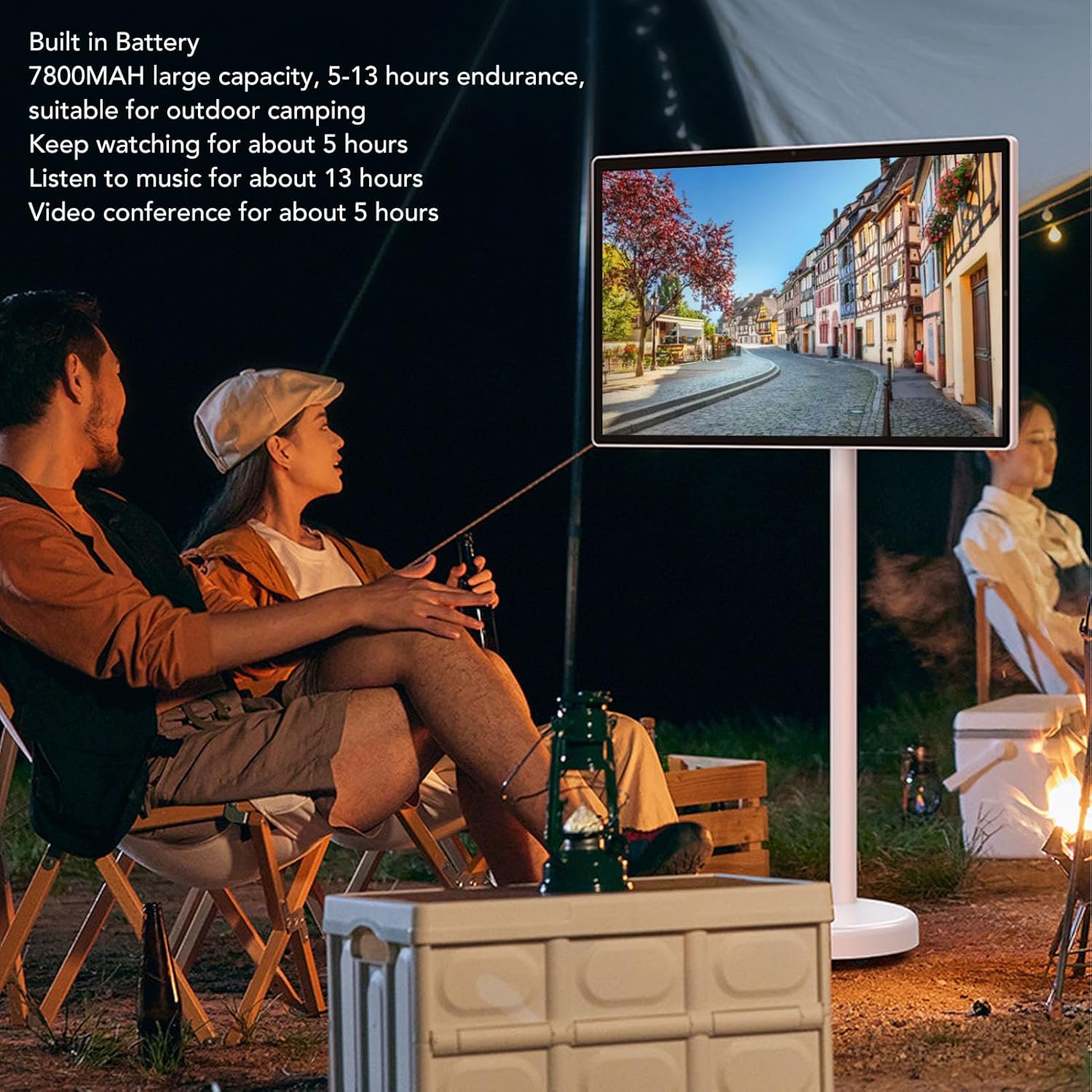
Figure 4.4: Enjoy immersive audio with the integrated sound system.
4.5 Connectivity and Battery Life
The device supports WiFi (2.4G and 5.8G) and Bluetooth 4.2 for wireless connectivity. It also features USB and Type-C ports for wired connections. The 7800mAh built-in lithium-ion battery provides extended usage, typically 5-13 hours depending on usage (e.g., approximately 5 hours for video watching, 13 hours for music listening, 5 hours for video conferencing).

Figure 4.5: The built-in battery supports extended use for various activities.
4.6 Smart Features
Leverage the Android 12 system for a range of smart functionalities:
- Whiteboard Function: Utilize the touchscreen for interactive whiteboard sessions, ideal for brainstorming or educational purposes.
- Wireless Projection: Project content wirelessly from your mobile phone to the screen for larger viewing.
- App Access: Download and install a wide range of applications from the Android app store to suit your work and entertainment needs, including streaming services, games, and productivity tools.
5. Specifications
| Feature | Detail |
|---|---|
| Model | Bewinner0i6gsh3keu-12 |
| Screen Size | 24 inches (approx. 33 x 56 cm / 13 x 22 inches) |
| Screen Type | IPS Touch All-in-One Device |
| Display Ratio | 16:9 |
| Resolution | 1920 x 1080 |
| Brightness (typical) | 300 cd/m² |
| Processor | MediaTek MT8788, 8 Cores (4x A73 2.0 GHz + 4x A53 2.0 GHz) |
| GPU | Mali G72 MP3 700 MHz |
| RAM + Storage | 6GB RAM + 128GB Storage (Configuration) |
| Operating System | Android 12 |
| Camera | 5 MP |
| Microphone | Yes (Noise Reduction) |
| Battery | 7800 mAh Lithium-Ion (built-in) |
| Connectivity | WiFi 2.4G, 5.8G; Bluetooth 4.2 |
| Ports | USB, Headphone, Type-C |
| Sensors | G-Sensor |
| Installation Method | Floor-standing |
| Pole Length | Approx. 98.5 cm / 38.8 inches |
| Base Diameter | Approx. 36.5 cm / 14.4 inches |
| Weight | Approx. 15000 g / 529.1 ounces (15 kg) |
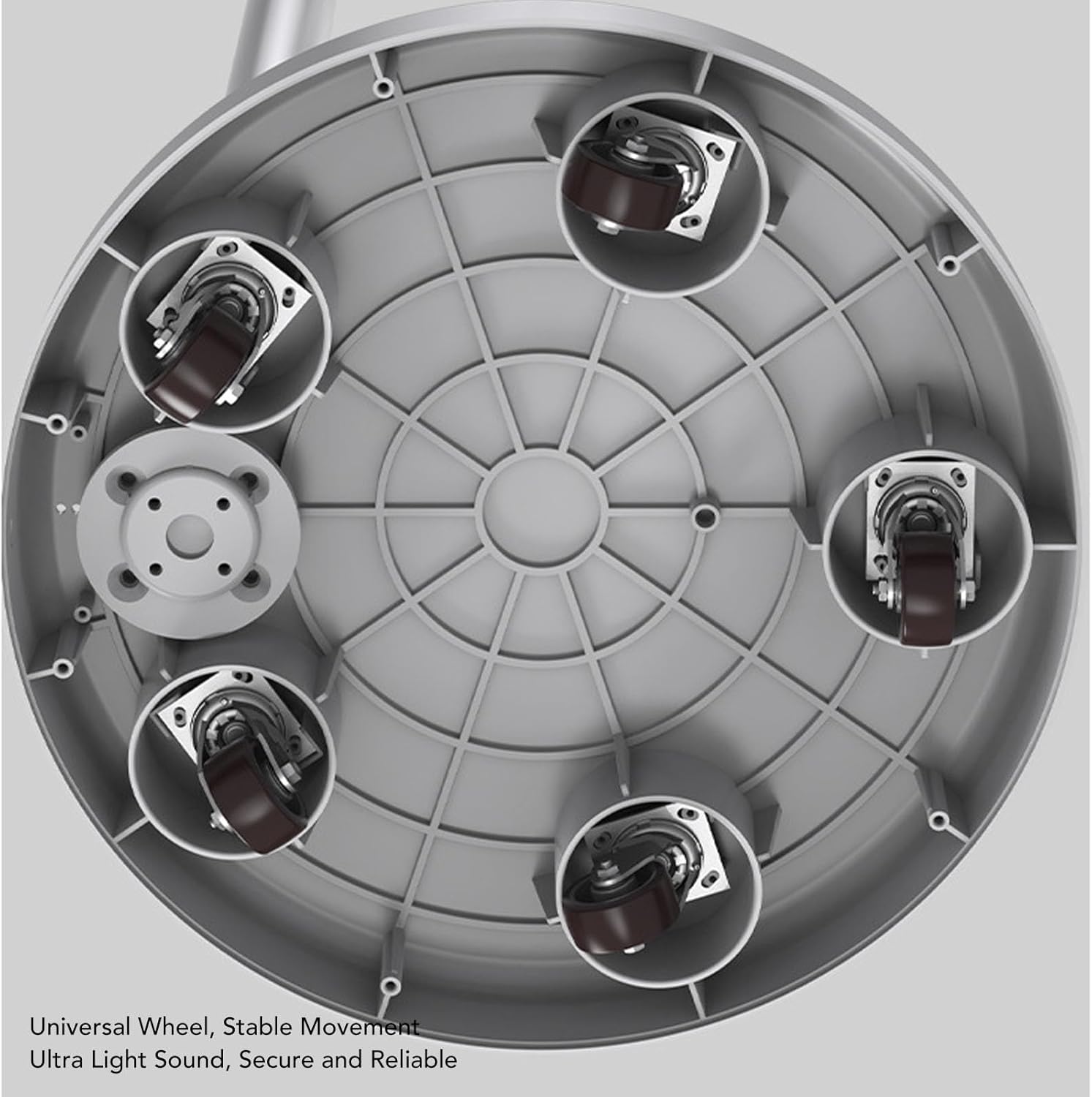
Figure 5.1: Key dimensions of the Bewinner Smart Screen.
6. Maintenance
Proper maintenance ensures the longevity and optimal performance of your Bewinner Smart Screen.
- Cleaning the Screen: Use a soft, lint-free cloth specifically designed for electronic screens. Do not use abrasive cleaners, alcohol, or ammonia-based solutions. Lightly dampen the cloth with water if necessary, and gently wipe the screen.
- Cleaning the Stand and Base: Wipe down the pole and base with a soft, dry or slightly damp cloth. Avoid harsh chemicals.
- Storage: When not in use for extended periods, store the device in a cool, dry place away from direct sunlight and extreme temperatures.
- Battery Care: To prolong battery life, avoid fully discharging the battery frequently. If storing for a long time, charge the battery to about 50-60% before storage.
- Avoid Obstructions: Ensure ventilation openings are not blocked to prevent overheating.
7. Troubleshooting
This section addresses common issues you might encounter. For problems not listed here, please contact customer support.
| Problem | Possible Cause | Solution |
|---|---|---|
| Device does not power on. | Battery is depleted or power adapter is not connected/functioning. | Connect the power adapter and allow the device to charge for at least 30 minutes. Ensure the power outlet is working. Try pressing and holding the power button for 10-15 seconds. |
| Screen is blank or frozen. | Software glitch or temporary system error. | Perform a forced restart by pressing and holding the power button until the device powers off, then power it on again. |
| Wi-Fi connection issues. | Incorrect password, out of range, or router issue. | Verify Wi-Fi password. Move closer to the Wi-Fi router. Restart your Wi-Fi router. Check network settings on the device. |
| Touchscreen is unresponsive. | Temporary software issue or screen contamination. | Restart the device. Clean the screen thoroughly with a soft, lint-free cloth. |
| Audio distortion or no sound. | Volume too low, muted, or application specific issue. | Check volume settings. Ensure device is not muted. Test with different applications or media files. |
8. Warranty and Support
Bewinner is committed to providing high-quality products and excellent customer service. While specific warranty details are not provided in this manual, Bewinner strives to ensure customer satisfaction. If you encounter any issues with your product, require technical assistance, or have questions regarding its operation, please contact the seller or Bewinner customer support directly. Please have your model number (Bewinner0i6gsh3keu-12) and purchase information ready when contacting support.
For more information about Bewinner products and support, you may visit the official Bewinner store on Amazon: Bewinner Store
Ask a question about this manual
Ask about setup, troubleshooting, compatibility, parts, safety, or missing instructions. Manuals+ will review the question and use this page’s manual context to help answer it.