
Introduction
Thank you for choosing the Hangrui H3 Instant Print Kids Camera. This digital camera is designed for children aged 3-12, offering instant black and white photo printing, 1080p video recording, and various creative features. This manual provides essential information for safe and effective use of your camera. Please read it thoroughly before operation and retain it for future reference.
Product Overview
Key Features:
- Instant Print Function: Print black and white photos instantly using thermal printing technology.
- Digital Photo & Video: Capture 1080p videos and store color photos on the included 32GB SD card.
- 2.4-inch HD Screen: Clear display for viewing photos and videos.
- 10x Digital Zoom: Magnify subjects for detailed shots.
- Built-in Flashlight: Provides illumination in low-light conditions.
- Creative Modes: Time-lapse, burst shooting, fun stickers, and photo frames.
- MP3 Player: Enjoy music on the go.
- DIY Coloring: Customize printed photos with included color pens.
- Rechargeable Battery: 1000mAh battery for extended use.
Package Contents:
- 1 x Hangrui H3 Instant Print Kids Camera
- 3 x Printer Paper Rolls
- 1 x USB-C Charging Cable
- 1 x 32GB SD Card (pre-installed)
- 1 x Lanyard
- 5 x Color Pens
- 1 x User Manual

Image: The Hangrui H3 Instant Print Kids Camera in pink, showcasing its 2.4-inch HD screen, print photo function, 1080p video, 10x zoom, MP3 player, time-lapse, DIY graffiti, flashlight, and included 32GB card. Dimensions are also indicated.
Setup
1. Charging the Camera:
Before first use, fully charge the camera. Connect the provided USB-C cable to the camera's charging port and the other end to a USB power adapter (not included) or a computer USB port. The charging indicator light will show the charging status.
2. Inserting/Removing the SD Card:
The camera comes with a 32GB SD card pre-installed. If you need to remove or replace it, gently push the card into its slot until it clicks, then release to eject. Ensure the camera is powered off before inserting or removing the SD card.
3. Loading Print Paper:
- Open the paper compartment cover on the side of the camera.
- Insert a new roll of thermal print paper, ensuring the paper feeds out from the top of the roll.
- Pull a small length of paper out and close the cover, making sure the paper protrudes slightly from the printing slot.
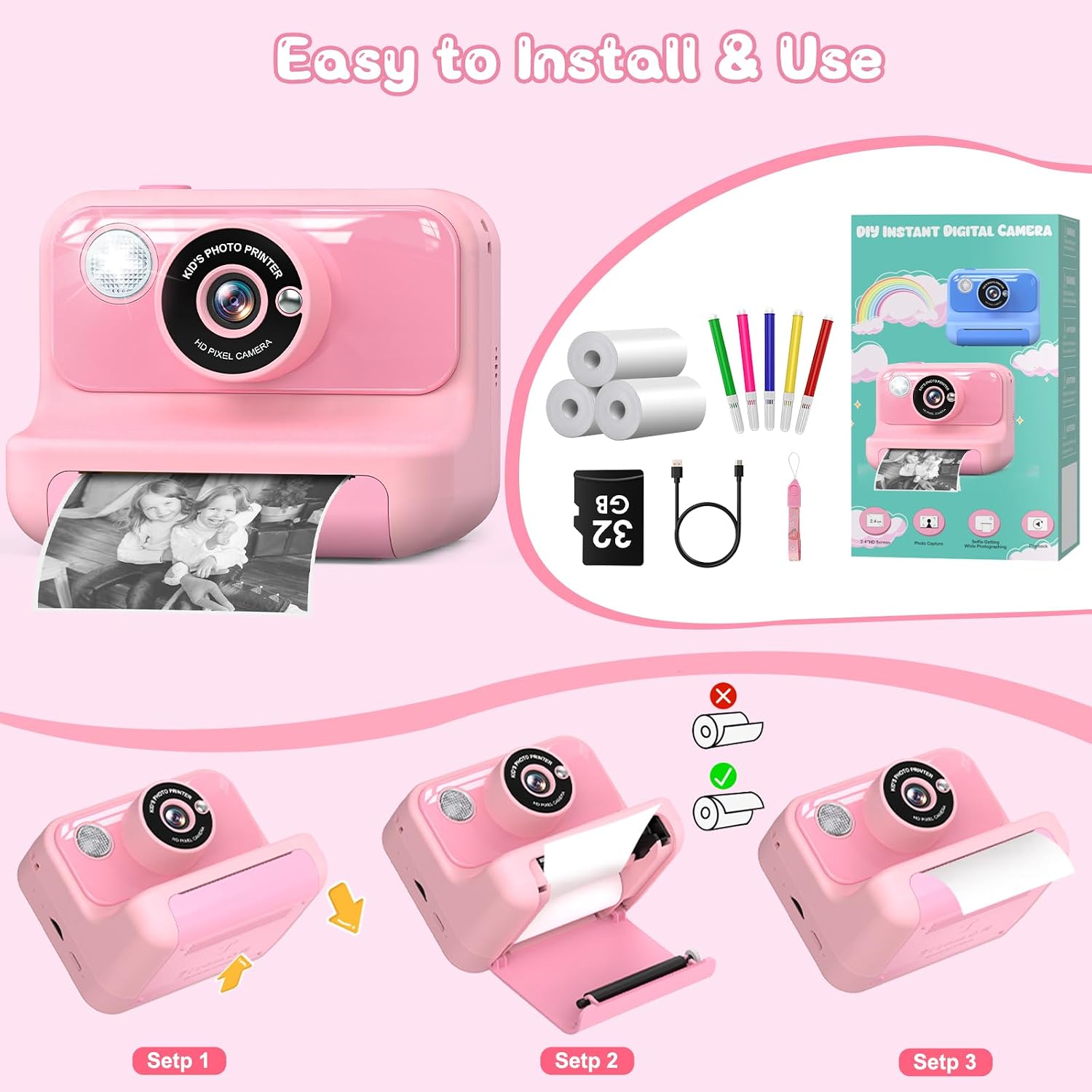
Image: A visual guide demonstrating the three steps to correctly load the thermal print paper into the camera's paper compartment.
4. Attaching the Lanyard:
Attach the included lanyard to the designated loop on the camera for easy and secure carrying.
Operating Instructions
1. Power On/Off:
Press and hold the Power button for a few seconds to turn the camera on or off.
2. Taking Photos:
- In photo mode, frame your shot using the screen.
- Press the Shutter button to take a picture.
- The camera will automatically save the color photo to the SD card and, if instant print is enabled, print a black and white version.

Image: The camera screen showing different fun frames and photo filters that can be applied to pictures, enhancing creativity.
3. Recording Videos:
- Switch to video mode using the mode button.
- Press the Shutter button to start recording. Press again to stop.
- Videos are saved to the SD card in 1080p resolution.

Image: This image illustrates the camera's capabilities for 1080p video recording, time-lapse photography (3s, 5s, 10s options), and burst shooting for capturing multiple rapid photos.
4. Zoom Function:
Use the zoom buttons (usually up/down navigation buttons) to digitally zoom in or out up to 10x.

Image: The camera's 10x zoom capability is shown with examples of 4x, 6x, 8x, and 10x magnification. The flashlight function, with 'Flash ON' and 'Flash OFF' examples, is also depicted.
5. Flashlight:
Activate the built-in flashlight for additional lighting in dark environments. Refer to the camera's on-screen menu for flashlight controls.
6. Creative Features (Time-Lapse, Burst, Filters, Frames):
Navigate through the camera's menu to access various creative modes:
- Time-Lapse: Set a delay (e.g., 3s, 5s, 10s) before a photo is taken.
- Burst Shooting: Capture multiple photos in quick succession.
- Photo Filters & Frames: Apply fun effects and borders to your pictures before or after taking them.
7. DIY Coloring:
After printing black and white photos, use the included color pens to add your own creative touch and personalize the prints.

Image: A child and an adult engaged in coloring instant black and white photos using the provided DIY color pens, demonstrating a creative activity with the camera's prints.
8. MP3 Player:
The camera supports MP3 playback. Transfer MP3 files to the SD card and access them through the camera's menu to listen to music.
Maintenance
- Cleaning: Use a soft, dry cloth to clean the camera body. For the lens, use a specialized lens cleaning cloth. Do not use liquid cleaners or abrasive materials.
- Storage: Store the camera in a cool, dry place away from direct sunlight and extreme temperatures.
- Battery Care: To prolong battery life, avoid fully discharging the battery frequently. Charge the camera regularly, even if not in use for extended periods.
- Paper Storage: Store thermal paper rolls in a cool, dark place to prevent premature fading or damage.
- SD Card: Periodically back up important photos and videos from the SD card to a computer.
Troubleshooting
Camera Not Turning On:
- Ensure the battery is charged. Connect the camera to a charger and wait a few minutes before attempting to power on again.
- Press and hold the power button firmly for several seconds.
Photos Not Printing:
- Check if the thermal paper is loaded correctly and not jammed. Refer to the "Loading Print Paper" section.
- Ensure there is enough paper in the compartment.
- Verify that the instant print function is enabled in the camera settings.
- The camera uses thermal paper; ensure you are using the correct type.
Poor Print Quality:
- Check the print density settings in the camera menu. Adjust for darker or lighter prints.
- Ensure the thermal paper is not old or damaged.
- Clean the print head gently with a soft, dry cloth if smudges appear.
Cannot Save Photos/Videos:
- Check if the SD card is properly inserted.
- Ensure the SD card is not full. Delete unnecessary files or replace the card.
- The SD card might be corrupted. Try formatting the card (this will erase all data) or use a different SD card.
Camera Freezes:
- If the camera freezes, try resetting it by pressing the reset button (if available, usually a small pinhole) or by holding down the power button until it turns off.
- Ensure the battery is sufficiently charged.
Specifications
| Model Name | H3 |
| Screen Size | 2.4 inches |
| Video Resolution | 1080p |
| Effective Photo Resolution | 14 Megapixels |
| Digital Zoom | Up to 10x |
| Battery Capacity | 1000mAh (rechargeable) |
| Storage | 32GB Micro SD Card (included) |
| Dimensions (L x W x H) | 7.3 x 10 x 8 cm |
| Weight | 400 Grams |
| Supported File Formats | JPEG (images), MP3 (audio) |
| Special Features | Instant Print, Time-Lapse, Burst Shooting, Flashlight, MP3 Player |
Warranty and Support
For warranty information and customer support, please refer to the documentation included with your purchase or contact Hangrui customer service through the retailer where the product was purchased. Keep your proof of purchase for warranty claims.