
ARNSSIEN M3
ARNSSIEN Kids Instant Print Camera M3 User Manual
Model: M3 | Brand: ARNSSIEN
Introduction
The ARNSSIEN M3 Kids Instant Print Camera is designed to inspire creativity and capture precious moments for children aged 3-12. This digital camera features instant printing capabilities, HD video recording, and a variety of fun functions to enhance the photographic experience. Its user-friendly design and durable construction make it an ideal companion for young photographers.
What's in the Box
Carefully unpack all items and ensure everything listed below is present:
- 1 x ARNSSIEN M3 Instant Print Camera (Blue)
- 7 x Rolls of Thermal Printing Paper
- 12 x Color Pens
- 1 x 32GB TF Card
- 1 x Lanyard
- 1 x Card Reader
- 1 x USB Type-C Cable
- 1 x Instruction Manual

Figure 1: All components included in the ARNSSIEN M3 Kids Instant Print Camera package.
Video 1: An overview of the ARNSSIEN Kid Camera Instant Print and its included accessories, demonstrating the unboxing experience.
Setup
1. Charging the Camera
Before first use, fully charge the camera using the provided USB Type-C cable. Connect the cable to the camera's charging port and the other end to a USB power adapter (not included) or a computer's USB port. The charging indicator light will show the charging status.
- Built-in 1200mAh rechargeable battery.
- Provides 2-5 hours of continuous use on a full charge.

Figure 2: Battery capacity and charging port location.
2. Inserting the TF Card
The camera comes with a 32GB TF card for storing photos and videos. Locate the TF card slot on the side of the camera and gently insert the card until it clicks into place. Ensure the camera is powered off before inserting or removing the TF card.
Video 2: Demonstrates how to insert the TF card and download music to the camera.
3. Loading Print Paper
To load the thermal printing paper:
- Press the grooves on both sides of the camera to open the paper slot.
- Place the print paper roll inside the camera body with the paper facing up. Incorrect placement will result in print failure.
- Close the slot door firmly.
Figure 3: Step-by-step guide for loading print paper.
Video 3: Important precautions for powering up the printer camera, including paper loading to avoid "No Paper" errors.
Operating Instructions
1. Power On/Off
Press and hold the power button (usually located on the side or front) to turn the camera on or off. The 2.4-inch IPS eye-protecting screen will light up.
2. Taking Photos
Navigate to the photo mode using the navigation buttons. Frame your shot on the screen and press the shutter button to capture the image. The camera supports various fun photo frames and filters.
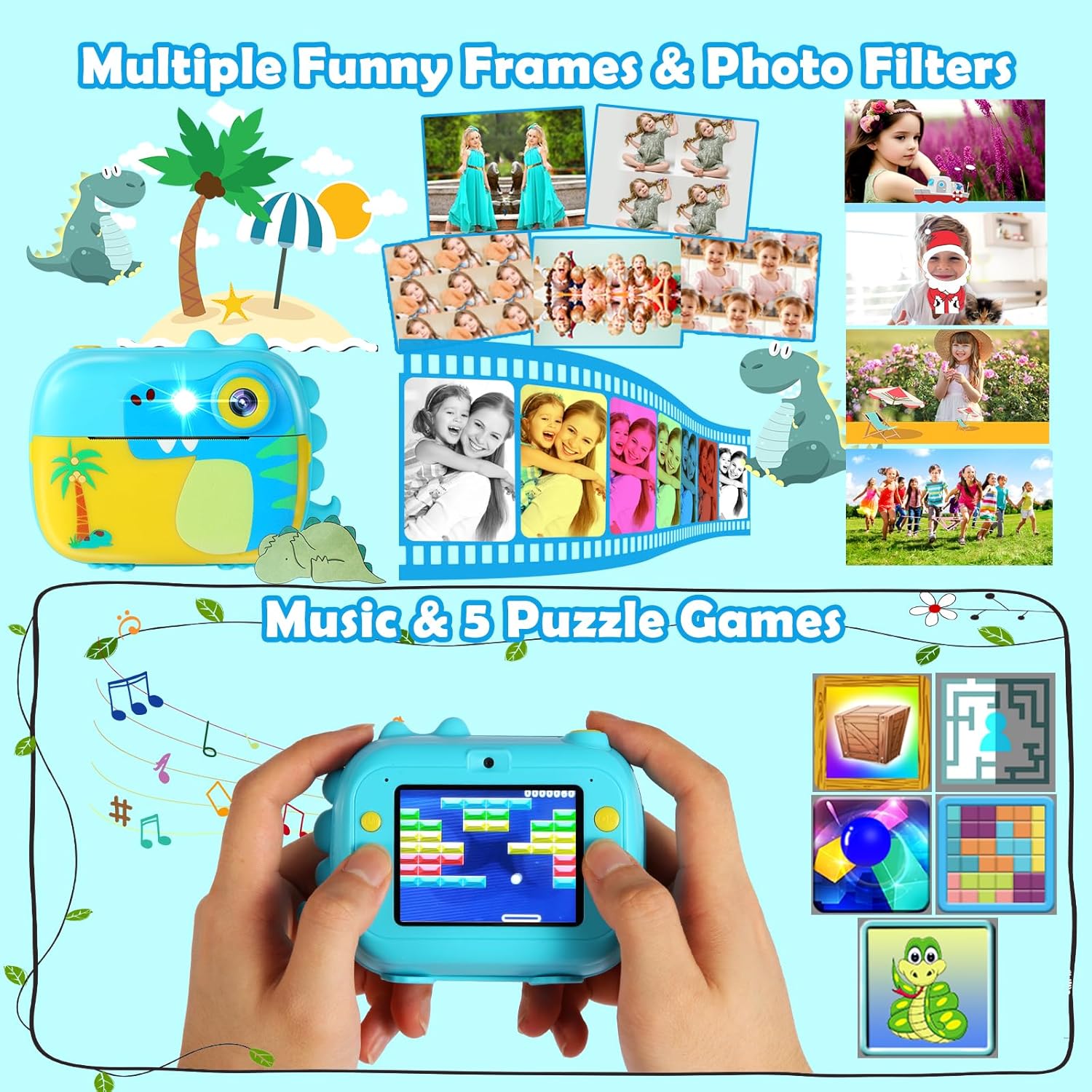
Figure 4: Explore various photo frames and filters for creative shots.
Video 4: Instructions on how to take photos in low-light conditions using the camera's flash feature.
3. Video Recording
Switch to video mode to record HD videos. The camera supports 1080P video recording. Press the shutter button to start and stop recording.
- Supports 1080P video resolution.
- Features up to 16x digital zoom.

Figure 5: Key video recording features and digital zoom.
4. Instant Printing
The camera offers one-touch instant printing. Once a photo is taken, it can be printed immediately. You can also select photos from the gallery to print later. The camera supports 4 different print densities and 2 print modes (Gray Print, Dot Print).

Figure 6: Instant printing and print density options.
Video 5: A guide on how to select the desired print mode for your photos.
5. Selfie Mode
The camera features a front-facing lens for taking selfies. Simply switch to selfie mode and capture your self-portraits.
6. Games and Music Player
The ARNSSIEN M3 camera includes built-in games for entertainment and an MP3 player for music playback. Transfer MP3 files to the TF card to enjoy music on the go.
Figure 7: Accessing games and music playback features.
Video 6: A tutorial on how to correctly download music files to the camera's TF card for playback.
Maintenance
1. Cleaning the Camera
To clean the camera, use a soft, dry cloth. For stubborn smudges, a slightly damp cloth can be used, but ensure no moisture enters the ports or internal components. Avoid using harsh chemicals or abrasive materials.
2. Paper Storage
Store unused thermal paper rolls in a cool, dry place away from direct sunlight to preserve their quality and prevent premature fading.
Troubleshooting
1. Camera Freeze or Jam
If the camera freezes or jams, locate the small reset hole next to the charging port. Use a thin pin (like the one included with the card reader) to gently press the reset button inside. This will restart the camera and should resolve most freezing issues.
Video 7: A quick guide on how to reset and fix a frozen or jammed camera.
Video 8: Detailed steps to fix a camera that is frozen or jammed.
2. "No Paper" Error
If the "No Paper" prompt appears on the screen, ensure that the thermal paper is correctly loaded and that 1-2 inches of paper are exposed outside the slot. Refer to the "Loading Print Paper" section in Setup for detailed instructions.
Video 9: Shows how to properly load paper and avoid the "No Paper" error.
3. Game Password Reset
If you forget the game password, you can reset it by performing a factory reset. First, remove the TF card to prevent data loss. Then, go to the camera's settings menu and select the "Default Setting" option to restore factory defaults. After resetting, the default password for games is 000000#.
Video 10: Instructions on how to reset the game password on the camera.
4. Overheat Protection
The camera features a smart overheating protection function. If the device heats up to 131 degrees Fahrenheit (55°C) due to prolonged operation, a warning alert will trigger, and the printing function will temporarily suspend to ensure safe use by children. Allow the camera to cool down before resuming printing.
Figure 8: Overheat protection feature for child safety.
Specifications
| Feature | Detail |
|---|---|
| Brand | ARNSSIEN |
| Model Name | M3 |
| Screen Size | 2.4 Inches |
| Display Type | LCD |
| Video Resolution | 1080p |
| Effective Still Resolution | 1 MP |
| Digital Zoom | 16 x |
| Battery Capacity | 1200 Milliamp Hours |
| Memory Storage Capacity | 32 GB (TF Card included) |
| Supported File Format | JPEG (Images), MP4 (Video), MP3 (Audio) |
| Age Range Description | Kid (Aged 3-12 recommended) |
| Item Weight | 0.2 Kilograms |
| Special Feature | Time-lapse, Instant Print, Games, Music Player |
Warranty & Support
This product comes with a 30-day warranty. For any dissatisfaction with the product or technical support, please contact ARNSSIEN customer service. We aim to provide 100% satisfaction within 24 hours.
Manufacturer: Yuemei Technology
Seller: ARNSSIEN
Ask a question about this manual
Ask about setup, troubleshooting, compatibility, parts, safety, or missing instructions. Manuals+ will review the question and use this page’s manual context to help answer it.