
iClever BTH26
iClever BTH26 Active Noise Cancelling Headphones for Kids User Manual
Model: BTH26
Introduction
Thank you for choosing the iClever BTH26 Active Noise Cancelling Headphones for Kids. These headphones are designed to provide a safe, comfortable, and immersive audio experience for children, featuring advanced noise reduction technology, a safe volume limit, and long battery life. This manual will guide you through the setup, operation, maintenance, and troubleshooting of your new headphones to ensure optimal performance and longevity.
What's in the Box
- iClever BTH26 Active Kids Noise Cancelling Headphones (Purple)
- USB-C Charging Cable
- Detachable 3.5mm Audio Cable
- Spunlace Non-woven Storage Bag
- User Manual

Image: Contents of the iClever BTH26 headphone package, including the purple headphones, charging cable, audio cable, storage bag, and user manual.
Product Features
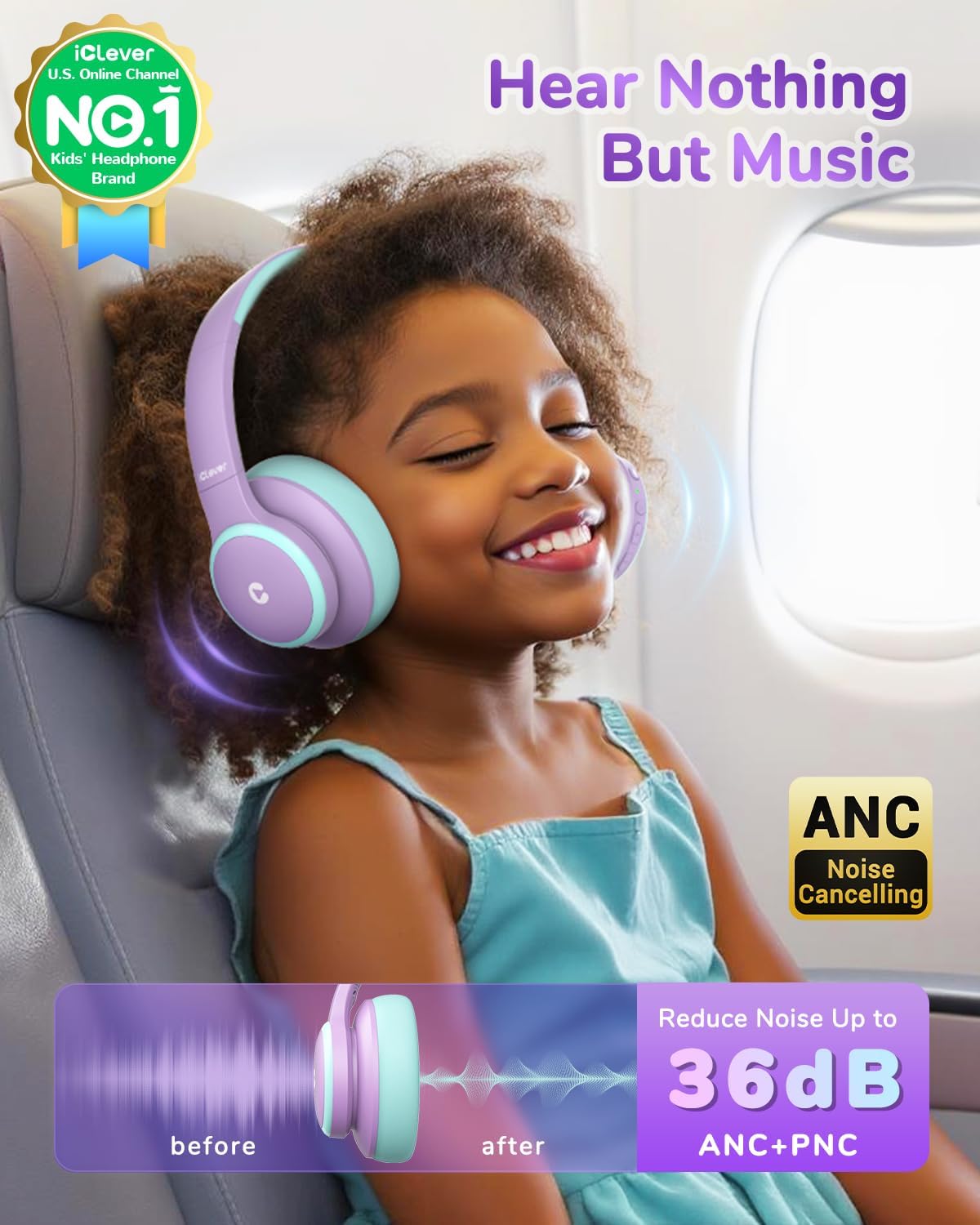
Image: A child wearing iClever BTH26 headphones on an airplane, illustrating the effectiveness of the active noise cancellation feature in reducing ambient sound.
Advanced Noise Reduction Technology
The iClever BTH26 headphones reduce up to 36dB of background noise (ANC+PNC), providing a quieter environment. Users can easily switch between noise-cancelling and standard modes by pressing the "ANC" button. Note: ANC is not available for wired connections.

Image: A child happily listening to music with iClever BTH26 headphones, emphasizing the 80dBA safe volume limit for hearing protection.
Safe & Durable Design
These headphones feature an 80dBA volume limit and iClever Sound Refiner technology to protect children's hearing. Constructed with safe, BPA-free materials, they are designed to withstand drops and daily impacts for long-lasting use.
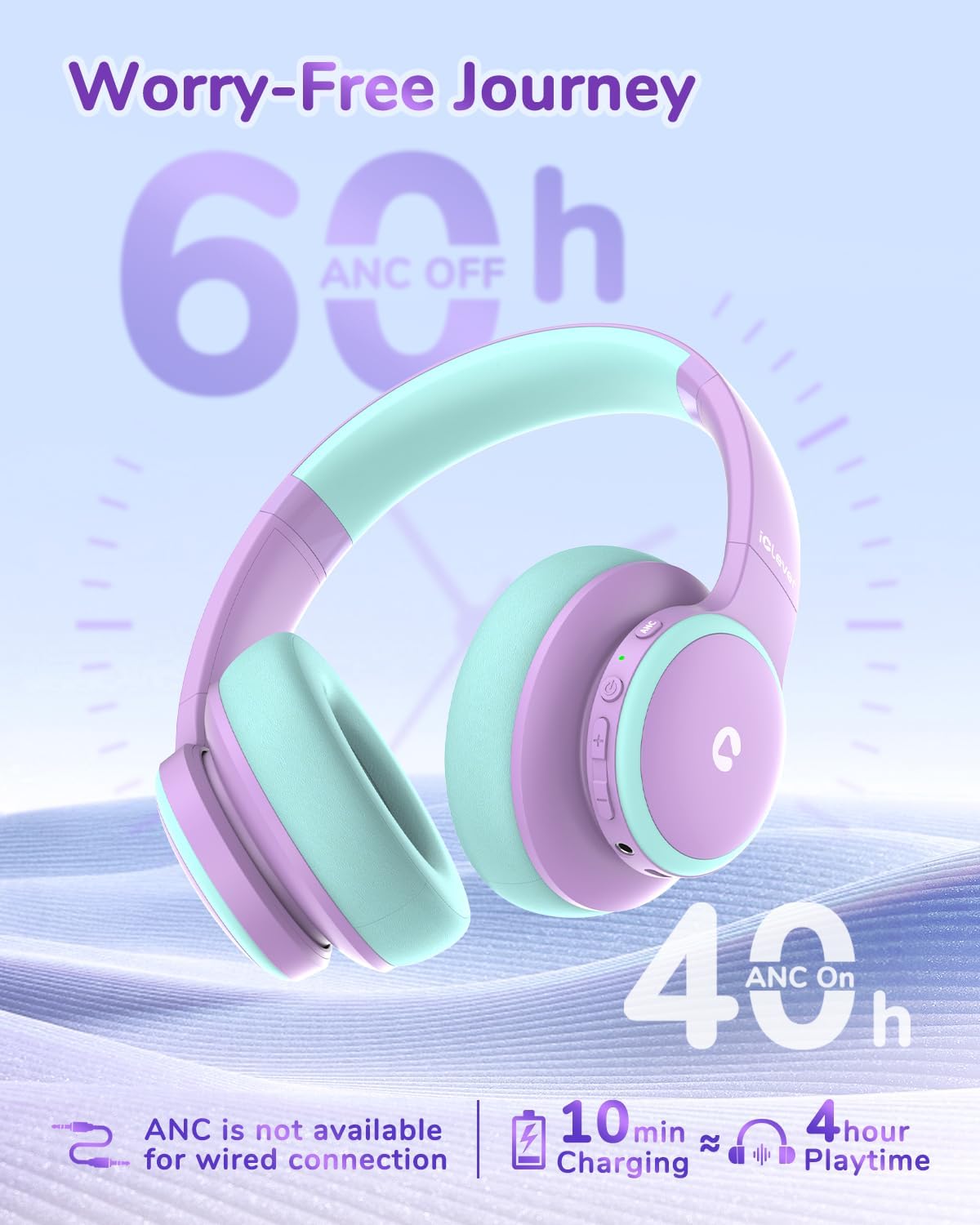
Image: The iClever BTH26 headphones displaying battery life information: up to 60 hours with ANC off, 40 hours with ANC on, and 4 hours of playtime from a 10-minute charge.
Long Battery Life & Versatile Connectivity
Enjoy up to 40 hours with ANC on and 60 hours with ANC off. A quick 10-minute Type-C charge provides over 4 hours of playtime. The included 3.5mm audio cable allows for wired connection when charging is not an option. Bluetooth 5.4 ensures stable connections.
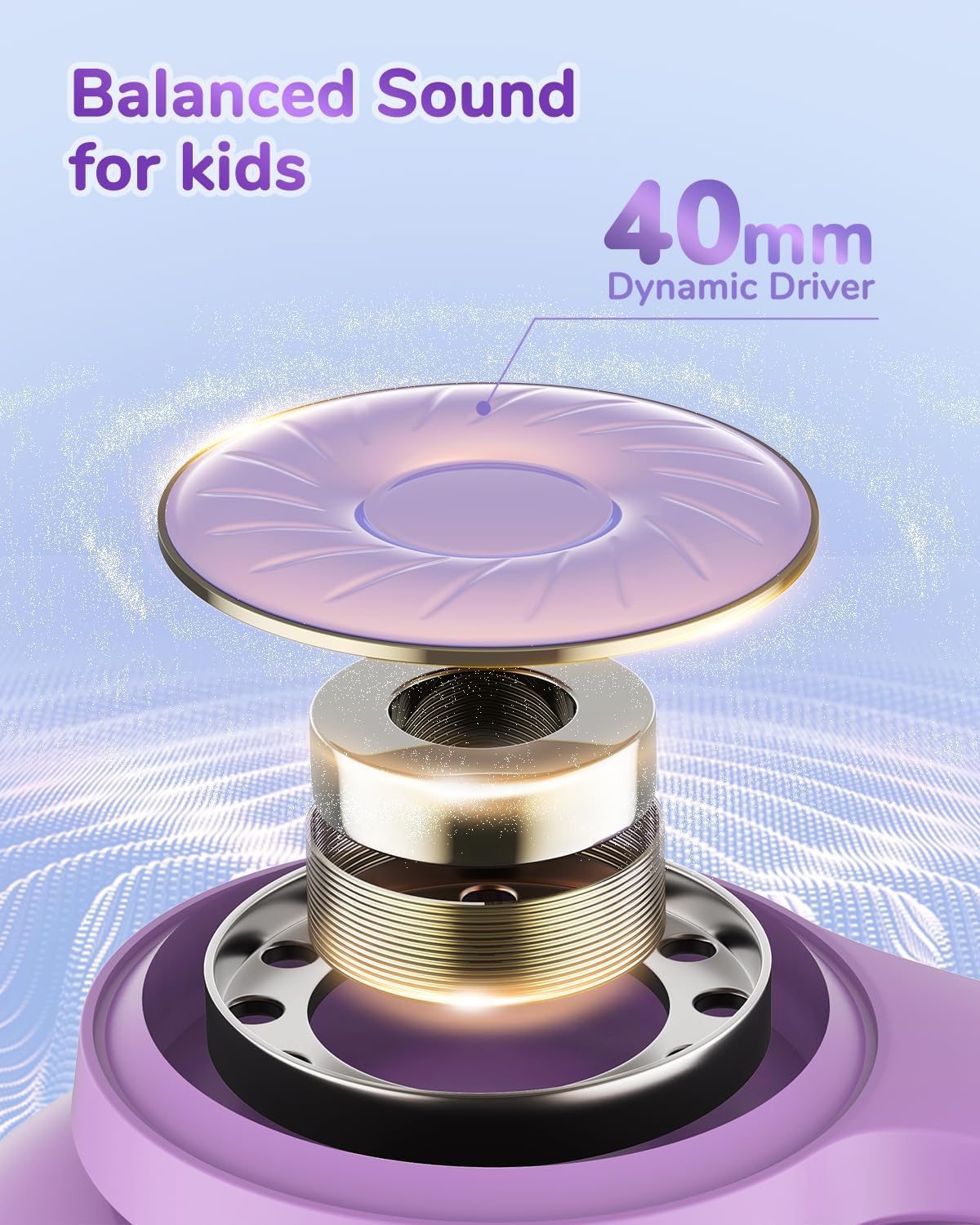
Image: A cutaway diagram illustrating the 40mm dynamic driver unit within the iClever BTH26 headphones, responsible for delivering balanced audio.
Clear Sound & Built-in Microphone
Equipped with a 40mm driver unit, these headphones deliver clear, balanced audio. The built-in microphone ensures crisp sound for calls and online learning.

Image: A child sitting comfortably with iClever BTH26 headphones on, interacting with a dog, highlighting the oversized, cushioned earcups and BPA-free materials for all-day comfort.
Comfortable & Portable
The ergonomic design includes an adjustable headband and soft, rotatable ear cups for a comfortable and secure fit. A spunlace non-woven storage bag is included for easy portability and storage.

Image: Two children pulling on the iClever BTH26 headphones, demonstrating their durability and resistance to bending and stretching.
Built for Durability
Designed to withstand the rigors of daily use by children, these headphones are built with robust materials to ensure long-term durability against drops, stretches, and expansions.
Setup Guide
1. Charging the Headphones
Before first use, fully charge your iClever BTH26 headphones. Connect the included USB-C charging cable to the charging port on the headphones and the other end to a USB power source (e.g., computer USB port, wall adapter). The LED indicator will show charging status and turn off when fully charged. A full charge takes approximately 2.5 hours.
2. Bluetooth Pairing
- Ensure the headphones are powered off.
- Press and hold the Power button until the LED indicator flashes blue and red, indicating pairing mode.
- On your device (smartphone, tablet, laptop), enable Bluetooth and search for available devices.
- Select "iClever BTH26" from the list of devices.
- Once connected, the LED indicator will turn solid blue.
3. Wired Connection
For a wired connection, plug one end of the included 3.5mm audio cable into the audio jack on the headphones and the other end into the audio output port of your device. When using a wired connection, the headphones will power off, and Active Noise Cancellation (ANC) will not be available.
Operating Instructions
Power On/Off
- Power On: Press and hold the Power button for 2-3 seconds until the LED indicator lights up.
- Power Off: Press and hold the Power button for 3-4 seconds until the LED indicator turns off.
Volume Control
- Volume Up: Press the '+' button.
- Volume Down: Press the '-' button.
- The headphones feature an 80dBA safe volume limit to protect hearing.
Active Noise Cancellation (ANC)
- Activate/Deactivate ANC: Press the dedicated "ANC" button on the earcup. A voice prompt will confirm the mode change.
- Note: ANC functionality is only available when the headphones are connected wirelessly via Bluetooth. It is not active during wired connection.
Music Playback
- Play/Pause: Press the Multi-function button (usually the power button or a dedicated play/pause button).
- Next Track: Press and hold the '+' button.
- Previous Track: Press and hold the '-' button.
Call Functions
- Answer/End Call: Press the Multi-function button once.
- Reject Call: Press and hold the Multi-function button for 2 seconds.
- Redial Last Number: Double-press the Multi-function button.
Maintenance
- Cleaning: Use a soft, dry cloth to clean the headphones. Do not use abrasive cleaners or solvents.
- Storage: When not in use, store the headphones in the included spunlace non-woven storage bag to protect them from dust and scratches. Store in a cool, dry place.
- Battery Care: To prolong battery life, avoid fully discharging the headphones frequently. Charge them regularly, even if not used for extended periods.
- Avoid Extreme Conditions: Do not expose the headphones to extreme temperatures, humidity, or direct sunlight.
Troubleshooting
Headphones will not power on
- Ensure the headphones are fully charged. Connect them to a power source using the USB-C cable and allow them to charge for at least 30 minutes before attempting to power on again.
Cannot pair with Bluetooth device
- Make sure the headphones are in pairing mode (LED flashing blue and red).
- Ensure Bluetooth is enabled on your device and it is within 10 meters (33 feet) of the headphones.
- Turn off and on the Bluetooth on your device, then try searching again.
- If previously paired, try "forgetting" or "unpairing" the headphones from your device's Bluetooth settings and then re-pairing.
No sound or low volume
- Check the volume level on both the headphones and your connected device.
- Ensure the headphones are properly connected via Bluetooth or the 3.5mm audio cable.
- If using a wired connection, ensure the cable is fully inserted into both the headphone and device jacks.
- Verify that the audio source is playing and not muted.
Active Noise Cancellation (ANC) not working
- Ensure the headphones are powered on and connected wirelessly via Bluetooth. ANC does not function in wired mode.
- Press the ANC button to activate it. Listen for the voice prompt confirming ANC activation.
Specifications
| Feature | Detail |
|---|---|
| Model Name | BTH26 |
| Noise Control | Active Noise Cancellation |
| Connectivity Technology | Wired, Wireless (Bluetooth 5.4) |
| Headphones Jack | 3.5 mm Jack |
| Audio Driver Size | 40 Millimeters |
| Battery Life | Up to 60 Hours (ANC off), 40 Hours (ANC on) |
| Charging Time | 2.5 Hours (10 min charge for 4+ hours playtime) |
| Safe Volume Limit | 80dBA |
| Material | Acrylonitrile Butadiene Styrene (ABS), Leather |
| Item Weight | 230 Grams (8.1 ounces) |
| Product Dimensions | 5.98 x 5.63 x 3.43 inches |
| Age Range (Description) | Kid, Teen, Adults |
Warranty and Support
iClever products come with a standard warranty. For detailed warranty information, product support, or technical assistance, please refer to the warranty card included in your product packaging or visit the official iClever website. You can also contact iClever customer service directly for any inquiries.
Online Support: www.iclever.com/support
Related documentsBTH26


Ask a question about this manual
Ask about setup, troubleshooting, compatibility, parts, safety, or missing instructions. Manuals+ will review the question and use this page’s manual context to help answer it.