
1. Introduction
Welcome to the WONNIE DC105P Digital Camera user manual. This guide provides essential information for setting up, operating, and maintaining your new camera. Designed for ease of use, this camera captures vivid 56MP photos and Full HD 1080P videos, making it perfect for young photographers to explore their creativity.
2. Safety Information
- Do not expose the camera to water or extreme temperatures.
- Keep the camera away from strong magnetic fields.
- Use only the specified batteries and charging cable.
- Avoid dropping the camera or subjecting it to strong impacts.
- Clean the lens with a soft, dry cloth.
3. What's in the Box
Upon unboxing your WONNIE DC105P Digital Camera, please ensure all the following items are present:
- WONNIE DC105P Digital Camera
- 32GB TF Card
- Rechargeable Batteries (x2)
- Type-C USB Cable
- Lanyard
- Storage Bag
- User's Manual (this document)
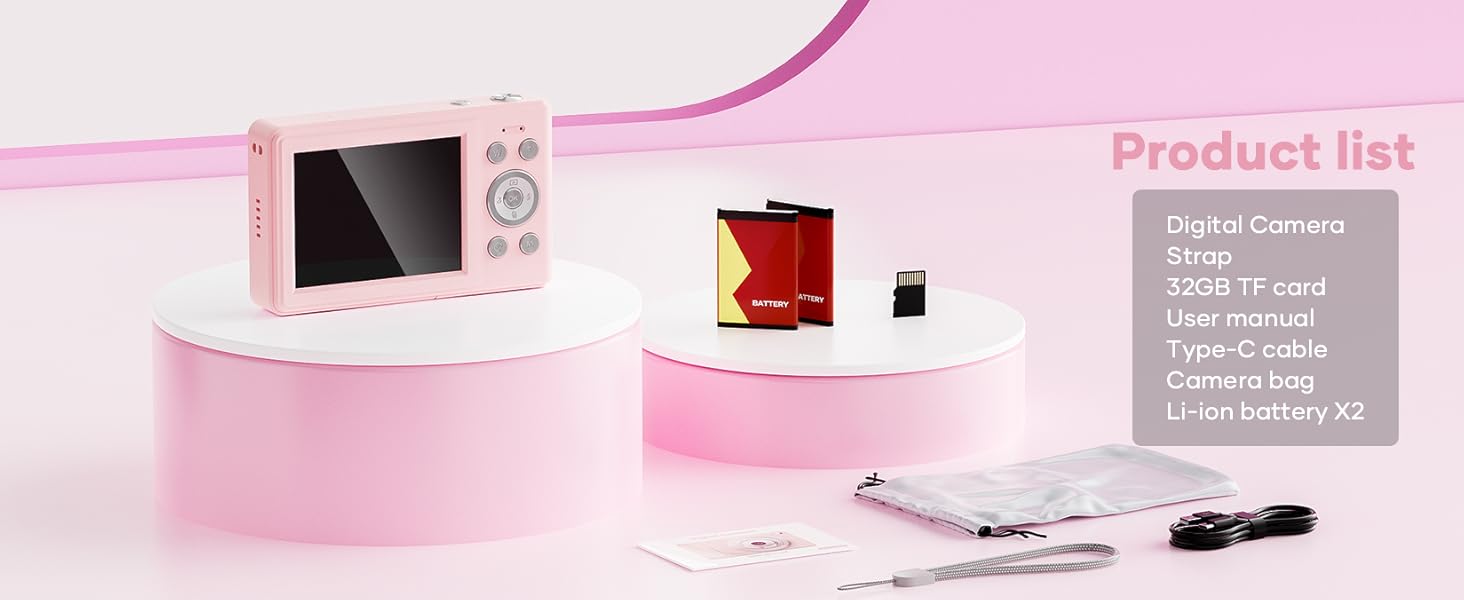
This image displays the WONNIE DC105P Digital Camera alongside its accessories: two rechargeable batteries, a 32GB TF card, a Type-C USB cable, a lanyard, and a soft storage bag, all neatly arranged.
4. Product Overview
Familiarize yourself with the camera's components and controls.
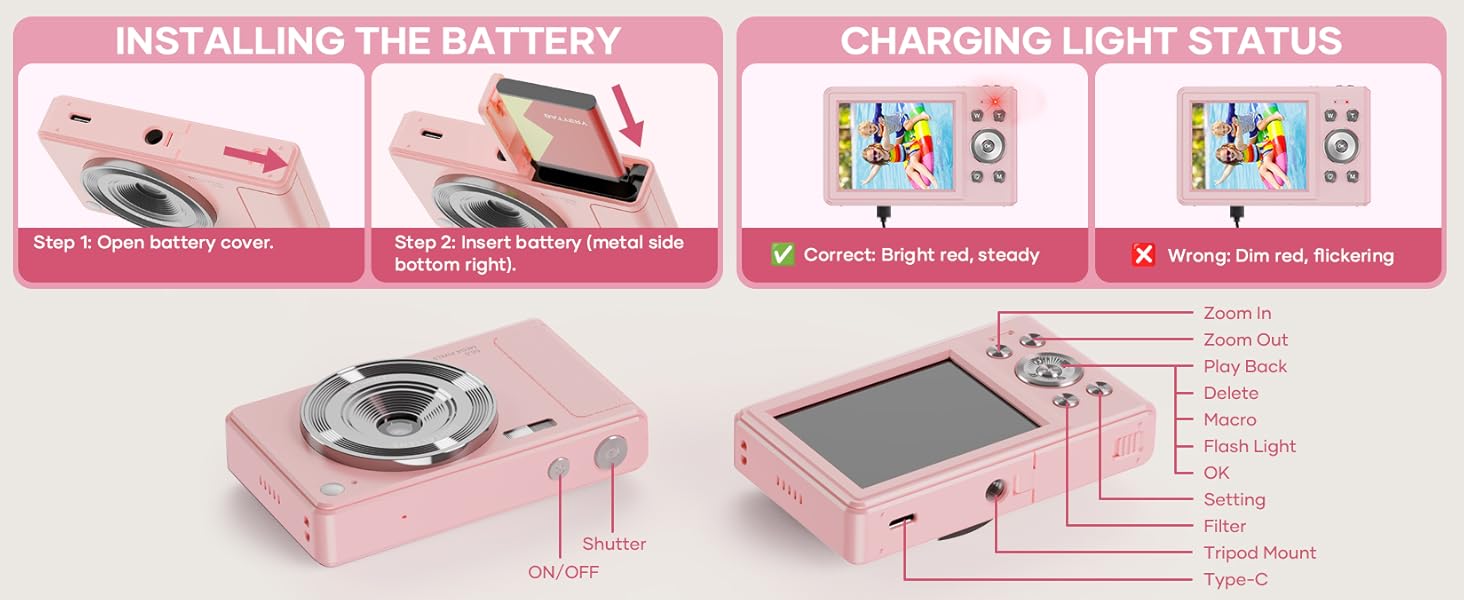
This diagram highlights the various buttons and ports on the WONNIE DC105P Digital Camera, including the power button, shutter button, zoom controls, playback button, menu button, OK button, flash light, tripod mount, and Type-C port.
Key Components:
- Lens: Captures images and videos.
- Flash: Provides illumination in low-light conditions.
- Shutter Button: Press to take a photo or start/stop video recording.
- Power Button: Turns the camera on or off.
- LCD Screen: Displays live view, menus, and playback.
- Navigation Buttons (Up/Down/Left/Right/OK): Used for menu navigation and selecting options.
- Zoom Buttons (W/T): Adjusts digital zoom.
- Playback Button: Enters playback mode to view captured media.
- Menu Button: Accesses camera settings.
- Type-C Port: For charging and data transfer.
- Tripod Mount: For attaching the camera to a tripod.
5. Setup
5.1 Battery Installation
- Open the battery compartment cover located on the side of the camera.
- Insert the rechargeable battery with the metal contacts facing down and to the right, ensuring it clicks into place.
- Close the battery compartment cover securely.
This image illustrates the two steps for battery installation: first, opening the battery cover, and second, inserting the battery with the metal side facing down and to the right.
5.2 SD Card Installation
The camera supports a 32GB TF (Micro SD) card. Insert the TF card into the designated slot in the battery compartment until it clicks.
5.3 Charging the Battery
- Connect the camera to a power source using the provided Type-C USB cable.
- The charging indicator light will show the charging status. A bright red, steady light indicates correct charging. A dim, flickering light indicates an issue.
This image displays the camera's charging light status: a bright red, steady light for correct charging, and a dim, flickering light indicating an incorrect status.
5.4 Attaching the Lanyard
Thread the lanyard through the designated loop on the camera body to prevent accidental drops.
6. Operating the Camera
6.1 Power On/Off
Press and hold the Power button (labeled ON/OFF) on the top of the camera to turn it on or off.
6.2 Taking Photos
In photo mode, frame your shot using the LCD screen and press the Shutter button to capture an image. The camera features 56MP resolution for clear photos.

This image shows a child holding the pink WONNIE DC105P Digital Camera, with the screen displaying a photo of children. Other children are in the foreground, emphasizing the camera's ease of use for capturing vibrant 56MP photos and smooth FHD 1080P videos.
Special Photo Features:
- 16x Digital Zoom: Use the 'W' and 'T' buttons to zoom in or out.
- 20 Fun Filters: Apply various creative filters to your photos via the menu.
- Self-Timer: Set a delay (2s, 5s, 10s) before taking a photo, ideal for group shots.
- Continuous Shooting (Burst Mode): Capture a rapid sequence of 3 photos.
- Anti-Shake: Digital image stabilization helps reduce blur from camera movement.
- Fill Light: Activate the built-in fill light for brighter photos in dim environments. (Note: Fill light won't activate in macro mode or when battery is too low.)
- Smile Recognition: Automatically captures a photo when a smile is detected.

This image showcases three key features: Self Timer for perfect selfies, Continuous Shooting to capture every moment, and Anti Shake for steady shots.

This image illustrates the camera's 16x digital zoom capability with examples at 4x, 8x, and 16x, alongside a selection of 20 fun filters like Normal, Cold Filter, Warm Filter, and more, for endless creativity.
6.3 Recording Videos
Switch to video mode (usually indicated by a camcorder icon in the menu) and press the Shutter button to start recording. Press again to stop. Videos are recorded in FHD 1080P with a built-in microphone.
6.4 Playback/Viewing Media
Press the Playback button to enter playback mode. Use the navigation buttons to scroll through your photos and videos. Press the OK button to play videos.
6.5 Transferring Files
You have several options to transfer your media:
- USB to PC: Connect the camera to your computer using the Type-C cable. The camera will appear as a removable disk.
- OTG to Phone: Use a compatible OTG cable adapter (sold separately) to connect the camera to your smartphone (e.g., iPhone 15, Samsung).
- Card Reader: Remove the TF card and insert it into a card reader to transfer files to a computer or phone.

This image illustrates three convenient ways to view and transfer media: directly connecting the camera via USB to a PC, using an OTG adapter to connect to a smartphone, or using a card reader with a smartphone.
6.6 Webcam Functionality
Connect the camera to a computer via the Type-C USB cable. Select 'Webcam' mode on the camera (if prompted) to use it for video calls or live streaming.

This image demonstrates the WONNIE DC105P Digital Camera's capability to function as a webcam, showing it mounted on a laptop for a video call and for live streaming.
7. Video Demonstration
This video provides a general overview of the WONNIE Digital Camera, highlighting its features and suitability for kids and teens.
This video offers an introduction to the digital camera, demonstrating its basic functions and design.
8. Maintenance
- Cleaning: Use a soft, lint-free cloth to clean the camera body and screen. For the lens, use a specialized lens cleaning cloth and solution.
- Storage: Store the camera in its provided storage bag in a cool, dry place away from direct sunlight and humidity. Remove the battery if the camera will not be used for an extended period.
- Battery Care: Fully charge batteries before first use. Avoid completely draining the battery frequently to prolong its lifespan.
9. Troubleshooting
| Problem | Possible Solution |
|---|---|
| Camera does not power on. | Ensure the battery is correctly inserted and fully charged. |
| Cannot take photos/record videos. | Check if the SD card is inserted correctly and has sufficient free space. Ensure the battery is not critically low. |
| Images are blurry. | Ensure the lens is clean. Use the anti-shake feature. Hold the camera steady while shooting. |
| Cannot transfer files to computer/phone. | Verify the USB cable connection. Ensure the camera is in the correct mode for data transfer (if prompted). Try a different USB port or cable. For phones, ensure OTG compatibility and adapter. |
| Charging indicator is flickering. | Refer to Figure 5.2 for correct charging status. Re-insert the cable or try a different power source. |
10. Specifications
| Feature | Detail |
|---|---|
| Photo Sensor Resolution | 56 MP |
| Video Resolution | 1080p FHD |
| Optical Zoom | 16x Digital Zoom |
| Screen Size | 2.8 Inches LCD |
| Image Stabilization | Digital |
| Storage Media | 32GB TF Card (included), Max 32GB supported |
| Connectivity | OTG, USB Type-C |
| Special Features | Time Stamp, Anti-shake, Time-lapse, Continuous Shoot, Face Detection, Self-timer, Webcam, Filter Effect, Fill light, Selfie mirror, Auto Shut-off, Built-in Microphone |
| Item Weight | 0.22 Kilograms (approx. 0.48 lbs) |
| Dimensions | Approx. 3.8 x 0.78 x 2.4 inches (based on image) |
| Battery Type | Lithium Ion (1000mAh, 3.8V) |
11. Warranty and Support
Your WONNIE DC105P Digital Camera comes with a 1-year warranty. We are committed to providing excellent customer service and offer a hassle-free replacement policy. For any inquiries, missing accessories, or support needs, please contact our customer service team. We aim to respond within 24 hours.
For further assistance, please visit the official WONNIE Store on Amazon: WONNIE Store