
1. Introduction
The MakerHawk USB C Power Meter Tester is a high-precision digital multimeter designed for comprehensive monitoring of USB Type-C power delivery. This device allows for real-time measurement of voltage, current, power, capacity, energy, timing, and temperature. It also records maximum voltage, current, and power values, providing detailed insights into your device's charging performance.
Key features include support for various fast charge protocols (PD2.0, PD3.0, QC2.0, QC3.0, etc.), two-way measurement capabilities, 8 distinct display modes with a 360° gravity-sensing rotation, offline data storage, battery capacity calculation, and an automatic screen-off function for power saving. Its wide compatibility makes it an essential tool for testing laptops, tablets, phones, power banks, and chargers.

Figure 1: The MakerHawk USB C Power Meter Tester displaying real-time charging data.

Figure 2: Overview of the tester's main features and capabilities.
2. Setup and Connection
Setting up your MakerHawk USB C Power Meter Tester is straightforward. Follow these steps to begin monitoring your devices:
- Identify Ports: The tester has a male USB-C connector on one end (input) and a female USB-C port on the other (output).
- Connect Power Source: Plug the male USB-C connector of the tester into your power source (e.g., wall charger, power bank, car charger).
- Connect Device: Plug your device's USB-C charging cable into the female USB-C port of the tester. Then, connect the other end of the cable to the device you wish to monitor (e.g., phone, tablet, laptop).
- Verify Connection: Once connected, the tester's screen will illuminate, displaying real-time voltage, current, and other relevant charging parameters.

Figure 3: The tester's compatibility with various Type-C devices and power sources.
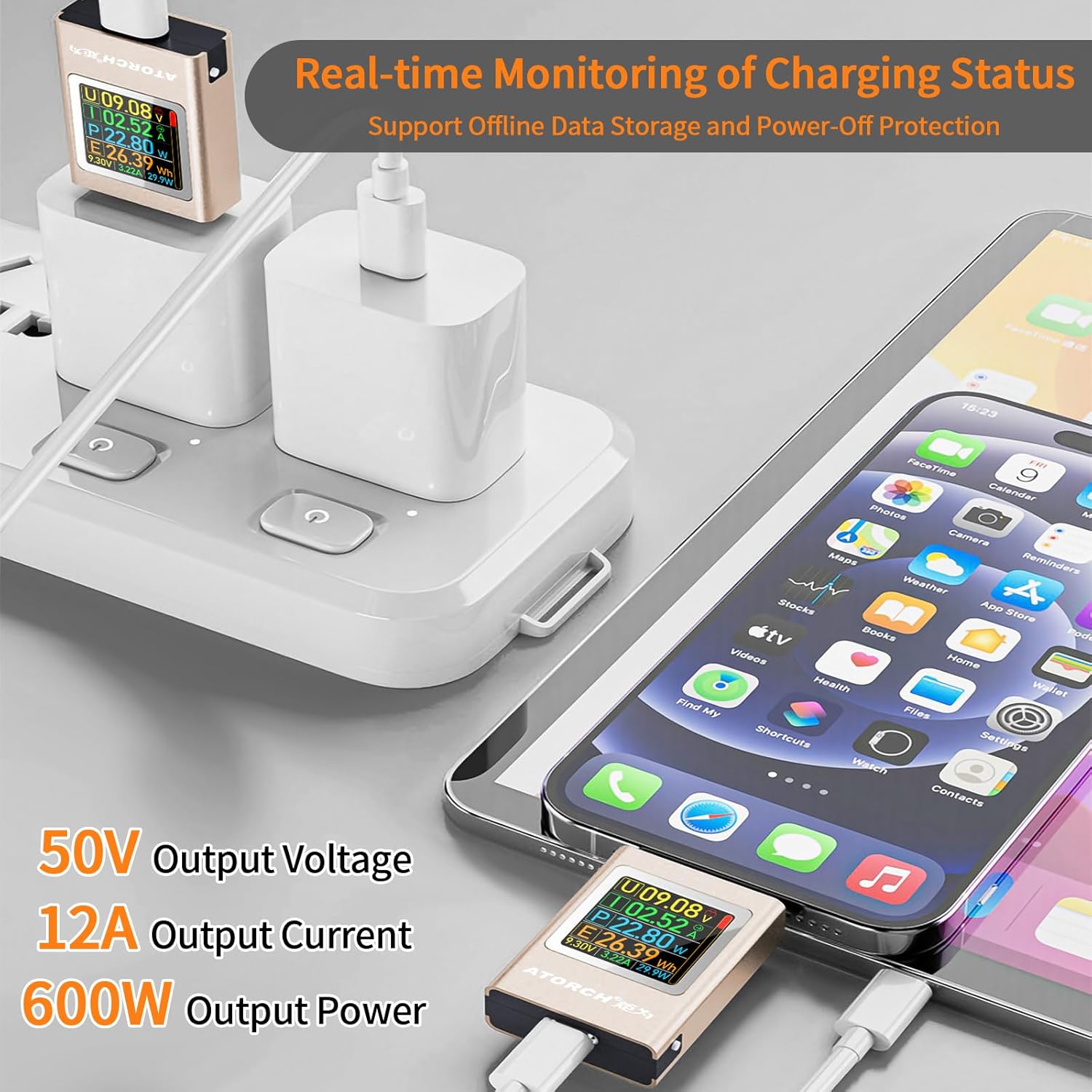
Figure 4: Real-time monitoring of charging status for a smartphone.
3. Operating Instructions
The MakerHawk USB C Power Meter Tester features a simple two-button interface for navigation and control. The screen automatically rotates 360° based on gravity for optimal viewing.
3.1 Button Functions
- Short Press (Top Button): Switches interface upward or adjusts settings.
- Long Press (Top Button): Enters or returns from a menu/setting.
- Short Press (Bottom Button): Switches interface downward or adjusts settings.
- Long Press (Bottom Button): Clears data or confirms selections.
3.2 Display Modes
The tester offers 8 distinct display interfaces, which can be cycled through using short presses of the buttons. These modes provide various data visualizations, including:
- Measurement Main Interface (Voltage, Current, Power, Energy, Max values)
- Real-Time Curve Interface (Voltage and Current curves)
- Battery Capacity Calculation Interface
- Language Switching/No-Load Current Reset Interface
- Countdown Screen Off Interface
- Color Change Interface
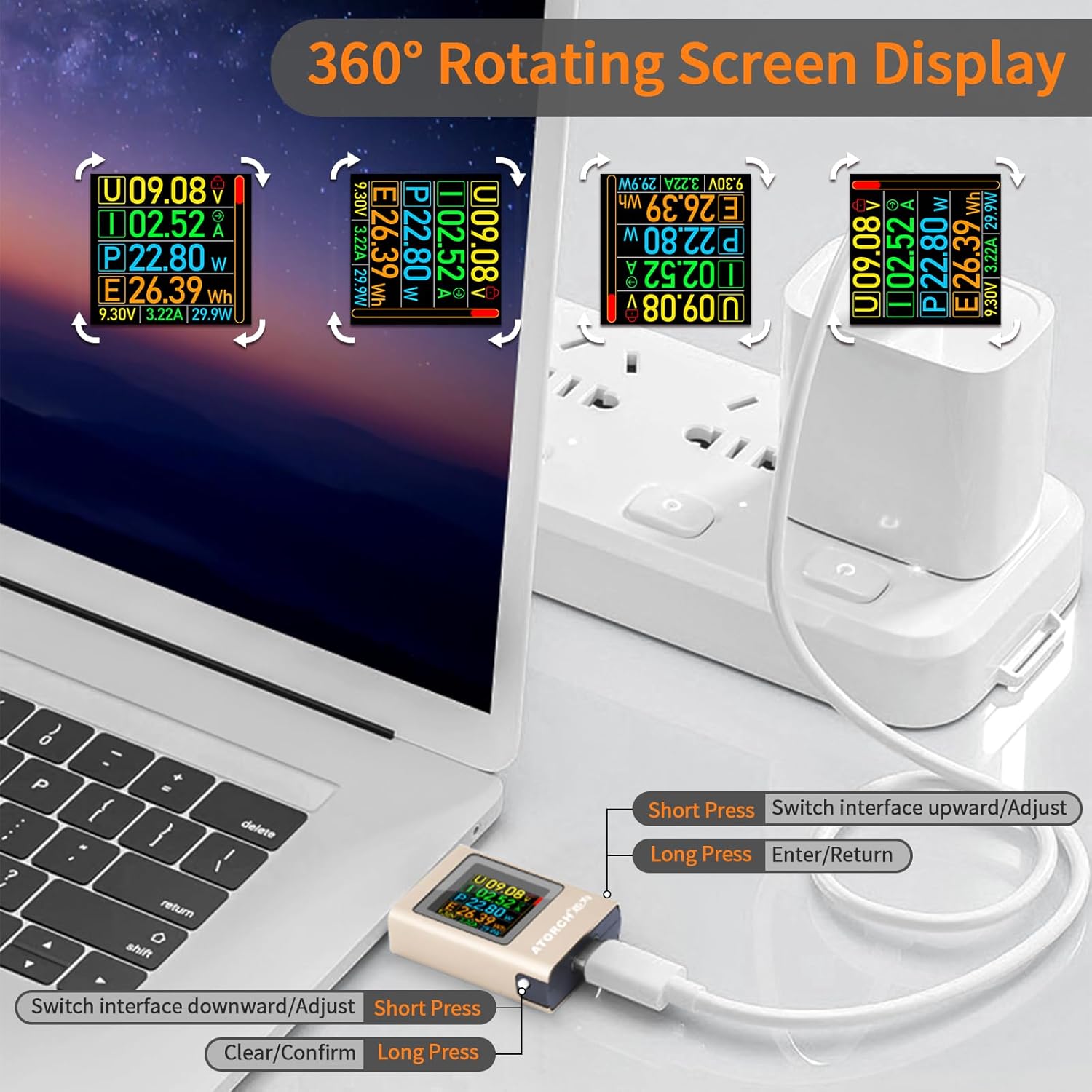
Figure 5: Illustration of the 360° rotating screen display and button functions.

Figure 6: Examples of the various display interfaces available on the tester.
3.3 Two-Way Measurement
The tester supports two-way current measurement, meaning it can measure both forward and reverse current flow. This is particularly useful for understanding power delivery in complex setups or when a device might also be supplying power.
Figure 7: The tester's capability for two-way current measurement.
4. Battery Capacity Calculation
One of the advanced features of this USB C Power Meter Tester is its ability to calculate the capacity of power banks and various types of batteries. This function helps you assess the performance and health of your battery-powered devices.
To use this feature, navigate to the Battery Capacity Calculation Interface. The display will show parameters such as:
- Pre_V Ele/Cap: Pre-set voltage and capacity.
- Time: Elapsed time of measurement.
- Cal_Bat_Cap: Calculated battery capacity.
- B_Vol: Battery voltage setting.
- C_Eff: Conversion efficiency setting.
- B_Cap: Actual battery capacity in mAh.
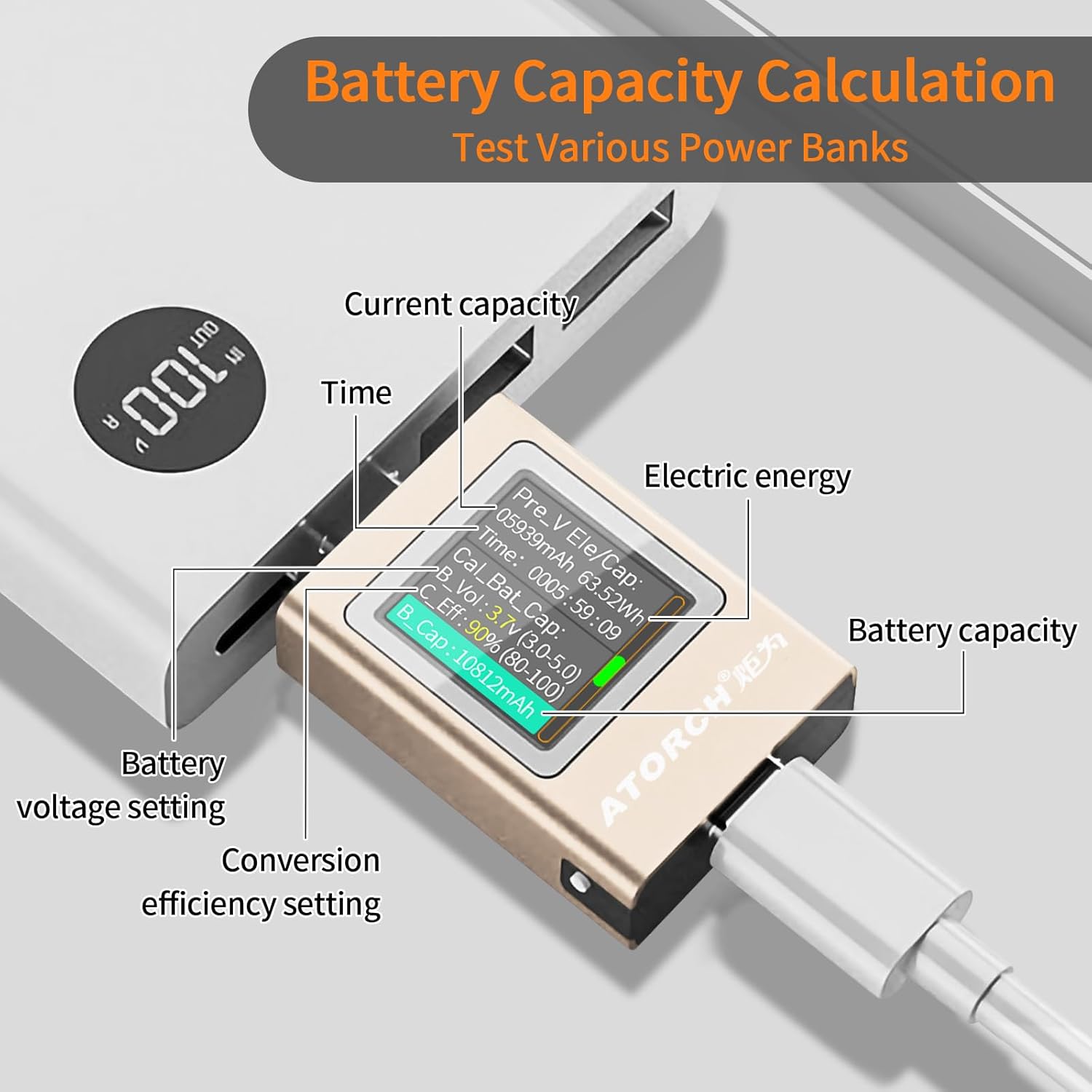
Figure 8: Battery capacity calculation interface in use with a power bank.
5. Automatic Screen Off Function
The tester is equipped with an intelligent automatic screen-off feature to conserve power and extend its lifespan. The screen behavior is as follows:
- No Current: If there is no current detected (e.g., charger not connected to a device, or device fully charged), the screen will automatically turn off after a short period.
- PD Charger No Output: When connected to a PD charger that has no output, the display remains off.
- Type-C In/Out with Protocol: The display lights up when Type-C input and output are connected and a charging protocol is active.
- Phone No Input: If the phone has no input (e.g., not drawing power), the display remains off.
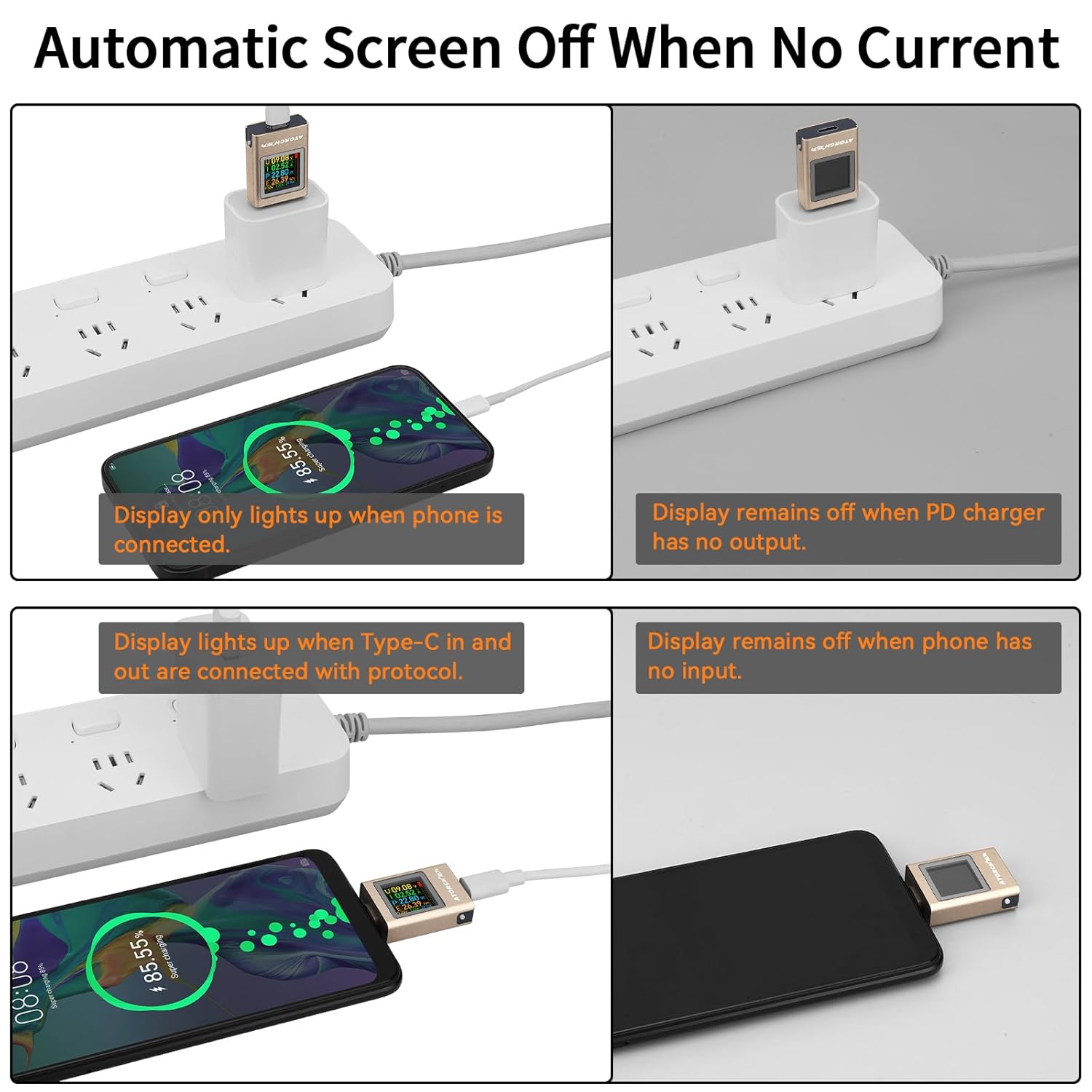
Figure 9: Examples of automatic screen off behavior under different conditions.
6. Product Specifications
Below are the detailed technical specifications for the MakerHawk USB C Power Meter Tester:
| Parameter | Value |
|---|---|
| Voltage Range | DC 4.5V-50V |
| Current Range | 0-6A (peak 12A) |
| Power Range | 0-600W |
| Electric Energy | 0-9999Wh |
| Capacity | 0-99999mAh |
| Power Consumption | <0.15W |
| Working Temperature | 0-45°C / 32-113°F |
| Product Size | 43mm*25mm*10mm |
| Control Method | Double key control |
| Special Features | Dual parameter curve function, Gravity sensing screen rotation, Record peak parameters, CPU temperature measurement, Battery capacity calculation |
| Weight | 10 Grams |
| Color | Copper |

Figure 10: Detailed technical specifications of the USB C Power Meter Tester.
7. Troubleshooting
If you encounter issues with your MakerHawk USB C Power Meter Tester, please refer to the following common problems and solutions:
- Problem: The screen does not light up when connected.
Solution:- Ensure both the power source and the device are properly connected to the tester.
- Verify that the power source is active and providing power.
- Check if the connected device is drawing current. The screen may remain off if no current is detected (refer to Automatic Screen Off function).
- Try a different USB-C cable or power source to rule out external issues.
- Problem: Readings appear inaccurate or fluctuate wildly.
Solution:- Ensure all connections are secure and free from debris.
- Avoid using excessively long or low-quality USB-C cables, which can introduce resistance and affect readings.
- Test with a known good power source and device to isolate the problem.
- The tester has high precision; minor fluctuations might be normal depending on the power delivery negotiation.
- Problem: Cannot switch display modes or clear data.
Solution:- Ensure you are using short presses for mode switching and long presses for entering/clearing.
- Refer to the "Operating Instructions" section for correct button usage.
- If the screen is locked, press the confirmation button 5 times to unlock it.
- Problem: Battery capacity calculation seems incorrect.
Solution:- Ensure the battery voltage and conversion efficiency settings are correctly configured in the Battery Capacity Calculation Interface.
- Perform a full charge/discharge cycle on the battery being tested for more accurate results.
- Note that calculated capacity can vary based on discharge rate and temperature.
8. Maintenance
To ensure the longevity and optimal performance of your MakerHawk USB C Power Meter Tester, please follow these maintenance guidelines:
- Cleaning: Use a soft, dry cloth to clean the device. Avoid using abrasive cleaners, solvents, or harsh chemicals, as these can damage the screen or casing.
- Storage: Store the tester in a cool, dry place away from direct sunlight and extreme temperatures. Keep it protected from dust and moisture when not in use.
- Handling: Handle the device with care. Avoid dropping it or subjecting it to strong impacts, which can damage internal components or the screen.
- Connectivity: Ensure USB-C ports are free of dust and debris before connecting cables. Gently insert and remove cables to prevent damage to the ports.
9. Warranty and Support
MakerHawk products are designed for reliability and performance. For specific warranty information, please refer to the documentation included with your purchase or visit the official MakerHawk website. If you require technical assistance or have questions regarding your USB C Power Meter Tester, please contact MakerHawk customer support through their official channels.
You can often find support resources, FAQs, and contact information on the MakerHawk Amazon Store.


