
1. Product Overview
This manual provides instructions for the Zomolither Android 13 Car Stereo, model 2G+64G, designed specifically for Hyundai Sonata vehicles manufactured between 2010 and 2015. This unit features a 9-inch HD touchscreen, wireless CarPlay and Android Auto, GPS navigation, Bluetooth, FM/RDS radio, and supports AHD backup cameras.
Important Note: If your vehicle is equipped with factory cameras or amplifiers, this radio may require additional wiring harnesses or may not be fully compatible. Please consult with the seller for specific compatibility details before installation.
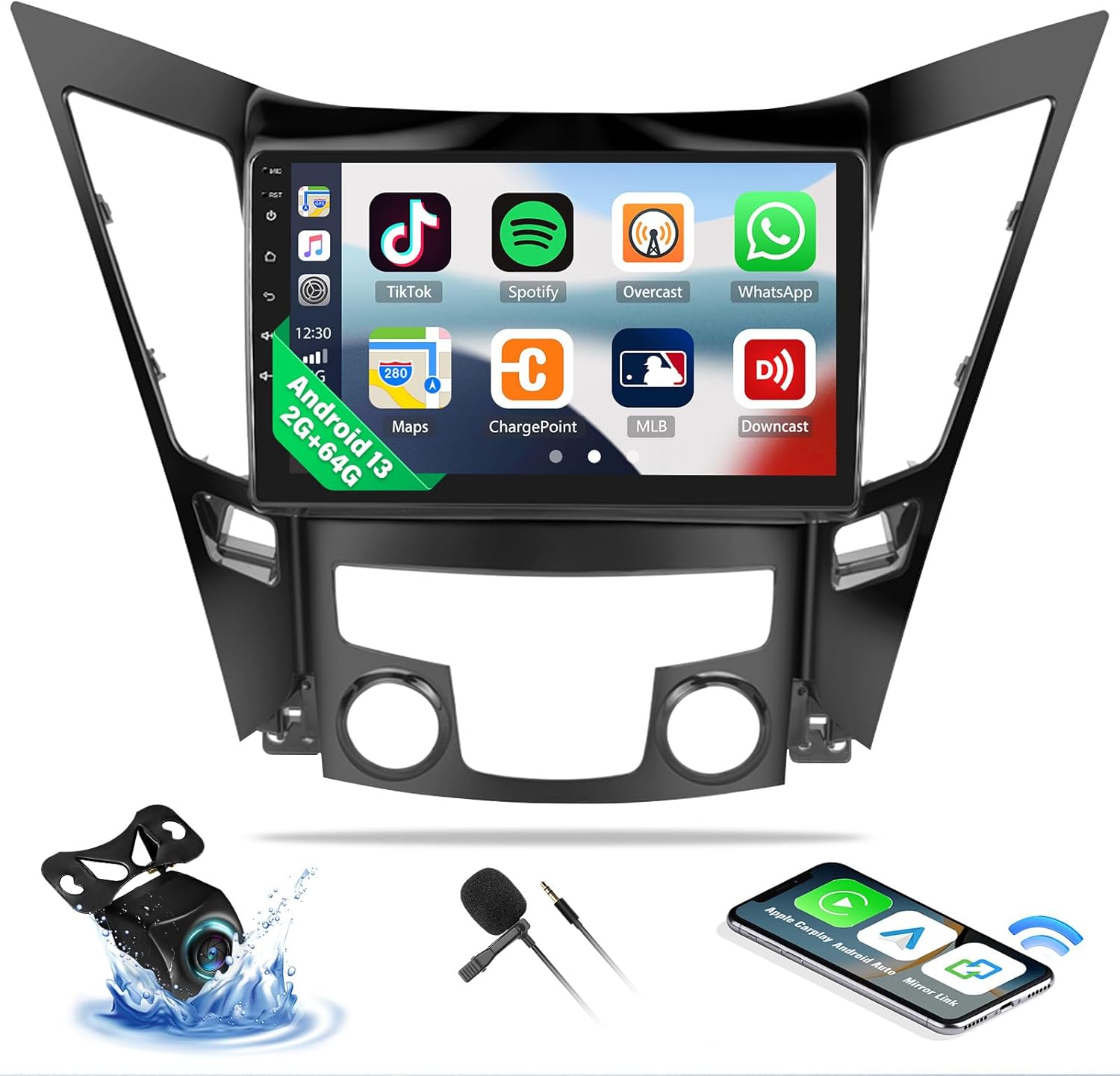
Image 1.1: Zomolither Android 13 Car Stereo installed in a Hyundai Sonata dashboard.
2. What's in the Box
The package includes the following components:
- Android Car Stereo Unit (9-inch touchscreen)
- AHD Rear Camera
- Microphone
- Power Cable
- 4-Pin USB Cable
- 6-Pin USB Cable
- GPS Antenna
- RCA Cable
- Installation Tool
- Product Manual (this document)
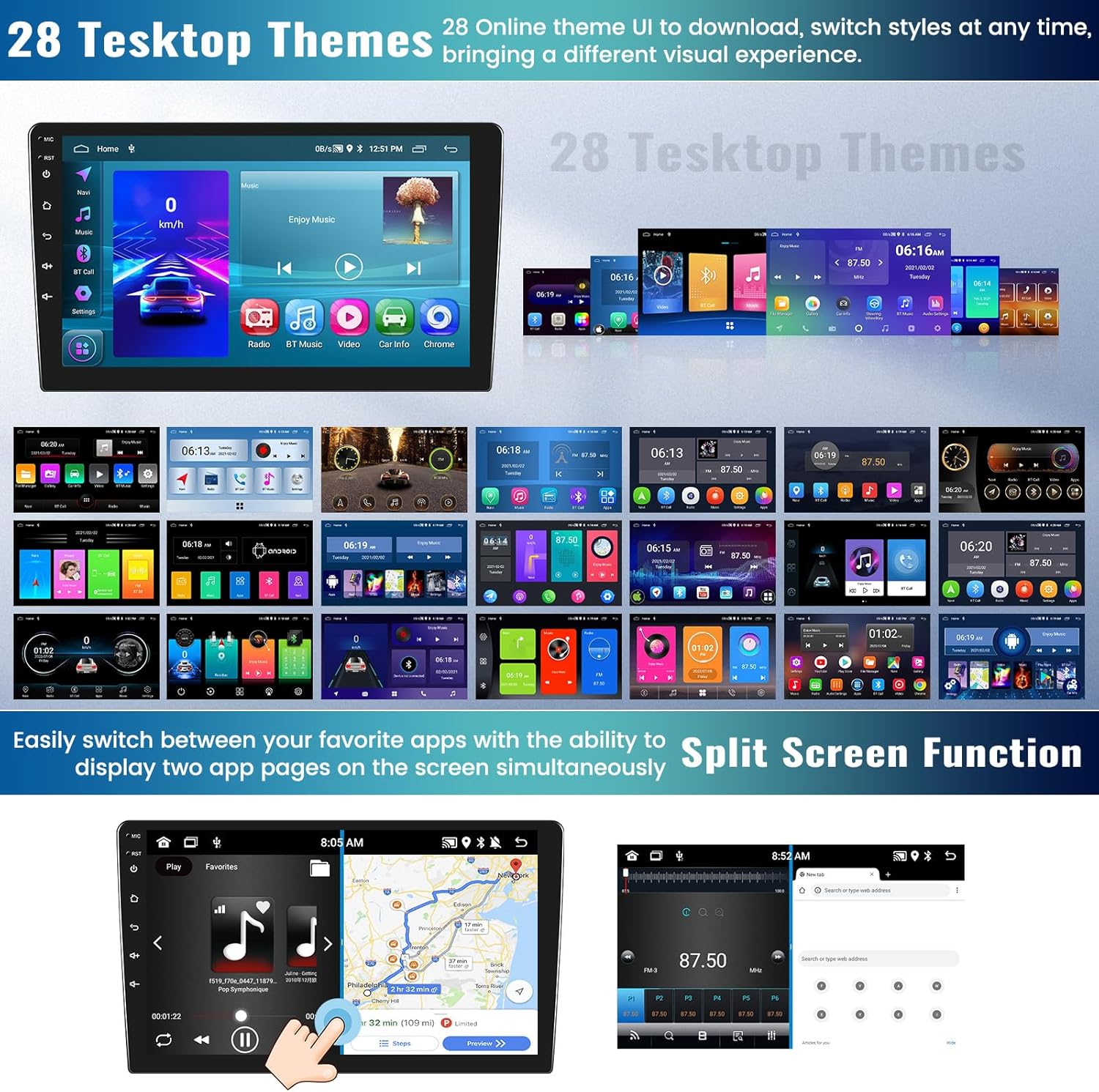
Image 2.1: All components included in the Zomolither Android Car Stereo package.
3. Installation Guide
This section provides general guidance for installing your Zomolither Android Car Stereo. Professional installation is recommended.
3.1. Compatibility Check
Before proceeding with installation, ensure your vehicle's dashboard configuration is compatible. The stereo is designed for Hyundai Sonata models from 2010 to 2015.

Image 3.1: Dashboard compatibility guide. Ensure your car's dashboard matches the "Can Install" configuration.
If your car has a factory amplifier or a large screen system, you may need a different wiring harness or CANbus adapter. Contact Zomolither support with pictures of your car's dashboard for assistance.
3.2. Basic Installation Steps
- Disconnect Battery: Before starting, disconnect the negative terminal of your car's battery to prevent electrical shorts.
- Remove Old Radio: Carefully remove the existing car radio and dashboard trim. Refer to your vehicle's service manual for specific instructions.
- Connect Wiring Harness: Connect the provided power cable and other necessary wiring harnesses to the car stereo. Ensure all connections are secure.
- Install GPS Antenna: Mount the GPS antenna in a location with a clear view of the sky, typically on the dashboard or under the windshield.
- Install AHD Rear Camera: If installing the backup camera, route the camera cable to the rear of the vehicle and connect it to the stereo. Connect the camera's power to the reverse light circuit.
- Connect USB Cables: Connect the 4-pin and 6-pin USB cables for external devices.
- Test Connections: Before fully reassembling the dashboard, reconnect the car battery and test the stereo's basic functions (power, audio, touchscreen, camera feed).
- Secure Stereo: Mount the new car stereo securely into the dashboard opening.
- Reassemble Dashboard: Reinstall all dashboard trim pieces.

Image 3.2: Visual comparison of the dashboard before and after the Zomolither car stereo installation.
4. Operating Instructions
4.1. Wireless Apple CarPlay & Android Auto
The unit supports wireless Apple CarPlay and Android Auto via the Zlink App.
- Ensure Bluetooth and Wi-Fi are enabled on your smartphone.
- Open the "Zlink" application on the car stereo.
- Follow the on-screen prompts to pair your phone via Bluetooth.
- Once paired, CarPlay or Android Auto will launch automatically.

Image 4.1: Wireless CarPlay and Android Auto interfaces on the car stereo.
Video 4.1: Demonstration of CarPlay and Android Auto connection and functionality.
4.2. GPS Navigation & Wi-Fi
The stereo has built-in GPS and supports online and offline navigation.
- Online Navigation: Connect the unit to Wi-Fi (e.g., via your phone's hotspot) to use online map applications like Google Maps for real-time traffic information.
- Offline Navigation: Download offline maps within supported navigation apps (e.g., Here WeGo) when connected to Wi-Fi for use without an internet connection.

Image 4.2: GPS navigation interface and Wi-Fi connection options.
4.3. Bluetooth & FM/RDS Radio
- Bluetooth: Pair your phone via Bluetooth for hands-free calling and audio streaming. The built-in microphone ensures clear call quality.
- FM/RDS Radio: Access FM radio stations with 18 preset options. RDS (Radio Data System) displays station information where available.

Image 4.3: Bluetooth calling screen.

Image 4.4: FM/RDS radio interface.
4.4. Mirror Link
Mirror Link allows you to display your smartphone's screen on the car stereo.
- iOS Devices: Supports one-way operation via Wi-Fi connection.
- Android Devices: Supports two-way operation via Wi-Fi or USB cable.
4.5. AHD Backup Camera & Driving Recorder
The included AHD backup camera provides a clear view when reversing.
- When the vehicle is shifted into reverse gear, the 9-inch touchscreen automatically displays the HD reversing image.
- The camera features a wide viewing angle, night vision, and is waterproof.
- The Android car stereo supports connecting a driving recorder via the USB slot to capture important video footage.

Image 4.5: AHD backup camera display and wiring diagram.
4.6. Steering Wheel Control (SWC)
The unit supports steering wheel controls, allowing you to manage volume, change radio channels, and switch songs directly from your steering wheel.
To configure SWC:
- Navigate to the SWC learning interface in the stereo settings.
- Press and hold a button on your steering wheel.
- Select the corresponding function on the stereo's screen.
- Repeat for all desired buttons.

Image 4.6: Steering Wheel Control (SWC) setup interface.
4.7. Split Screen Function
The split-screen feature allows you to run two applications simultaneously on the 9-inch display, such as navigation and music playback.

Image 4.7: Split-screen mode displaying navigation and a media player.
4.8. Desktop Themes
The unit offers 28 different desktop themes (UI styles) that can be changed at any time to customize the visual experience.
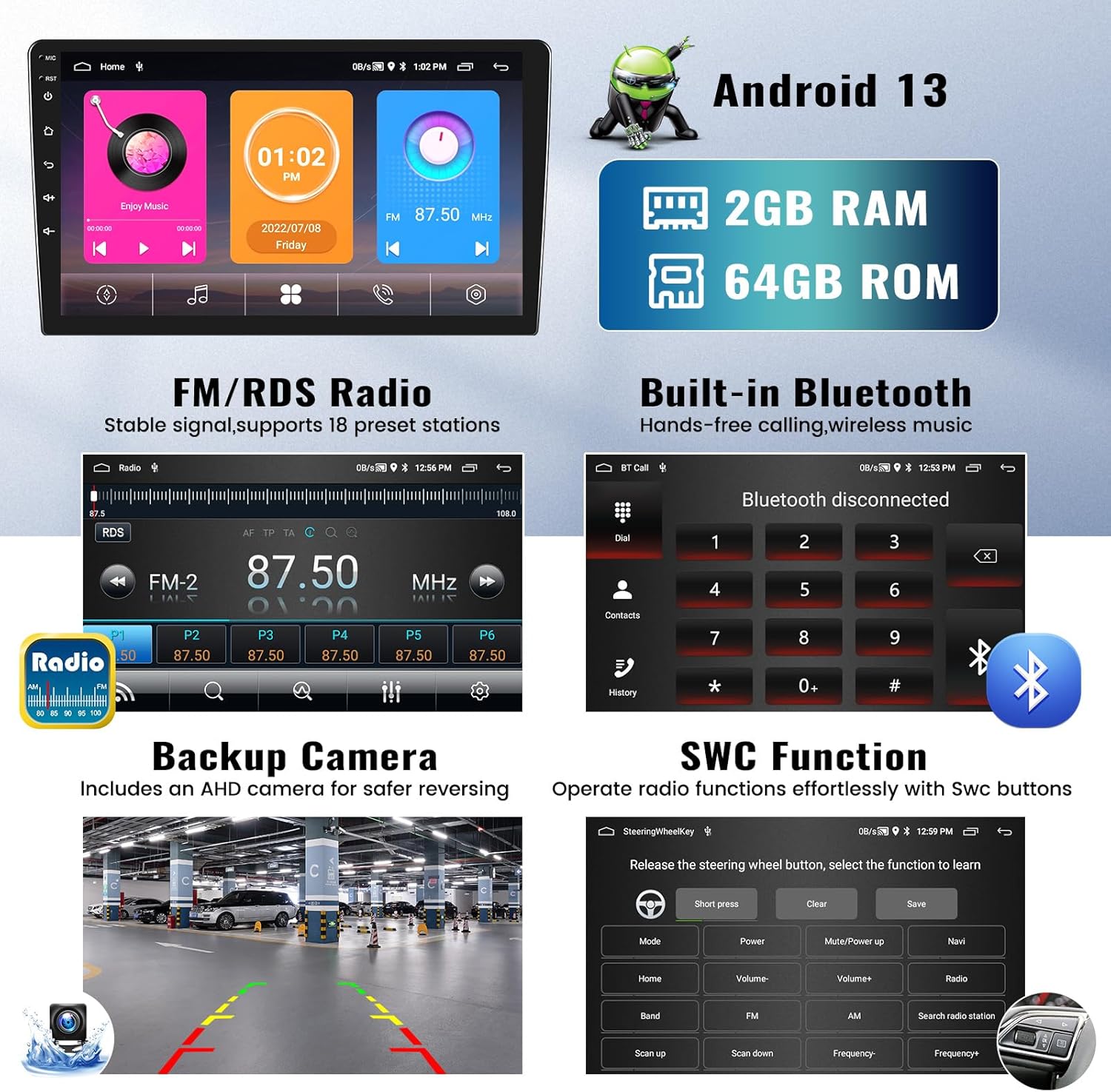
Image 4.8: Examples of different desktop themes (UI) available.
5. Specifications
| Feature | Description |
|---|---|
| Operating System | Android 13 |
| RAM | 2GB |
| ROM (Internal Storage) | 64GB |
| Screen Size | 9 Inches |
| Display Type | LCD, Capacitive Touchscreen |
| Connectivity | Bluetooth, Wi-Fi |
| Special Features | Wireless CarPlay, Android Auto, Mirror Link, GPS Navigation, FM/RDS Radio, AHD Backup Camera Support, Steering Wheel Control, Split Screen |
| Audio Output Mode | Stereo |
| Supported Satellite Navigation System | GPS |
| Compatible Vehicle Type | Hyundai Sonata 2010-2015 |
| Item Weight | 1.69 Kilograms |
6. Troubleshooting
This section addresses common issues you might encounter.
- No Power:
- Check all power connections, especially the main power cable and ground wire.
- Ensure the car battery is properly connected and charged.
- Verify vehicle fuses related to the stereo system.
- No Sound:
- Check speaker connections.
- Ensure volume is not muted or set to minimum.
- If your car has a factory amplifier, confirm you have the correct wiring harness or CANbus adapter. Incorrect wiring can prevent audio output.
- CarPlay/Android Auto Not Connecting:
- Ensure Bluetooth and Wi-Fi are enabled on your phone and the car stereo.
- Restart both your phone and the car stereo.
- Try forgetting the device in your phone's Bluetooth settings and re-pairing.
- Ensure the Zlink app is running on the stereo.
- For wired connections, try a different USB cable.
- GPS Signal Issues:
- Ensure the GPS antenna is properly installed and has a clear view of the sky.
- Check the GPS antenna connection to the stereo.
- Backup Camera Not Displaying:
- Verify the camera's power connection to the reverse light circuit.
- Check the video input connection to the stereo.
- Ensure the trigger wire (usually labeled "back" or "reverse") is correctly connected.
For further assistance, refer to the Warranty & Support section.
7. Warranty and Support
- Warranty: This product comes with a 1-year manufacturer's warranty.
- Return Policy: A 30-day refund policy is available from the date of purchase.
- After-Sale Support: Zomolither offers 24/7 after-sale support.
- Technical Support: Lifetime technical support is provided for this product.
- Contact Support: For any concerns or technical assistance, please contact Zomolither support via email at Zomolither@126.com.