Introduction
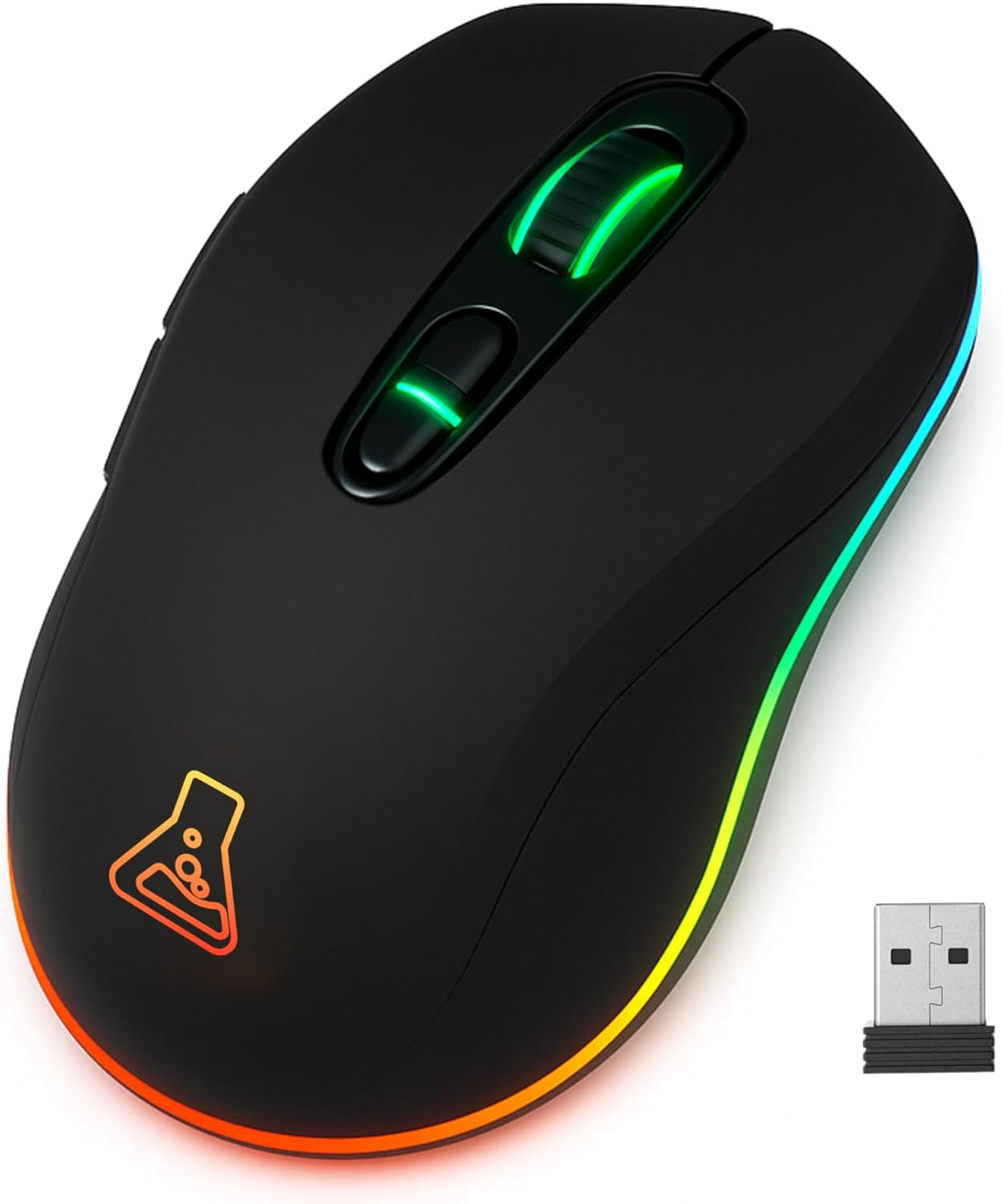
This manual provides comprehensive instructions for the setup, operation, and maintenance of your THE G-LAB Kult Krypton Wireless Gaming Mouse. Designed for versatility and precision, this mouse features dual wireless connectivity (2.4GHz and Bluetooth), an adjustable optical sensor up to 6400 DPI, customizable RGB lighting, and a long-lasting rechargeable battery. Please read this manual carefully to ensure optimal performance and longevity of your device.
Product Overview
- Dual Wireless Connectivity: Seamlessly switch between 2.4GHz (via USB receiver) and Bluetooth for broad compatibility.
- Adjustable DPI: Optical sensor with sensitivity settings up to 6400 DPI for precise control.
- RGB Lighting: Integrated 7-color RGB illumination to personalize your gaming setup.
- Long-lasting Battery: 600mA rechargeable battery offering extended usage.
- Durable Design: Built to withstand up to 5 million clicks.
- Plug and Play: No software required for immediate use.
- Ambidextrous Design: Comfortable for both left and right-handed users.
- Multi-platform Compatibility: Works with PC, PS4, PS5, Mac, and Linux.
Setup
- Charging the Mouse:
Before first use, fully charge the mouse using the provided USB cable. Connect the micro-USB end to the mouse and the USB-A end to a powered USB port (e.g., computer, USB wall adapter). The RGB lighting may indicate charging status.
- 2.4GHz Wireless Connection:
- Locate the USB 2.4GHz receiver, usually stored in a compartment on the underside of the mouse.
- Insert the USB receiver into an available USB port on your computer or console.
- Turn on the mouse using the power switch located on the underside. Ensure it is set to 2.4GHz mode (if a mode switch is present).
- The mouse should automatically connect. If not, try moving the mouse or pressing a button.
- Bluetooth Connection:
- Turn on the mouse and set the mode switch (if present) to Bluetooth mode.
- On your device (PC, Mac, PS4/PS5), navigate to Bluetooth settings.
- The mouse should appear as "Kult Krypton" or similar in the list of discoverable devices. Select it to pair.
- Follow any on-screen prompts to complete the pairing process.

Image: The Kult Krypton mouse highlighting its dual wireless connectivity, supporting both Bluetooth and 2.4 GHz via a USB dongle.
Operating Instructions
- DPI Adjustment:
The mouse features an adjustable optical sensor. Use the dedicated DPI button (usually located behind the scroll wheel) to cycle through different sensitivity levels (e.g., 800, 1600, 3200, 6400 DPI). The current DPI setting may be indicated by a change in LED color or a specific pattern.

Image: The Kult Krypton mouse illustrating its adjustable DPI settings, ranging from 800 to 6400, for precise control.
- RGB Lighting Control:
The mouse features integrated RGB lighting with 7 different colors. Specific buttons or button combinations may be used to change lighting modes or turn the lighting on/off. Refer to the product's quick start guide for exact button functions if not detailed here.

Image: The Kult Krypton mouse displaying its vibrant RGB lighting and emphasizing its Plug & Play feature and multi-platform compatibility.
- Button Functions:
The Kult Krypton mouse is equipped with 6 buttons. These typically include:
- Left Click
- Right Click
- Scroll Wheel (Clickable)
- DPI Cycle Button
- Forward Side Button
- Backward Side Button
For advanced customization or remapping of buttons, check the manufacturer's website for any available software, though the product is advertised as Plug and Play.
- Power Management:
To conserve battery, the mouse may enter an automatic sleep mode after a period of inactivity. Move the mouse or click a button to wake it up. The 600mA battery provides approximately 15 hours of use with RGB lighting active, and up to 100 hours without RGB lighting.

Image: The Kult Krypton mouse emphasizing its extended battery life (15 hours with RGB, 100 hours without RGB) and a durability rating of 5 million clicks.
Maintenance
- Cleaning: Use a soft, dry cloth to clean the mouse surface. For stubborn dirt, a slightly damp cloth can be used, but ensure no moisture enters the internal components. Avoid harsh chemicals or abrasive materials.
- Sensor Care: Keep the optical sensor on the underside of the mouse clean and free from dust or debris to ensure accurate tracking.
- Battery Care: To prolong battery life, avoid fully discharging the mouse frequently. Recharge when the battery indicator suggests low power. Store the mouse in a cool, dry place when not in use for extended periods.
Troubleshooting
- Mouse not responding:
- Ensure the mouse is turned on.
- Check battery level and recharge if necessary.
- For 2.4GHz connection: Ensure the USB receiver is securely plugged into a working USB port. Try a different USB port.
- For Bluetooth connection: Ensure Bluetooth is enabled on your device and the mouse is paired. Try re-pairing the mouse.
- Ensure the mouse is in the correct connection mode (2.4GHz or Bluetooth) via its switch.
- Cursor movement is erratic or imprecise:
- Clean the optical sensor on the underside of the mouse.
- Ensure you are using the mouse on a suitable surface (e.g., a mouse pad). Avoid highly reflective or transparent surfaces.
- Adjust the DPI setting to a level that suits your preference.
- RGB lighting not working:
- Check if the RGB lighting has been turned off via a button combination.
- Ensure the mouse has sufficient battery charge.
Specifications
| Brand | THE G-LAB |
| Model Name | KULT-KRYPTON |
| Connectivity Technology | Bluetooth, 2.4 GHz Radio-frequency |
| Movement Detection Technology | Optical |
| DPI Range | Up to 6400 DPI (Adjustable) |
| Number of Buttons | 6 |
| Hand Orientation | Ambidextrous |
| Special Features | LED Light (RGB), Lightweight, Wireless, Silent |
| Compatible Devices | Personal Computer, PS4, PS5 |
| Operating System | Linux, Mac, PC |
| Battery Type | Lithium-ion (600mA) |
| Battery Life (approx.) | 15 hours (with RGB), 100 hours (without RGB) |
| Durability | 5 Million Clicks |
| Color | Black |
| Manufacturer | AXS |
| Country of Origin | China |
Warranty and Support
- Manufacturer's Warranty: This product comes with a 2-year manufacturer's warranty. Please retain your proof of purchase for warranty claims.
- Spare Parts Availability: Spare parts are available for 2 years from the date of purchase.
- Customer Support: For technical assistance, warranty claims, or further inquiries, please visit the official THE G-LAB website or contact their customer service department.


