
1. Introduction
This manual provides comprehensive instructions for the setup, operation, and maintenance of your TCL NXTPAPER 14 tablet. Please read this manual thoroughly before using the device to ensure proper and safe operation.
The TCL NXTPAPER 14 is a Wi-Fi tablet featuring a 14-inch NXTPAPER display, 16GB RAM (8GB + 8GB RAM expansion), 256GB ROM, and a 10,000 mAh battery with 33W fast charging. It comes bundled with a flip case and a T-pen stylus for enhanced productivity and protection.

Image: The TCL NXTPAPER 14 tablet, shown with its included flip case and T-pen stylus. The tablet screen displays a vibrant, abstract wallpaper, highlighting its large display. The back of the tablet is also visible, showcasing its sleek design and camera module.
2. What's Included
Verify that all items are present in the package:
- TCL NXTPAPER 14 Tablet
- Flip Case
- T-Pen Stylus
- 33W Fast Charging Power Adapter
- USB-C Cable
- Quick Start Guide (not included in this manual)
- Safety Information (not included in this manual)
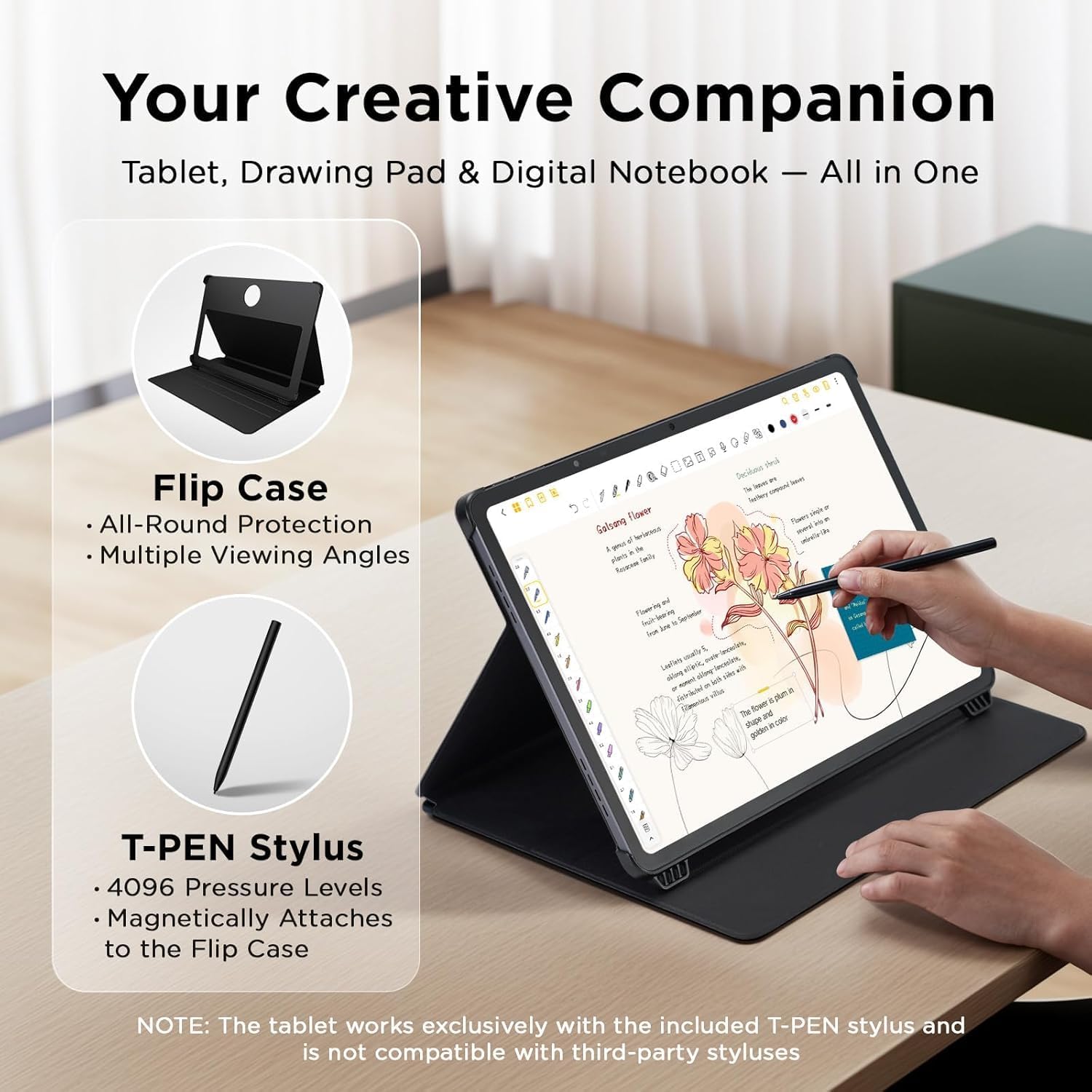
Image: The TCL NXTPAPER 14 tablet with its flip case and T-pen stylus. The image emphasizes the tablet's utility as a creative companion, drawing pad, and digital notebook. Details about the flip case (all-round protection, multiple viewing angles) and T-pen stylus (4096 pressure levels, magnetic attachment) are highlighted.
3. Initial Setup
3.1 Charging the Tablet
Before first use, fully charge your tablet. Connect the provided USB-C cable to the tablet's charging port and the 33W power adapter. Plug the adapter into a wall outlet. The charging indicator will show the charging status.
3.2 Powering On/Off
- To Power On: Press and hold the Power button until the TCL logo appears.
- To Power Off: Press and hold the Power button, then select "Power off" from the options on the screen.
- To Restart: Press and hold the Power button, then select "Restart" from the options on the screen.
3.3 Initial Configuration
Upon first power-on, follow the on-screen prompts to complete the initial setup:
- Select your language.
- Connect to a Wi-Fi network.
- Sign in with your Google account or create a new one.
- Set up screen lock (PIN, pattern, password, or fingerprint).
- Review and accept terms and conditions.

Image: The TCL NXTPAPER 14 tablet positioned with its flip case acting as a stand. The screen displays the tablet's home interface, showing the time and date, and a "Swipe up to unlock" prompt, indicating it's ready for use after initial setup.
4. Operating the Tablet
4.1 NXTPAPER Display Technology
The TCL NXTPAPER 14 features a 14-inch 2400 x 1600 pixel NXTPAPER 3.0 display, designed for eye comfort. This technology reduces blue light emission (TUV certified) and provides a paper-like effect, minimizing reflections while maintaining color intensity and tones. It is optimized for extended reading and viewing.

Image: The TCL NXTPAPER 14 tablet showcasing its large 14.3-inch 2.4K display. The screen content appears to be a book or document, emphasizing the tablet's suitability for reading, powered by NXTPAPER technology.
Blue Light Reduction and Anti-Glare
The NXTPAPER display is engineered to reduce harmful blue light and minimize screen reflections, providing a comfortable viewing experience even in bright environments. This makes it ideal for prolonged use, such as reading or studying.

Image: A visual representation demonstrating how the NXTPAPER display reduces blue light emissions and minimizes reflections. The top part shows layers filtering blue light, while the bottom compares a standard tablet display's strong reflections to the NXTPAPER display's diffused reflections.
NXTPAPER Key and Display Modes
The physical NXTPAPER Key allows instant switching between specific display modes, including a grayscale mode. This classic mode reduces brightness, silences notifications, and provides a reading experience similar to an e-reader, making web pages, books, and documents pleasant and relaxing to read.
- Regular Mode: Standard full-color display.
- Color Paper Mode: Enhanced color display with paper-like texture.
- Ink Paper Mode (Grayscale): Black and white display, optimized for reading, similar to e-ink.
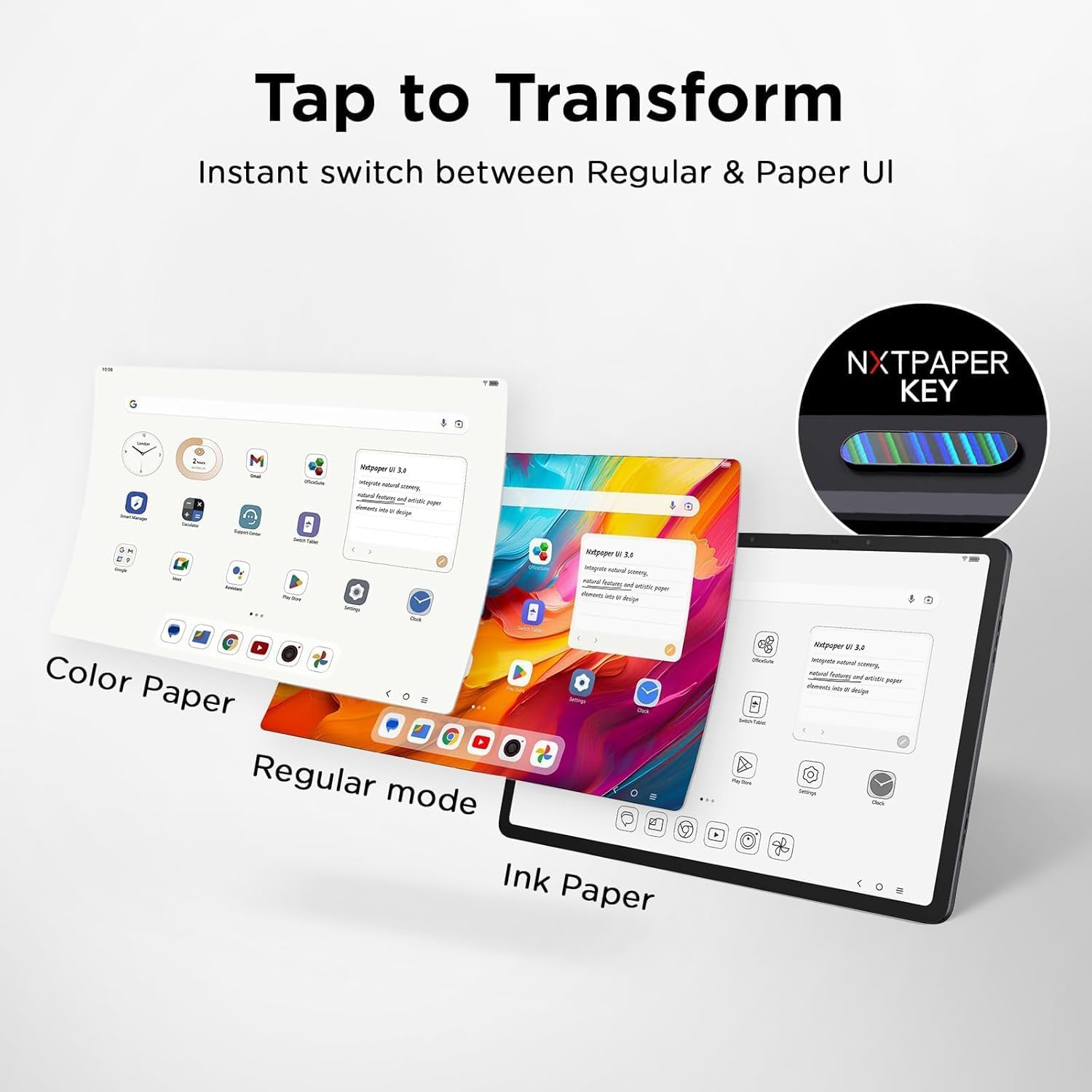
Image: Three different display modes of the TCL NXTPAPER 14 tablet are shown: Color Paper, Regular mode, and Ink Paper (grayscale). The image highlights the NXTPAPER Key, which allows instant transformation between these visual experiences.
4.2 T-Pen Stylus
The included T-pen active stylus allows you to take notes, draw, and interact with the screen directly. It supports 4096 pressure levels for precise input. The stylus magnetically attaches to the side of the tablet for convenient storage.
Note: The tablet works exclusively with the included T-PEN stylus and is not compatible with third-party styluses.
4.3 Multitasking Features
The TCL NXTPAPER 14, running on Android 14 with the exclusive NXTPAPER UI, supports various multitasking features for enhanced productivity:
- Floating Window: Allows an application to run in a resizable window on top of other applications.
- Split Screen: Divides the screen into two sections, allowing two applications to run simultaneously side-by-side.

Image: The TCL NXTPAPER 14 tablet illustrating its powerful multitasking capabilities. Examples of a floating window and a split screen view are shown, demonstrating how users can run multiple applications simultaneously for effortless workflow.
4.4 Cross-Device Interaction
The tablet supports seamless interaction with other devices, such as Windows 10 (or later) PCs, when connected to the same network:
- Mirror Mode: Duplicates the tablet's display onto a connected PC.
- Extend Mode: Extends the PC's display onto the tablet, allowing for more screen real estate.
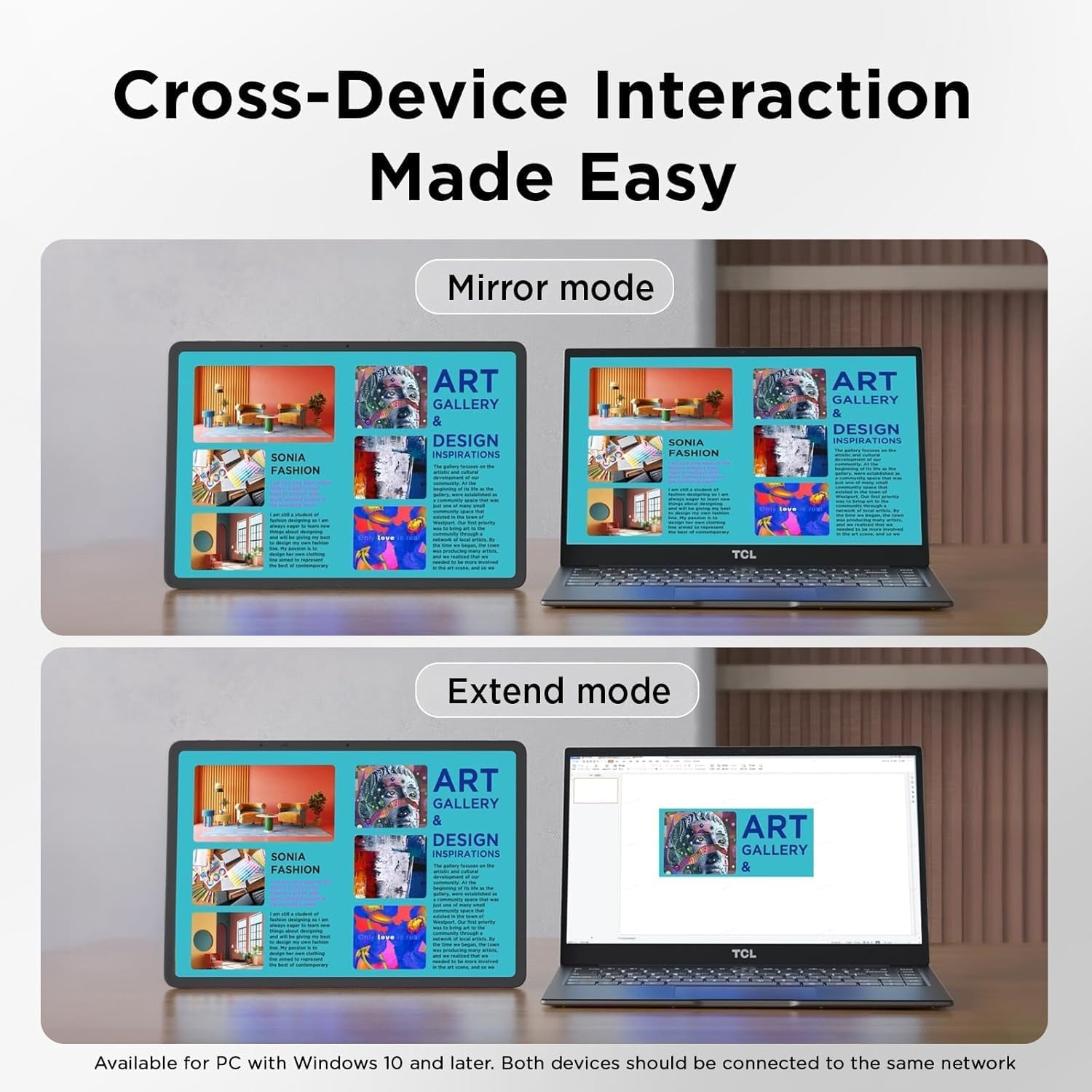
Image: A visual guide to cross-device interaction with the TCL NXTPAPER 14. It shows both Mirror mode, where the tablet's display is mirrored on a laptop, and Extend mode, where the tablet acts as a secondary display for the laptop, facilitating easy interaction between devices.
4.5 Cameras and Audio
The tablet is equipped with cameras for video calls and photography, along with a robust audio system:
- Front Cameras: 13MP + 5MP 2K cameras for sharp video calls.
- Rear Camera: 8MP rear camera for capturing photos.
- Audio: Quad Stereo Speakers with Smart PA for clear and immersive cinematic sound.
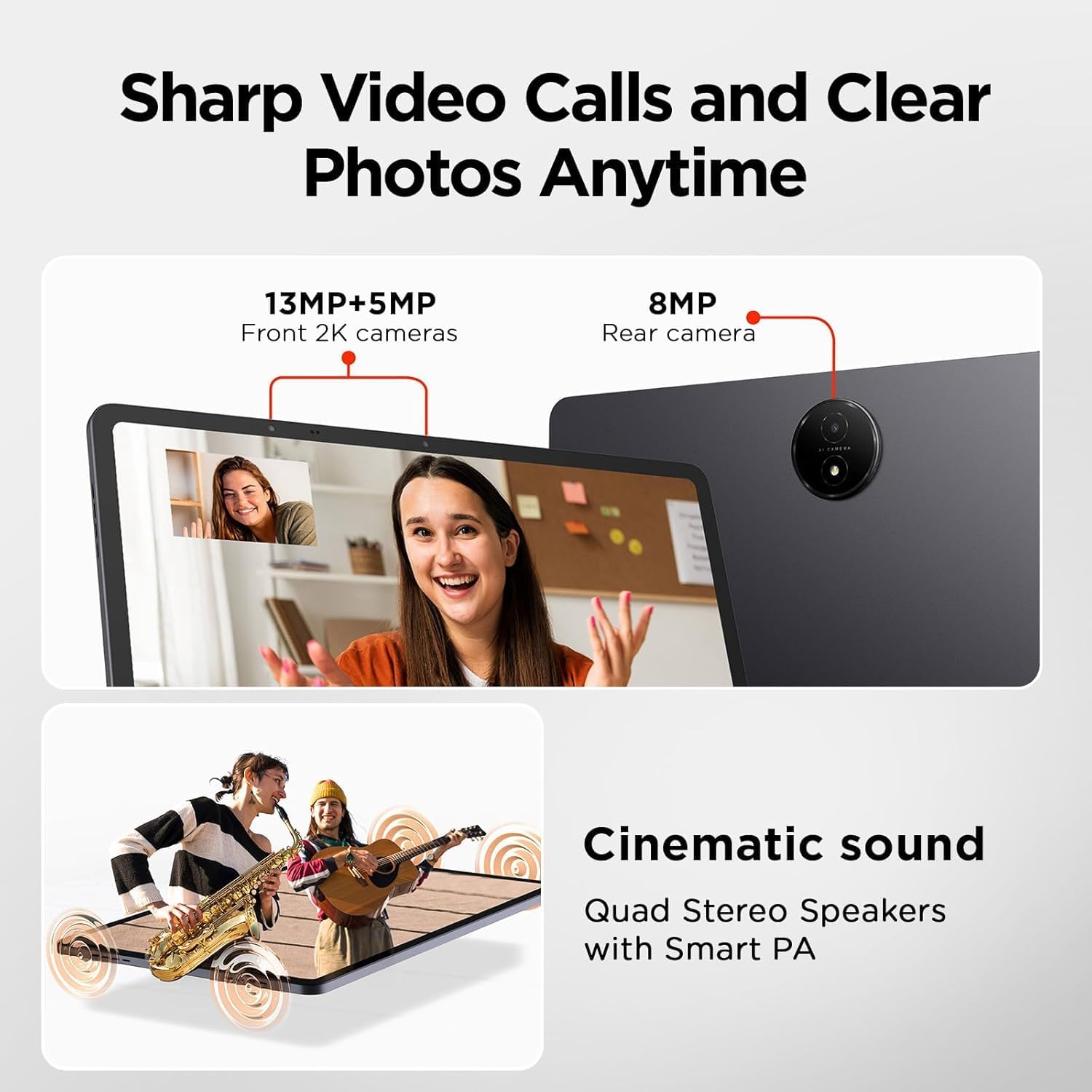
Image: This image illustrates the camera and audio capabilities of the TCL NXTPAPER 14. It highlights the 13MP+5MP front 2K cameras for video calls and an 8MP rear camera. Additionally, it showcases the cinematic sound experience provided by the quad stereo speakers with Smart PA.
4.6 Battery and Charging
The TCL NXTPAPER 14 is powered by a 10,000 mAh battery, providing extended usage time for various activities. It supports 33W fast charging with the included power adapter.
- Battery Capacity: 10,000 mAh
- Fast Charging: Supports 33W PD (Power Delivery) fast charging.
- Reverse Charging: Capable of 1.5A reverse charging (requires OTG cable, sold separately).
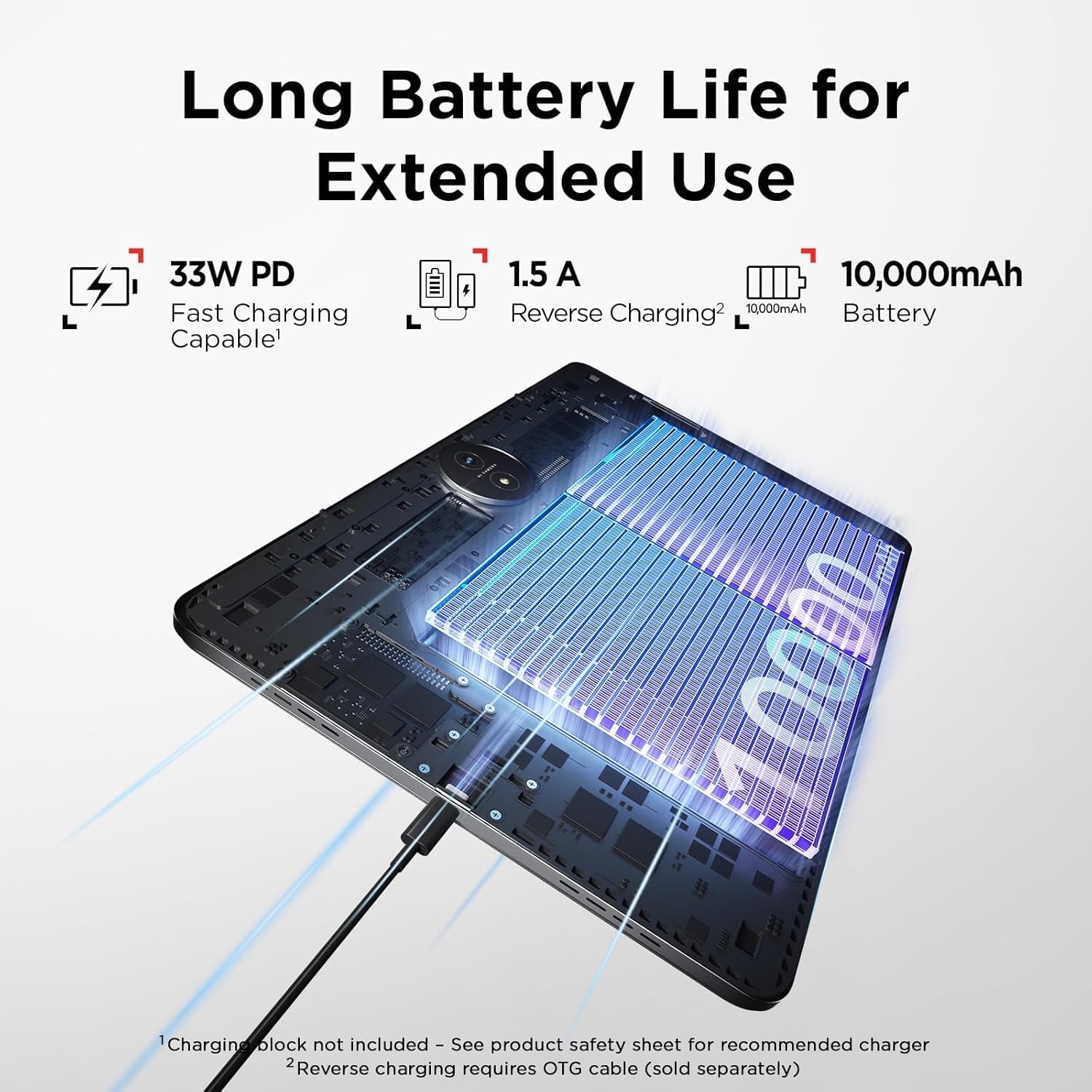
Image: A cutaway view of the TCL NXTPAPER 14 tablet, emphasizing its large 10,000mAh battery. Details about its 33W PD fast charging capability and 1.5A reverse charging feature are also displayed.
5. Maintenance
5.1 Cleaning the Tablet
- Use a soft, lint-free cloth to clean the screen and body of the tablet.
- For stubborn marks, slightly dampen the cloth with water or a screen cleaner designed for electronics.
- Avoid using harsh chemicals, abrasive cleaners, or aerosol sprays directly on the tablet.
5.2 Storage
When not in use for extended periods, store the tablet in a cool, dry place away from direct sunlight and extreme temperatures. Ensure the battery is partially charged (around 50%) before long-term storage to preserve battery health.
5.3 Protecting the Device
- Always use the provided flip case to protect the tablet from scratches and minor impacts.
- Avoid dropping the tablet or exposing it to excessive force.
- Keep the tablet away from liquids and dust.
6. Troubleshooting
This section addresses common issues you might encounter with your TCL NXTPAPER 14 tablet.
6.1 Tablet Does Not Turn On
- Ensure the tablet is sufficiently charged. Connect it to the charger and wait a few minutes before attempting to power on again.
- Press and hold the Power button for at least 10-15 seconds to force a restart.
6.2 Screen is Unresponsive
- Restart the tablet by holding the Power button.
- If the screen is completely frozen, perform a forced restart as described above.
- Ensure your hands are clean and dry.
6.3 Wi-Fi Connection Issues
- Ensure Wi-Fi is enabled in the tablet's settings.
- Restart your Wi-Fi router.
- Forget the network in tablet settings and reconnect.
- Ensure you are within range of the Wi-Fi signal.
6.4 T-Pen Stylus Not Working
- Ensure the T-Pen is properly charged (if it's a rechargeable model, though not specified, it's a common stylus issue).
- Verify that the stylus is the one included with the tablet, as third-party styluses are not compatible.
- Restart the tablet.
6.5 Tablet is Slow or Unresponsive
- Close unused applications running in the background.
- Clear cache data for frequently used apps.
- Restart the tablet regularly.
- Ensure sufficient storage space is available.
- If issues persist, consider a factory reset (backup your data first).
7. Specifications
| Feature | Detail |
|---|---|
| Brand | TCL |
| Model Number | 9491G-2CLCA111-6 |
| Series | TCL NXTPAPER 14, Europe EEA, Gray, tablet + flip case + T-pen |
| Color | Gray |
| Operating System | Android 14 |
| Processor Brand | MediaTek |
| Screen Size | 14.25 Inches |
| Screen Resolution | 2400 x 1600 Pixels |
| RAM Size | 8 GB (16 GB with RAM expansion) |
| Storage Capacity | 256 GB |
| Graphics Chipset Brand | Samsung (Integrated) |
| Connectivity Type | Wi-Fi |
| Wireless Technology | 802.11n, 802.11 ac/b/g/n, Bluetooth 5 |
| Hardware Interface | USB Type C |
| Compatible Devices | Active Stylus, Elegant and Robust Cover |
| Product Dimensions (L x W x H) | 32.24 x 22.2 x 0.69 cm |
| Product Weight | 750 Grams |
| Special Features | Included Case and Active Stylus, 14" Screen, NXTPAPER Technology Screen |
| Battery | 1 Lithium-ion (included), 10,000 mAh, 33W Fast Charging |
8. Warranty and Support
Information regarding specific warranty details and software update guarantees for this product is not available in the provided data. For warranty claims, technical support, or further assistance, please refer to the official TCL website or contact their customer service directly.
Please retain your proof of purchase for any warranty-related inquiries.


