
Introduction
This manual provides detailed instructions for the OMOTON Bluetooth Wireless Backlit Keyboard (FR-Layout). Designed for versatility and ease of use, this keyboard offers multi-system compatibility, a comfortable typing experience with large, silent keys, and adjustable backlighting. Please read this manual thoroughly to ensure proper setup and operation of your device.
Product Overview
The OMOTON Bluetooth keyboard features a compact design with an integrated phone stand, making it suitable for various mobile setups. Its keys are designed for comfort and efficiency.

Image: OMOTON Bluetooth Wireless Backlit Keyboard with integrated phone stand.
Key Features
- Large Keycap Design: Keys are 12% larger than standard, improving typing accuracy and comfort.
- Silent Scissor-Type Key Structure: Provides a quiet and responsive typing experience with a lifespan of 3 million keystrokes.
- 7-Color Adjustable Backlight: Customize your typing environment with 7 backlight colors and 3 brightness levels.
- Multimedia Shortcut Keys: 12 dedicated shortcut keys for quick access to functions.
- Ultra-Thin and Portable: Lightweight and compact for easy transport.

Image: Comparison illustrating the OMOTON keyboard's larger keycap design for enhanced usability.
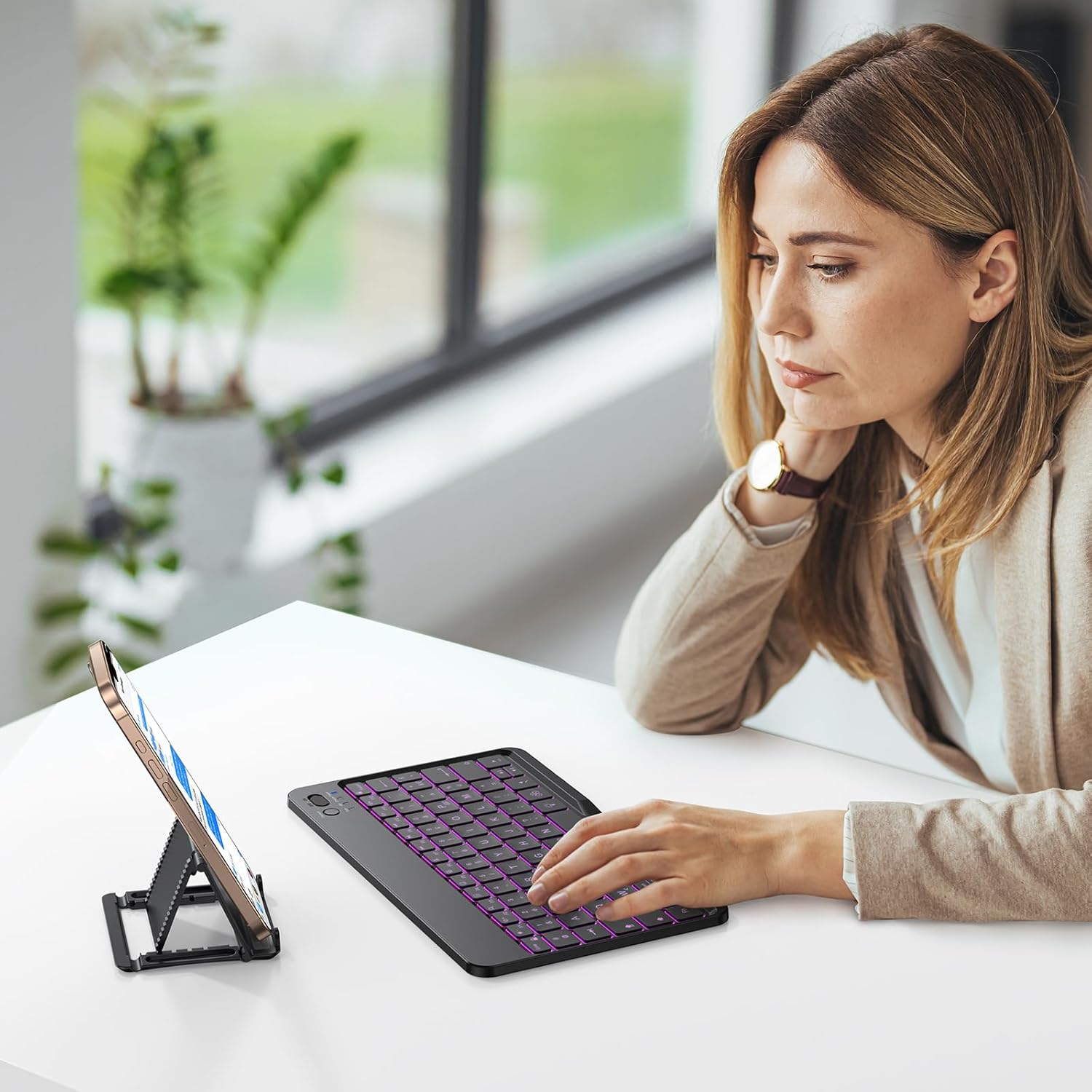
Image: Detailed view of the silent scissor-type key mechanism, highlighting its construction.
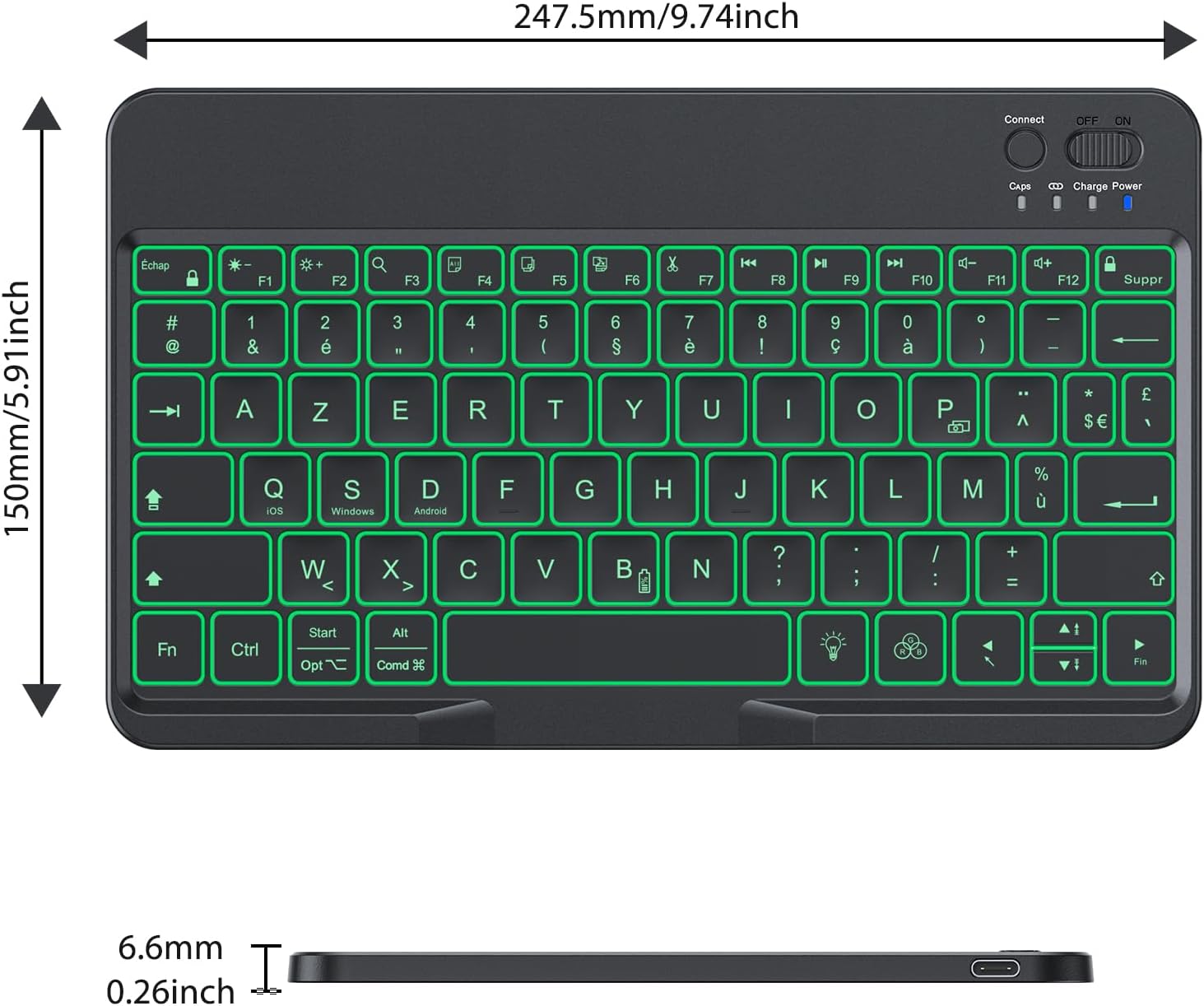
Image: The OMOTON keyboard being stored in a bag, emphasizing its ultra-thin and portable design.
Setup
Charging the Keyboard
Before first use, fully charge the keyboard. Connect the provided Type-C charging cable to the keyboard's charging port and a USB power source. The charging indicator light will show the charging status.
- Charging Time: Approximately 2-3 hours.
- Working Hours (backlight off): Up to 200 hours.
- Working Hours (backlight on): 3-5 hours.

Image: The OMOTON keyboard connected to a power source for charging, showing estimated charging and working times.
Bluetooth Pairing
Follow these steps to connect your keyboard via Bluetooth:
- Turn on the keyboard using the power switch located on the top right.
- Press the 'Connect' button (usually near the power switch) to enter pairing mode. The Bluetooth indicator light will flash.
- On your device (tablet, smartphone, PC), go to Bluetooth settings and enable Bluetooth.
- Search for available devices. The keyboard will appear as 'OMOTON Keyboard' or similar.
- Select the keyboard to pair. Your device may prompt you to enter a code displayed on the screen, then press Enter on the keyboard.
- Once paired, the Bluetooth indicator light will stop flashing.
System Compatibility and Switching
The keyboard is compatible with iOS, Android, and Windows operating systems. To optimize key functions for your specific device, switch the keyboard mode:
- For iOS devices: Press Fn + A
- For Android devices: Press Fn + D
- For Windows devices: Press Fn + S
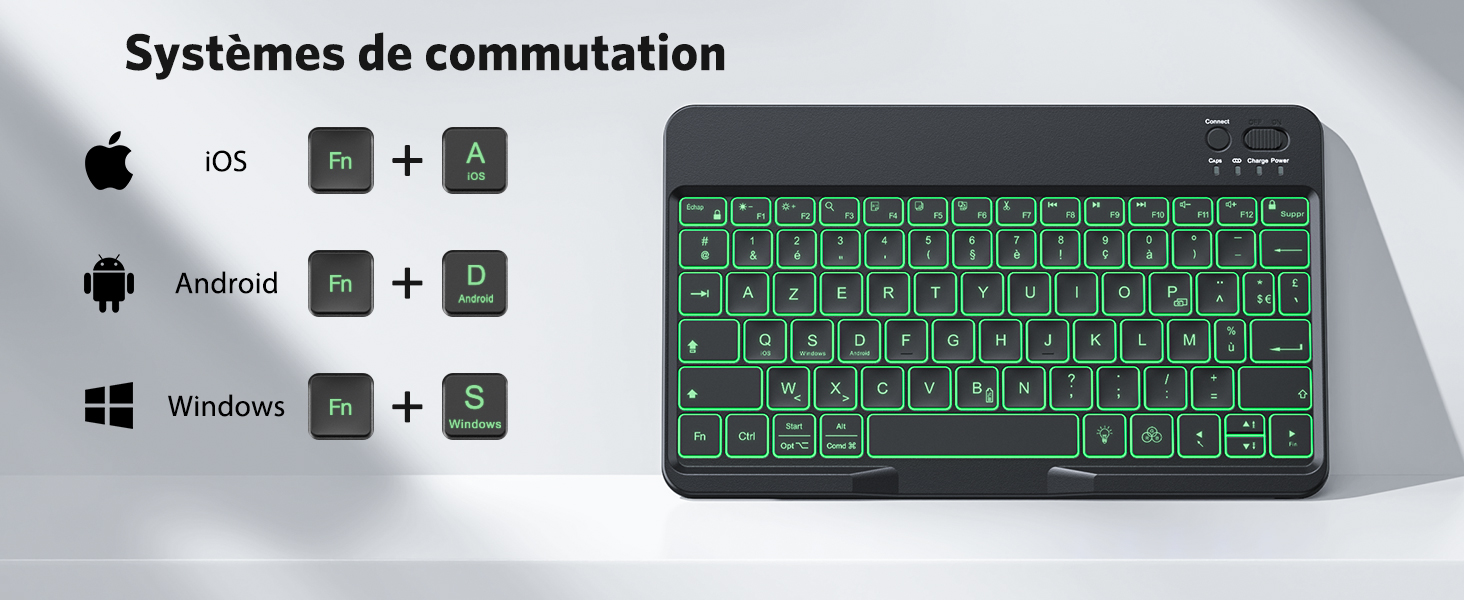
Image: Visual guide for switching keyboard modes between iOS, Android, and Windows using Fn key combinations.

Image: The OMOTON keyboard demonstrating wide compatibility with iOS, Android, and Windows devices.
Operating Instructions
Backlight Control
The keyboard features an adjustable backlight for typing in low-light conditions.
- Press the lightbulb icon key once to turn on the backlight.
- Press the lightbulb icon key a second time to activate breathing light mode.
- Press the lightbulb icon key a third time to turn off the backlight.
To change backlight colors (7 available colors) when the backlight is on, press Fn + lightbulb icon key.
To adjust backlight brightness (3 levels), press Fn + Up Arrow (increase) or Fn + Down Arrow (decrease).

Image: The OMOTON keyboard showcasing its 7-color adjustable backlight feature.
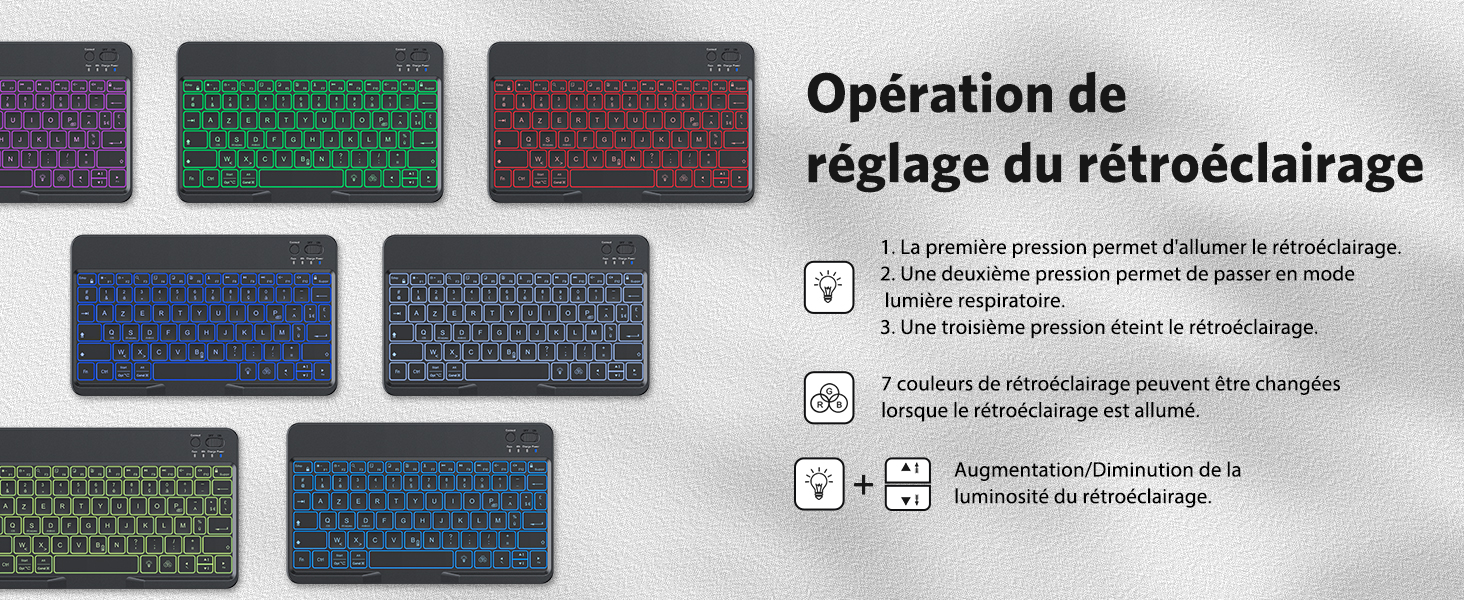
Image: A diagram illustrating the steps to operate and adjust the keyboard's backlight settings.
Multimedia Shortcut Keys
The top row of keys (F1-F12) provides quick access to multimedia and system functions. These functions are typically accessed by pressing the Fn key simultaneously with the desired function key.
- Fn + F1: Home
- Fn + F2: Search
- Fn + F3: Select All
- Fn + F4: Copy
- Fn + F5: Paste
- Fn + F6: Cut
- Fn + F7: Previous Track
- Fn + F8: Play/Pause
- Fn + F9: Next Track
- Fn + F10: Mute
- Fn + F11: Volume Down
- Fn + F12: Volume Up
Care and Maintenance
To ensure the longevity and optimal performance of your OMOTON keyboard, follow these maintenance guidelines:
- Cleaning: Use a soft, lint-free cloth slightly dampened with water or a mild cleaning solution. Avoid harsh chemicals, abrasives, or excessive moisture.
- Storage: Store the keyboard in a cool, dry place away from direct sunlight and extreme temperatures.
- Handling: Avoid dropping the keyboard or exposing it to strong impacts. Do not place heavy objects on it.
- Liquid Exposure: Prevent liquids from entering the keyboard. In case of accidental spills, immediately power off the keyboard and allow it to dry completely before reuse.
Troubleshooting
If you encounter issues with your keyboard, refer to the following common problems and solutions:
- Keyboard not connecting via Bluetooth:
- Ensure the keyboard is charged and powered on.
- Make sure Bluetooth is enabled on your device.
- Press the 'Connect' button on the keyboard to enter pairing mode.
- Forget the keyboard from your device's Bluetooth settings and attempt to re-pair.
- Restart both the keyboard and your device.
- Keys not responding or incorrect characters:
- Verify that the keyboard is set to the correct operating system mode (Fn+A for iOS, Fn+D for Android, Fn+S for Windows).
- Check your device's language and keyboard layout settings to ensure they match the FR-Layout.
- Ensure the keyboard is fully charged.
- Backlight not working:
- Press the lightbulb icon key to cycle through backlight modes (on, breathing, off).
- Ensure the keyboard has sufficient battery charge.
- Battery life shorter than expected:
- Using the backlight continuously will significantly reduce battery life. Turn off the backlight when not needed.
- Ensure the keyboard is fully charged before use.
Technical Specifications
| Feature | Specification |
|---|---|
| Brand | OMOTON |
| Item Model Number | FR-Layout |
| Color | Black |
| Keyboard Description | Multifunctional |
| Power Source Type | Battery Powered |
| Connector Type | Bluetooth |
| Hand Orientation | Ambidextrous |
| Device Compatibility | Laptop, PC, Smartphone, Tablet |
| Special Features | Portable, Rechargeable, Backlit |
| Material | Plastic |
| Recommended Uses | Daily Use |
| Connectivity Technology | Bluetooth |
| ASIN | B0DFWKHBPK |
| Date First Available | February 24, 2025 |
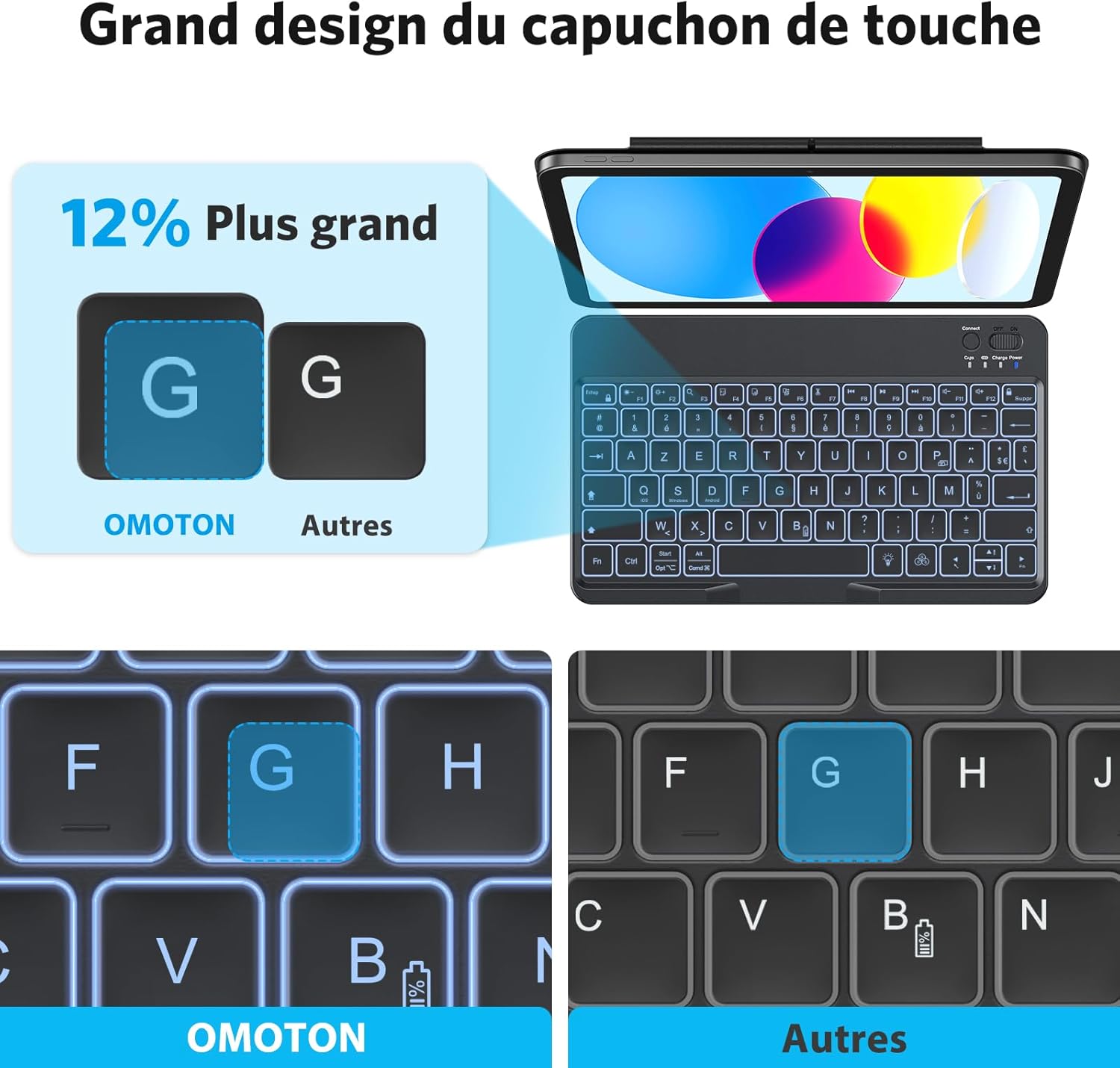
Image: Technical drawing showing the dimensions of the OMOTON Bluetooth Keyboard.
Warranty and Support
Manufacturer Warranty
This OMOTON product comes with a 1-year manufacturer's warranty from the date of purchase. Please retain your proof of purchase for warranty claims.
Customer Support
For further assistance, technical support, or warranty inquiries, please refer to the contact information provided with your product packaging or visit the official OMOTON website.


