
Introduction
This manual provides detailed instructions for the setup, operation, and maintenance of your LeadsaiL K786 White Wireless Keyboard and Mouse Combo. This full-sized ergonomic combo offers a stable 2.4GHz wireless connection, quiet typing, and an optical mouse for precise control. Please read this manual thoroughly before use to ensure optimal performance and longevity of your device.
Package Contents
- 1 x LeadsaiL K786 Wireless Keyboard (White)
- 1 x LeadsaiL Wireless Mouse (White)
- 1 x USB Receiver (stored inside the mouse)
- 1 x User Manual

Image: LeadsaiL K786 White Wireless Keyboard and Mouse Combo, showing both devices and the USB receiver.
Setup
1. Battery Installation
- For the Keyboard: Open the battery compartment on the underside of the keyboard. Insert 1 AAA battery (not included), ensuring correct polarity. Close the compartment.
- For the Mouse: Open the battery compartment on the underside of the mouse. Insert 1 AA battery (not included), ensuring correct polarity. The USB receiver is conveniently stored within this compartment. Remove the USB receiver before closing the compartment.
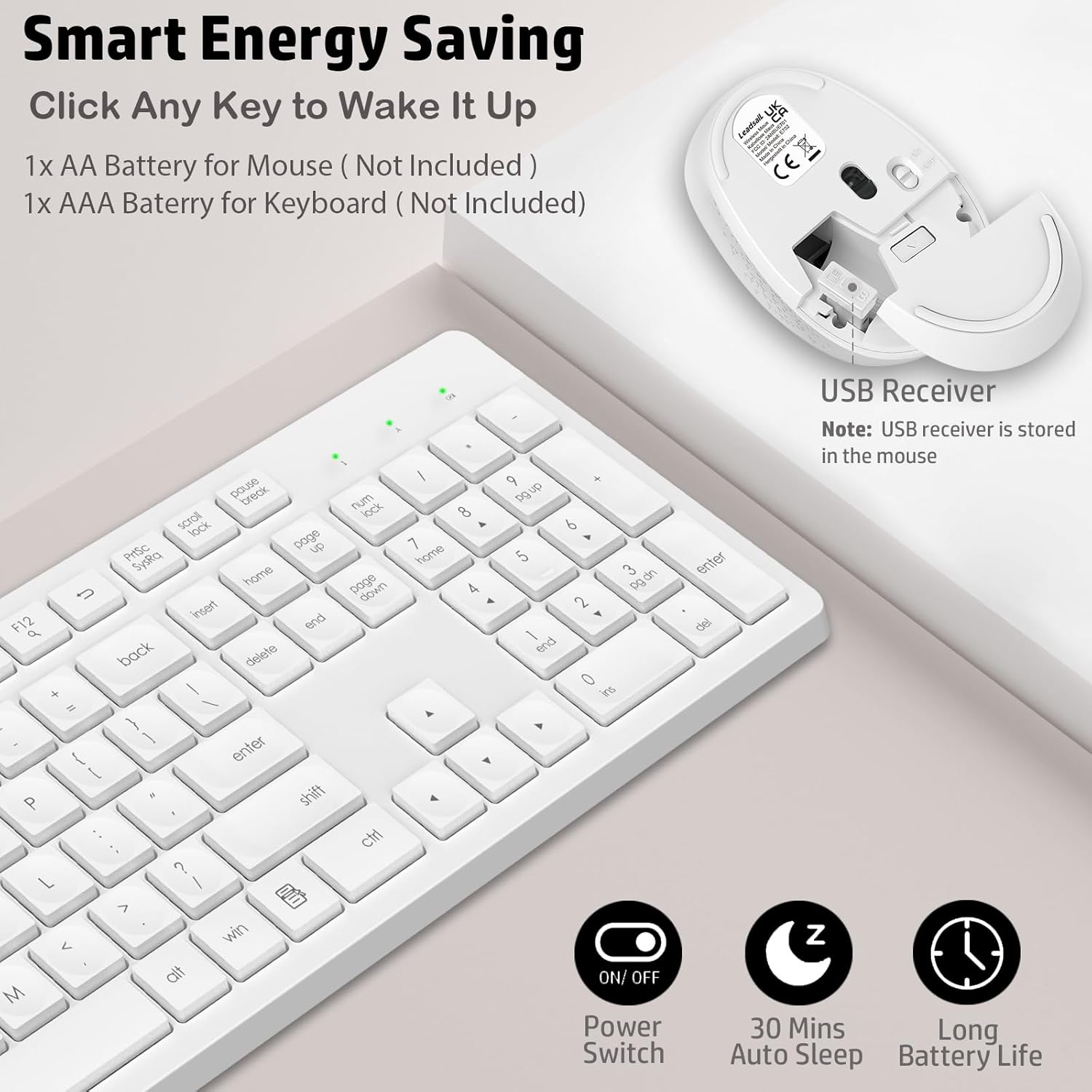
Image: Detailed view of the battery compartments for both the keyboard and mouse, highlighting where to insert batteries and locate the USB receiver.
2. Connect the USB Receiver
- Locate the USB receiver stored in the mouse's battery compartment.
- Plug the USB receiver into an available USB port on your computer (desktop, laptop, Chromebook, MacBook, iMac).
- The keyboard and mouse are plug-and-play and should connect automatically within a few seconds. No additional software or drivers are required.

Image: The USB receiver being inserted into a computer, demonstrating the simple plug-and-play setup for the wireless keyboard and mouse.
Operating Instructions
Ergonomic Design
The keyboard features adjustable tilt legs on the underside. Flip these legs out to raise the keyboard to a comfortable typing angle, reducing wrist strain during prolonged use.

Image: A user's hands typing on the LeadsaiL keyboard with its foldable stand extended, illustrating the ergonomic tilt.
Multimedia Shortcut Keys
The keyboard includes 12 multimedia shortcut keys (F1-F12) that can be accessed by pressing the Fn key simultaneously with the desired F-key. These shortcuts provide quick access to functions such as play/pause, volume control, email, and more.
- Fn + F1: Media Player
- Fn + F2: Volume Down
- Fn + F3: Volume Up
- Fn + F4: Mute
- Fn + F5: Previous Track
- Fn + F6: Next Track
- Fn + F7: Play/Pause
- Fn + F8: Stop
- Fn + F9: Home Page
- Fn + F10: Email
- Fn + F11: My Computer
- Fn + F12: Search

Image: The LeadsaiL keyboard with visual indicators for the 12 multimedia function keys, demonstrating their quick access capabilities.
Silent Operation
The keyboard features soft membrane keys designed for a comfortable and nearly silent typing experience. The mouse utilizes silent micro-click technology, ensuring quiet operation suitable for shared environments.

Image: A silent LeadsaiL mouse positioned near a sleeping child, emphasizing its low-noise design for focused work without disturbance.
Auto Power-Saving
To conserve battery life, both the keyboard and mouse automatically enter sleep mode after 10 minutes of inactivity. To wake them up, simply click any key on the keyboard or move/click the mouse.

Image: The LeadsaiL keyboard and mouse illustrating their automatic energy-saving features, including a power switch and 10-second auto standby.
Mouse Features
The optical mouse is designed for comfort and offers smooth, precise tracking with 1600 DPI sensitivity, suitable for various tasks.
Maintenance
Battery Replacement
- Replace the keyboard battery with a new AAA battery when the low battery indicator light (located above the numeric keypad) illuminates.
- Replace the mouse battery with a new AA battery when mouse performance degrades or the indicator light (if present) signals low power.
Cleaning
To clean the keyboard and mouse, use a soft, damp cloth. Avoid using harsh chemicals or abrasive cleaners. Ensure devices are powered off before cleaning.
Troubleshooting
- No connection/Unresponsive:
- Ensure batteries are correctly installed and not depleted. Replace if necessary.
- Verify the USB receiver is securely plugged into a working USB port on your computer.
- Try plugging the USB receiver into a different USB port.
- Ensure the keyboard and mouse are powered on (check the power switch on the mouse).
- Restart your computer.
- Lagging or intermittent connection:
- Ensure the devices are within the 33-foot (10m) operating range of the USB receiver.
- Minimize interference from other wireless devices (e.g., Wi-Fi routers, cordless phones).
- Avoid placing the receiver near large metal objects.
- Mouse cursor erratic:
- Clean the optical sensor on the underside of the mouse.
- Use the mouse on a clean, non-reflective surface or a mouse pad.
Specifications
| Product Dimensions | 16.93 x 5.04 x 0.98 inches |
| Item Weight | 1.57 pounds |
| Model Number | K786 |
| Batteries Required | 1 AA (Mouse), 1 AAA (Keyboard) |
| Connectivity Technology | 2.4GHz USB Wireless |
| Compatible Devices | Windows 11/10/8/7, Mac OS, Chrome OS, Linux (Desktops, Laptops, Notebooks, Chromebooks, MacBooks, iMacs) |
| Special Feature | Lightweight, Portable, Ergonomic, Silent Click |

Image: Technical drawing of the LeadsaiL keyboard and mouse with key dimensions indicated.
Official Product Video
Video: An official product video showcasing the LeadsaiL K786 Wireless Keyboard and Mouse Combo, highlighting its features and design.
Warranty and Support
The LeadsaiL K786 Wireless Keyboard and Mouse Combo is backed by a 12-month warranty. For any support inquiries, please contact LeadsaiL customer service via email. Refer to the contact information provided in the original product packaging or on the LeadsaiL official website.

