1. Introduction
Thank you for choosing the Redragon H878 3-Mode Wireless Gaming Headset. This headset is designed to provide a versatile and immersive audio experience across multiple platforms. Featuring 3-mode connectivity (2.4GHz wireless, Bluetooth, and wired USB-C), 7.1 virtual surround sound, 40mm audio drivers, and a detachable noise-canceling microphone, it offers flexibility and high-quality audio for gaming, communication, and media consumption. Its lightweight design ensures comfort during extended use.

Image: The Redragon H878 headset in black and gray, displayed on a stand, highlighting its sleek design.

Image: An infographic summarizing key features including 3-mode connection, 7.1 virtual surround, 200g lightweight design, 40mm sound units, upgraded battery life, detachable mic, tough form factor, and blue vibe lighting.
2. Package Contents
Please check the package contents upon unboxing to ensure all items are present:
- Redragon H878 3-Mode Wireless Gaming Headset
- Detachable Microphone
- USB-C Charging Cable
- 2.4GHz Wireless USB Dongle
- User Manual (this document)
3. Product Overview (Controls and Components)
Familiarize yourself with the various parts and controls of your Redragon H878 headset:

Image: A detailed view of the left earcup, indicating the location of the washable fabric cover, power ON/OFF button, volume controls, mute microphone button, and the detachable microphone port.
- Power ON/OFF Button: Located on the earcup, used to turn the headset on or off.
- Volume Controls (+/-): Adjusts the audio output level.
- Microphone Mute Button: Toggles the microphone on or off.
- Detachable Microphone Port: Connects the flexible boom microphone.
- USB-C Port: Used for charging and wired connection.
- Washable Fabric Cover: Removable covers for hygiene and comfort.
- 2.4GHz Wireless USB Dongle: Provides low-latency wireless connection.
4. Setup
4.1 Charging the Headset
Before first use, fully charge the headset. Connect the supplied USB-C charging cable to the headset's USB-C port and the other end to a USB power source (e.g., computer USB port, USB wall adapter). The LED indicator will show charging status and turn off or change color when fully charged.

Image: The H878 headset highlighting its 600mAh battery for extended playtime.
4.2 Attaching the Microphone
Insert the detachable boom microphone into the microphone port located on the left earcup. Ensure it is securely connected. Adjust the microphone's position for optimal voice pickup.
4.3 Connecting to Devices
The Redragon H878 offers three connection modes:
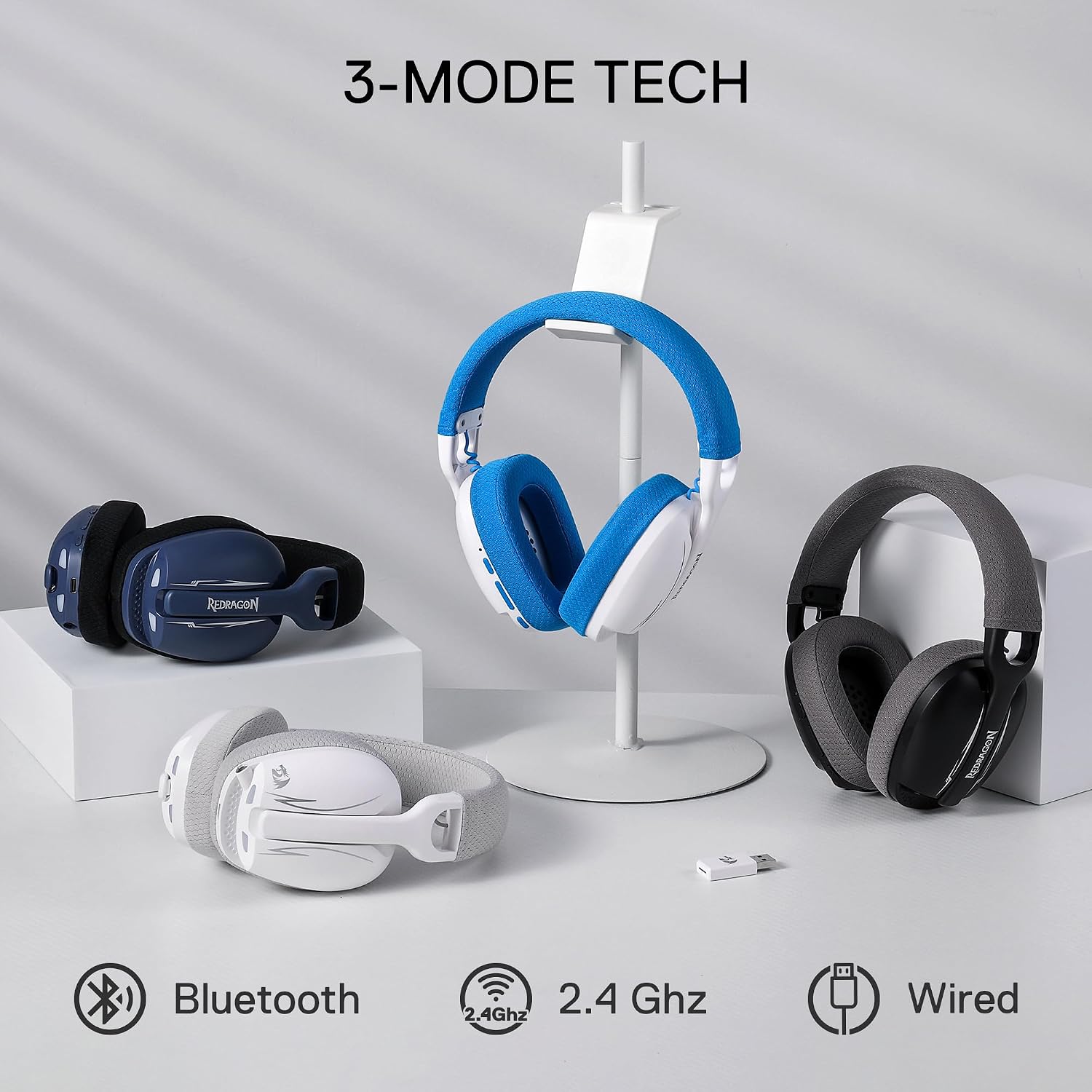
Image: Three Redragon H878 headsets demonstrating the Bluetooth, 2.4GHz, and Wired connection options.

Image: Diagram illustrating the wide platform compatibility of the headset, including Windows PCs, PlayStation consoles, Nintendo Switch, and mobile devices.
4.3.1 2.4GHz Wireless Mode (for PC, PS5/4/3, Switch Docked)
- Plug the 2.4GHz USB dongle into an available USB port on your device (PC, PlayStation console, or Nintendo Switch dock).
- Turn on the headset. The headset should automatically connect to the dongle. The LED indicator will confirm a successful connection.
- On your device, ensure the Redragon H878 is selected as the audio input and output device in your sound settings.
4.3.2 Bluetooth Mode (for Mobile, Switch Handheld, PC)
- Turn on the headset and switch to Bluetooth mode (refer to Section 5.2 for mode switching). The LED indicator will flash, indicating pairing mode.
- On your device (smartphone, tablet, PC, Nintendo Switch), enable Bluetooth and search for available devices.
- Select "Redragon H878" from the list of found devices to pair. The LED indicator will become solid when connected.
4.3.3 Wired Mode (for PC, Consoles, Mobile)
- Connect the USB-C cable directly from the headset to your device's USB-C port.
- The headset will function as a wired audio device. Ensure it is selected as the default audio device in your system settings.
5. Operating Instructions
5.1 Power On/Off
- To Power On: Press and hold the Power ON/OFF button for approximately 3 seconds until the LED indicator lights up.
- To Power Off: Press and hold the Power ON/OFF button for approximately 3 seconds until the LED indicator turns off.
5.2 Switching Connection Modes
The headset supports three modes: 2.4GHz Wireless, Bluetooth, and Wired. Use the mode switch button (refer to Product Overview) to cycle between these modes. The LED indicator will change to reflect the active mode.
5.3 Volume Adjustment
Use the Volume + and Volume - buttons on the earcup to increase or decrease the audio volume.
5.4 Microphone Mute
Press the Microphone Mute button on the earcup to quickly mute or unmute your microphone. The LED indicator on the microphone or headset may change to show mute status.
5.5 7.1 Virtual Surround Sound
The Redragon H878 features 7.1 virtual surround sound for an immersive audio experience. This feature is typically enabled automatically when connected via 2.4GHz wireless or USB-C wired mode on compatible systems (e.g., PC with Redragon software, if available). For optimal experience, ensure your device's audio settings are configured correctly.
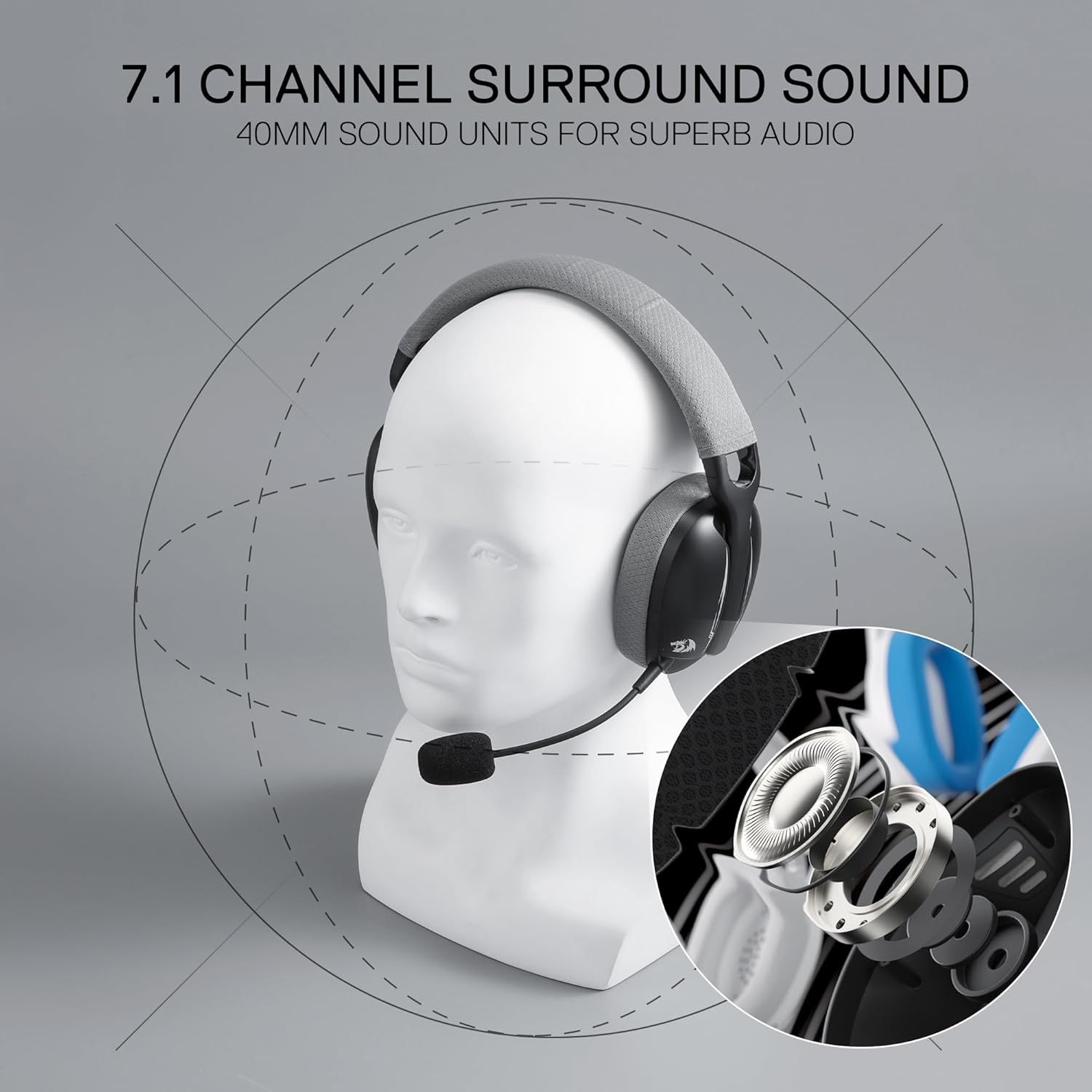
Image: A visual representation of 7.1 channel surround sound technology and the 40mm audio drivers within the headset.
5.6 Blue Lighting
The headset features blue lighting. This lighting typically activates when the headset is powered on. Specific controls for lighting modes or toggling may be available through dedicated software on PC, if provided by Redragon.
6. Maintenance
- Cleaning: Use a soft, dry cloth to clean the headset. For the washable fabric covers, remove them carefully and follow washing instructions (if provided by manufacturer). Do not use harsh chemicals or abrasive materials.
- Storage: Store the headset in a cool, dry place away from direct sunlight and extreme temperatures.
- Battery Care: To prolong battery life, avoid fully discharging the headset frequently. Charge it regularly, even if not in use for extended periods.
7. Troubleshooting
| Problem | Possible Solution |
|---|---|
| No sound from headset |
|
| Microphone not working |
|
| Wireless connection unstable or disconnecting |
|
| Headset not turning on |
|
8. Specifications
| Feature | Detail |
|---|---|
| Model Name | SKULD PRO (H878) |
| Connectivity Technology | BT & 2.4Ghz & Wired (USB-C) |
| Audio Driver Type | Dynamic Driver (40mm) |
| Noise Control | Sound Isolation |
| Microphone | Detachable, Noise-Cancellation |
| Battery Capacity | 600mAh (1 A battery included) |
| Weight | Approximately 200g (0.51 Kilograms / 1.12 pounds) |
| Material | Fabric/Synthetic Leather |
| Compatible Devices | Gaming Consoles (PS5/4/3, Switch), Computers (PC, Apple Notebook), Mobile Devices (Android Phone) |
| Special Features | Adjustable Headband, Lightweight, Blue Lighting |
| Impedance | 16 Ohms |
9. Warranty & Support
Redragon products are designed and manufactured to the highest quality standards. For information regarding warranty coverage, please refer to the warranty card included with your product or visit the official Redragon website.
For technical support, troubleshooting assistance, or to inquire about replacement parts, please contact Redragon customer service through their official website or the contact information provided in your product packaging.
Official Redragon Website: www.redragonusa.com


