
AKEEYO AKEEYO-EYES-01
AKEEYO EYES 3-Channel Dash Cam User Manual
Model: AKEEYO-EYES-01
1. Introduction
This manual provides comprehensive instructions for the installation, operation, and maintenance of your AKEEYO EYES 3-Channel Dash Cam. This device is designed to enhance driving safety and provide reliable video evidence with its advanced features, including AI driver assistance, multi-lens recording, and 24/7 parking surveillance.
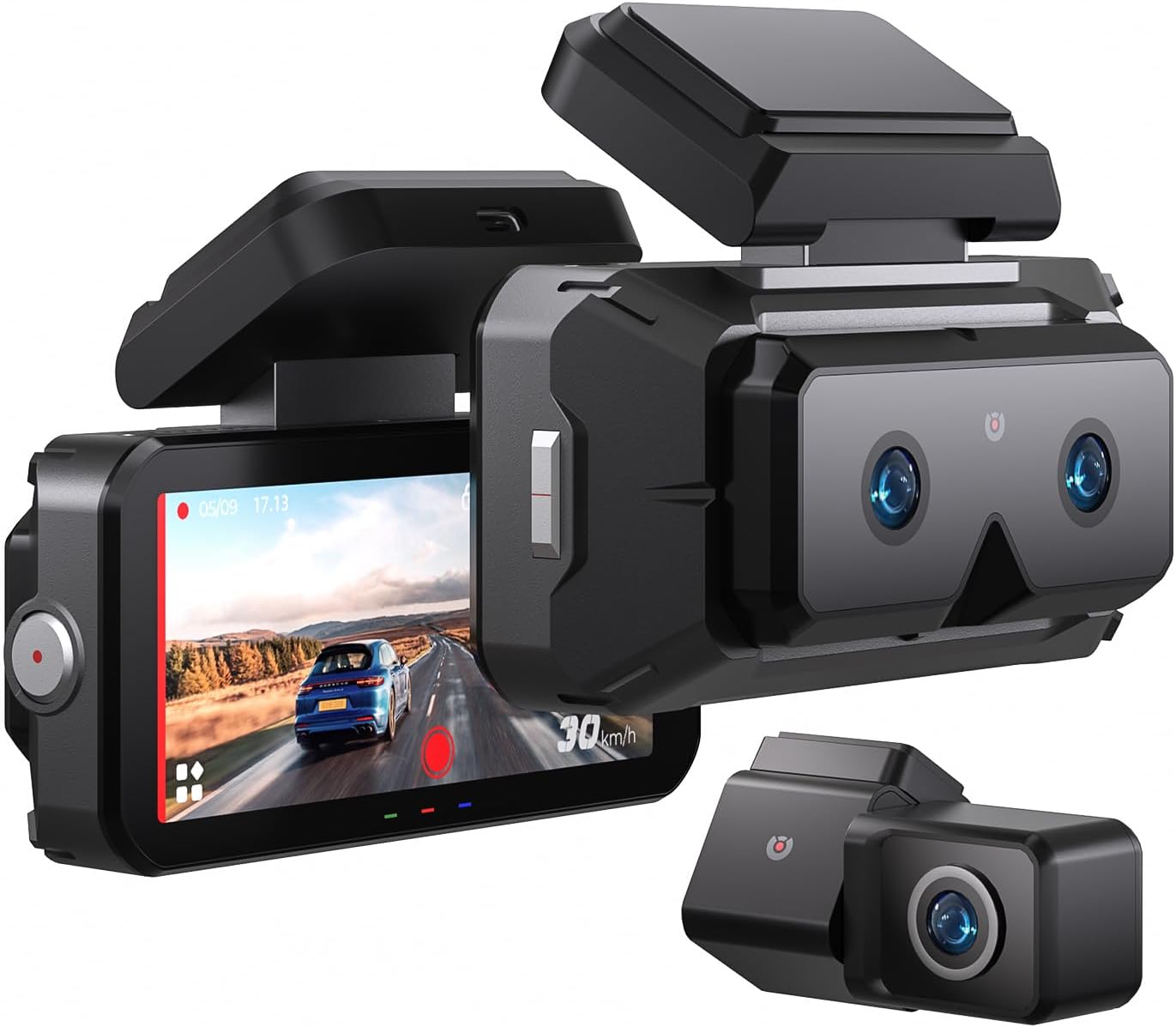
Image 1.1: The AKEEYO EYES 3-Channel Dash Cam, showing the main unit with its 4-inch IPS touchscreen and the separate rear camera.
2. Product Features
- 3-Channel Recording: Simultaneous recording from front (telephoto and wide-angle) and rear cameras.
- 2K Resolution: High-definition video capture for clear details.
- 4-inch IPS Touchscreen: Intuitive interface for live view and settings adjustment.
- AI Driver Assistance (ADAS & BSD): Real-time alerts for collision, lane departure, blind spot detection, pedestrian detection, and front vehicle start reminders.
- WDR Night Vision: Enhanced clarity in low-light conditions.
- Voice Control: Hands-free operation for key functions.
- Built-in GPS: Records speed and location data.
- 5G Wi-Fi Connectivity: Fast data transfer to mobile devices via app.
- G-Sensor: Automatic emergency recording upon impact.
- Loop Recording: Continuous recording, overwriting oldest files when storage is full (emergency videos are protected).
- 24/7 Parking Mode: Monitors vehicle activity when parked (requires separate hardware kit).
- Super Capacitor: Provides durability and resistance to extreme temperatures.
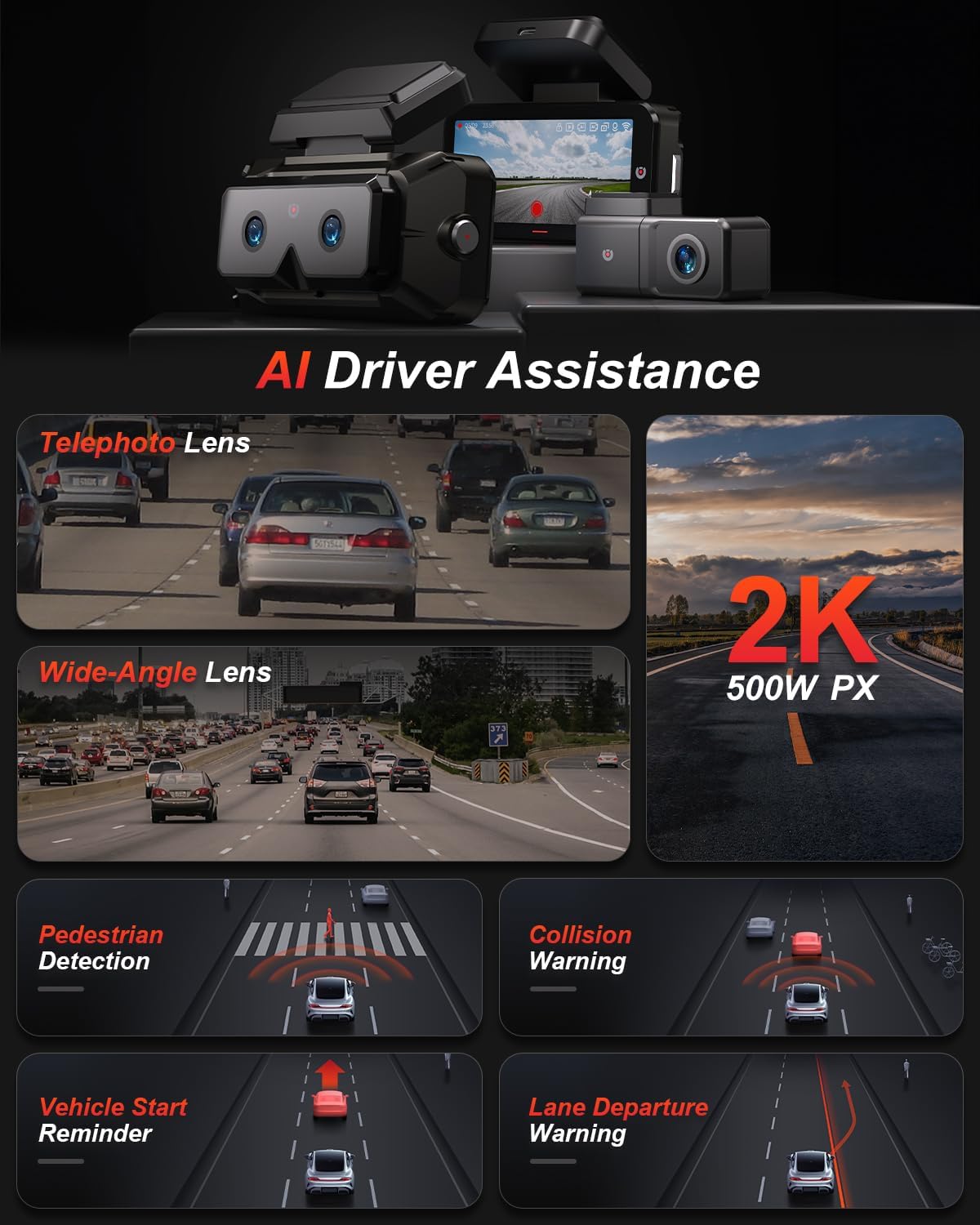
Image 2.1: Overview of AI Driver Assistance features, including ADAS and BSD.

Image 2.2: Detailed view of the dash cam's main unit and rear camera, highlighting the 3.99-inch display, wide-angle and telephoto lenses, and 360-degree rotating rear camera.
3. Package Contents
Verify that all items are present in the package:
- AKEEYO EYES Dash Cam (Main Unit)
- Rear Camera
- Car Charger
- Rear Camera Cable
- PC Data Transmission Wire
- Crowbar (for cable routing)
- Static Electricity Sticker
- Body Mount
- 3M Adhesive Pads

Image 3.1: All components included in the AKEEYO EYES Dash Cam package.
4. Setup and Installation
4.1 MicroSD Card Installation
- Ensure the dash cam is powered off.
- Insert a compatible MicroSD card (Class 10 or higher, U3 V30 A2 recommended, up to 256GB) into the designated slot on the main unit until it clicks.
- To remove, gently push the card until it springs out.
4.2 Front Dash Cam Installation
- Clean the windshield area where the dash cam will be mounted.
- Attach the static electricity sticker to the chosen area on the windshield.
- Affix the body mount with 3M adhesive to the static electricity sticker.
- Slide the main dash cam unit onto the body mount.
- Adjust the angle of the dash cam to ensure a clear view of the road ahead.
4.3 Rear Camera Installation
- Choose a mounting location for the rear camera, either inside the rear window or outside near the license plate (IP67 rated for outdoor use).
- Clean the mounting surface thoroughly.
- Attach the rear camera using the provided 3M adhesive.
- Route the rear camera cable to the main dash cam unit, ensuring it does not interfere with airbags or vehicle operation. Use the crowbar to tuck cables neatly.
- Connect the rear camera cable to the AV-IN port on the main unit.
- If the rear camera is installed upside down, detach it from its quick-release mount and reattach it in the correct orientation. No software adjustment is needed.
4.4 Power Connection
- Connect the car charger to the Type-C port on the main dash cam unit.
- Plug the car charger into your vehicle's cigarette lighter socket.
- Route the power cable neatly to avoid obstruction.

Image 4.1: Visual guide for the installation of the dash cam system.
5. Operating Instructions
5.1 Power On/Off
- The dash cam will automatically power on and begin recording when the vehicle's ignition is turned on.
- It will power off automatically when the ignition is turned off.
- To manually power on/off, press and hold the power button.
5.2 Using the 4-inch IPS Touchscreen
The touchscreen allows for easy navigation and viewing:
- Live View: Displays real-time footage from the cameras. You can view all three channels simultaneously or focus on a single camera.
- Settings: Access various settings such as resolution, loop recording duration, G-sensor sensitivity, and Wi-Fi.
- Playback: Review recorded videos directly on the screen.
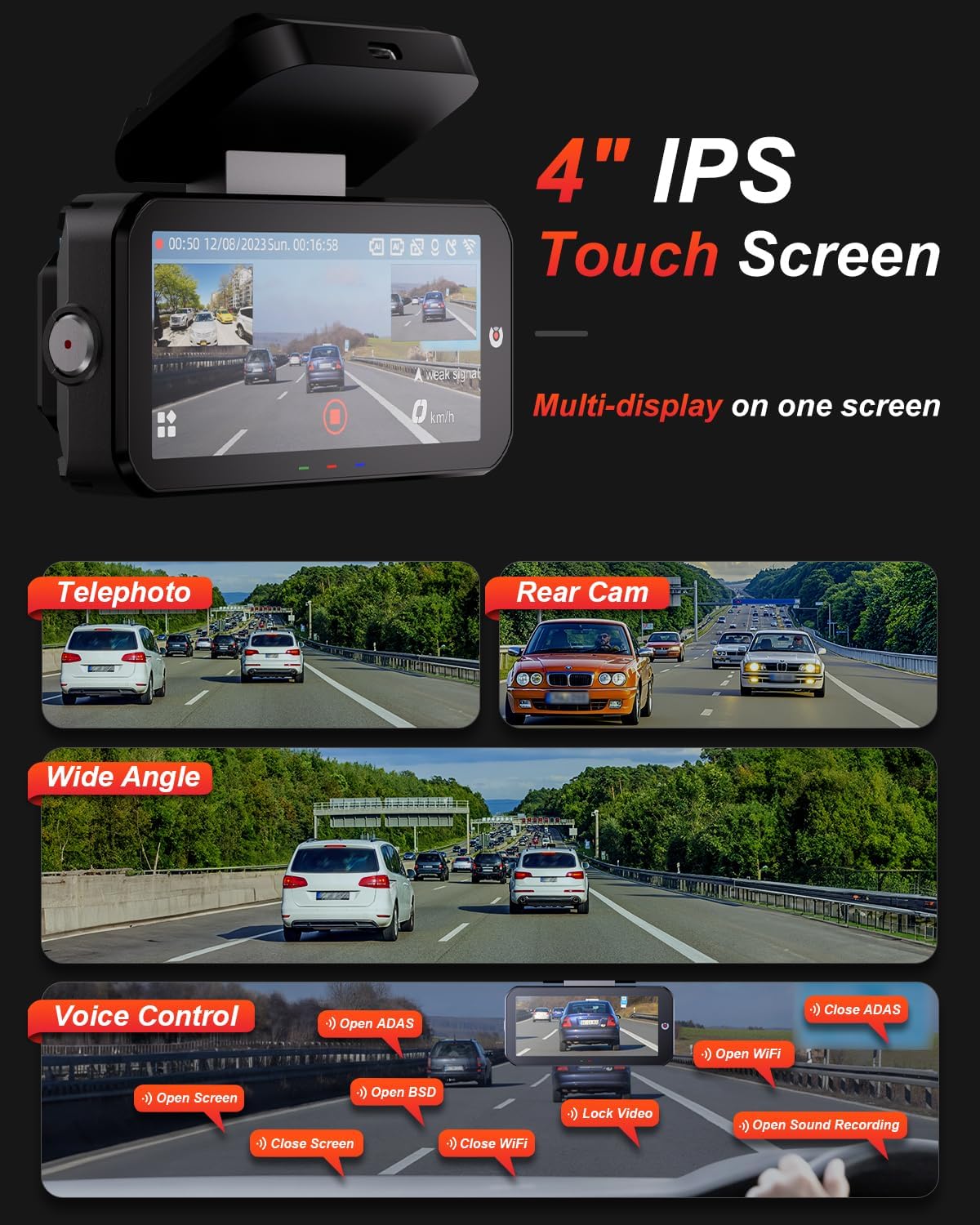
Image 5.1: The dash cam's 4-inch IPS touchscreen interface.
5.3 Voice Control
Operate key functions hands-free using voice commands. Examples include:
- "Open ADAS" / "Close ADAS"
- "Open BSD" / "Close BSD"
- "Open Screen" / "Close Screen"
- "Open WiFi" / "Close WiFi"
- "Lock Video" (to protect current recording)
- "Open Sound Recording"

Image 5.2: Voice control commands for hands-free operation.
5.4 Recording Modes
- Loop Recording: The dash cam records continuously in segments. When the memory card is full, it automatically overwrites the oldest unlocked files.
- G-Sensor: In the event of a sudden impact or collision, the built-in G-sensor automatically detects the event and locks the current video segment to prevent it from being overwritten.

Image 5.3: Loop Recording mechanism.
5.5 24/7 Parking Mode
When properly configured with the optional AKEEYO hardware kit (ASIN B0DHZPR4XW, sold separately), the dash cam can monitor your vehicle 24/7. It detects vibrations and records abnormal events, providing security against theft or collisions while parked. Low framerate recording can conserve storage during parking surveillance.

Image 5.4: 24/7 Parking Monitor functionality.
5.6 GPS and Wi-Fi Connectivity
- GPS: The built-in GPS module records your vehicle's speed and location data, which can be reviewed via the mobile app or PC player.
- 5G Wi-Fi: Connect your smartphone to the dash cam via the AKEEYO app (available on App Store and Google Play) using 5G Wi-Fi for fast video download, playback, editing, and sharing.

Image 5.5: 5G Wi-Fi and Global GPS connectivity.
5.7 AI Driver Assistance (ADAS & BSD)
The dash cam provides real-time alerts to enhance driving safety:
- Collision Warning: Alerts you if your vehicle is too close to the vehicle ahead or if a car slows down abruptly.
- Lane Departure Warning: Notifies you if your vehicle drifts out of its lane without signaling.
- Blind Spot Detection (BSD): Monitors vehicles in your blind spots and provides alerts when changing lanes.
- Pedestrian Detection: Identifies pedestrians in front of you at low speeds and issues an alarm.
- Front Vehicle Start Reminder: Reminds you when the vehicle ahead starts to move.

Image 5.6: Collision Warning system in action.

Image 5.7: Blind Spot Detection system.
6. Maintenance
6.1 Cleaning the Device
- Use a soft, dry cloth to clean the dash cam body and screen.
- For lenses, use a specialized lens cleaning cloth to avoid scratches.
- Do not use abrasive cleaners or solvents.
6.2 MicroSD Card Management
- Regularly format the MicroSD card (at least once a month) through the dash cam's settings to ensure optimal performance and prevent data corruption.
- Replace the MicroSD card periodically, as continuous overwriting can degrade its lifespan.
6.3 Temperature Considerations
The dash cam is designed to withstand temperatures up to 176°F (80°C). However, prolonged exposure to extreme heat can affect performance. If the device becomes excessively hot, allow it to cool down before handling or removing the SD card.
7. Troubleshooting
- Dash Cam not powering on: Check the power connection to the car charger and ensure the vehicle's cigarette lighter socket is functional.
- Recording issues: Ensure a compatible MicroSD card is inserted and formatted. Check if the card is full or corrupted. Try formatting the card or using a new one.
- Camera shutting down randomly: This could be due to a faulty SD card or extreme temperatures. Try replacing the SD card. If the issue persists, contact customer support.
- Rear camera fogging/malfunctioning: Ensure the rear camera is properly sealed if mounted externally. If mounted internally, check for condensation.
- AI features (ADAS/BSD) providing false alerts or not working: Ensure the camera lenses are clean and unobstructed. Calibrate the system if an option is available in settings. Adjust sensitivity if alerts are too frequent.
- Wi-Fi connection issues: Ensure Wi-Fi is enabled on the dash cam and your smartphone. Restart both devices and try connecting again.
- GPS not tracking: Ensure the dash cam has a clear view of the sky.
For further assistance, please contact AKEEYO customer support.
8. Specifications
| Feature | Specification |
|---|---|
| Product Dimensions | 10.24 x 7.48 x 2.76 inches |
| Item Weight | 2.34 pounds |
| Model Number | AKEEYO-EYES-01 |
| Video Capture Resolution | 1440p (2K) |
| Display | 4-inch IPS Touchscreen |
| Connectivity Technology | Powerline, USB, Voice, Wi-Fi (5G) |
| Special Features | 3-Channel 2K+2K+2K, GPS, Night Vision, Voice Control, Touch Control, AI ADAS & BSD Assistance, Wide-Angle, Loop Recording, G-Sensor, Telephoto Lens, 24H Parking Mode |
| Mounting Type | Windshield Mount |
| Color | Black |
| Field Of View | 160 Feet (Front Telephoto) / 135° (Front Wide-Angle) / 154° (Rear) |
| Storage Support | Up to 256GB MicroSD (Class 10, U3 V30 A2 recommended) |
| Operating Temperature | Up to 176°F (80°C) |
9. Warranty and Support
- Warranty: The AKEEYO EYES Dash Cam comes with an 18-month warranty.
- Returns: You are eligible for returns within 30 days of purchase.
- Customer Service: AKEEYO provides 24-hour customer service. For support, please visit the official AKEEYO website or contact their customer service team directly.
Related documentsAKEEYO-EYES-01


Ask a question about this manual
Ask about setup, troubleshooting, compatibility, parts, safety, or missing instructions. Manuals+ will review the question and use this page’s manual context to help answer it.