
Introduction
Thank you for choosing the OnePlus Nord Buds 3 Pro wireless earbuds. These earbuds are designed to provide an immersive audio experience with features like Hybrid Active Noise Cancellation, deep bass, and extended battery life. This manual provides detailed instructions for setting up, operating, maintaining, and troubleshooting your device to ensure optimal performance.
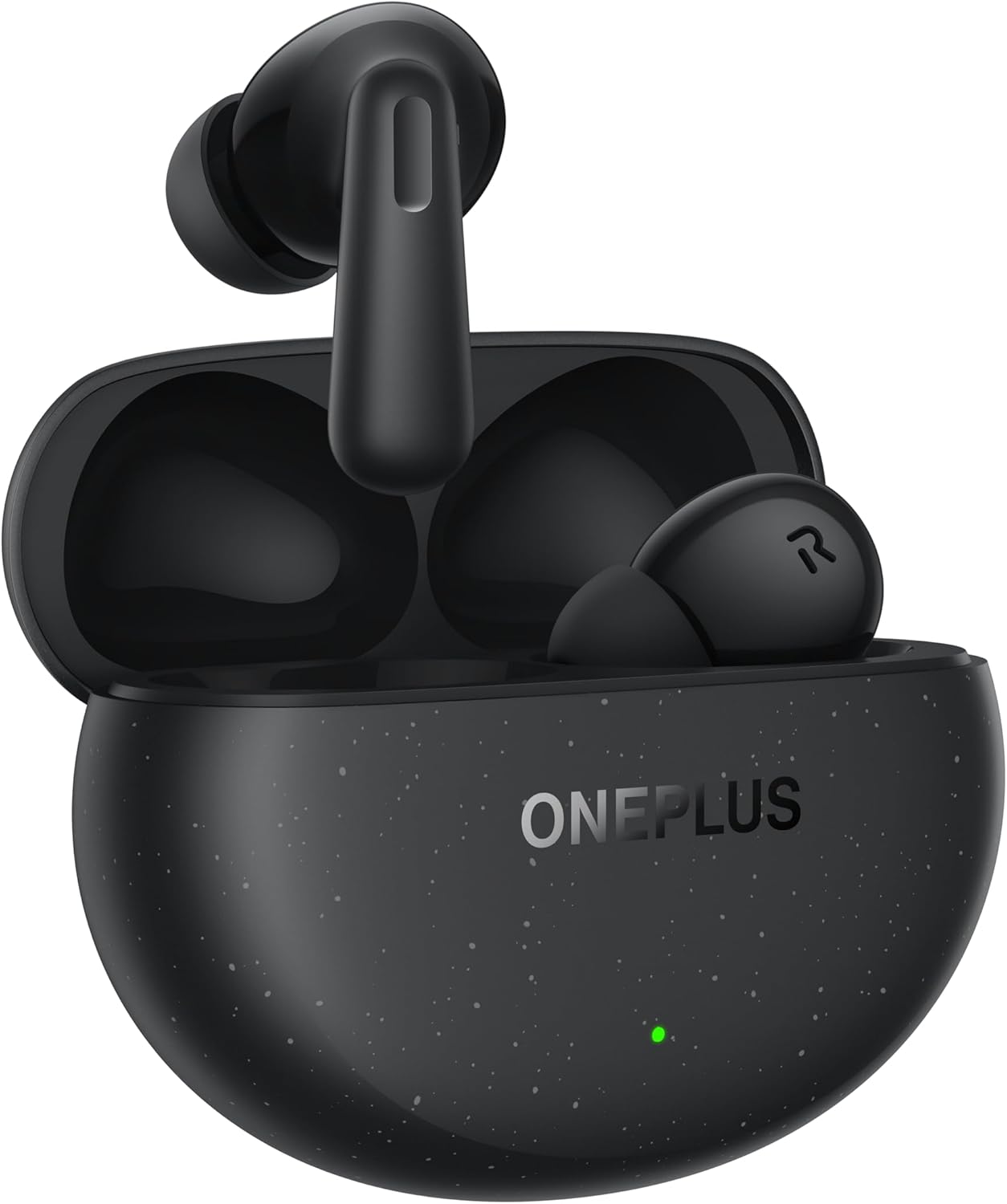
Image: The OnePlus Nord Buds 3 Pro earbuds, in Starry Black, are shown inside their open charging case. The case has a speckled finish and the OnePlus logo. A small green LED indicator is visible on the front of the case.
What's in the Box
Carefully unpack your OnePlus Nord Buds 3 Pro and ensure all items are present:
- OnePlus Nord Buds 3 Pro earbuds (1 pair)
- OnePlus Nord Buds 3 Pro charging case (1 unit)
- Silicon eartips (3 pairs: S, M, L)
- USB Type-C charging cable (1 unit)
- User guide (1 unit)
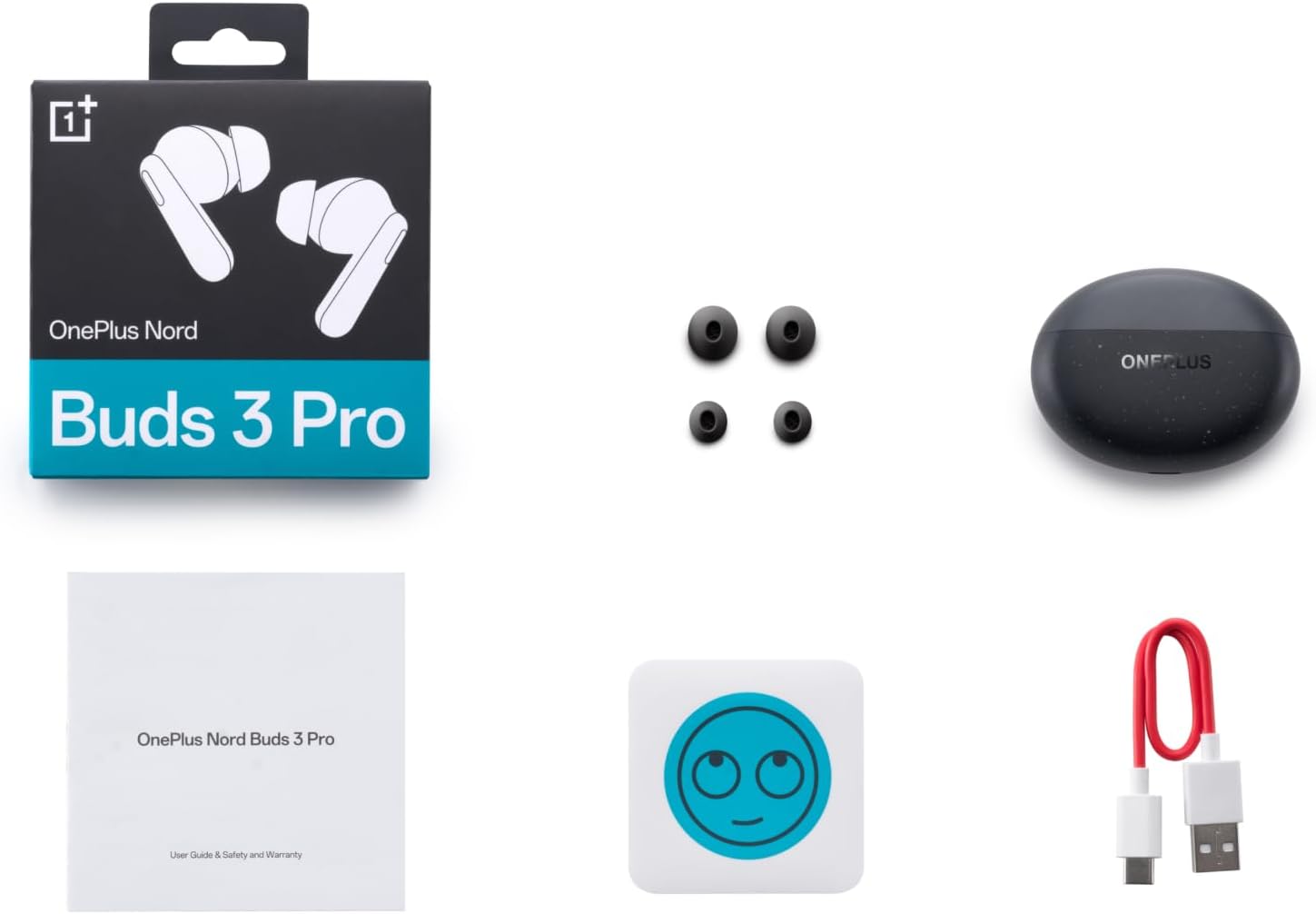
Image: A flat lay of the OnePlus Nord Buds 3 Pro package contents, including the retail box, the charging case, three pairs of silicone eartips, a USB Type-C charging cable, and the user guide.
Setup
1. Initial Charging
Before first use, fully charge the earbuds and the charging case. Connect the provided USB Type-C cable to the charging port on the case and a power source. The indicator light on the case will show charging status.
2. Pairing with Your Device
- Ensure the earbuds are in the charging case and the case lid is open.
- Press and hold the function button on the charging case for 2 seconds until the indicator light flashes white, indicating pairing mode.
- On your device (smartphone, tablet, etc.), go to Bluetooth settings and select "OnePlus Nord Buds 3 Pro" from the list of available devices.
- For Android devices, the earbuds support Google Fast Pair for quick connection. Simply open the case near your Android device and follow the on-screen prompts.

Image: A person holding a OnePlus Nord Buds 3 Pro charging case and a smartphone. The smartphone screen displays a prompt for Google Fast Pair, showing the earbuds ready to connect, illustrating the pairing process.
3. HeyMelody App
For enhanced features and customization, download the HeyMelody app from your device's app store. The app allows you to manage settings, update firmware, and locate your earbuds.
Operating Instructions
Touch Controls
The OnePlus Nord Buds 3 Pro feature intuitive touch controls on each earbud. Default controls are as follows, but can often be customized via the HeyMelody app:
- Single Tap: Play/Pause music, Answer/End call.
- Double Tap: Next track, Reject call.
- Triple Tap: Previous track.
- Press and Hold (1 second): Switch between Active Noise Cancellation (ANC) and Transparency mode.
Active Noise Cancellation (ANC) and Transparency Mode
The earbuds offer Hybrid Active Noise Cancellation up to 49dB to minimize ambient noise. Transparency mode allows you to hear your surroundings without removing the earbuds. Toggle between these modes by pressing and holding the earbud touch area.

Image: An infographic detailing key features of the OnePlus Nord Buds 3 Pro, including up to 44 hours listening time, 49dB Hybrid Active Noise Cancellation, 12.4mm Titanized Diaphragm, and Basswave 2.0 technology.
Sound Quality
Equipped with a 12.4mm titanium-coated diaphragm and Basswave 2.0 technology, the Nord Buds 3 Pro deliver rich bass, clear vocals, and an immersive sound experience.
Battery and Charging
- Earbud Battery Life: Up to 44 hours with ANC off, up to 20 hours with ANC on (including charging case).
- Rapid Charging: 10 minutes of charging provides up to 11 hours of playtime.
- Charging Case: Recharge the case using the provided USB Type-C cable.
Maintenance
- Cleaning: Regularly clean the earbuds and charging case with a soft, dry, lint-free cloth. Do not use harsh chemicals or abrasive materials.
- Eartips: Remove and clean the silicone eartips with water and mild soap if necessary. Ensure they are completely dry before reattaching.
- Charging Contacts: Keep the charging contacts on both the earbuds and inside the case clean and free of debris to ensure proper charging.
- Storage: When not in use, store the earbuds in their charging case to protect them and keep them charged. Avoid extreme temperatures.
Troubleshooting
Earbuds not pairing or connecting:
- Ensure the earbuds are charged.
- Place earbuds in the case, close the lid, then open it again to re-enter pairing mode.
- Check your device's Bluetooth settings and ensure Bluetooth is enabled.
- Try forgetting the device in your Bluetooth settings and re-pairing.
- Restart your device.
No sound or poor sound quality:
- Check the volume level on both your device and the earbuds.
- Ensure the earbuds are properly seated in your ears and the correct size eartips are used.
- Clean any debris from the earbud speakers and charging contacts.
- Move closer to your connected device to avoid interference.
Earbuds not charging:
- Ensure the charging cable is securely connected to both the case and the power source.
- Verify the power source is active.
- Clean the charging contacts on both the earbuds and inside the case.
Specifications
| Feature | Detail |
|---|---|
| Model Name | Nord Buds 3 Pro (E511A) |
| Brand | OnePlus |
| Connectivity Technology | Bluetooth |
| Bluetooth Version | 5.4 |
| Noise Control | Hybrid Active Noise Cancellation (up to 49dB) |
| Driver Size | 12.4mm Titanized Diaphragm |
| Frequency Range | 20 Hz - 20,000 Hz |
| Sensitivity | 38 dB |
| Impedance | 32 Ohm |
| Battery Life (Earbuds + Case) | Up to 44 hours (ANC off), Up to 20 hours (ANC on) |
| Rapid Charge | 10 minutes charge for 11 hours playtime |
| Charging Interface | USB Type-C |
| Ear Placement | In Ear |
| Item Weight | 3.52 ounces (0.1 Kilograms) |
| Product Dimensions | 1.09 x 0.92 x 0.82 inches |
Warranty and Support
The OnePlus Nord Buds 3 Pro are covered by a limited warranty. Please refer to the warranty card included in your package for specific terms and conditions, or visit the official OnePlus website for detailed warranty information.
For technical support, troubleshooting assistance, or service inquiries, please visit the OnePlus Support website or contact their customer service directly.


