
STN28
STN-28 Colorful Cat Ear Luminous Wireless Bluetooth Headset User Manual
Model: LX-B39C | Brand: Generic
Introduction
This manual provides detailed instructions for the operation, maintenance, and troubleshooting of your new STN-28 Colorful Cat Ear Luminous Wireless Bluetooth Headset. Please read this manual thoroughly before using the product to ensure proper function and longevity.
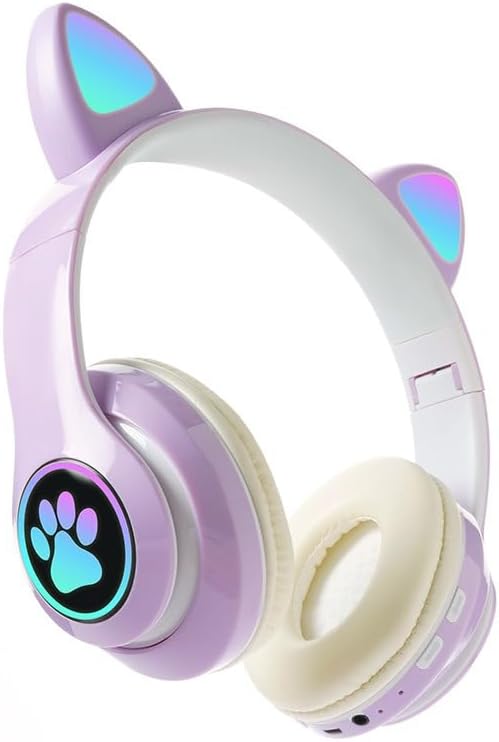
Image: The STN-28 Colorful Cat Ear Luminous Wireless Bluetooth Headset in light purple, featuring glowing cat ears and a paw print design on the ear cup.
Product Features
- Stylish Design: Features unique cat ear design with luminous accents.
- Wireless Connectivity: Bluetooth 5.0+EDR for seamless pairing.
- Comfortable Fit: Padded ear cups and adjustable headband.
- Audio Controls: Integrated buttons for music, volume, and calls.
- Portable: Lightweight and foldable head-mounted design.
- TF Card Playback: Supports playing songs from an external TF card.
Package Contents
Please check the package for the following items:
- STN-28 Wireless Headset Body
- USB Charging Cable
- User Manual (this document)
Setup
Charging the Headset
Before first use, fully charge the headset. Connect the provided USB charging cable to the headset's USB charging port and to a compatible USB power source (e.g., computer USB port, USB wall adapter).
- The indicator light will show red during charging.
- Charging time is approximately 2 hours.
- The red light will turn off once the headset is fully charged.
The headset is equipped with a rechargeable 3.7V/400MAH polymer A-grade lithium battery with overcharge and over-discharge protection.
Powering On/Off
- To Power On: Press and hold the power button until the indicator lights flash red and blue.
- To Power Off: Press and hold the power button until the indicator lights turn off.
Operating Instructions
Bluetooth Pairing
- Ensure the headset is fully charged and powered off.
- Press and hold the power button for approximately 3-5 seconds until the indicator lights flash red and blue alternately. This indicates the headset is in pairing mode.
- On your device (smartphone, tablet, computer), enable Bluetooth and search for available devices.
- Select "STN-28" or "LX-B39C" from the list of found devices.
- Once successfully paired, the indicator light on the headset will flash blue slowly.
- The headset supports Bluetooth 5.0+EDR and modes A2DP 1.2, AVRCP 1.0, HSP, HSF 1.5.
The transmission range is up to 10 meters (33 feet) in an open environment.
Music Playback and Call Control
The headset features integrated controls for media and calls. Specific button functions may vary slightly, but generally include:
- Play/Pause: Single press the multi-function button.
- Next Track: Long press the "+" button.
- Previous Track: Long press the "-" button.
- Volume Up: Short press the "+" button.
- Volume Down: Short press the "-" button.
- Answer/End Call: Single press the multi-function button during an incoming call.
- Reject Call: Long press the multi-function button during an incoming call.

Image: A detailed view of the headset's right ear cup, highlighting the control buttons for media playback and calls, as well as the charging port and TF card slot.
TF Card Playback
The headset supports playing audio files directly from an external TF (microSD) card. Insert a TF card with your desired music into the designated slot on the headset. The headset will automatically switch to TF card playback mode.
Maintenance
- Clean the headset regularly with a soft, dry cloth. Do not use abrasive cleaners or solvents.
- Avoid exposing the headset to extreme temperatures, humidity, or direct sunlight.
- Store the headset in a cool, dry place when not in use.
- Do not attempt to disassemble or repair the headset yourself, as this will void the warranty.
- Keep the charging port free of dust and debris.
Troubleshooting
| Problem | Possible Cause | Solution |
|---|---|---|
| Headset does not power on. | Low battery. | Charge the headset for at least 2 hours. |
| Cannot pair with device. | Headset not in pairing mode; Bluetooth off on device; device too far. | Ensure headset is flashing red/blue; enable Bluetooth on device; move device closer (within 10M). |
| No sound during playback. | Volume too low; headset not connected; incorrect audio output selected on device. | Increase headset/device volume; re-pair headset; check device's audio settings. |
| Poor sound quality or disconnections. | Interference; device too far; low headset battery. | Move away from sources of interference; move closer to device; charge headset. |
Specifications
| Feature | Detail |
|---|---|
| Model | LX-B39C (STN-28) |
| Wearing Method | Head-mounted, Folding |
| Bluetooth Version | 5.0+EDR |
| Supported Bluetooth Modes | A2DP 1.2, AVRCP 1.0, HSP, HSF 1.5 |
| Battery Capacity | 400mAh Polymer Lithium Battery |
| Speaker Size/Impedance | 40mm / 32Ω |
| Receiving Sensitivity | -84dBm |
| Max Transmitting Power | 6dBm |
| Transmission Range | ≤10 meters |
| Charging Port | USB |
| Charging Time | Approx. 2 hours |
| Music Playback Time | Up to 6 hours |
| Talk Time | Up to 6 hours |
| Standby Time | 200 hours |
| Noise Control | Active Noise Cancellation |
| Control Method | Touch / Media Control Buttons |
| Color | Light Purple |
| Ear Placement | Over Ear |
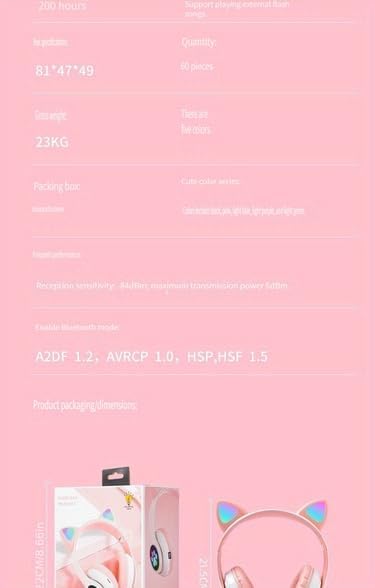
Image: A visual representation of the headset's dimensions and some technical specifications, including model number and battery capacity.
Warranty and Support
For warranty information or technical support, please refer to the retailer where you purchased this product. Keep your proof of purchase for any warranty claims.
Manufacturer: Shantou Chaoyang District Gurao Lanxin Electronics Factory
Ask a question about this manual
Ask about setup, troubleshooting, compatibility, parts, safety, or missing instructions. Manuals+ will review the question and use this page’s manual context to help answer it.