
Crivit PMSHM2 A3
Parkside PMSHM2 A3 Multifunction Detector User Manual
Model: PMSHM2 A3
Introduction
The Parkside PMSHM2 A3 Multifunction Detector is a versatile tool designed for precise detection of various hidden elements within walls, ceilings, and floors. It can accurately locate live electrical wires, metallic components (such as pipes or rebar), wooden beams (studs), and cavities. This manual provides essential information for the safe and effective operation, maintenance, and troubleshooting of your device.

Figure 1: Front view of the Parkside PMSHM2 A3 Multifunction Detector, showing its display and control buttons.
Safety Instructions
- Always read the entire manual before operating the device.
- Do not use the device in wet or damp conditions.
- Ensure the device is clean and free from debris before use.
- Do not attempt to open or repair the device yourself. Refer to qualified personnel.
- Pay attention to the voltage alert indicator when detecting live wires. Exercise extreme caution.
Product Overview
The PMSHM2 A3 features an intuitive LCD display and simple controls for ease of use. It is designed for quick and reliable detection in various construction materials.
Key Features:
- Detects live wires, metal components, wooden beams, and cavities.
- Precise location indicated by an intensity graph on the LCD display.
- Acoustic signal provides additional feedback during detection.
- Three adjustable sensitivity levels for live wire detection.
- Integrated voltage alert indicator for enhanced safety.

Figure 2: Close-up view of the detector's LCD display, showing detection indicators and sensitivity settings.
Setup
Battery Installation:
- Locate the battery compartment on the back of the device.
- Open the battery compartment cover.
- Insert the required batteries (e.g., 9V battery, as per device markings) ensuring correct polarity (+/-).
- Close the battery compartment cover securely.
Initial Power On:
Press the ON/OFF button to power on the device. The LCD display will illuminate, and a brief self-test may occur.
Operating Instructions
The detector offers different modes for various detection tasks. Ensure the surface is clean and dry before scanning.
Selecting Detection Mode:
Use the mode selection button (AC Sens) to switch between sensitivity levels for AC wire detection (I, II, III). Other detection modes (Stud, Metal, Cavity) are typically automatic or selected by specific buttons on the device, as indicated on the display.
Scanning for Studs (Wooden Beams):
- Select the appropriate mode for stud detection.
- Place the detector flat against the wall surface.
- Slowly slide the detector horizontally across the surface.
- The display will show an increasing signal strength as it approaches a stud. An acoustic signal may also sound.
- Mark the edges of the stud as indicated by the device.

Figure 3: A user operating the detector on a wall, demonstrating typical usage for locating hidden elements.
Scanning for Metal:
- Select the appropriate mode for metal detection.
- Place the detector flat against the surface.
- Slowly move the detector across the area.
- The device will indicate the presence of metal objects (e.g., pipes, rebar) with a visual and/or acoustic signal.
- The intensity graph will help pinpoint the exact location.
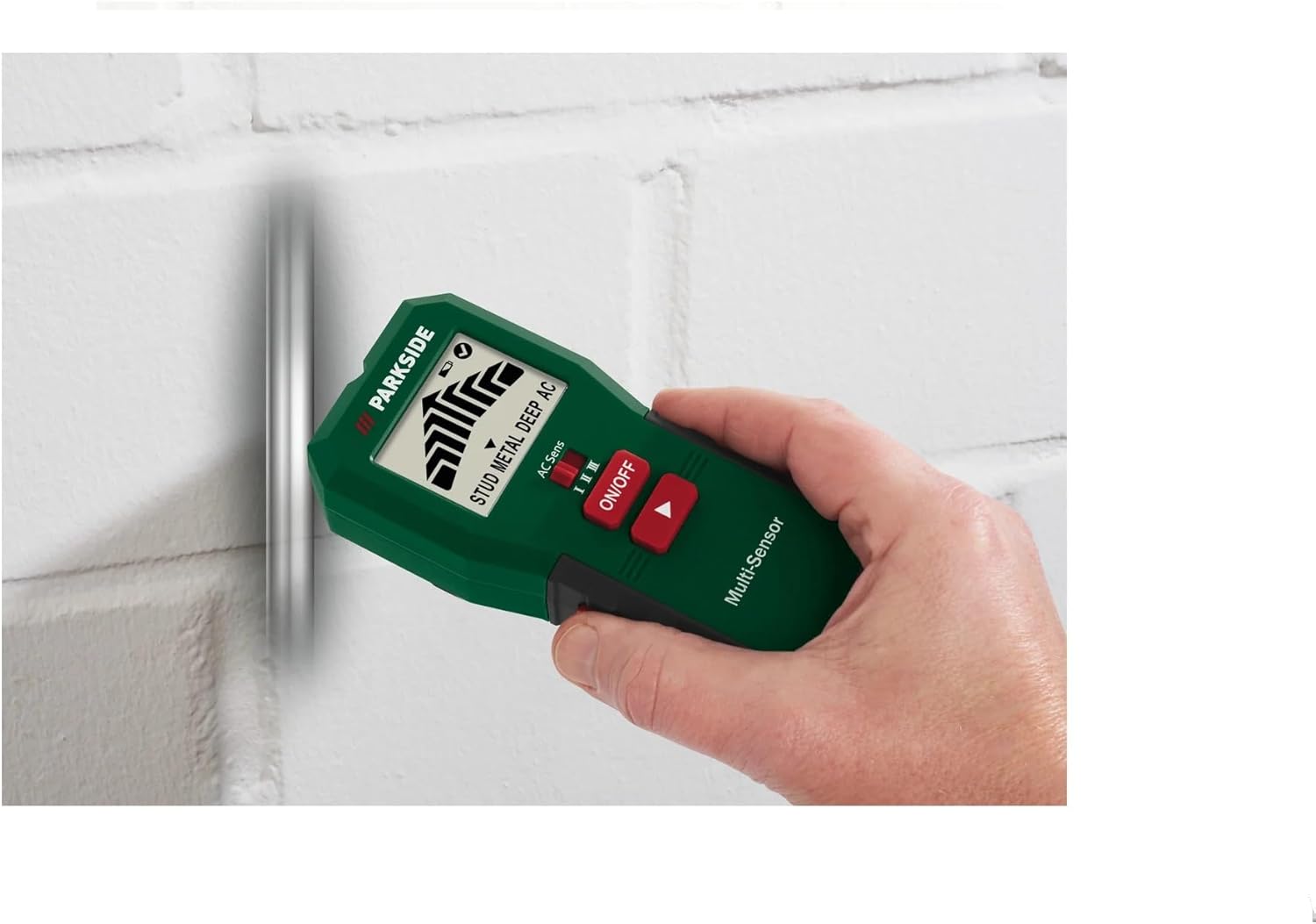
Figure 4: The detector being used to identify the location of a metal pipe embedded within a wall.
Scanning for Live AC Wires:
- Select the AC wire detection mode.
- Adjust the sensitivity level (I, II, III) using the dedicated button (AC Sens) to suit the depth of the wires. Start with lower sensitivity and increase if needed.
- Move the detector slowly across the surface.
- The device will indicate the presence of live AC wires with a distinct visual alert (e.g., flashing icon, voltage alert indicator) and an acoustic signal.
- Caution: Always verify the absence of live wires with a non-contact voltage tester before drilling or cutting.
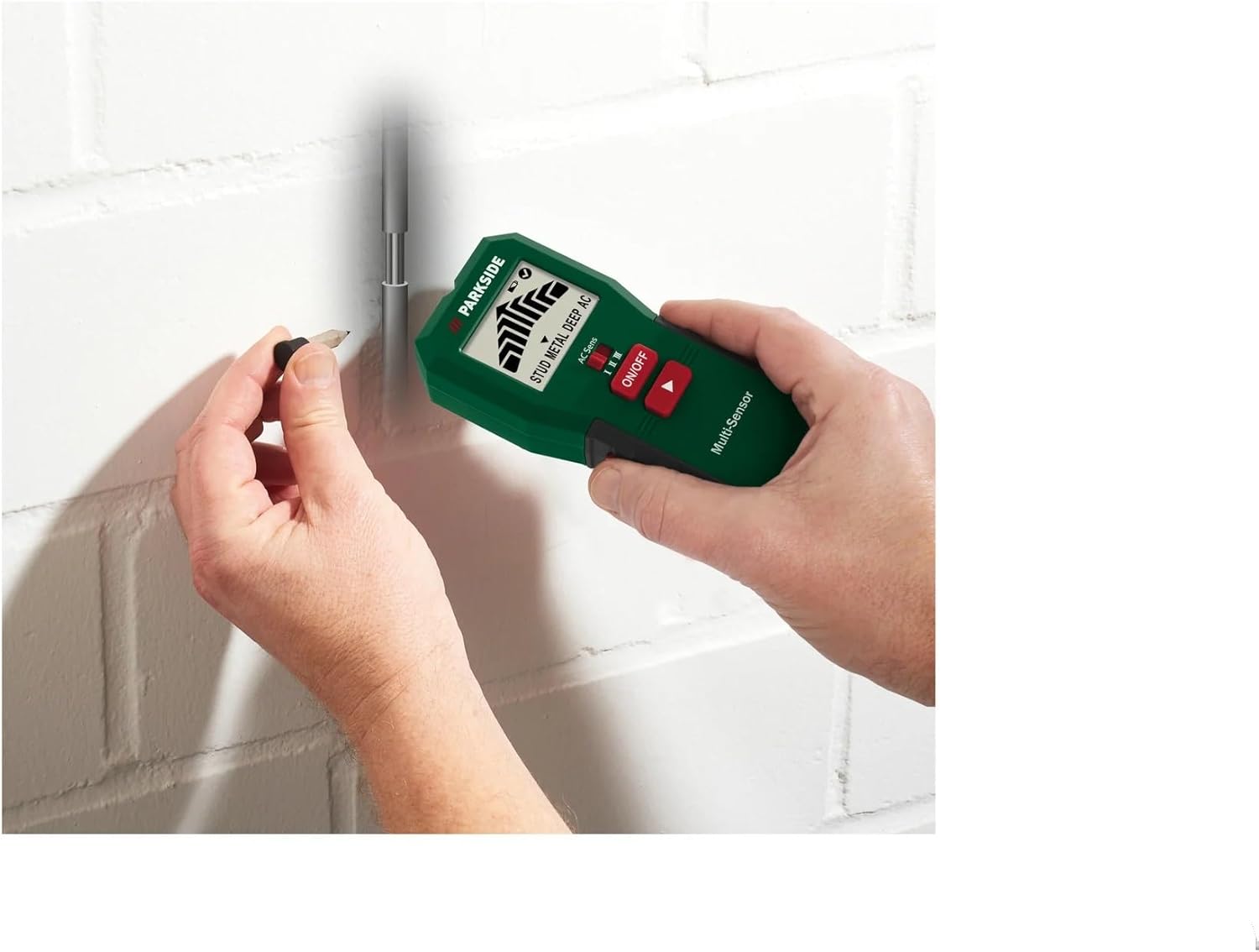
Figure 5: The detector indicating a detected point on a wall, likely after locating a stud or wire, with a pencil marking the spot.
Detecting Cavities:
The detector can also identify hollow spaces or cavities behind surfaces. This mode typically works by detecting changes in material density. Follow the general scanning procedure, and the device will indicate areas of lower density.
Maintenance
- Cleaning: Wipe the device with a soft, dry cloth after each use. Do not use abrasive cleaners or solvents.
- Storage: Store the detector in a cool, dry place, away from direct sunlight and extreme temperatures. Remove batteries if the device will not be used for an extended period to prevent leakage.
- Battery Replacement: Replace batteries when the low battery indicator appears on the display to ensure accurate readings.
Troubleshooting
| Problem | Possible Cause | Solution |
|---|---|---|
| Device does not power on. | Dead or incorrectly installed batteries. | Check battery polarity; replace batteries. |
| Inaccurate readings. | Low battery, improper calibration, or interference. | Replace batteries. Ensure proper calibration (if applicable, refer to device instructions). Avoid scanning near strong electromagnetic fields. |
| No detection in AC mode. | Sensitivity too low, or wires are too deep. | Increase sensitivity level. Ensure the device is flat against the surface. |
| False positives/negatives. | Surface conditions (e.g., dampness), or user technique. | Ensure surface is dry. Scan slowly and consistently. |
Specifications
| Attribute | Detail |
|---|---|
| Model Number | PMSHM2 A3 |
| Dimensions (L x W x H) | 6.5 x 3.3 x 14.5 cm |
| Weight | 128 grams |
| Material | Plastic |
| Power Source | Battery powered (Batteries required: Yes) |
| Display Type | LCD |
| Color | Green |
| Recommended Use | General detection (live wires, metal, wood, cavities) |
| Extended Length | 50 Millimeters (Note: This specification might refer to a specific probe or measurement capability not explicitly detailed in the product description.) |
Warranty and Support
For warranty information and customer support, please refer to the documentation included with your purchase or visit the official Crivit website. Keep your proof of purchase for warranty claims.
For technical assistance or service, contact Crivit customer service. Do not attempt to repair the device yourself, as this may void the warranty.
Ask a question about this manual
Ask about setup, troubleshooting, compatibility, parts, safety, or missing instructions. Manuals+ will review the question and use this page’s manual context to help answer it.