
1. Introduction
The M-VAVE Chocolate-Plus is a compact and versatile wireless MIDI pedal designed to provide musicians with advanced control over their digital audio workstations (DAWs), effects pedals, and amp modelers. This portable device offers seamless integration with Windows, Mac, iOS, and Android platforms, enhancing creative freedom in studio and live performance settings.
Its durable and lightweight design, combined with a long-lasting rechargeable battery, makes it an ideal companion for any musician seeking to streamline their setup and expand their control capabilities without the clutter of cables.

Image: An angled view of the M-VAVE Chocolate-Plus Wireless MIDI Pedal, showcasing its compact design and footswitches.
2. Product Overview
2.1. Package Contents
Upon unboxing, ensure all items are present:
- M-VAVE Chocolate-Plus Wireless MIDI Pedal
- USB Type-C Charging Cable
- User Manual

Image: M-VAVE Chocolate-Plus package contents, including the pedal, user manual, USB-C cable, and product box.
2.2. Device Layout
Familiarize yourself with the main components of the Chocolate-Plus pedal:
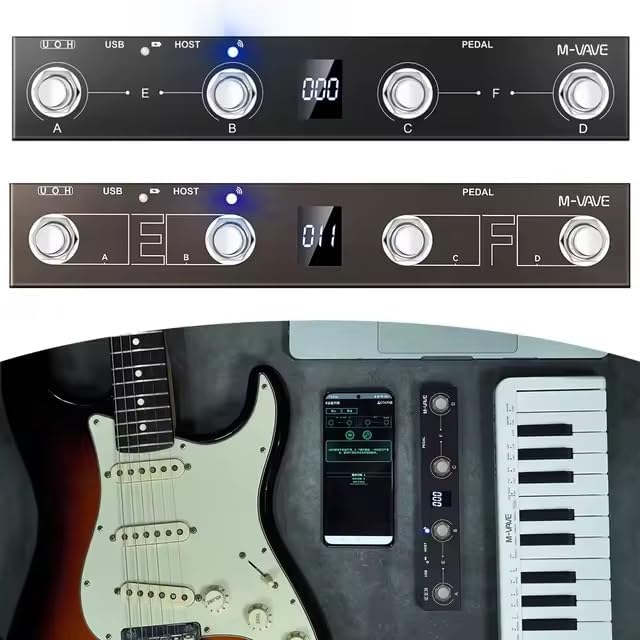
Image: Top view of the M-VAVE Chocolate-Plus pedal, highlighting the four footswitches (A, B, C, D), the central digital display, and LED indicators for USB and HOST connections.
- Footswitches (A, B, C, D): Four programmable footswitches for triggering commands.
- Digital Display: Provides instant visual feedback on current settings, bank numbers, and other operational information.
- USB Port: For wired connection to computers and charging.
- HOST Port: For connecting and controlling other MIDI devices.
- Expression Pedal Input: For connecting an external expression pedal for dynamic control.
- Power Switch: To turn the device on or off.
3. Setup
3.1. Charging the Device
Before initial use, fully charge the Chocolate-Plus pedal. Connect the provided USB Type-C cable to the pedal's USB port and to a standard USB power adapter (not included) or a computer's USB port.
- Charging Indicator: The LED indicator will glow red while charging.
- Full Charge Indicator: The LED indicator will turn blue when charging is complete.
- A full charge takes approximately 2.5 hours and provides up to 12 hours of continuous use.
3.2. Powering On/Off
Locate the power switch on the side of the pedal. Slide it to the "ON" position to power on the device. Slide it to "OFF" to power off.
3.3. App Installation (for Wireless Control)
For wireless control via smartphone or tablet, download the official M-VAVE app from your device's app store (e.g., Apple App Store for iOS, Google Play Store for Android). Follow the in-app instructions for pairing and configuration.
3.4. Connecting to Devices
3.4.1. Wireless Connection (Bluetooth MIDI)
- Ensure the Chocolate-Plus pedal is powered on.
- Open the M-VAVE app on your iOS/Android device.
- Navigate to the connection or device pairing section within the app.
- Select "Chocolate-Plus" from the list of available devices to establish a Bluetooth MIDI connection.
- The wireless connection LED indicator will blink when searching and become solid when connected.
3.4.2. Wired Connection (USB MIDI)
- Connect the USB Type-C cable from the Chocolate-Plus pedal to a USB port on your Windows or Mac computer.
- The pedal will be recognized as a standard MIDI device.
- Open your DAW or music software and select "M-VAVE Chocolate-Plus" as a MIDI input device in the software's preferences or settings.
3.4.3. MIDI Host Connection
The integrated MIDI host port allows you to connect and control other MIDI-compatible hardware devices directly from the Chocolate-Plus pedal. Refer to the specific MIDI device's manual for connection and configuration details.
4. Operating the Chocolate-Plus
4.1. Footswitch Functions
The four footswitches (A, B, C, D) are highly customizable. Each can be programmed to send specific MIDI messages or trigger keyboard shortcuts.
- Individual Triggers: Pressing a single footswitch (A, B, C, or D) will activate its assigned function.
- Combination Triggers: Pressing two adjacent footswitches simultaneously (A+B or C+D) can activate a second set of functions, effectively doubling your control options. This is useful for complex actions like activating a looper while changing an effect bank.

Image: Close-up view of the M-VAVE Chocolate-Plus pedal's footswitches and digital display, illustrating the control interface.
4.2. Digital Display
The central digital display provides real-time feedback on the pedal's status, including:
- Current bank number.
- Active preset or mode.
- Connection status.
4.3. Customization and Bank Switching
The Chocolate-Plus offers extensive customization options through its dedicated app or software interface:
- Advanced Customization Mode: Program each footswitch and combination trigger to send specific MIDI CC messages, Program Change messages, or keyboard shortcuts.
- Bank Switching: Organize your customized presets and effect configurations into different banks. This allows for quick and organized access to various setups for different songs, sets, or projects.
- Keyboard Shortcut Mapping: Map specific keyboard commands (e.g., for DAW functions) to the footswitches, providing physical control over software actions.
4.4. Expression Pedal Input
Connect an external expression pedal (not included) to the dedicated input jack to gain dynamic, continuous control over parameters such as volume, wah, or other effects within your software or connected MIDI devices.
5. Maintenance
To ensure the longevity and optimal performance of your M-VAVE Chocolate-Plus pedal, follow these maintenance guidelines:
- Cleaning: Use a soft, dry cloth to wipe the pedal's surface. Avoid abrasive cleaners, solvents, or excessive moisture.
- Storage: Store the device in a cool, dry place away from direct sunlight, extreme temperatures, and high humidity.
- Battery Care:
- Avoid fully discharging the battery frequently.
- If storing for extended periods, charge the battery to approximately 50% every few months.
- Do not expose the battery to extreme heat or cold.
- Avoid Physical Damage: Protect the footswitches and display from heavy impacts.
6. Troubleshooting
If you encounter issues with your Chocolate-Plus pedal, refer to the following common problems and solutions:
- Device Not Powering On:
- Ensure the battery is charged. Connect the USB-C cable and check the charging indicator.
- Verify the power switch is in the "ON" position.
- No Wireless Connection:
- Make sure Bluetooth is enabled on your smartphone/tablet.
- Ensure the M-VAVE app is open and attempting to connect.
- Restart both the pedal and your mobile device.
- Check if the pedal is already connected to another device.
- No Wired Connection (USB MIDI):
- Ensure the USB-C cable is securely connected to both the pedal and your computer.
- Try a different USB port on your computer.
- Verify that the Chocolate-Plus is selected as a MIDI input device in your DAW/software settings.
- Try a different USB-C cable.
- Footswitches Not Responding:
- Check the digital display to ensure the pedal is in the correct operating mode or bank.
- Verify that the footswitches are correctly mapped within the M-VAVE app or your DAW.
- Ensure the pedal is properly connected (wired or wireless) to your control device.
- Difficulty with Configuration:
- Refer to the detailed instructions within the M-VAVE app for advanced customization.
- Consult online resources or the manufacturer's support for specific software integration guides.
7. Specifications
| Brand | M-VAVE |
| Model | Chocolate-Plus |
| Connectivity Technology | USB, Wireless (Bluetooth MIDI) |
| Special Features | Digital display, Portable, Wireless connection |
| Dimensions (L x W x H) | 230mm x 40mm x 40mm |
| Weight | 250 Grams |
| Compatible Devices | Computer (desktop/laptop), Smartphone, Tablet |
| Compatible Software/OS | Windows, Mac, iOS, Android |
| Control Type | Buttons and pedal controller |
| Hardware Interface | USB, USB 2.0 |
| Control Method | Application |
| Battery Life | Up to 12 hours |
| Charging Time | Approx. 2.5 hours (via USB Type-C) |
8. Warranty and Support
8.1. Limited Warranty
The M-VAVE Chocolate-Plus pedal comes with a limited warranty. Please refer to the manufacturer's official website or the warranty card included in your package for specific terms and conditions regarding warranty coverage and duration.
8.2. Customer Support
For further assistance, technical support, or inquiries not covered in this manual, please visit the official M-VAVE website or contact their customer service department. Contact information can typically be found on the product packaging or the manufacturer's website.


