1. Introduction
This manual provides detailed instructions for the setup, operation, maintenance, and troubleshooting of your Gustard X30 Network Streaming DAC. Please read this manual thoroughly before using the device to ensure optimal performance and longevity.

Figure 1: Front view of the Gustard X30 Network Streaming DAC in silver finish.
2. Key Features
The Gustard X30 is a high-performance balanced DAC and preamplifier designed for audiophiles, featuring advanced digital and analog technologies.
- Quad ES9039SPRO & ES9311Q Chipset: Utilizes four ES9039SPRO DAC chips and ES9311Q for a fully balanced architecture with independent power supply and grounding for each channel.
- High-Resolution Audio Support: Supports PCM up to 32bit 768kHz, native DSD512, and MQA 384K decoding via XMOS XU216 USB interface.
- Advanced DSP Digital Filter: Incorporates ADI SHARC DSP platform with newly developed high-performance digital filters, supporting 3 types of PCM and 4 types of DSD, including NOS mode.
- Passive Analog Preamplifier: Features R2R relay volume adjustment for lossless signal control, allowing direct connection to active studio monitors or power amplifiers.
- Network Streaming Capabilities: Connects to networks and supports Roon, Airplay, DLNA, UPnP, and NAA protocols with configurable settings and online upgrade functions.
- High-End Components: Includes K2 synthesizer synchronous clock implantation technology, local OCXO clock, external 10M clock input, and discrete Class A analog LPF circuits for optimized performance.
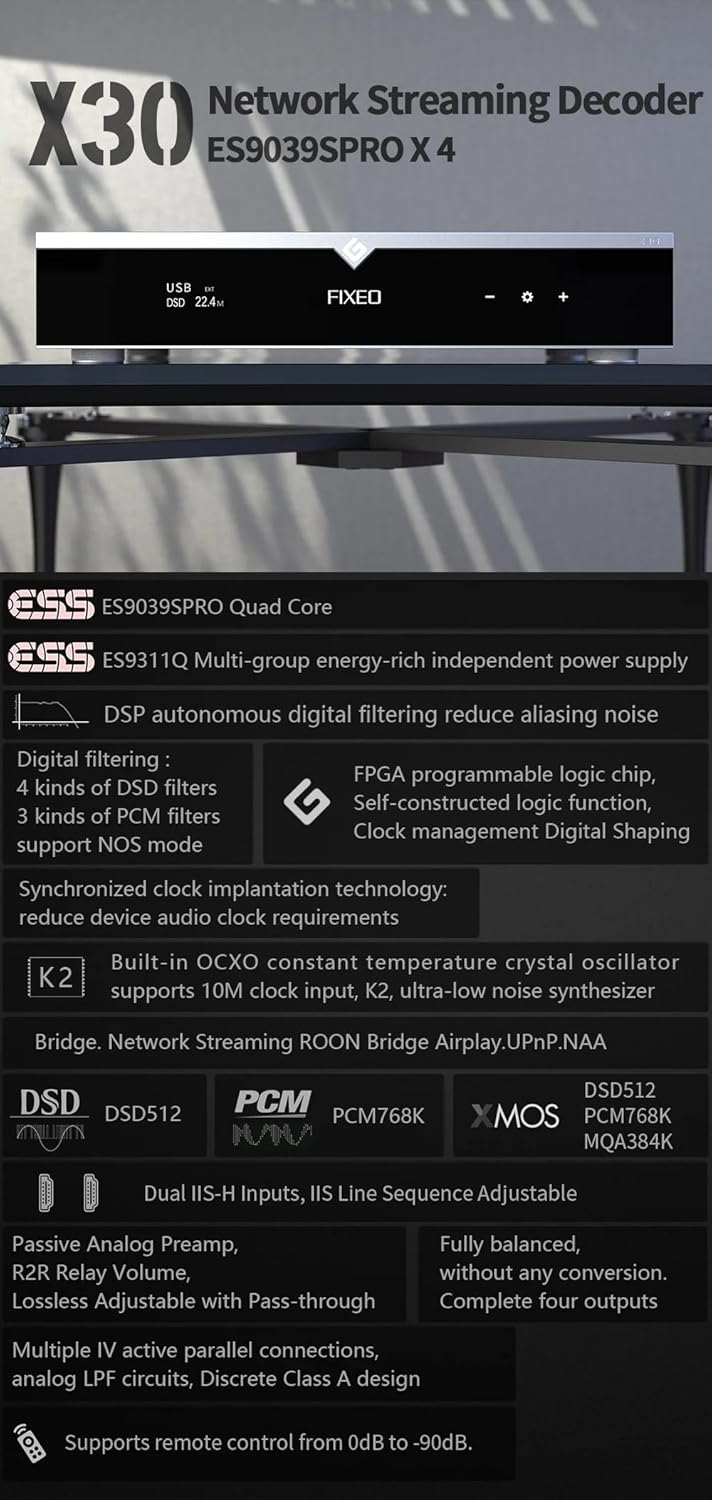
Figure 2: Overview of key features and supported audio formats, including ES9039SPRO Quad Core, DSP digital filtering, network streaming, and clock synchronization.
3. Setup Guide
3.1 Unpacking and Placement
Carefully remove the Gustard X30 from its packaging. Place the unit on a stable, level surface away from direct sunlight, heat sources, and excessive moisture. Ensure adequate ventilation around the unit.
3.2 Connecting Power
Connect the provided power cable to the AC input on the rear panel of the X30. Ensure the voltage switch (if present and accessible) is set to your local mains voltage (AC115V/230V). Plug the other end into a suitable wall outlet.
3.3 Input and Output Connections
The Gustard X30 offers a variety of digital inputs and analog outputs. Refer to the rear panel diagram for connection points.

Figure 3: Rear panel showing various input and output connections, including Clock, Coaxial, AES, USB, LAN, IIS, XLR, and RCA.
- USB Input: Connect your computer or digital audio source via a USB cable.
- Optical/Coaxial/AES Inputs: For connecting digital audio sources like CD players, media streamers, or TVs.
- LAN Input: For network streaming capabilities. Connect an Ethernet cable to your router or network switch.
- IIS Inputs (x2): For high-quality digital audio transmission from compatible sources.
- Clock Input: For connecting an external 10M clock for enhanced timing precision.
- XLR Outputs (Balanced): For connecting to balanced amplifiers or active speakers.
- RCA Outputs (Unbalanced): For connecting to unbalanced amplifiers or active speakers.
4. Operating Instructions
4.1 Front Panel Controls
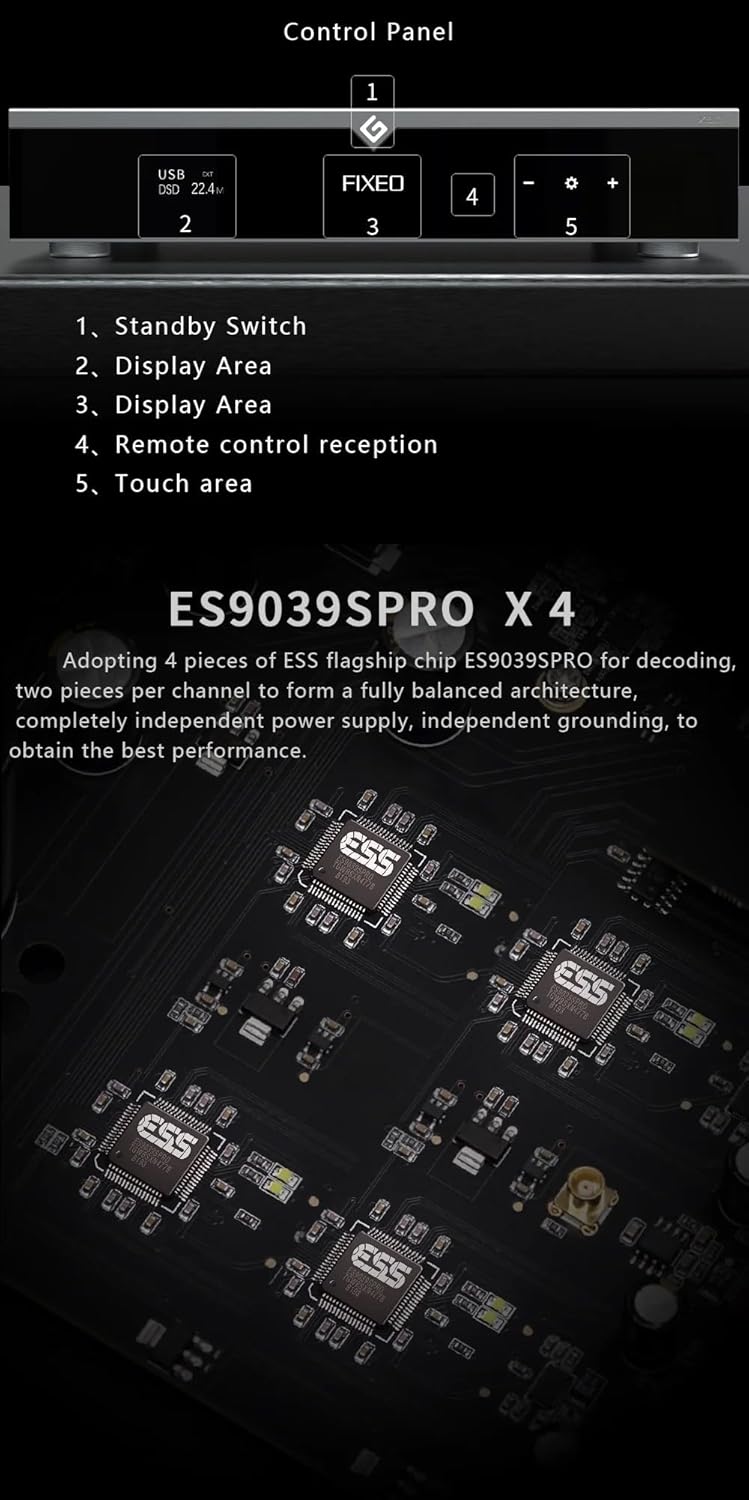
Figure 4: Front panel layout and control areas, indicating standby switch, display, remote reception, and touch area.
- Standby Switch: Press to power on/off the unit or put it into standby mode.
- Display Area: Shows current input, sample rate, and other operational information.
- Remote Control Reception: Infrared receiver for the remote control.
- Touch Area: Used for navigation and selection on the display.
- Volume/Menu Controls: Adjusts volume or navigates menu options.
4.2 Basic Operation
- Power On/Off: Press the standby switch on the front panel or the power button on the remote control.
- Input Selection: Use the front panel controls or remote to cycle through available digital inputs (USB, Optical, Coaxial, AES, LAN, IIS, Clock).
- Volume Adjustment: Rotate the volume knob or use the +/- buttons on the remote. The X30 features a passive analog preamplifier with R2R relay volume adjustment for lossless control.
- Menu Navigation: Access settings and advanced options via the front panel touch area or remote control.
4.3 Network Streaming
The Gustard X30 supports various network streaming protocols. For initial setup and configuration, access the device's web configuration page. The Linux kernel is optimized for I/O to reduce audio data forwarding delay and jitter.
- Roon Ready: Integrate the X30 into your Roon ecosystem for seamless music management and playback.
- Airplay 2: Stream audio wirelessly from Apple devices.
- DLNA/UPnP: Connect to compatible media servers and control points.
- NAA (Network Audio Adapter): For advanced network audio setups.
- Firmware Updates: The device supports online firmware upgrades via the network connection.

Figure 5: Example of network streaming interface on a tablet and smartphone, demonstrating connectivity and music playback.
5. Maintenance
- Cleaning: Use a soft, dry cloth to clean the exterior of the unit. Avoid using abrasive cleaners or solvents.
- Ventilation: Ensure that the ventilation openings are not blocked to prevent overheating.
- Firmware Updates: Regularly check for and install firmware updates to ensure optimal performance and access to new features. Instructions for online updates are available via the device's web interface.
6. Troubleshooting
| Problem | Possible Cause | Solution |
|---|---|---|
| No power | Power cable not connected; Power outlet faulty; Unit in standby. | Check power cable connection; Try a different outlet; Press standby switch to power on. |
| No sound output | Incorrect input selected; Volume too low; Cables not connected properly; Amplifier/speakers off or faulty. | Select correct input; Increase volume; Check all audio cable connections; Verify amplifier/speaker status. |
| Network streaming issues | Network cable disconnected; Router/network issue; Incorrect network settings. | Check LAN cable connection; Restart router; Verify network settings via web interface. |
| Distorted audio | Source audio quality; Incorrect sample rate setting; Faulty cables. | Ensure source audio is high quality; Check sample rate settings on source and DAC; Replace audio cables. |
If the problem persists after attempting these solutions, please contact customer support.
7. Technical Specifications

Figure 6: Detailed specifications table outlining supported PCM, MQA, and DSD formats for USB/IIS streamer and AES/Coaxial/Optical inputs.
Digital Input
- LAN Support Protocols: Roon, Airplay, UPnP, NAA, Spotify (configurable via web page, online upgradeable)
- LAN Speed: 100/1000Mbps
- 10M Clock (BNC): Input impedance 50 Ohm, 0dBm-20dBm, CMOS square wave 0.2V-3.3V, Sine wave 0.5V-3.3V
Analog Output
- Frequency Response: 20-20kHz / +-0.2dB
- Dynamic Range: >130dB
- Signal to Noise Ratio: >129dB
- Channel Crosstalk: -139dB @ 10kHz
- THD+N: <=0.0001% @ 1kHz
- IMD: ~0.001% @ -1dbfs
- RCA Output Level: 2.5Vrms (VOLUME FIXED)
- RCA Output Impedance: 100Ω
- XLR Output Level: 5.1Vrms (VOLUME FIXED)
- XLR Output Impedance: 100Ω
- XLR Interface Definition: American standard (1 ground, 2 hot, 3 cold)
Other Parameters
- AC Power Supply: AC115V/230V 50/60Hz
- Power Consumption: <30W
- Size (W*D*H): 430mm * 300mm * 80mm (including feet 92mm)
- Package Size (L*W*H): 530mm * 400mm * 180mm
- Weight with Package: 10KG
8. Warranty and Support
The Gustard X30 is covered by a manufacturer's warranty. Please refer to the warranty card included with your product for specific terms and conditions. For technical support, troubleshooting assistance beyond this manual, or warranty claims, please contact your retailer or the manufacturer, Gustard, directly. The seller, Auinshifiman, also provides 24-hour online service and a 1-year or more pledge from the date of purchase.
For further assistance, you may contact Auinshifiman through their Amazon seller page: Auinshifiman Seller Page.


