
mingwear G39
mingwear G39 Smartwatch
User Instruction Manual
Model: G39
1. Introduction
Thank you for choosing the mingwear G39 Smartwatch. This device is designed to enhance your daily life with fitness tracking, communication features, and smart notifications. Please read this manual carefully to ensure proper use and optimal performance of your smartwatch.
2. Safety Information
- Consult your doctor before starting any new exercise program, especially if you have pre-existing health conditions.
- This device is not a medical device and should not be used to diagnose or treat any medical condition.
- Keep the device away from extreme temperatures, direct sunlight, and corrosive liquids.
- Do not attempt to disassemble or modify the device. This will void the warranty.
- Ensure the charging contacts are clean and dry before charging to prevent corrosion or damage.
3. Package Contents
Please check the package for the following items:
- mingwear G39 Smartwatch (with strap)
- Charging Cable
- User Manual
4. Product Overview
Familiarize yourself with the main components of your mingwear G39 Smartwatch:
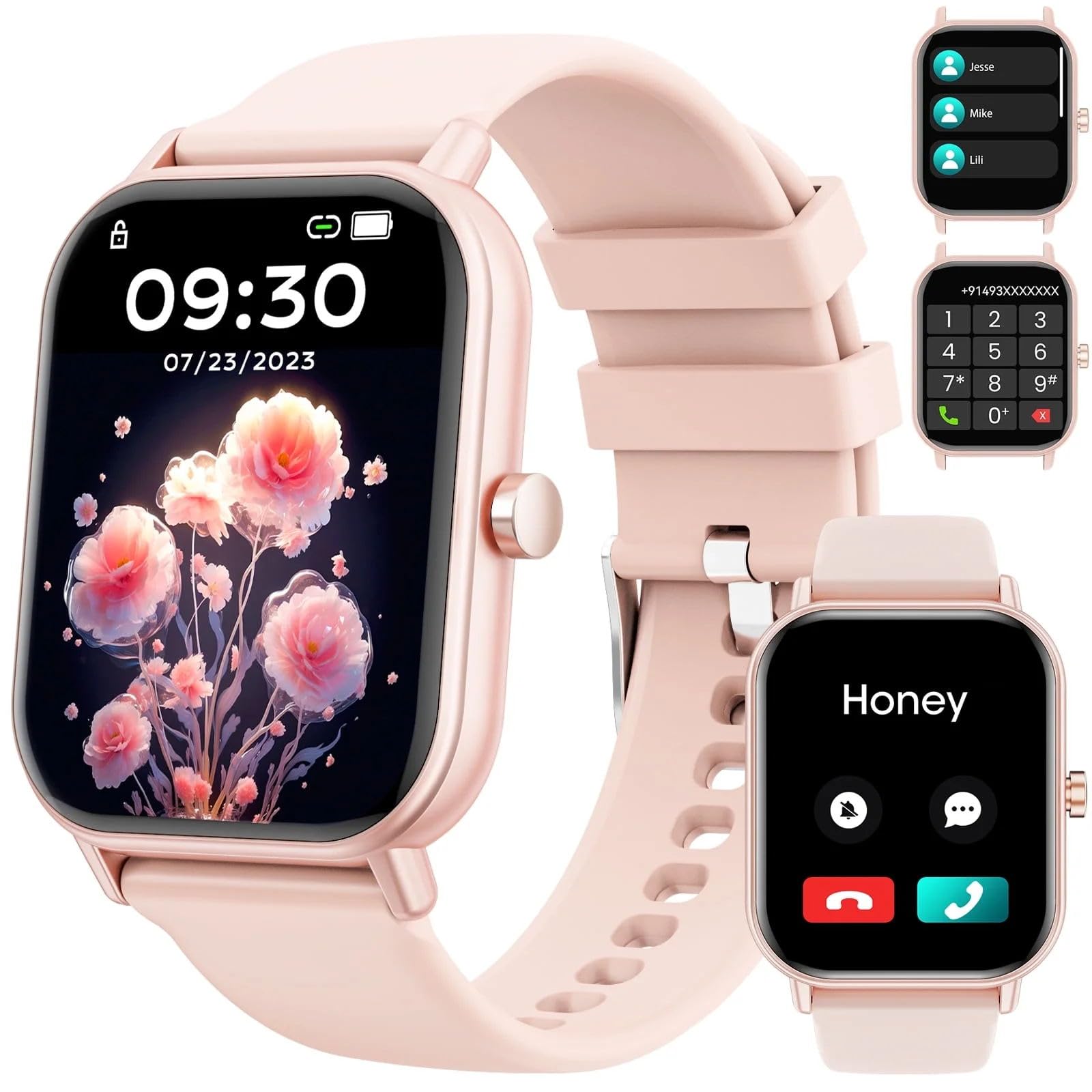
Image: mingwear G39 Smartwatch with a pink strap and a square display, showing the watch face.
- Display: 1.85-inch full-touch color screen.
- Side Button: Power on/off, return to home screen, menu access.
- Sensors (rear): Heart rate sensor, charging contacts.
- Strap: Adjustable and replaceable strap.
5. Setup
5.1 Charging the Smartwatch
- Connect the magnetic charging cable to the charging contacts on the back of the smartwatch.
- Plug the USB end of the cable into a standard USB power adapter (5V/1A recommended) or a computer's USB port.
- The watch display will show a charging indicator. A full charge typically takes about 2-3 hours.
5.2 Downloading and Pairing the App
To unlock all features, you need to pair your smartwatch with your smartphone via the companion app.
- Download the App: Scan the QR code in the manual or on the watch screen (if available) or search for the designated app name (e.g., 'FitCloudPro' or similar, check packaging for exact name) in the Apple App Store (for iPhone) or Google Play Store (for Android devices).
- Enable Bluetooth: Ensure Bluetooth is enabled on your smartphone.
- Open the App: Launch the downloaded app and follow the on-screen instructions to create an account or log in.
- Add Device: In the app, navigate to the 'Device' or 'My Device' section and select 'Add Device' or 'Bind Device'. The app will search for your smartwatch.
- Pair: Select 'G39' or the corresponding device name from the list of found devices. Confirm the pairing request on both your phone and the smartwatch if prompted.
- Permissions: Grant all necessary permissions requested by the app (e.g., location, notifications, contacts) for full functionality.
6. Operating Instructions
6.1 Basic Navigation
- Swipe Down: Access quick settings (e.g., brightness, DND mode).
- Swipe Up: View notifications.
- Swipe Left/Right: Navigate through main functions/widgets (e.g., activity data, heart rate, weather).
- Tap: Select an item or enter a function.
- Press Side Button: Return to the watch face or enter the main menu.
6.2 Making and Answering Calls
Ensure your smartwatch is successfully paired with your phone and Bluetooth calling is enabled in the app settings.
- Making a Call: From the watch's phone interface, you can dial a number directly or select a contact from your synced phonebook.
- Answering a Call: When a call comes in, the watch will display the caller ID. Tap the green icon to answer or the red icon to reject.
6.3 Fitness Tracking and Sport Modes
- Pedometer: The watch automatically tracks your steps, distance, and calories burned throughout the day. View data on the watch or in the app.
- Sport Modes: Access the 'Sport' or 'Workout' menu to choose from over 100 different sport modes (e.g., running, cycling, swimming). Select a mode to start tracking your activity.
- Heart Rate Monitoring: The watch continuously monitors your heart rate. You can also initiate a manual measurement from the heart rate interface.
- Sleep Monitoring: Wear the watch to bed, and it will automatically track your sleep patterns, including deep sleep, light sleep, and wake times.
6.4 Message Notifications
Once paired and app permissions are granted, your smartwatch will display notifications from your smartphone (e.g., SMS, social media alerts, app notifications).
- Ensure notification access is enabled for the app in your phone's settings.
- Swipe up on the watch face to view recent notifications.
6.5 Customizing Watch Faces
You can change the watch face directly on the device or through the companion app.
- On Watch: Long-press the watch face, then swipe left/right to browse available options and tap to select.
- Via App: In the app, navigate to the 'Dial Market' or 'Watch Face' section to explore more options and customize with your own photos.
7. Maintenance
7.1 Cleaning the Smartwatch
- Wipe the watch screen and strap regularly with a soft, damp, lint-free cloth.
- Do not use harsh chemicals, abrasive cleaners, or solvents.
- Ensure the watch is completely dry before charging.
7.2 Water Resistance (IP67)
The mingwear G39 Smartwatch is IP67 water-resistant, meaning it can withstand splashes, rain, and brief immersion in water up to 1 meter for 30 minutes. It is suitable for daily use and light water activities.
- Do NOT use the watch in hot water, saunas, or steam rooms.
- Do NOT press buttons underwater.
- Water resistance is not a permanent condition and may decrease over time with normal wear and tear.
7.3 Battery Care
- Avoid fully discharging the battery frequently.
- Charge the device using the provided cable and a compatible power adapter.
- Store the watch in a cool, dry place if not used for an extended period.
8. Troubleshooting
8.1 Watch Not Turning On
- Ensure the watch is fully charged. Connect it to the charger for at least 30 minutes.
- Press and hold the side button for 10-15 seconds to force a restart.
8.2 Unable to Pair with Phone
- Make sure Bluetooth is enabled on your phone and the watch is within range.
- Restart both your phone and the smartwatch.
- Ensure the correct app is installed and has all necessary permissions.
- If previously paired, try unpairing the device from your phone's Bluetooth settings and then re-pairing through the app.
8.3 Inaccurate Fitness Data
- Ensure the watch is worn snugly on your wrist, about one finger's width above the wrist bone.
- Check that your personal information (height, weight, age) is correctly entered in the app.
- Restart the watch and recalibrate if necessary through the app.
8.4 Notifications Not Appearing
- Verify that the app has notification access enabled in your phone's settings.
- Check if 'Do Not Disturb' mode is active on either your phone or the smartwatch.
- Ensure the app is running in the background and not being closed by your phone's power-saving features.
9. Specifications
| Feature | Description |
|---|---|
| Model Name | G39 |
| Screen Size | 1.85 Inches |
| Operating System | Android (Compatible with Android & iOS) |
| Special Features | Activity Tracker, Pedometer, Heart Rate Monitor, Sleep Monitor, Call Function, Message Reminder, 100+ Sport Modes |
| Water Resistance Level | IP67 (Waterproof) |
| Compatible Devices | Smartphones (Android and iPhone) |
| GTIN/UPC | 614173000738 |
10. Warranty and Support
Your mingwear G39 Smartwatch comes with a standard manufacturer's warranty. Please refer to the warranty card included in your package for specific terms and conditions.
For technical support, troubleshooting assistance, or warranty claims, please contact mingwear customer service through the contact information provided on our official website or your purchase platform.
Related documentsG39

Ask a question about this manual
Ask about setup, troubleshooting, compatibility, parts, safety, or missing instructions. Manuals+ will review the question and use this page’s manual context to help answer it.