
FL ESPORTS CMK98
FL ESPORTS CMK98 Wireless Mechanical Gaming Keyboard User Manual
Model: CMK98
Introduction
This manual provides comprehensive instructions for the FL ESPORTS CMK98 Wireless Mechanical Gaming Keyboard. Designed for both Windows and Mac systems, this 99-key layout keyboard features tri-mode connectivity, hot-swappable switches, and customizable RGB lighting. Please read this manual thoroughly to ensure proper setup and operation.

Image: An overview of the FL ESPORTS CMK98 keyboard, highlighting its gasket structure, high-quality silencer fills, hot-swap capability, software support, PBT keycaps, wireless 3-mode connectivity, Win/Mac compatibility, 16.8 million RGB lighting, 4000mAh battery, and 96% compact layout.
Setup
1. Package Contents
- FL ESPORTS CMK98 Wireless Mechanical Gaming Keyboard
- USB-C Cable
- 2.4GHz USB Receiver (stored in keyboard)
- Keycap Puller
- Switch Puller
- User Manual (this document)
2. Connectivity Modes
The CMK98 keyboard supports three connection modes: Bluetooth 5.0, 2.4GHz Wireless, and USB-C Wired.
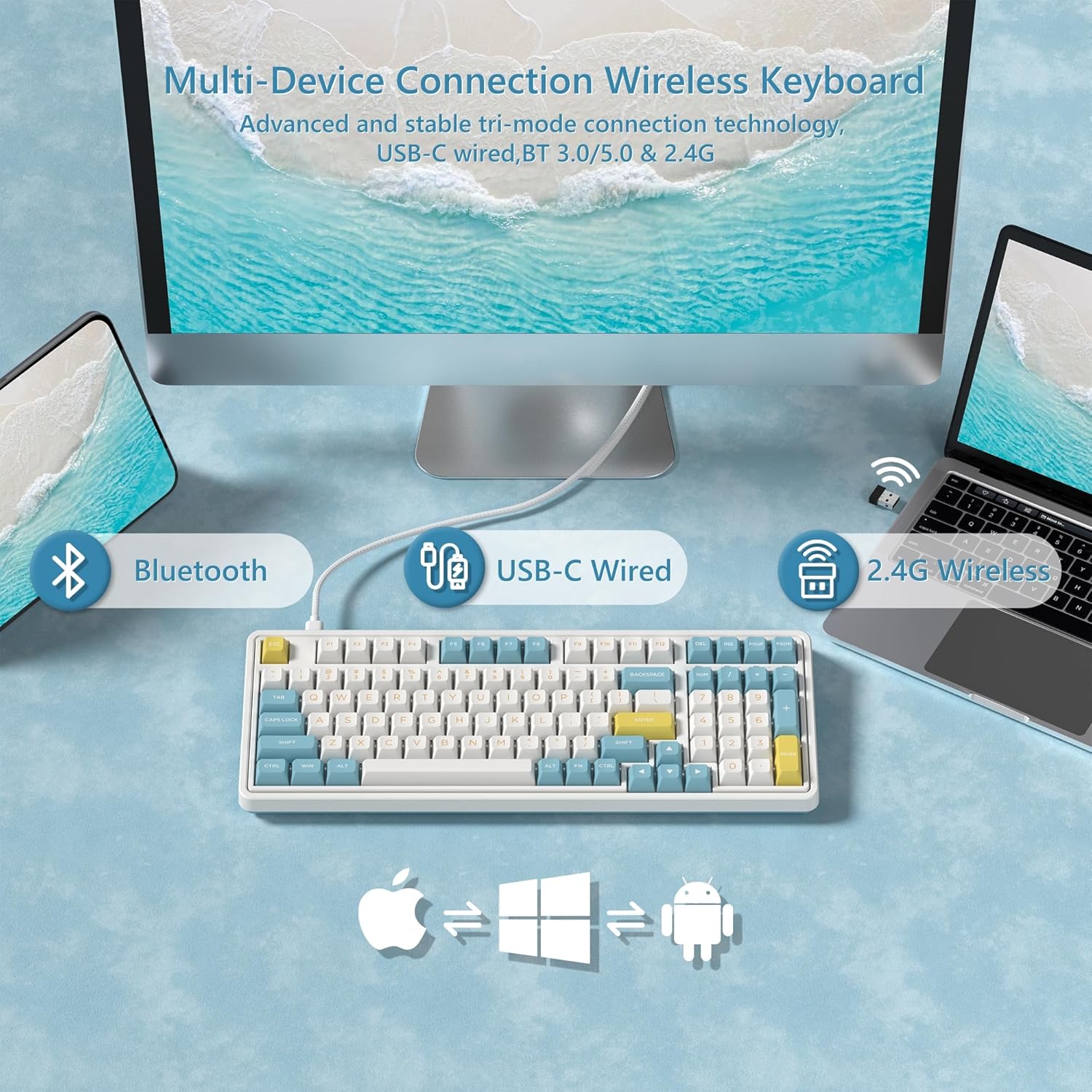
Image: Diagram illustrating the versatile connectivity options of the CMK98 keyboard, demonstrating how it can connect to multiple devices using Bluetooth, a USB-C cable, or the 2.4GHz wireless receiver.
2.1. 2.4GHz Wireless Mode
- Locate the 2.4GHz USB receiver stored in the compartment on the back of the keyboard.
- Plug the USB receiver into an available USB port on your computer.
- On the keyboard's side switch, slide it to the 2.4G wireless icon position.
- The keyboard should automatically connect.
Video: Demonstrates the setup and connection process for the FL ESPORTS CMK98 keyboard, including locating the 2.4GHz receiver and switching modes.

Image: A close-up of the keyboard's side, featuring the toggle switch for selecting between Bluetooth, 2.4GHz wireless, and USB-C wired modes, alongside the USB-C charging port.
2.2. Bluetooth Mode
- On the keyboard's side switch, slide it to the Bluetooth icon position.
- Press and hold FN + Q, FN + W, or FN + E for 3-5 seconds to enter pairing mode (the indicator light will flash rapidly).
- On your device (computer, tablet, phone), open Bluetooth settings and search for "CMK98".
- Select "CMK98" to pair. The indicator light will become solid when connected.
- You can pair up to three Bluetooth devices and switch between them using FN + Q/W/E.
2.3. USB-C Wired Mode
- Connect the provided USB-C cable to the keyboard's USB-C port.
- Connect the other end of the USB-C cable to an available USB port on your computer.
- On the keyboard's side switch, slide it to the USB-C wired icon position.
- The keyboard will function as a wired device and charge simultaneously.
3. Operating System Compatibility Switch
The keyboard features a switch on the back to toggle between Windows (WIN) and Mac (MAC) compatibility modes. Ensure this switch is set correctly for your operating system to ensure proper key mapping.

Image: A detailed view of the keyboard's bottom, highlighting the switch used to select between Mac and Windows operating system compatibility modes.
Operating Instructions
1. Key Functions and Layout
The CMK98 features a 99-key layout, including a dedicated number pad. Standard keyboard functions apply. Use the FN key in combination with other keys for secondary functions, such as media control or lighting adjustments.
Video: Demonstrates the compact 99-key layout of the CMK98 mechanical keyboard and its "creamy" typing sound.
2. RGB Lighting
The keyboard features 1.68 million customizable RGB backlight options. Specific key combinations with the FN key allow you to cycle through various lighting effects, adjust brightness, and change speed. Refer to the software section for advanced customization.
3. Macro Programming (Pro Software)
All keys support macro customization. Download the dedicated driver software from the official FL ESPORTS website to record and edit macros, customize key functions, and set music rhythm lighting effects. The software also supports N-key rollover for simultaneous key presses.

Image: This image displays the user interface of the CMK98's dedicated software, where users can customize key functions, create macros, and manage RGB lighting effects.
4. Hot-Swappable Switches and Keycaps
The CMK98 features a hot-swappable PCB, allowing you to easily replace 3-pin or 5-pin mechanical switches without soldering. The included keycap puller and switch puller facilitate this process.
- Use the keycap puller to gently remove the desired keycap.
- Use the switch puller to carefully grip and pull out the switch.
- Align the pins of the new switch with the holes on the PCB and press firmly until it clicks into place.
- Replace the keycap.

Image: A magnified view of a single mechanical switch, illustrating its internal components and design.
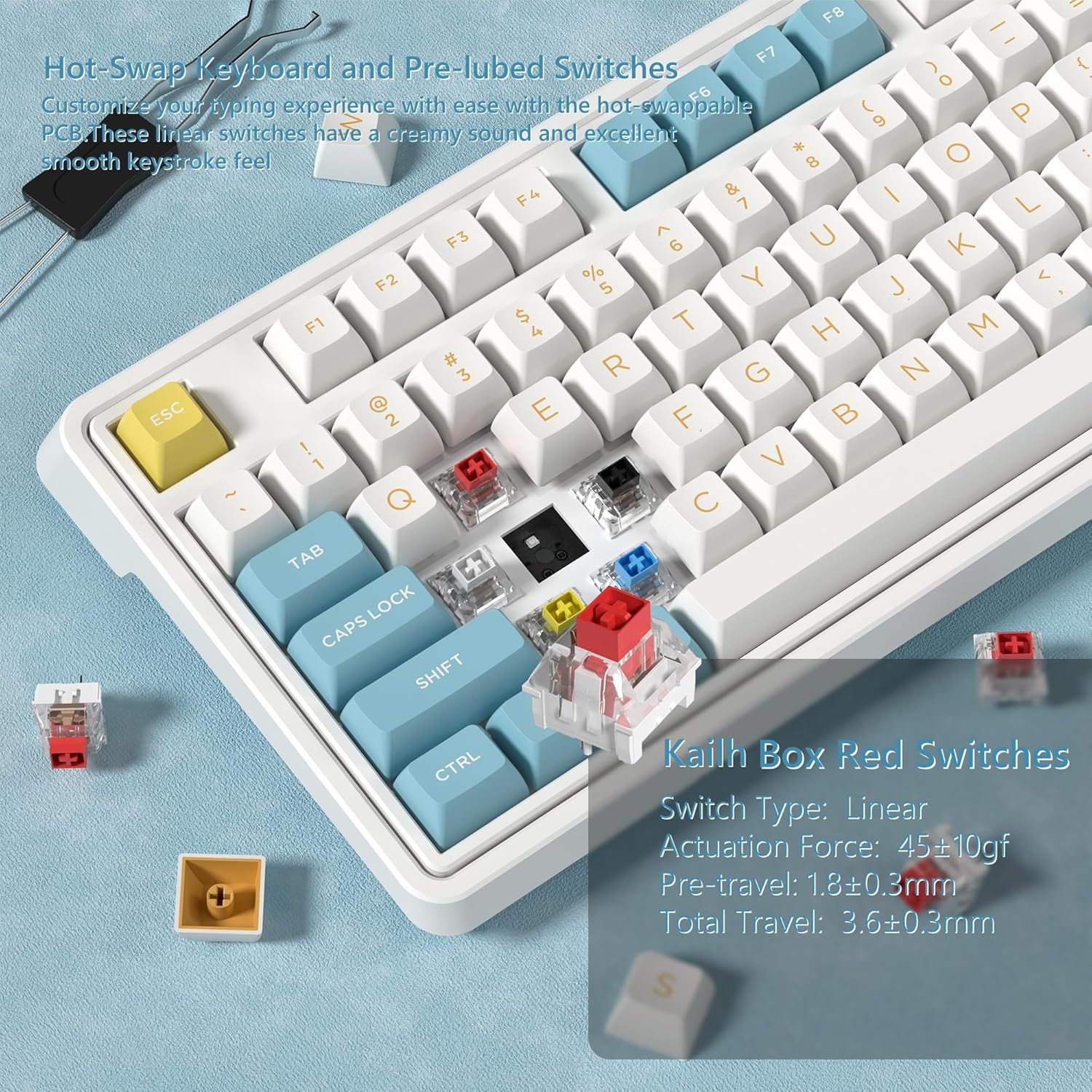
Image: A detailed view showing how to remove and install mechanical switches on the hot-swappable PCB of the CMK98 keyboard, along with the tools provided for this process.
5. Battery Management
The keyboard is equipped with a built-in 4000mAh lithium polymer battery. Connect the USB-C cable to charge the keyboard. An indicator light will typically show charging status.
- Charging: Connect the keyboard via USB-C cable to a power source.
- Battery Life: Up to 260 hours with backlight off, up to 35 hours with backlight on (usage may vary).

Image: This graphic highlights the keyboard's 4000mAh battery, providing estimated usage times of 260 hours with the backlight off and 35 hours with the backlight on.
Maintenance
1. Cleaning
To clean your keyboard, first disconnect it from all power sources. Use a soft, lint-free cloth slightly dampened with water or a mild cleaning solution. Avoid harsh chemicals or abrasive materials. For cleaning between keycaps, use compressed air or remove keycaps with the provided puller for thorough cleaning.
2. Switch and Keycap Care
When replacing switches or keycaps, handle them gently to avoid damaging the pins or the PCB sockets. Store spare switches and keycaps in a clean, dry place.
Troubleshooting
- Keyboard not responding:
- Ensure the keyboard is charged.
- Check the connection mode switch (2.4G, Bluetooth, USB-C) is set correctly.
- For 2.4GHz, ensure the USB receiver is securely plugged in.
- For Bluetooth, re-pair the device.
- Try connecting via USB-C cable to rule out wireless issues.
- Keys not registering or double-typing:
- This could indicate a faulty switch. Utilize the hot-swappable feature to replace the affected switch.
- Ensure keycaps are properly seated.
- RGB lighting not working:
- Check if the lighting is turned off or set to minimum brightness using FN key combinations.
- Ensure the keyboard software is installed and updated for full control.
- Bluetooth connection unstable:
- Ensure the keyboard is within range of your device.
- Minimize interference from other wireless devices.
- Try re-pairing the keyboard.
Specifications
| Feature | Detail |
|---|---|
| Model | CMK98 |
| Connectivity | 2.4G Wireless, Bluetooth 5.0, USB-C Wired |
| Layout | 99 keys with Number Pad |
| Switches | Hot-Swappable (3-pin/5-pin compatible), Pre-lubed Linear Switches |
| Keycaps | Double Shot PBT |
| Backlight | 1.68 Million RGB |
| Battery | 4000mAh Lithium Polymer |
| Compatibility | Windows, Mac |
| Special Features | Gasket Structure, PCB Single Key Slotting, Macro Customization, N-Key Rollover |
| Dimensions | 16.97 x 8.15 x 2.32 inches |
| Item Weight | 4.36 pounds |
Warranty and Support
For warranty information and technical support, please refer to the official FL ESPORTS website or contact their customer service. Keep your purchase receipt for warranty claims.
Manufacturer: FL ESPORTS
Related documentsCMK98


Ask a question about this manual
Ask about setup, troubleshooting, compatibility, parts, safety, or missing instructions. Manuals+ will review the question and use this page’s manual context to help answer it.