1. Introduction
This manual provides detailed instructions for the installation, operation, and maintenance of your Biorunn 9-inch Android Car Stereo Radio. This head unit is designed specifically for Kia Ceed models from 2018 to 2021, offering advanced features such as GPS navigation, wireless and wired Car-Play, Android Auto, IPS display, WiFi connectivity, and FM RDS radio.
Please read this manual thoroughly before installation and use to ensure proper functionality and to maximize your user experience. Keep this manual for future reference.
2. Package Contents
Verify that all items listed below are included in your package. If any items are missing or damaged, please contact your vendor.

Figure 2.1: Package Contents Overview
- Main Head Unit (Machine)
- Canbus Box (if applicable for your vehicle model)
- RCA Cable Set
- Reversing Camera Cable (Camera not included)
- USB Cables (multiple)
- Microphone (MIC)
- GPS Antenna
- 4G Antenna (if applicable)
- Power Harness
3. Setup and Installation
Installation of the Biorunn car stereo requires technical knowledge and experience with car electronics. It is highly recommended to have the unit installed by a qualified professional to avoid damage to the product or your vehicle.
3.1 Pre-Installation Checks
- Ensure the vehicle's ignition is off and the battery is disconnected before starting any installation.
- Confirm compatibility with your Kia Ceed (2018-2021) model.
- Review the wiring diagram carefully.
3.2 Wiring Diagram
Refer to the following diagram for proper connection of the head unit to your vehicle's electrical system. Pay close attention to power, ground, speaker, and accessory connections.

Figure 3.1: Rear Panel Wiring Diagram
3.3 Installation Steps (General)
- Carefully remove the original car stereo and trim panels.
- Connect the main power harness, speaker wires, and other necessary cables (GPS antenna, USB cables, microphone, reversing camera cable) to the new head unit according to the wiring diagram.
- If your car requires a Canbus box, connect it as instructed.
- Mount the new head unit securely into the dashboard opening.
- Reconnect the vehicle battery and test the unit's functionality before reassembling the trim panels.
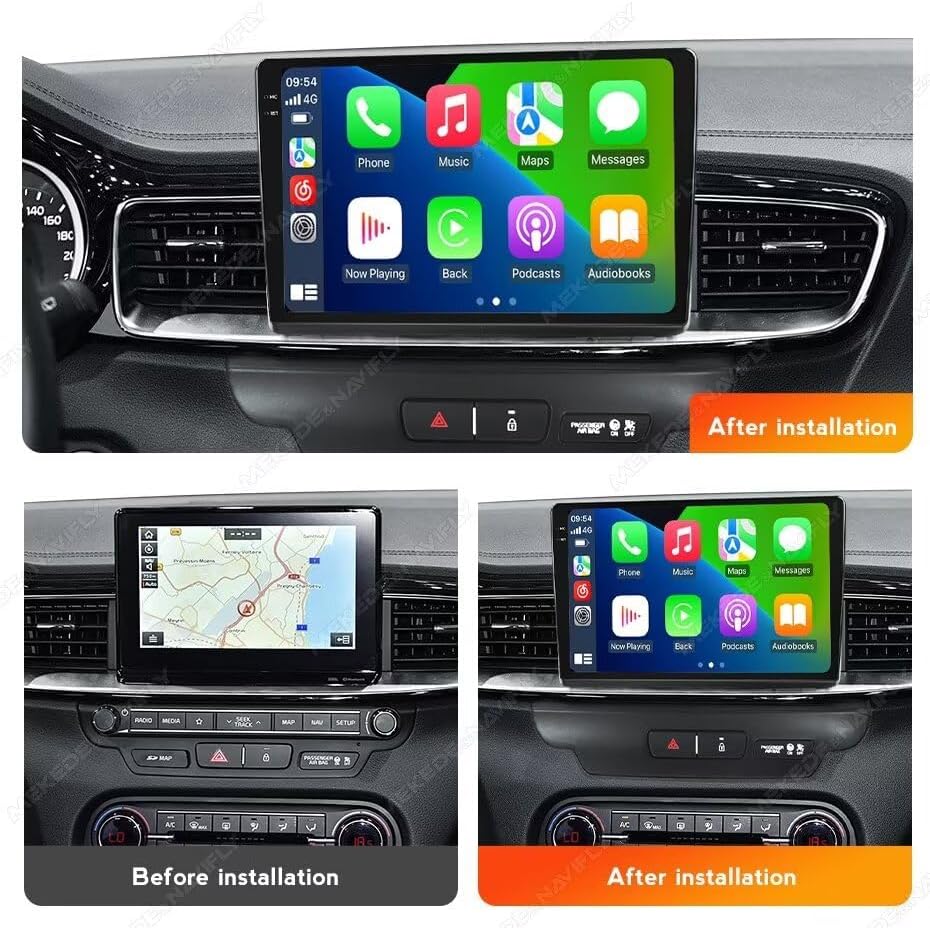
Figure 3.2: Before and After Installation Example
4. Operating Instructions
4.1 Car-Play and Android Auto
The head unit supports both wireless and wired Car-Play and Android Auto. This allows seamless integration of your smartphone for navigation, music, calls, and messages directly on the stereo display.
- To connect: Ensure your phone's Bluetooth and Wi-Fi are enabled. Follow the on-screen prompts on the head unit to pair your device. For wired connection, use a compatible USB cable.
- Once connected, your phone's compatible apps will appear on the stereo screen, allowing for safe and convenient use while driving.

Figure 4.1: Car-Play and Android Auto Interface
4.2 Bluetooth Function (BT)
The integrated Bluetooth 5.0 module enables hands-free calling and audio streaming.
- Pairing: Go to the Bluetooth settings on the head unit and search for available devices. Select your phone from the list and confirm the pairing code.
- Hands-Free Calling: Once paired, you can make and receive calls directly through the stereo. The unit supports phone book download and caller ID display.
- BT Music Streaming: Play audio from your paired smartphone wirelessly through the car's speakers.

Figure 4.2: Bluetooth Calling and Music
4.3 FM RDS Radio
Enjoy your favorite radio stations with the built-in FM RDS tuner.
- Automatic Search: Use the auto-scan function to find and save available stations.
- Manual Search: Tune to specific frequencies manually.
- Preset Stations: Save up to 18 of your preferred stations for quick access.
- RDS Function: Displays station information such as song title or program name where available.

Figure 4.3: FM RDS Radio Interface
4.4 Reversing Video Input
The unit supports video input from an aftermarket reversing camera (camera not included). When the vehicle is shifted into reverse, the display will automatically switch to the camera view, aiding in safe parking and maneuvering.
- Connection: Connect your reversing camera to the dedicated 'Camera Input' RCA port on the rear of the head unit (refer to Figure 3.1).
- Activation: Ensure the reverse trigger wire is correctly connected to your vehicle's reverse light circuit.

Figure 4.4: Reversing Camera Display
4.5 Split Screen Function
The split-screen feature allows you to run two applications simultaneously on the display, enhancing multitasking and convenience.
- Activation: While an app is open, long-press the recent apps button or drag an app to one side of the screen (method may vary slightly based on Android version).
- Usage: For example, you can have navigation on one side and music playback on the other.

Figure 4.5: Split Screen Functionality
4.6 Steering Wheel Control
The unit supports original steering wheel controls, allowing you to manage audio playback, volume, and calls without taking your hands off the wheel. This feature requires correct wiring during installation (refer to Figure 3.1).
5. Maintenance
To ensure the longevity and optimal performance of your Biorunn car stereo, follow these maintenance guidelines:
- Cleaning: Use a soft, dry cloth to clean the screen and exterior. For stubborn smudges, lightly dampen the cloth with water or a screen-safe cleaner. Avoid harsh chemicals or abrasive materials.
- Software Updates: Periodically check for available software updates from the manufacturer to ensure you have the latest features and bug fixes. Updates can typically be performed via Wi-Fi.
- Temperature: Avoid exposing the unit to extreme temperatures. While designed for automotive use, prolonged exposure to direct sunlight or extreme cold can affect performance.
- Connections: Ensure all cables and connections remain secure. Loose connections can lead to intermittent issues.
6. Troubleshooting
If you encounter issues with your Biorunn car stereo, refer to the following common problems and solutions:
| Problem | Possible Cause | Solution |
|---|---|---|
| No Power | Loose power connection, blown fuse, incorrect wiring. | Check power harness connections. Inspect vehicle fuses. Verify wiring against diagram. |
| No Sound | Speaker wires disconnected, volume too low, incorrect audio output settings. | Check speaker wire connections. Increase volume. Verify audio settings in the system menu. |
| GPS Not Working / Inaccurate | GPS antenna not connected, antenna placed in a poor reception area, outdated maps. | Ensure GPS antenna is securely connected and placed with a clear view of the sky. Update navigation maps if necessary. |
| Touch Screen Unresponsive | Software glitch, system freeze. | Restart the unit (turn off vehicle ignition and restart). If issue persists, perform a factory reset (note: this will erase user data). |
| Bluetooth Connection Issues | Phone not discoverable, incorrect pairing, interference. | Ensure phone's Bluetooth is on and discoverable. Delete previous pairings and re-pair. Move phone closer to the unit. |
If these solutions do not resolve the issue, please contact customer support.
7. Specifications
Key technical specifications for the Biorunn 9-inch Android Car Stereo Radio:
- Operating System: Android
- Core: 4-Core
- RAM: 2GB
- ROM: 32GB
- Display Size: 9 Inches
- Display Resolution: 1280 x 720 (IPS Touch Screen)
- Touch Screen Type: Capacitive
- Connectivity: Wireless (Wi-Fi), Bluetooth 5.0
- Special Features: Built-in Wireless/Wired Car-Play, Android Auto, GPS Navigation, FM RDS Radio, Split Screen, Steering Wheel Control Support
- Audio Format Support: MP3, WMA, AAC, RM, FALC, etc.
- Video Format Support: MPEG-1/2/4, H264, H263, VC1, RV, RMVB, DivX, Sorenson SparK, Spark, VP184, AVS Stream, 1080P full format
- Photo Format Support: JPG/BMP/JEPG/GIF/PNG
- USB Ports: USB1, USB2
- Languages: Supports multiple languages including English, German, French, Spanish, Italian, Portuguese, Russian, Dutch, Polish, Japanese, Chinese, Arabic, etc.
8. Warranty and Support
Your Biorunn car stereo is covered by a manufacturer's warranty. Please refer to the warranty card included with your product or contact your point of purchase for specific warranty terms and conditions.
For technical support, troubleshooting assistance beyond this manual, or warranty claims, please contact Biorunn customer service through the vendor's platform or the official Biorunn website. When contacting support, please have your product model number and purchase details ready.
Online Resources: For additional information, FAQs, and software updates, visit the official Biorunn store or support page.


