
1. Product Overview
The SIXWIN 4+64G Android 15 Car Radio is designed for Mercedes Benz Smart Fortwo 451 models manufactured between 2005 and 2010. This unit features a 9-inch HD touchscreen display, a quad-core processor, 4GB RAM, and 64GB internal storage, running on Android 15. It integrates advanced connectivity options including wireless CarPlay, Android Auto, Mirror Link, built-in GPS navigation, Wi-Fi, and Bluetooth 5.0. The system also includes a 32-band equalizer for audio customization and supports original steering wheel controls.

Image: The SIXWIN Android 15 Car Radio seamlessly integrated into the dashboard of a Mercedes Benz Smart Fortwo 451.
2. Package Contents
Verify that all components are present in the package before proceeding with installation.
- Autoradio unit
- Power Cable (A and B options)
- Installation Tool
- Radio Antenna
- Antenna Adapter
- Accessories (mounting brackets)
- GPS Antenna
- Rear Camera Input Cable (for optional camera)
- USB Cable (2 ports)
- RCA Cable
- User Manual
- Microphone

Image: A visual representation of the complete packing list, including the main unit, various cables, antennas, and installation tools.
3. Installation Guide
3.1 Pre-Installation Check
- Ensure the vehicle's ignition is off and the battery is disconnected before starting installation.
- Confirm compatibility with your Mercedes Benz Smart Fortwo 451 (2005-2010).
- Identify the correct wiring harness for your vehicle (Cable A or Cable B).
3.2 Wiring Connections
The unit comes with two power cables (A and B). Under normal circumstances, prioritize using Cable A. If the unit does not power on or function correctly, use Cable B.
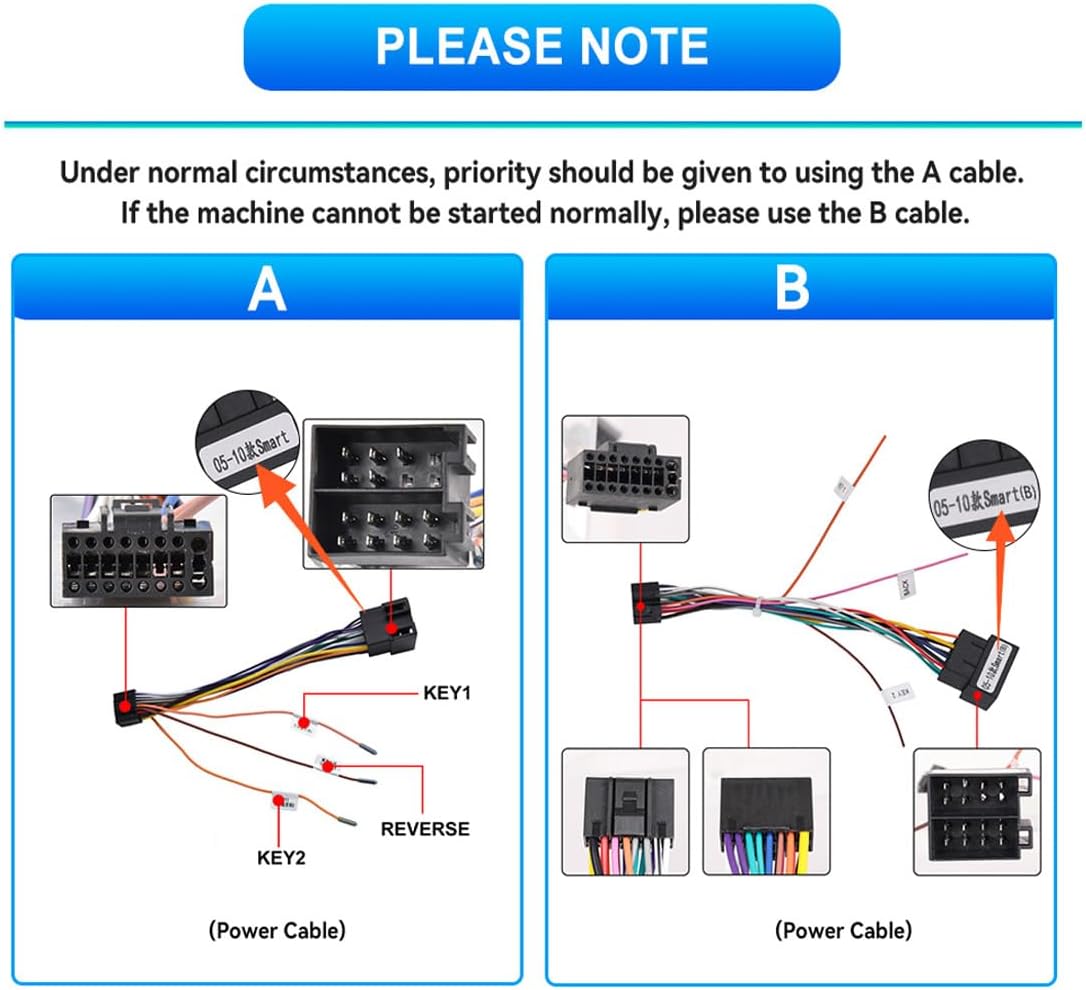
Image: Detailed wiring diagrams for Power Cable A and Power Cable B, indicating connections for KEY1, KEY2, and REVERSE signals. Choose the cable that matches your vehicle's wiring harness.
- Power Cable: Connect the appropriate power cable (A or B) to the vehicle's wiring harness.
- GPS Antenna: Connect the GPS antenna and place it in a location with a clear view of the sky for optimal signal reception.
- Radio Antenna: Connect the radio antenna and adapter if necessary.
- USB Cables: Connect the two USB cables for charging and multimedia playback.
- RCA Cables: Connect RCA cables for external amplifiers (subwoofer output) or rear entertainment systems (AV input).
- Microphone: Connect the external microphone for improved hands-free call quality.
- Reversing Camera (Optional): If installing a reversing camera, connect its input cable to the designated port on the head unit.
3.3 Mounting the Unit
Secure the autoradio unit into the dashboard opening using the provided mounting brackets and screws. Ensure all cables are properly routed and not pinched.
4. Operating Instructions
4.1 Initial Power On and Setup
- Reconnect the vehicle battery.
- Turn on the vehicle ignition. The unit should power on automatically.
- Follow the on-screen prompts for initial setup, including language selection and time zone.
4.2 Touchscreen Operation
The 9-inch HD touchscreen supports multi-touch gestures. Tap to select, swipe to navigate menus, and pinch to zoom where applicable.

Image: The IPS display screen with 2.5D touch glass, highlighting its responsive touchscreen and anti-blue light features.
4.3 Wireless CarPlay & Android Auto
Connect your iPhone or Android device wirelessly to access CarPlay or Android Auto features. This allows for safe use of navigation, music, calls, and messages via voice commands (Siri or Google Assistant) or the touchscreen.
- Ensure Bluetooth and Wi-Fi are enabled on your smartphone.
- On the car radio, select the CarPlay or Android Auto application.
- Follow the on-screen instructions to pair your device.

Image: The user interface for CarPlay and Android Auto, showing various compatible applications for navigation, music, and communication.
4.4 Mirror Link Function
Mirror Link allows you to display your smartphone screen directly on the car radio's display.
- For iOS devices: Connect via Wi-Fi.
- For Android devices: Connect via Wi-Fi or USB cable.
- Select the "Mirror Link" app on the car radio and follow the pairing instructions.

Image: A demonstration of the Mirror Link function, showing a smartphone screen mirrored onto the car radio display.
4.5 GPS Navigation
The unit features built-in GPS navigation with support for both online and offline maps. A pre-installed map of your country is included.
- To use online maps, ensure the unit is connected to Wi-Fi.
- For offline navigation, download maps to the internal storage.
- Access navigation through the dedicated "Navigation" app.

Image: The GPS navigation interface showing a map with route guidance and various navigation icons.
4.6 Wi-Fi Connectivity
Connect the car radio to the internet via a Wi-Fi hotspot (e.g., from your smartphone) to browse the web, stream content, and download applications.
- Go to "Settings" > "Network & Internet" > "Wi-Fi".
- Select your desired Wi-Fi network and enter the password.
4.7 Bluetooth 5.0
Bluetooth 5.0 provides stable connectivity for hands-free calling and wireless music streaming.
- Enable Bluetooth on your smartphone and the car radio.
- On the car radio, go to the "Bluetooth" app, search for your device, and pair.
- The unit supports automatic phone book loading and music playback.
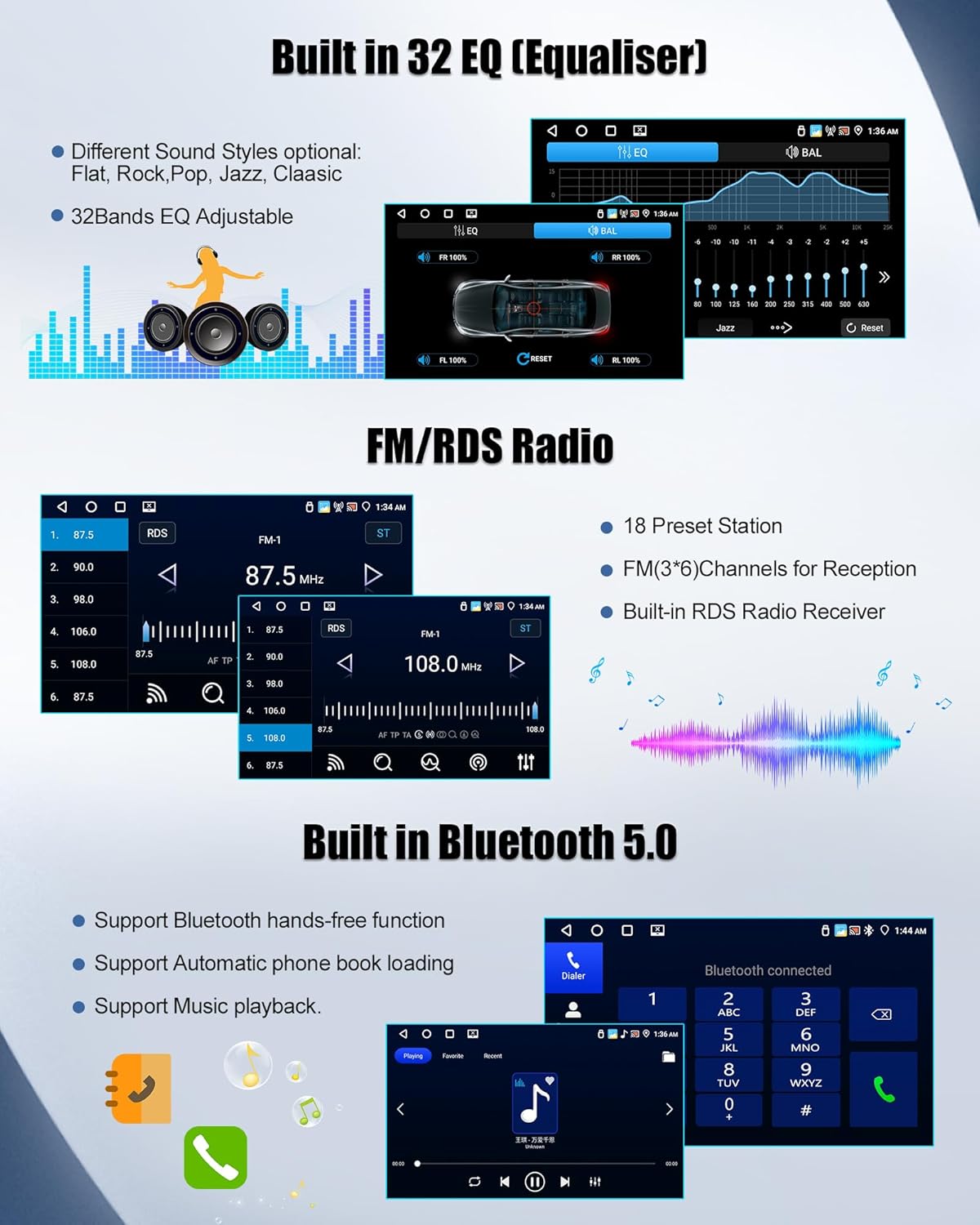
Image: The Bluetooth interface showing a dialer for hands-free calls and options for music playback.
4.8 FM/RDS Radio
The integrated FM/RDS tuner provides clear reception of radio stations. It supports 18 preset stations and displays real-time station information (RDS).
- Access the "Radio" app to tune into FM stations.
- Use the scan function to find available stations and save them as presets.

Image: The FM/RDS radio interface showing frequency display, preset stations, and RDS information.
4.9 Audio Equalizer (EQ)
Customize your audio experience with the professional 32-band equalizer. Choose from various sound styles (Jazz, Classical, Rock, etc.) or manually adjust frequency bands for personalized sound.
- Access the "EQ" app to adjust audio settings.
- Select a preset or drag the sliders to fine-tune the sound.

Image: The 32-band equalizer interface, showing frequency adjustment sliders and sound style presets.
4.10 Steering Wheel Control Integration
The unit integrates with your vehicle's original steering wheel controls, allowing you to manage volume, calls, and music tracks directly from the steering wheel for a safer driving experience.
- Access the "Steering Wheel Control" settings in the system menu.
- Follow the on-screen instructions to map your steering wheel buttons to the desired functions.

Image: The steering wheel control configuration screen, showing options to assign functions to physical buttons.
4.11 Split Screen Function
Utilize the split-screen feature to run two applications simultaneously, such as navigation and music playback.
- Open the first application.
- Long-press the recent apps button or follow specific Android 15 gestures to activate split-screen mode.
- Select the second application to display alongside the first.

Image: The split-screen function in action, showing navigation on one side and a music player on the other.
4.12 Reversing Function (with optional camera)
If an external AHD rear-view camera is connected, the unit will automatically display the camera feed when the vehicle is put into reverse gear, providing a clear view for safe maneuvering.

Image: An illustration of the reversing function, showing an external AHD rear-view camera and the display with parking guidelines.
5. Maintenance
To ensure optimal performance and longevity of your SIXWIN car radio, follow these maintenance guidelines:
- Screen Cleaning: Use a soft, lint-free cloth to gently wipe the touchscreen. Avoid abrasive cleaners or solvents that may damage the display.
- Software Updates: Periodically check for available software updates to ensure you have the latest features and bug fixes. Updates can typically be found in the system settings or on the manufacturer's website.
- Cable Connections: Ensure all cables are securely connected. Loose connections can lead to intermittent functionality.
- Environmental Conditions: Avoid exposing the unit to extreme temperatures, direct sunlight for prolonged periods, or excessive moisture.
6. Troubleshooting
| Problem | Possible Cause | Solution |
|---|---|---|
| Unit does not power on. | Incorrect power cable connection (A vs. B), loose wiring, blown fuse. |
|
| CarPlay/Android Auto not connecting. | Bluetooth/Wi-Fi off on phone, incorrect pairing, software glitch. |
|
| No sound or poor audio quality. | Volume too low, incorrect EQ settings, loose speaker wires. |
|
| GPS signal is weak or inaccurate. | GPS antenna obstructed or improperly placed. |
|
| Buttons on the unit are not illuminated at night. | Wiring issue or setting. |
|
| Battery drain when car is off. | Incorrect wiring of constant and accessory power. |
|
7. Specifications
| Feature | Detail |
|---|---|
| Brand | SIXWIN |
| Operating System | Android 15 |
| RAM | 4GB |
| Internal Storage | 64GB |
| Processor | Quad-core |
| Display Size | 9 inches |
| Display Resolution | HD 1280*720 |
| Connectivity | USB, Wi-Fi, Bluetooth 5.0 |
| Special Features | Wireless CarPlay, Wireless Android Auto, Mirror Link, Built-in GPS, RDS FM Radio, 32-band EQ, Steering Wheel Control Integration, Split Screen Function, Reversing Function Support |
| Compatible Devices | Smartphone, USB drive, Bluetooth devices |
| Audio Output Mode | Surround (5.1 channel configuration) |
| Video Encoding | H.264, H.265 |
| Color | Black |
| Country of Origin | China |
8. Warranty and Support
The SIXWIN car radio comes with a 1-year warranty from the date of purchase, covering manufacturing defects. For technical assistance, troubleshooting, or warranty claims, please contact our support team.
Support Email: SIXWINVIP@126.com

Image: A customer support representative wearing a headset, symbolizing available assistance.
