
1. Introduction
This manual provides detailed instructions for the setup, operation, maintenance, and troubleshooting of your TUOHAITIME Android 14 Tablet, Model K10. Please read this manual thoroughly before using your device to ensure proper functionality and to maximize your user experience. Keep this manual for future reference.
2. Package Contents
Upon opening the package, verify that all the following items are included:
- 1 x TUOHAITIME Android 14 Tablet (Model K10)
- 1 x Tablet Protective Case
- 1 x Bluetooth Keyboard
- 1 x Wireless Mouse
- 1 x Stylus Pen
- 1 x USB-C Data Cable
- 1 x USA Standard Charger
- 1 x User Manual
- 1 x Pre-installed Screen Protector
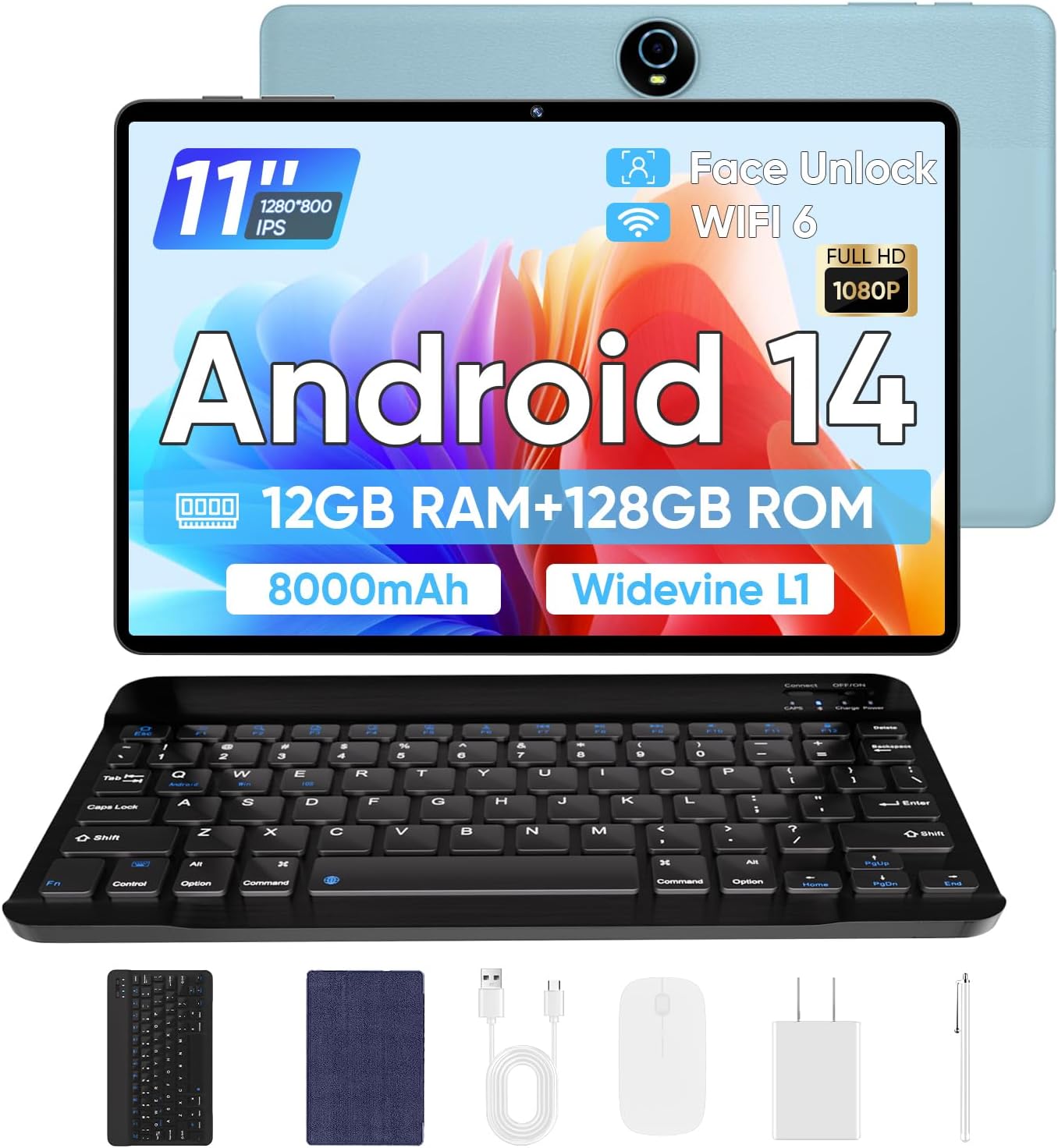
Image: The TUOHAITIME Android 14 Tablet shown with its full set of accessories, including the Bluetooth keyboard, wireless mouse, stylus, protective case, USB-C cable, and charger.
3. Product Overview and Features
The TUOHAITIME Android 14 Tablet is designed for versatile use, offering a blend of performance, display quality, and connectivity. Below are its key features:
3.1 Display
The tablet features an 11-inch IPS touchscreen display with a resolution of 1280x800 pixels, providing clear and vibrant visuals. It supports Widevine L1 for high-quality streaming content.
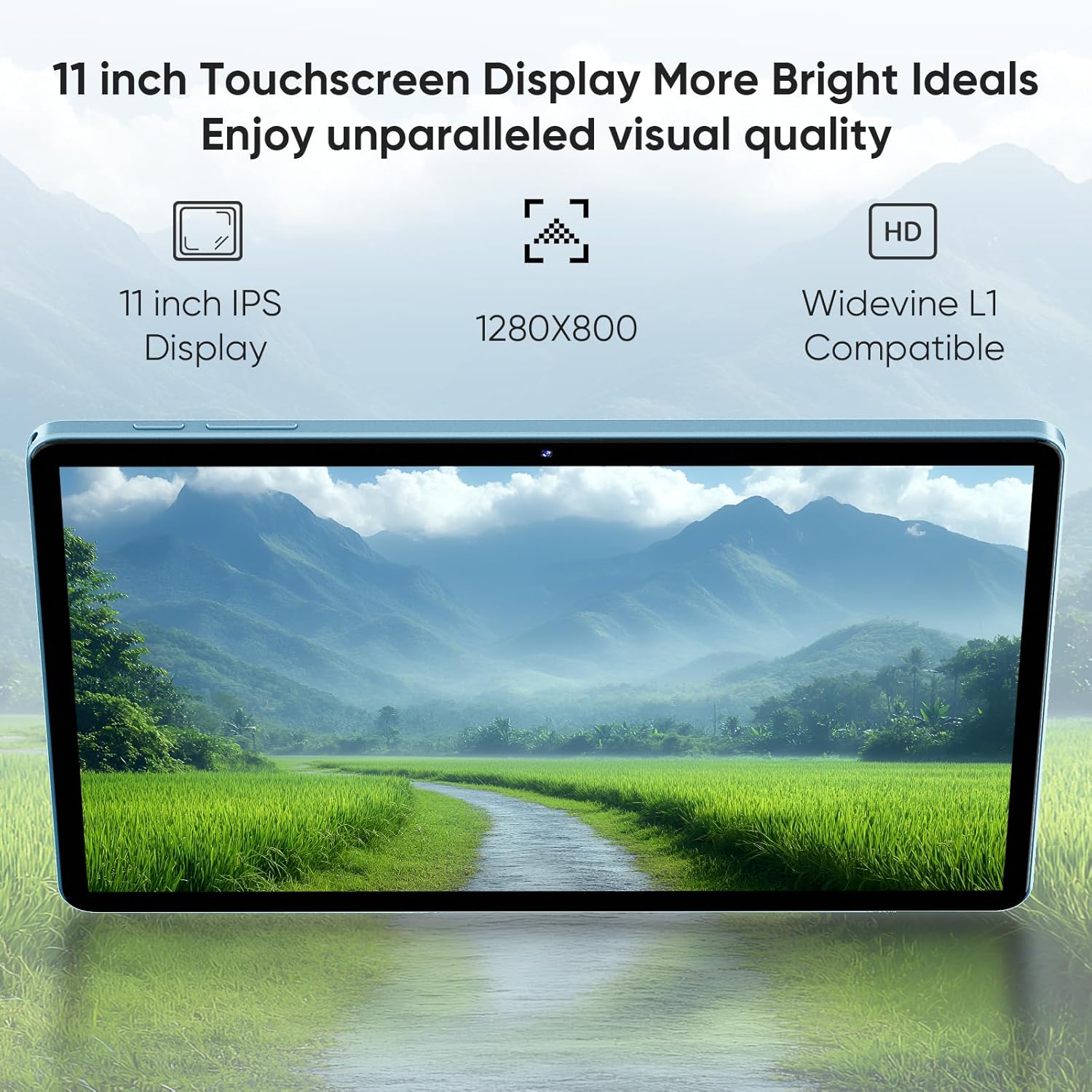
Image: A close-up of the tablet's 11-inch screen displaying a scenic landscape, highlighting its IPS technology, 1280x800 resolution, and Widevine L1 compatibility.
3.2 Performance and Storage
Equipped with a 2.0GHz Octa-Core processor and 12GB (6GB+6GB expansion) RAM, the tablet ensures smooth multitasking and application performance. It comes with 128GB of internal storage (ROM), expandable up to 1TB via a TF (MicroSD) card, offering ample space for applications, media, and documents.

Image: Visual representation of the tablet's memory specifications, showing 12GB RAM (6GB+6GB Expansion), 128GB ROM Fast Storage, and Micro SD card support up to 1TB, with examples of media consumption on the tablet.
3.3 Battery and Charging
The tablet is powered by an 8000mAh battery, providing extended usage time. It supports 18W fast charging via its Type-C port.

Image: The tablet connected to a charger, illustrating its 8000mAh large battery capacity and 18W fast Type-C charging capability.
3.4 Cameras
The tablet features dual cameras: an 8MP rear camera with autofocus and AI sub-cameras for optimized image processing, and a 5MP front camera suitable for video calls and selfies. It also supports Face Unlock for convenient access.

Image: A user engaging in a video call on the tablet, demonstrating the Face Unlock feature and highlighting the 5MP front camera for HD video calls and the 8MP rear camera for capturing moments.
3.5 Connectivity
The tablet supports dual-band Wi-Fi 6 (2.4GHz + 5GHz) for fast and reliable internet access, and Bluetooth 5.0 for connecting wireless peripherals such as the included keyboard and mouse.

Image: A visual representation emphasizing the tablet's support for Dual-band WiFi 6 (2.4GHz + 5.0GHz WiFi) and Bluetooth 5.4, indicating fast and stable wireless connections.
3.6 Operating System
Running on Android 14, the tablet offers enhanced personalization options, updated privacy features, and improved accessibility. It includes features like multi-window mode, eye protection mode, 3-finger screenshots, Parental Control, and Google Kids Space.

Image: The tablet displaying the Android 14 interface, highlighting features such as Taskbar, Privacy & Security, Parental Control, Google Kids Space, and Parallel View.
4. Getting Started (Setup)
4.1 Initial Charging
Before first use, fully charge the tablet using the provided USB-C cable and charger. Connect the USB-C cable to the tablet's charging port and the charger to a power outlet. The battery indicator on the screen will show charging progress.
4.2 Power On/Off
- To Power On: Press and hold the Power button (usually located on the side or top edge) until the TUOHAITIME logo appears on the screen.
- To Power Off: Press and hold the Power button until a power menu appears. Select "Power off" or "Shut down".
- To Restart: From the power menu, select "Restart".
4.3 Initial Setup Wizard
Upon first power-on, the tablet will guide you through an initial setup wizard. Follow the on-screen prompts to:
- Select your language.
- Connect to a Wi-Fi network.
- Sign in with your Google account or create a new one.
- Set up screen lock (PIN, pattern, password, or Face Unlock).
- Review and accept terms and conditions.
4.4 Connecting Accessories
The included Bluetooth keyboard and wireless mouse can be paired with your tablet for enhanced productivity.
- Bluetooth Keyboard/Mouse: Turn on the accessory and put it into pairing mode (refer to the accessory's specific instructions). On your tablet, go to Settings > Connected devices > Pair new device. Select the accessory from the list and follow the pairing prompts.
- Stylus: The stylus is generally passive and does not require pairing. Simply use it directly on the screen.
4.5 Inserting a MicroSD Card
To expand storage, locate the MicroSD card slot on the tablet (often covered by a small tray or flap). Insert the MicroSD card gently until it clicks into place. The tablet will prompt you to format the card for use.
5. Basic Operation
5.1 Navigating the User Interface
The Android 14 interface is primarily touch-based:
- Tap: Select an item or open an app.
- Swipe: Scroll through screens, lists, or pages.
- Pinch-to-Zoom: Use two fingers to zoom in or out on images or web pages.
- Long Press: Access contextual menus or move app icons.
- 3-Finger Screenshot: Swipe down with three fingers to capture a screenshot.
5.2 Wi-Fi Connection
To connect to a Wi-Fi network:
- Go to Settings > Network & internet > Internet.
- Ensure Wi-Fi is turned on.
- Select your desired network from the list.
- Enter the password if prompted and tap "Connect".
5.3 Bluetooth Pairing
To pair a Bluetooth device:
- Go to Settings > Connected devices > Connection preferences > Bluetooth.
- Ensure Bluetooth is turned on.
- Put your Bluetooth device into pairing mode.
- Tap "Pair new device" on your tablet and select your device from the list.
5.4 Camera Usage
Open the "Camera" app to take photos or record videos. You can switch between the front and rear cameras using the icon on the screen. Tap the shutter button to capture an image or start/stop recording.
5.5 Parental Control and Google Kids Space
Android 14 offers robust parental control features. Navigate to Settings > Digital Wellbeing & parental controls to set screen time limits, manage app access, and monitor usage. Google Kids Space provides a safe and curated environment for children with age-appropriate content.
5.6 Multi-Window Mode
To use two apps simultaneously, open the first app, then swipe up from the bottom of the screen and hold to access the recent apps view. Tap the app icon at the top of the first app's card and select "Split screen". Choose the second app to open in the other half of the screen.
5.7 Eye Protection Mode
To reduce eye strain, especially in low light, enable Eye Protection Mode. Go to Settings > Display > Eye comfort shield (or similar, depending on specific Android 14 build) and toggle it on. You can often schedule it or adjust its intensity.
6. Care and Maintenance
6.1 Cleaning
Use a soft, lint-free cloth to clean the tablet screen and body. For stubborn smudges, slightly dampen the cloth with water or a screen cleaner. Avoid using harsh chemicals, abrasive materials, or excessive moisture.
6.2 Battery Care
- Avoid extreme temperatures, as they can degrade battery life.
- Do not leave the tablet charging for extended periods after it reaches 100%.
- Use only the provided charger and cable or certified compatible accessories.
6.3 Software Updates
Regularly check for system updates to ensure optimal performance, security, and access to new features. Go to Settings > System > System update to check for and install available updates.
6.4 Storage Optimization
To maintain performance, periodically clear cached data, uninstall unused apps, and transfer large files (like photos and videos) to your MicroSD card or cloud storage. Go to Settings > Storage to manage your device's storage.
7. Troubleshooting
This section addresses common issues you might encounter with your tablet.
| Problem | Possible Solution |
|---|---|
| Tablet does not power on. | Ensure the tablet is fully charged. Press and hold the Power button for at least 10-15 seconds to force a restart. |
| Tablet is slow or unresponsive. | Close unused apps. Restart the tablet. Clear cached data (Settings > Storage). Check for system updates. |
| Cannot connect to Wi-Fi. | Ensure Wi-Fi is enabled on the tablet. Restart your Wi-Fi router. Forget the network and reconnect. |
| Battery drains quickly. | Reduce screen brightness. Close background apps. Disable unused features like Bluetooth or GPS. Check battery usage in Settings to identify power-hungry apps. |
| Accessories (keyboard/mouse) not connecting. | Ensure accessories are charged and in pairing mode. Unpair and re-pair the devices. Restart the tablet. |
| MicroSD card not detected. | Ensure the card is inserted correctly. Try reinserting it. Test with another MicroSD card if possible. |
8. Technical Specifications
| Feature | Specification |
|---|---|
| Brand | TUOHAITIME |
| Model Name | Android 14 Tablet (K10) |
| Operating System | Android 14 |
| Screen Size | 11 Inches |
| Screen Resolution | 1280 x 800 Pixels |
| Processor | 2 GHz Octa-Core (Unisoc chipset) |
| RAM | 12GB (6GB + 6GB Expansion) |
| Internal Storage (ROM) | 128 GB |
| Expandable Storage | Up to 1TB via MicroSD card |
| Rear Camera Resolution | 8 MP |
| Front Camera Resolution | 5 MP |
| Wireless Type | 802.11ax (Dual-band Wi-Fi 6) |
| Bluetooth | Bluetooth 5.0 |
| Battery Capacity | 8000mAh |
| Charging | 18W Fast Charging (Type-C) |
| Item Weight | 2.97 pounds |
| Product Dimensions | 11 x 4 x 0.35 inches |
9. Warranty and Support
Your TUOHAITIME Android 14 Tablet comes with a 2-year warranty covering manufacturing defects. This warranty does not cover damage caused by human error, misuse, or unauthorized repairs.
For technical support, warranty claims, or any inquiries regarding your product, please contact TUOHAITIME customer service through the retailer's platform where you purchased the device or refer to the contact information provided in the product packaging.
Please retain your proof of purchase for warranty validation.
