1. Introduction
This manual provides comprehensive instructions for the setup, operation, and maintenance of your InnoView 18 Inch 260Hz Portable Gaming Monitor. Designed for both professional and entertainment use, this monitor offers a 2K QHD resolution, a 260Hz refresh rate, and 100% DCI-P3 color gamut for a vivid visual experience. Its portable design and versatile connectivity make it an ideal companion for various devices.

Image: The InnoView 18 Inch 260Hz Portable Gaming Monitor in landscape orientation, showcasing a high-resolution game scene with vibrant colors.
2. Product Features
- Display: 18-inch 2K QHD (2560 x 1600 pixels) IPS Matte A+ Screen with 16:10 aspect ratio.
- Refresh Rate: Up to 260Hz ultra-high refresh rate with OD acceleration for smooth visuals.
- Color Accuracy: 100% DCI-P3 color gamut and 100% sRGB for vibrant and accurate colors.
- High Dynamic Range: HDR support for enhanced contrast and color depth.
- Adaptive Sync: FreeSync technology to eliminate screen tearing and stuttering.
- Gaming Enhancements: GamePlus features including customizable crosshairs and FPS game mode.
- Brightness: 300 Nits for clear visibility in various lighting conditions.
- Connectivity: Two full-function USB-C ports and one standard HDMI port.
- Integrated Stand: Built-in 180° adjustable stand for flexible viewing angles.
- Portability: Lightweight (2.66 pounds) and thin (0.2 inches) design for easy transport.
- Audio: Integrated speakers and a 3.5mm audio port for headphones.

Image: A side-by-side comparison demonstrating the smoother motion of a 260Hz refresh rate display compared to a 144Hz display, highlighting the monitor's high refresh rate capability.

Image: A visual comparison illustrating the enhanced detail and clarity of 2K resolution on the InnoView monitor versus 1080P resolution.
3. Package Contents
Your InnoView Portable Gaming Monitor package typically includes:
- InnoView 18 Inch 260Hz Portable Gaming Monitor
- USB-C to USB-C Cable (for power and video signal)
- HDMI to HDMI Cable (for video signal)
- USB-C Power Adapter
- Protective Sleeve (may vary by region/bundle)
4. Setup
4.1. Connecting the Monitor
The monitor supports flexible connectivity options:
- USB-C Connection: Use a single full-function USB-C cable to connect the monitor to a compatible device (laptop, tablet, phone, game console with USB-C video output). This cable can transmit both video signal and power. For optimal brightness and to prevent flickering, especially with demanding applications or if your device's USB-C port has limited power output, connect the included USB-C power adapter to the monitor's second USB-C port.
- HDMI Connection: Use the provided HDMI cable to connect the monitor to devices such as PCs, laptops, or game consoles (PS4, PS5, Nintendo Switch, Xbox). When using HDMI, a separate USB-C power connection to the monitor is required using the included USB-C power adapter.
Ensure all cables are securely connected to their respective ports on both the monitor and your device.
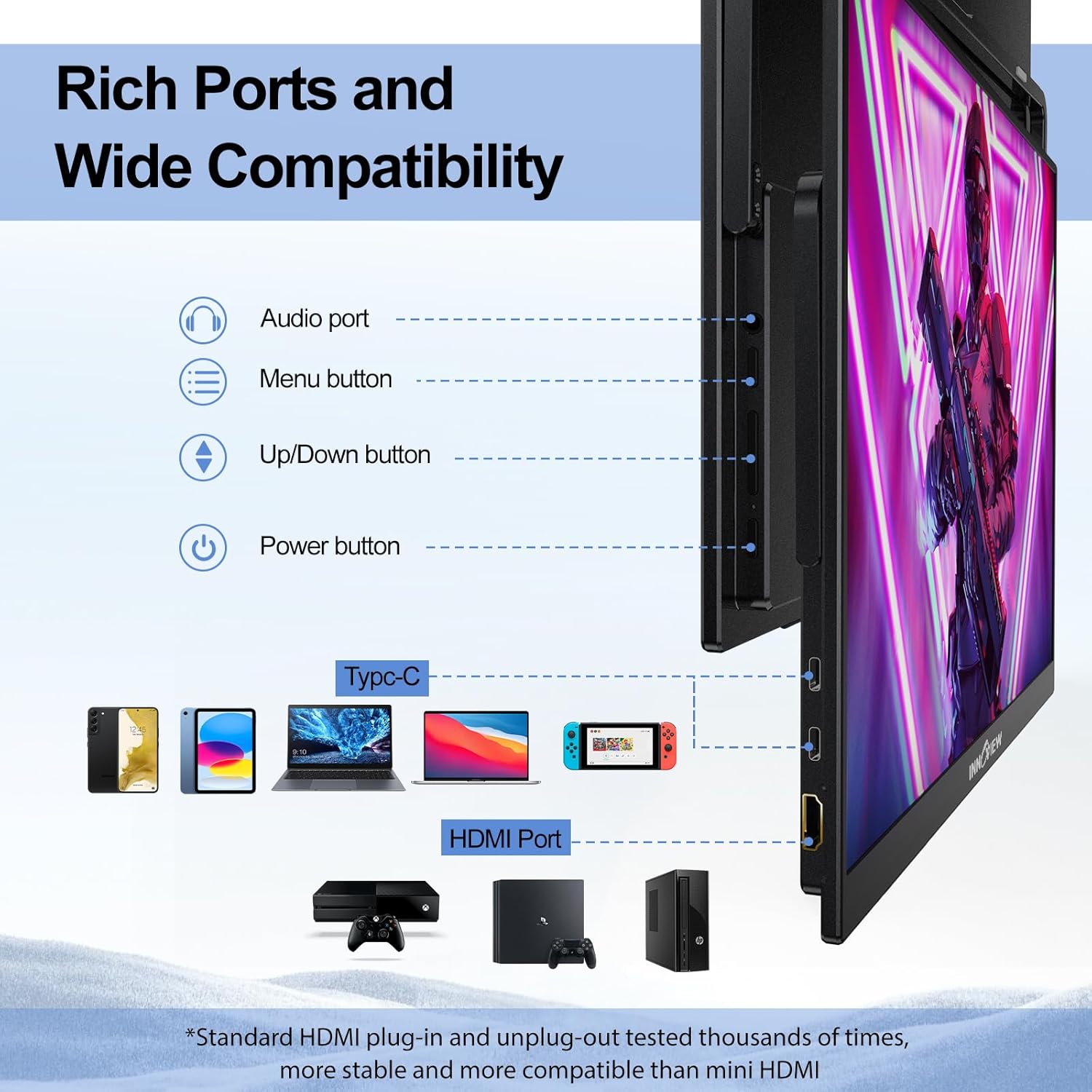
Image: A detailed view of the InnoView monitor's ports, including two USB-C and one HDMI, along with illustrations of compatible devices like smartphones, laptops, and game consoles.
4.2. Physical Setup
- Adjustable Stand: The monitor features a built-in 180° adjustable stand. Gently pull out the stand from the back of the monitor and adjust it to your desired viewing angle.
- Orientation: The monitor can be used in both landscape and portrait modes. Adjust your device's display settings to match the desired orientation.
- Mounting: For a more permanent setup, the monitor supports VESA mounting, allowing it to be attached to a monitor arm or wall mount (sold separately).

Image: The InnoView monitor showcasing its integrated 180-degree adjustable stand, demonstrating its flexibility for various viewing positions.
5. Operating the Monitor
5.1. Control Buttons
The monitor's control buttons are located on the side, typically behind the stand:
- Power Button: Press to turn the monitor on/off.
- Menu Button: Accesses the On-Screen Display (OSD) menu.
- Up/Down Buttons: Navigate through OSD menu options and adjust settings.
- 3.5mm Audio Jack: Connect headphones or external speakers.
5.2. OSD Menu Navigation
Press the Menu button to open the OSD. Use the Up/Down buttons to navigate and select options. Press the Menu button again to confirm a selection or exit a sub-menu.
- Brightness/Contrast: Adjust display brightness, contrast, color effect (Standard, Game, Movie, Photo, FPS), DCR (Dynamic Contrast Ratio), and sharpness.
- Color Settings: Fine-tune color temperature (6500K, 9300K, User), tone, saturation, and Low Blue Light settings.
- Audio Settings: Control volume and mute the integrated speakers.
- Other Settings: Configure aspect ratio (Full, 16:9, 4:3), FreeSync, HDR, language, and reset settings to factory defaults.
- Input Source: Manually select between Type-C1, Type-C2, or HDMI inputs.

Image: A visual guide demonstrating the four-step process to adjust the aspect ratio from 16:10 to 16:9 within the InnoView monitor's OSD menu.
5.3. Gaming Features
- GamePlus: Enhance your gaming experience with features like customizable crosshairs and pre-set FPS game modes, accessible via the OSD menu.
- FreeSync: Enable FreeSync in the OSD menu to synchronize the monitor's refresh rate with your GPU's frame rate, reducing screen tearing and input lag.
- HDR: Activate HDR for a wider range of colors and contrast, providing a more immersive visual experience in compatible content.
6. Maintenance
To ensure the longevity and optimal performance of your InnoView monitor, follow these maintenance guidelines:
- Cleaning: Gently wipe the screen with a soft, lint-free cloth. For stubborn smudges, lightly dampen the cloth with water or a screen-safe cleaning solution. Avoid harsh chemicals or abrasive materials.
- Handling: Always handle the monitor with care. Avoid dropping it or applying excessive pressure to the screen.
- Storage: When not in use, store the monitor in its protective sleeve to prevent scratches and dust accumulation.
- Environment: Operate the monitor in a well-ventilated area and avoid exposure to extreme temperatures, humidity, or direct sunlight.
7. Troubleshooting
- No Signal / Power Saving Mode:
- Ensure all cables (USB-C, HDMI, power) are securely connected.
- Verify the correct input source is selected in the OSD menu.
- Confirm your device is outputting a video signal.
- Screen Flickering:
- Flickering can occur due to insufficient power. Connect the included USB-C power adapter to the monitor's dedicated power input, even if using a single USB-C cable for video.
- Ensure your device's USB-C port supports sufficient power delivery for the monitor.
- Low Brightness:
- When powered by a single USB-C cable, the monitor's brightness may be limited. Connect the USB-C power adapter for full brightness adjustment.
- Adjust brightness settings in the OSD menu.
- Visual Settings Resetting:
- If settings frequently reset, ensure the monitor is receiving stable power.
- Avoid abrupt power disconnections.
- Aspect Ratio Issues:
- If the display appears stretched or incorrect, adjust the aspect ratio in the OSD menu under 'Other Settings'.
- Poor Audio Quality:
- The integrated speakers are basic. For higher quality audio, connect external headphones or speakers to the 3.5mm audio jack.
8. Specifications
| Product Dimensions | 0.2 x 15.7 x 10.5 inches |
| Item Weight | 2.66 pounds |
| Screen Size | 18 Inches |
| Aspect Ratio | 16:10 |
| Resolution | 2560 x 1600 Pixels (QHD Wide 1440p) |
| Image Contrast Ratio | 2000:1 |
| Total USB Ports | 2 (Type-C) |
| Model Number | 18" 2.5K 260Hz |
9. Official Product Video
Video: An official product video from INNO-VIEW showcasing the features and usage of the 18 Inch 240Hz Gaming Monitor.
10. Warranty and Support
For warranty information and customer support, please refer to the documentation included with your product or visit the official InnoView website. You may also contact InnoView customer service directly for assistance with product registration, technical support, or service inquiries.


