
1. Product Overview
The Yoidesu 5G WiFi6 Mobile Hotspot provides high-speed, low-latency internet connectivity, ideal for travel and on-the-go use. It supports multiple network bands and allows up to 16 devices to connect simultaneously.
- Excellent Performance: Up to 2.77Gbps download and 1.25Gbps upload speeds.
- Multiple Functions: Supports 5G, CA, 4G, and 3G bands with a built-in 1T4R 5G antenna.
- Dual-Band WiFi6: Connects up to 16 devices simultaneously on 2.4GHz and 5.8GHz.
- Durable Design: IP67 protective rating for resistance against drops, dust, and water.
- Long-lasting Battery: Equipped with a 6100mAh high-capacity polymer battery for extended use.

The Yoidesu 5G WiFi6 Mobile Hotspot with visual representations of high download and upload speeds, indicating its excellent performance.
2. Package Contents
Verify that all items are present in your product package:
- Yoidesu 5G WiFi6 Mobile Hotspot Device
- USB Charging Cable
- User Manual (this document)

This image illustrates the portable hotspot's ability to provide wireless internet to devices like laptops, highlighting its convenience for mobile use.
3. Device Layout
Familiarize yourself with the physical components of your Yoidesu Mobile Hotspot.
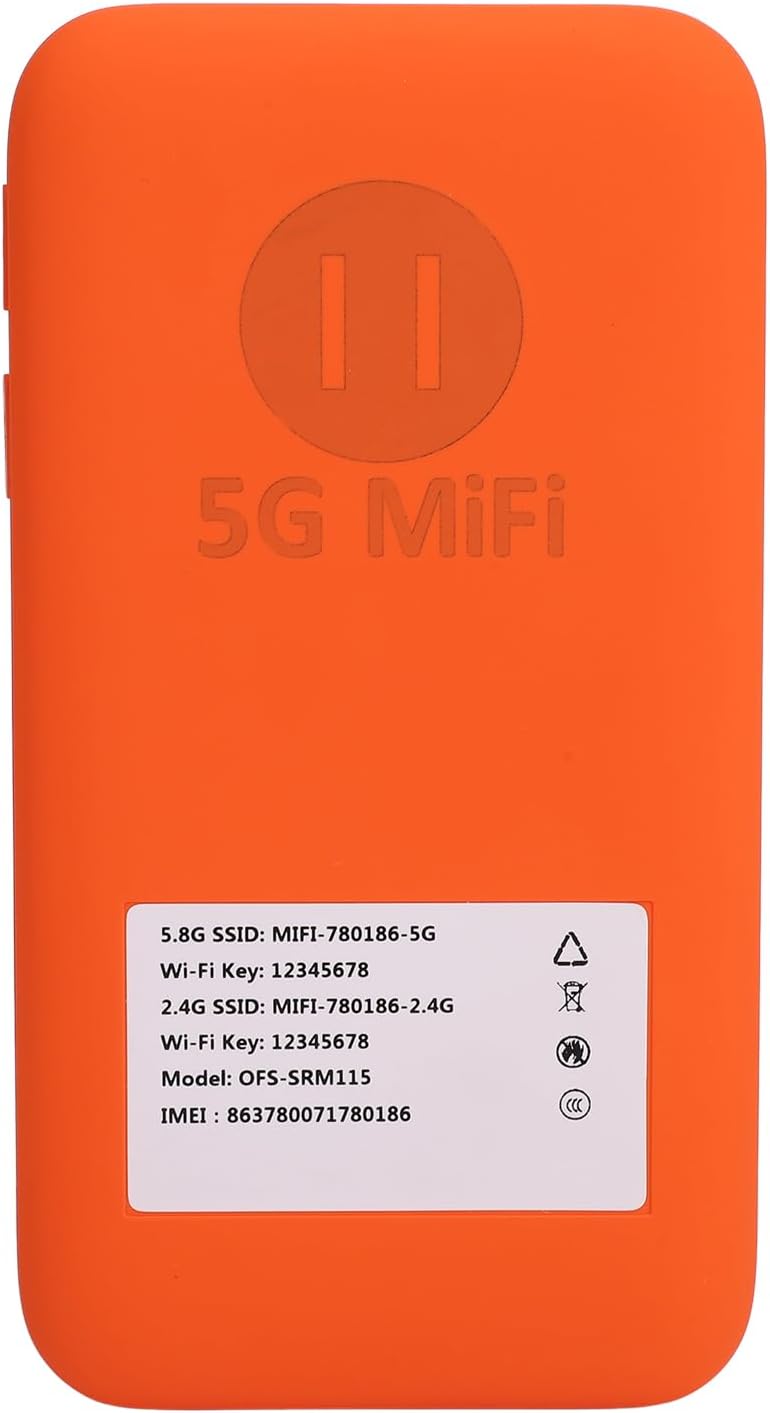
This image displays the back of the 5G MiFi device, detailing important information such as the SSID for 5.8G and 2.4G networks, Wi-Fi keys, model number (OFS-SRM115), and IMEI.
- LED Indicators: User-friendly LED lights for monitoring data usage, signal strength, device, and network settings.
- SIM Card Slot: Supports Nano SIM cards (not included) with hot-swappable functionality.
- Power Button: Located on the side for turning the device on/off.
- USB-C Port: For charging the device.
4. Setup
4.1 Charging the Device
Before initial use, fully charge your mobile hotspot. Connect the provided USB charging cable to the device's USB-C port and plug the other end into a compatible power adapter or computer USB port.
4.2 SIM Card Installation
The device supports a Nano SIM card. Locate the SIM card slot, typically under a removable back cover. Gently insert your activated Nano SIM card into the slot. The device features hot-swappable functionality, allowing SIM card changes without powering off.
4.3 Powering On/Off
Press and hold the power button located on the side of the device until the LED indicators light up. To power off, press and hold the power button again until the indicators turn off.
4.4 App Installation and Configuration
For enhanced control and monitoring, download the companion application (e.g., RoamWiFi App mentioned in related videos) from your device's app store. Follow the in-app instructions to register your device, manage data packages, and view detailed settings.
Video demonstrating the benefits of a portable WiFi hotspot and app usage (GLOBLINKER Official Store).
5. Operating Instructions
5.1 Connecting Devices
Once powered on and connected to a network, your hotspot will broadcast a Wi-Fi signal. On your phone, laptop, tablet, or game console, search for available Wi-Fi networks. Select the SSID displayed on your hotspot (or its packaging/app) and enter the Wi-Fi key/password to connect. The device supports up to 16 simultaneous connections.
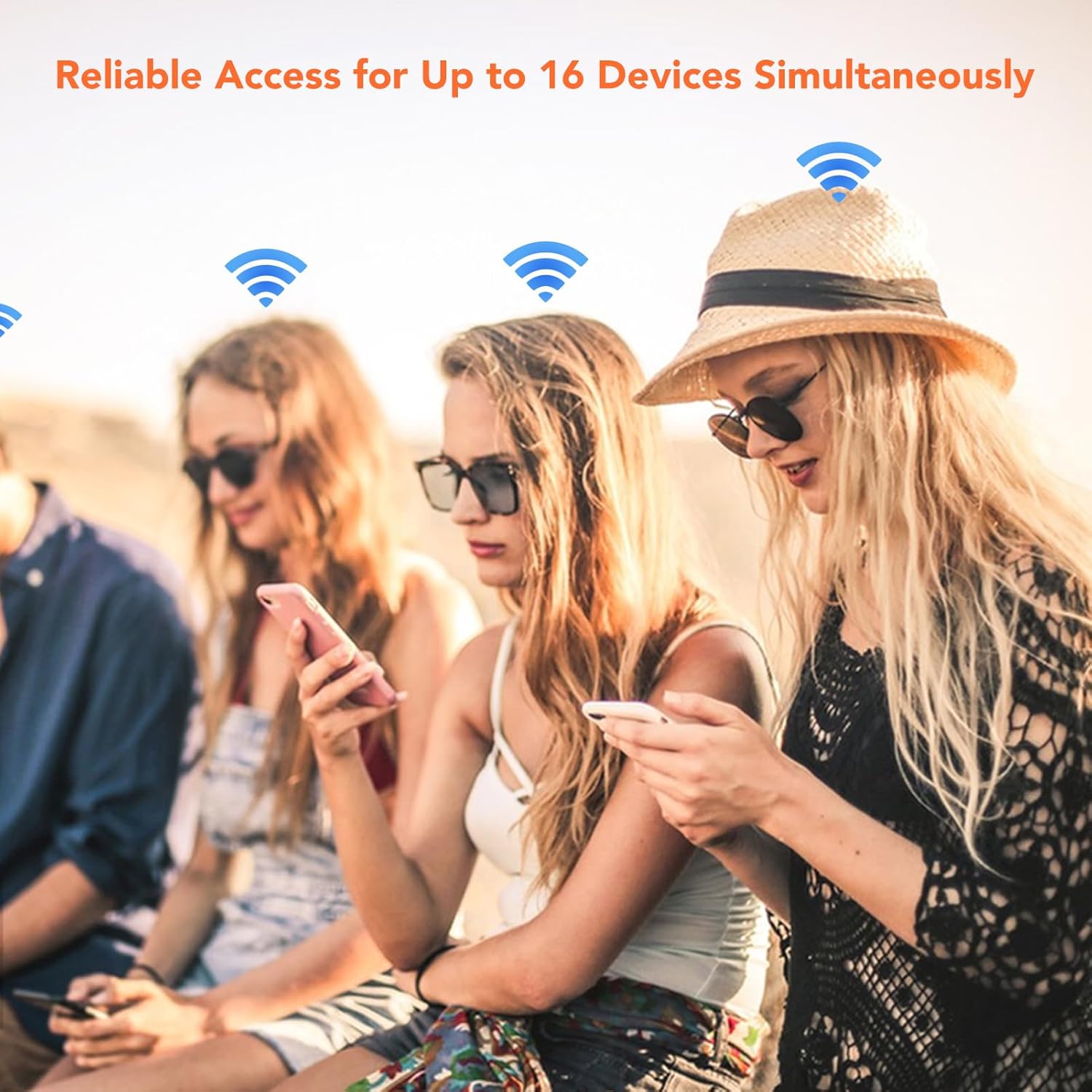
This image depicts several individuals using various devices, all connected to the hotspot via Wi-Fi signals, demonstrating its multi-user support.
5.2 Monitoring Data Usage
The device features LED indicators to show signal strength and data usage. For detailed information and real-time monitoring of your data consumption, refer to the companion mobile application.
5.3 Network Selection
The hotspot is designed to automatically connect to the strongest available 5G, 4G, or 3G network based on your SIM card and data plan. Manual network selection options may be available through the companion app.

The image shows the hotspot being used in diverse locations such as lodging, a farm, a temporary store, and a holiday home, illustrating its versatility for travel.
6. Maintenance
6.1 Battery Management
The 6100mAh battery provides long endurance. To maximize battery life, avoid extreme temperatures and fully charge the device before extended use. The device supports hot-swappable SIM cards, which does not affect battery operation.

The image features the hotspot alongside a battery icon, emphasizing its powerful 6100mAh battery for extended usage.
6.2 Cleaning and Storage
Wipe the device with a soft, dry cloth. Do not use liquid cleaners or abrasive materials. Store the device in a cool, dry place away from direct sunlight and extreme temperatures when not in use.
7. Troubleshooting
If you encounter issues with your Yoidesu 5G WiFi6 Mobile Hotspot, refer to the following common solutions:
- No Internet Connection:
- Ensure your SIM card is correctly inserted and activated with a valid data plan.
- Check the device's LED indicators for signal strength. If the signal is weak, try moving to an area with better reception.
- Restart the device and your connected devices.
- Slow Internet Speeds:
- Verify your signal strength. Weak signals can lead to slower speeds.
- Reduce the number of connected devices, as supporting 16 devices simultaneously can impact individual speeds.
- Check your data plan for any speed restrictions or data caps.
- Device Not Powering On:
- Ensure the battery is sufficiently charged. Connect the device to a power source and allow it to charge for at least 30 minutes before attempting to power it on again.
8. Specifications
| Product Dimensions | 5.35 x 2.83 x 0.63 inches |
| Item Weight | 9.7 ounces (276 Grams) |
| Model Name | Yoidesua4rtd3oneq |
| Frequency Band Class | Dual-Band (2.4GHz and 5.8GHz) |
| Wireless Communication Standard | 802.11ax (WiFi6) |
| Compatible Devices | Game Console, Laptop, Personal Computer, Smartphone, Tablet |
| Connectivity Technology | Ethernet, Wi-Fi |
| Antenna Type | Internal |
| Operating System | Linux |
| Battery Capacity | 6100mAh Polymer Battery |
| Protective Rating | IP67 |
9. Warranty and Support
For warranty information and technical support, please refer to the documentation included with your purchase or visit the official Yoidesu website. You may also contact customer service through the platform where the product was purchased.
Video showcasing a portable WiFi Hotspot for travel (GlocalMe, MeowGo G40Pro).