1. Introduction
This manual provides instructions for the installation, operation, and maintenance of your DigitPro PCIe Capture Card. This internal video capture card is designed to digitize analog video and audio signals from various sources, including cable boxes, old video cameras, camcorders, VCRs, and classic gaming consoles like PlayStation, Nintendo 64, and Sega, for recording on your computer using software such as OBS.
2. Product Features
- PCIe Interface: Captures video and audio directly via a PCIe slot on your computer's motherboard.
- Versatile Input: Supports CVBS (Composite Video) and S-Video input formats.
- Format Compatibility: Compatible with NTSC and PAL video formats, with automatic signal source recognition.
- Driver-Free Operation: Designed for plug-and-play functionality, eliminating the need for manual driver installation.
- High-Quality Digitization: Digitizes incoming analog signals with high-quality video sampling.
- Video Output Formats: Supports MJPEG and YUV422 video output formats.
- Resolution: Achieves a maximum capture resolution of 1080P at 30Hz.
- Efficient Data Transfer: Transmits captured images directly to the main system memory or the VGA adapter's memory.
- Mounting Options: Suitable for both full and half-height brackets (brackets not included).
- Software Compatibility: Works with popular capture software such as OBS, VLC, and Amcap.
- Operating System Support: Compatible with Windows 8, Windows 10, Windows 11, and Linux systems.
3. Product Overview
The DigitPro PCIe Capture Card is an internal component designed to be installed directly into a PCIe slot on your computer's motherboard. It features multiple input ports for connecting various analog video and audio sources.

Figure 3.1: Angled view of the DigitPro PCIe Capture Card, showing the input ports and PCIe connector.
3.1. Input/Output Interfaces
The card provides the following connection points:
- 3.5mm Audio Input Port: For connecting external audio sources.
- BNC (CVBS) Signal Input Interface: For composite video input, typically using an RCA to BNC adapter (not included).
- S-Video Signal Input Interface: For S-Video input.
- PCIe x1 Interface: For connecting the card to your computer's motherboard.

Figure 3.2: Detailed view of the capture card's input ports, including 3.5mm audio, BNC (CVBS) video, and S-Video.
4. Setup and Installation
Follow these steps to install the DigitPro PCIe Capture Card into your computer:
- Prepare Your Computer: Power off your computer and disconnect all cables. Open the computer case.
- Locate a PCIe Slot: Identify an available PCIe x1 slot on your motherboard. The card is compatible with various PCIe slot sizes.
- Install the Card: Carefully align the capture card with the chosen PCIe slot and press it firmly until it is securely seated. Secure the card with a screw to the computer case.
- Close Case and Reconnect: Close your computer case, reconnect all cables, and power on your computer.
- Driver Installation: The card is designed for plug-and-play operation and typically does not require manual driver installation. The operating system should automatically recognize the device.

Figure 4.1: Diagram illustrating the connection flow from source devices (camera, TV box) to the capture card, then to the host motherboard and computer.

Figure 4.2: The capture card installed inside a desktop computer, highlighting its plug-and-play nature.
5. Operating Instructions
Once the capture card is installed and recognized by your system, you can begin capturing video and audio using compatible software.
5.1. Connecting Source Devices
Connect your analog video and audio sources to the corresponding input ports on the capture card:
- For composite video, use an RCA to BNC adapter (if necessary) to connect to the BNC input.
- For S-Video, connect directly to the S-Video input.
- For audio, connect a 3.5mm audio cable from your source to the 3.5mm audio input port.
5.2. Using Capture Software (e.g., OBS Studio)
The DigitPro PCIe Capture Card is compatible with various capture software. Here are general steps for using OBS Studio:
- Install OBS Studio: If you don't have it, download and install OBS Studio from its official website.
- Launch OBS Studio: Open the application.
- Add a Video Capture Device: In the "Sources" dock, click the "+" icon and select "Video Capture Device".
- Configure Device: In the properties window, select your DigitPro capture card from the "Device" dropdown menu (it may appear as "USB Video Device" or similar).
- Adjust Settings: Configure resolution, FPS, video format (MJPEG or YUV422), and audio input as needed. Ensure the resolution is set appropriately for your source, up to 1080P@30Hz.
- Start Recording/Streaming: Once the video and audio are visible and correctly configured, you can start recording or streaming.
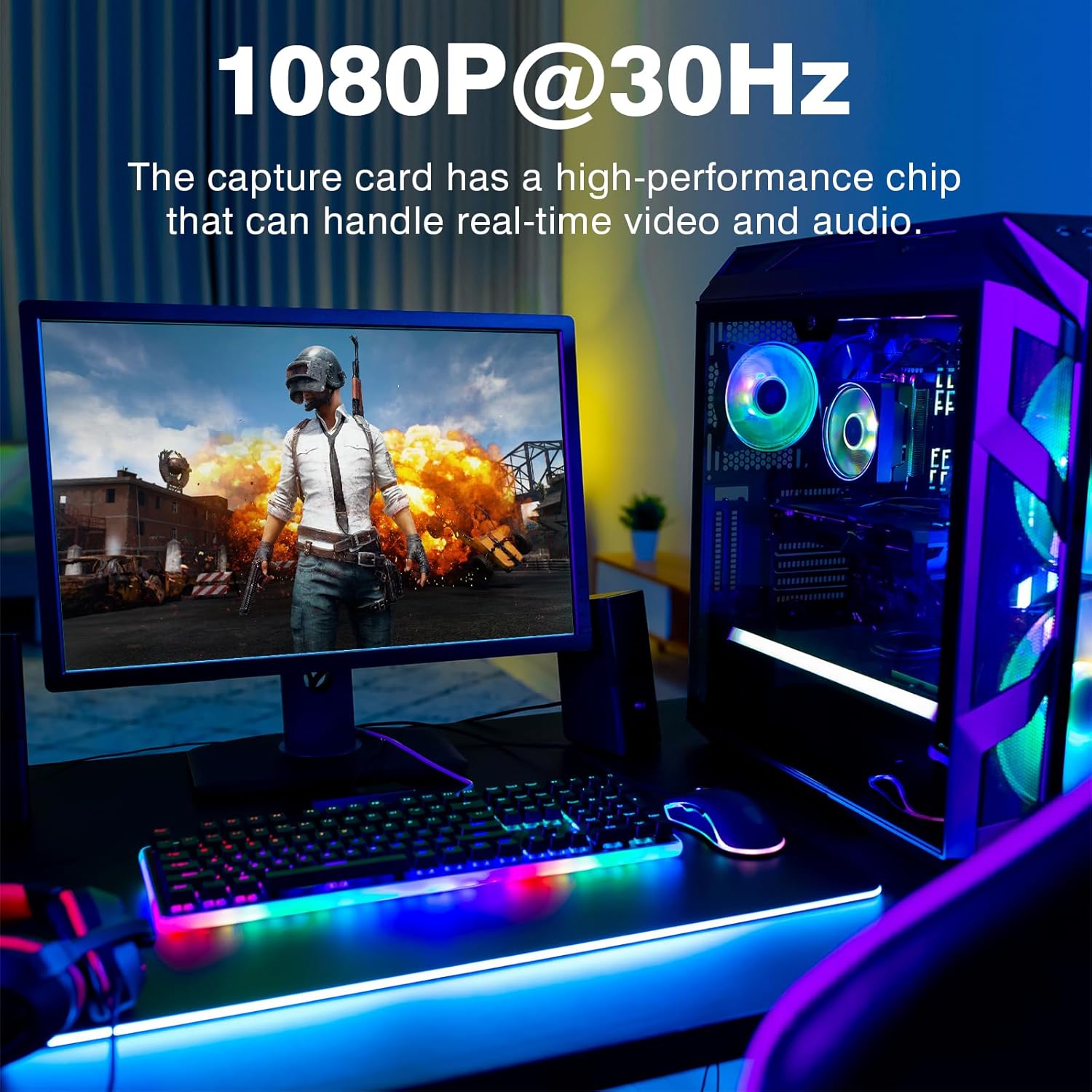
Figure 5.1: A computer setup demonstrating video capture at 1080P@30Hz, suitable for gaming or other video sources.
6. Compatibility
The DigitPro PCIe Capture Card offers broad compatibility with various systems and software:
- Operating Systems: Windows 8, Windows 10, Windows 11, and Linux.
- Capture Software: OBS Studio, VLC Media Player, Amcap, and other UVC (USB Video Class) compatible applications.
- Video Sources: Devices with CVBS (Composite) or S-Video outputs, such as VCRs, camcorders, old gaming consoles (PlayStation, Nintendo 64, Sega), and cable boxes.
7. Specifications
| Feature | Detail |
|---|---|
| Brand | DigitPro |
| Model Number | PCIE Video Capture Card |
| Hardware Interface | PCIe x1 |
| Video Input | CVBS (BNC), S-Video |
| Audio Input | 3.5mm Jack |
| Max Capture Resolution | 1080P@30Hz |
| Video Output Formats | MJPEG, YUV422 |
| Supported OS | Windows 8, 10, 11; Linux |
| Item Weight | 3.2 ounces |
| Package Dimensions | 6.42 x 5.24 x 1.06 inches |
| Color | Black-K850 |
8. Troubleshooting
If you encounter issues with your DigitPro PCIe Capture Card, consider the following troubleshooting steps:
- No Video Signal:
- Ensure the capture card is securely seated in the PCIe slot.
- Verify that the video source device is powered on and outputting a signal.
- Check all video cables (CVBS, S-Video) for secure connections.
- Confirm that the correct capture device is selected in your capture software (e.g., OBS Studio).
- Test with a different video source or cable if possible.
- No Audio Signal:
- Ensure the 3.5mm audio cable is securely connected to both the source and the capture card.
- Check audio settings within your capture software to ensure the correct audio input device is selected and not muted.
- Verify the audio output from your source device.
- Poor Video Quality / Lag:
- Ensure your computer meets the minimum system requirements for video capture.
- Check the resolution and FPS settings in your capture software. Higher resolutions and frame rates require more system resources.
- Verify the quality of your source video and cables. Analog signals can degrade over distance or with poor quality cables.
- Close unnecessary applications running in the background to free up system resources.
- Card Not Recognized by OS:
- Re-seat the card in the PCIe slot.
- Try a different PCIe slot if available.
- Ensure your operating system is one of the supported versions (Windows 8/10/11, Linux).
- Check Device Manager (Windows) or
lsusb/lspci(Linux) to see if the device is listed, even with an error.
9. Maintenance
The DigitPro PCIe Capture Card is an internal computer component and requires minimal maintenance. Follow these general guidelines:
- Keep it Clean: Periodically clean the interior of your computer case to prevent dust buildup on the card, which can affect performance and longevity. Use compressed air for this purpose.
- Proper Handling: When handling the card, always hold it by its edges to avoid touching the electronic components or the gold-plated PCIe connector.
- Environmental Conditions: Ensure your computer operates in a well-ventilated area to prevent overheating, which can impact all internal components, including the capture card.
10. Warranty and Support
For warranty information and technical support, please refer to the documentation included with your purchase or visit the official DigitPro website. Keep your proof of purchase for warranty claims.
For additional assistance, you may contact DigitPro customer support through their official channels.


