
1. Introduction
Thank you for choosing the Yoidesu 4G LTE CPE Router. This device provides high-speed 4G internet access, acting as a wireless Wi-Fi hotspot for multiple users. It is designed for versatile use in various environments, including homes, offices, and outdoor settings, offering both wireless and wired connectivity options.
2. Package Contents
Please check the box for the following items:
- 1 x Yoidesu 4G CPE Router
- 1 x Power Supply Cord
- 1 x Power Adapter (US Plug)
- 1 x User Manual (this document)

Figure 2.1: The complete package contents, including the Yoidesu 4G LTE CPE Router, a power supply cord, and a power adapter.
3. Product Features
- Uninterrupted Internet Access: Stay connected with 4G LTE via SIM card or use the LAN port for wired connections. Enjoy high-speed internet anytime, anywhere. Suitable for use in Asia, Africa, Europe, and the Middle East.
- High-Speed Connectivity: Experience seamless work, online gaming, and remote office capabilities with up to 300Mbps Wi-Fi speed. Equipped with two external antennas for enhanced indoor and outdoor coverage.
- Secure Internet Sharing: Share your internet connection securely with up to 32 devices simultaneously, including smartphones, tablets, and PCs. Ideal for various settings such as home, office, or warehouses.
- Wide SIM Card Compatibility: Supports most European SIM card frequency bands, ensuring a seamless experience. The router is unlocked for flexibility with different network bands. Please verify your SIM card's band compatibility before use.
- Versatile Usage: Perfect for home, business, outdoor activities, and travel. Features a LAN port for wired connections and supports power from an optional 4000mAh battery (not included) for portability.

Figure 3.1: The router's multi-person connection and strong compatibility, supporting various devices simultaneously.

Figure 3.2: The router providing wireless transfer speeds up to 300Mbps with two external antennas for wide coverage.
4. Setup Guide
Follow these steps to set up your Yoidesu 4G LTE CPE Router:
- Insert SIM Card: Locate the SIM card slot on the router. Insert your Nano SIM card with the chip facing down. Ensure it clicks into place securely.
- Connect Power: Plug the USB power cord into the TPC-C port on the router and connect the other end to the provided power adapter. Plug the adapter into a power source. The router will power on automatically.
- Initial Wi-Fi Connection: Once powered on, the router will broadcast a Wi-Fi network. Look for the Wi-Fi network name (SSID) and password printed on a label on the router (usually on the bottom or back). Connect your device (smartphone, tablet, PC) to this Wi-Fi network.
- Access Router Settings: Open a web browser on your connected device and enter the default IP address
192.168.1.1into the address bar. This will take you to the router's administration backend. - Configure Network (Optional): In the administration backend, you can modify the Wi-Fi name (SSID) and password, and configure APN settings if required by your SIM card provider.
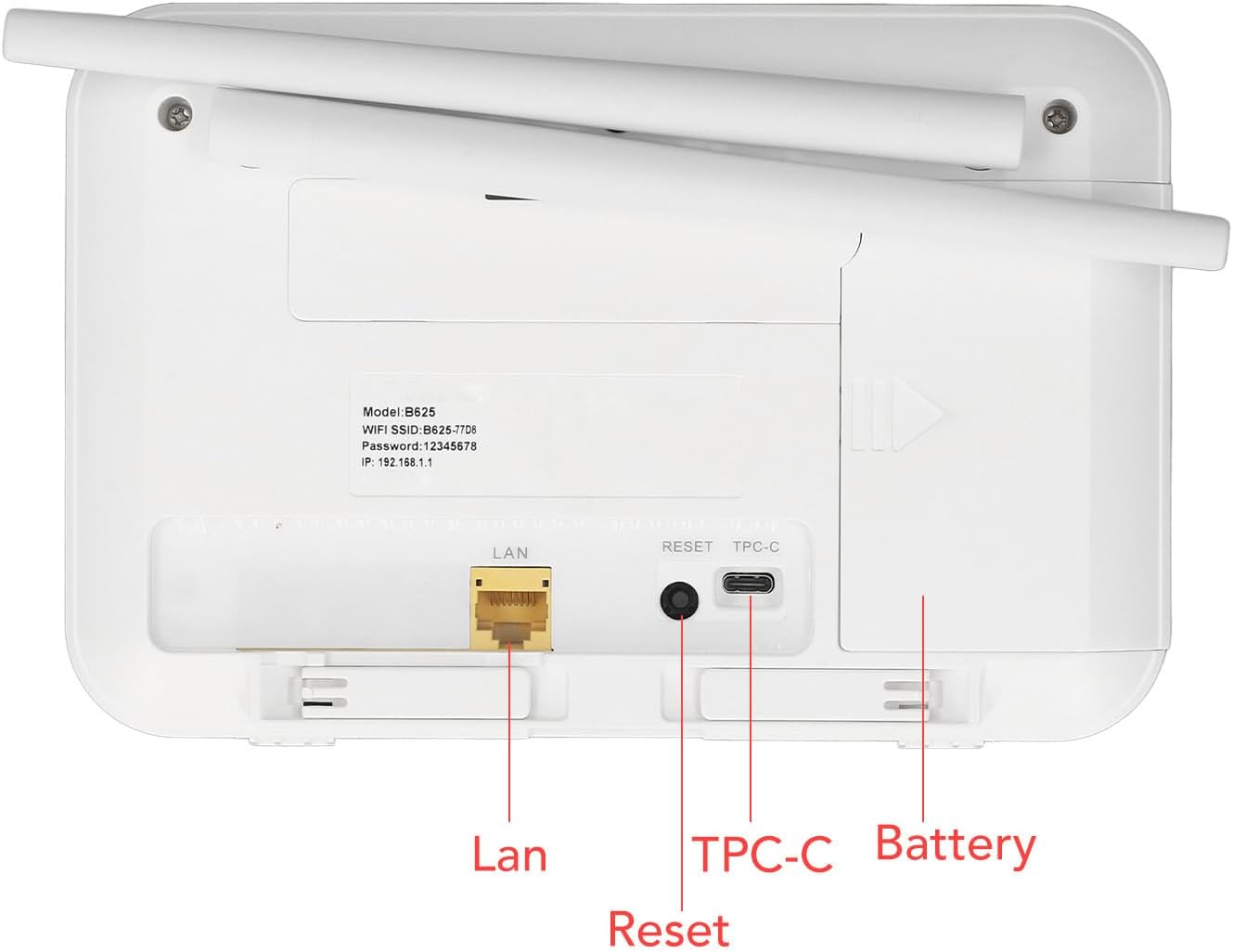
Figure 4.1: Rear panel of the router, showing the LAN port, Reset button, TPC-C power port, and battery compartment.

Figure 4.2: The router, illustrating its SIM card compatibility and ease of setup.
5. Operating Instructions
5.1 Connecting to Wi-Fi
After initial setup, your router will broadcast a Wi-Fi network. On your device, search for available Wi-Fi networks, select your router's SSID, and enter the password. The connection process may vary slightly depending on your device's operating system.
5.2 Using the LAN Port
For wired internet access, connect an Ethernet cable from the router's LAN port to your computer or other network-enabled device. This provides a stable and fast connection.
5.3 Indicator Lights
The router features indicator lights on its front panel to show status:
- Power Indicator: Solid light indicates the device is powered on.
- Wi-Fi Indicator: Blinking or solid light indicates Wi-Fi is active.
- 4G/LTE Indicator: Indicates 4G LTE network status (e.g., solid for connected, blinking for searching).

Figure 5.1: Front view of the router, showing its indicator lights.

Figure 5.2: The router providing secure internet sharing for multiple devices.
6. Maintenance
To ensure optimal performance and longevity of your router:
- Keep the device clean and free from dust. Use a soft, dry cloth for cleaning.
- Avoid exposing the router to extreme temperatures, direct sunlight, or high humidity.
- Do not block the ventilation openings on the device.
- If using an optional battery, ensure it is charged regularly and stored in a cool, dry place when not in use.
- Periodically check for firmware updates through the router's administration interface to enhance security and performance.
7. Troubleshooting
If you encounter issues with your router, refer to the following common problems and solutions:
| Problem | Possible Solution |
|---|---|
| No internet connection |
|
| Slow Wi-Fi speed |
|
| Cannot access router settings (192.168.1.1) |
|
| Wi-Fi signal drops frequently |
|
If the problem persists, please contact customer support.
8. Specifications
| Feature | Detail |
|---|---|
| Model Name | Yoidesuzi9chqmgxk |
| Material | ABS |
| Color | White |
| Battery Type | Supports 1 Lithium Ion Battery (Not Included) |
| Card Type | Nano SIM card (SIM Card Not Included) |
| 4G LTE FDD Bands | B1, B3, B5, B7, B8, B20, B28, B38, B40, B41 |
| 3G WCDMA UMTS Bands | B1, B5, B8 |
| Wi-Fi Standard | 802.11b/g/n, 2x2 MIMO |
| Wi-Fi Speed | Up to 300Mbps |
| External Antenna | 2 External Antennas |
| Supported Users | Up to 32 Users Simultaneously |
| Item Weight | 1.01 pounds (approx. 458g) |
| Package Dimensions | 9.06 x 7.48 x 2.36 inches (approx. 23 x 19 x 6 cm) |
9. Warranty and Support
For warranty information, please refer to the documentation included with your purchase or contact your retailer. For technical support, please reach out to Yoidesu customer service through their official channels. Keep your purchase receipt and product model number handy when contacting support.